
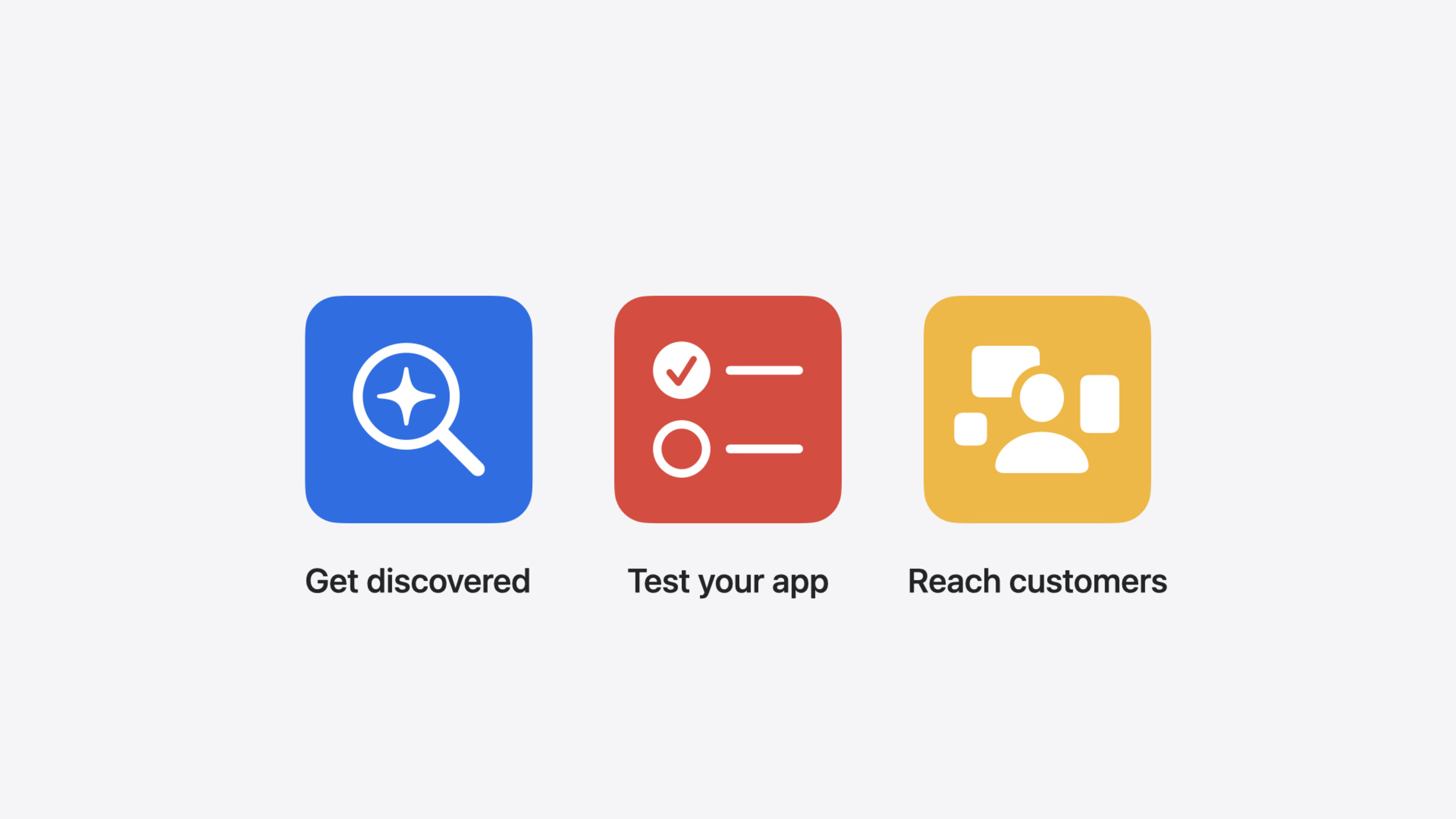
Highlight
Featuring Nominations lets developers proactively submit recommendations to the App Store editorial team for the first time. TestFlight adds public link device filtering and upgraded invitation experiences. Custom Product Pages now support deep links that take users directly to specific pages within your app.
Core Content
Many developers have faced this frustration: you’ve built an amazing feature update for your app, but the App Store editorial team has no idea it exists. Editors deal with a massive volume of apps every day, and no matter how exciting your update is, if it doesn’t get noticed, it might as well not have happened. Featuring Nominations was created to solve exactly this problem — developers can now proactively submit nomination recommendations in App Store Connect, telling the editorial team about upcoming new content or enhancements. Each nomination includes the update type, description, expected release date, relevant regions, and a “Helpful Details” field for supplementary information like your team’s story, accessibility investments, and other details the editorial team values (01:02).
Testing also had its pain points: TestFlight’s invitation pages previously contained very little information, leaving testers with almost no context about your app when they clicked the link, resulting in low conversion rates. This year, TestFlight has been completely upgraded — the new interface displays the app icon, name, category, screenshots, beta description, and testing focus notes, with a background color drawn from the app’s primary color. The Beta App Description field has become required. Additionally, new device filtering criteria for public links let you filter testers by device platform and OS version, preventing irrelevant feedback from incompatible devices (05:32).
For user reach, Custom Product Pages now support deep links. When users open your app from a custom product page, they can jump directly to the corresponding feature page instead of landing on the home screen. When combined with Apple Search Ads, the experience from ad to in-app destination becomes seamless. There’s also a new “Promote Your App” feature that lets you generate marketing assets with one tap in the App Store Connect app on iOS and share them to social media (12:04).
Detailed Content
Featuring Nominations
The complete submission process for Featuring Nominations is as follows (01:59):
- Click the Nominations link in the left sidebar of App Store Connect to enter the nomination dashboard
- Click Get Started, then choose to upload a spreadsheet in bulk or create entries one by one
- When creating, fill in: nomination name (for easy identification by you and the editorial team), update type (New Content / App Enhancements / New App Launches), detailed description, and expected release date
- After saving as a draft, you can supplement with associated apps, relevant regions, Helpful Details, and more
- Click Submit Nomination — the editorial team will review across all platforms and regions
Key points: the release date should be as specific as possible, but can be modified later. The Helpful Details field is where you can write about team values, accessibility investments, how your app helps specific communities, and other information the editorial team will factor into their consideration (04:06).
TestFlight Invitation Experience Upgrade
The new invitation interface displays the following key information (05:45):
- App name and icon, with a background drawn from the app’s primary color
- Developer name, app category, and build expiration time
- App screenshots (from the most recently approved version)
- Beta App Description and Test Details
- Testers can now proactively decline invitations and provide a reason
In the TestFlight tab of App Store Connect, the Test Information section lets you configure this information. The Beta App Description is now a required field. After checking “Show screenshots in TestFlight,” screenshots will be displayed on both the invitation and Beta App pages, with a preview so you can decide whether to enable it (06:39).
TestFlight Public Link Device Filtering
Steps to set filtering criteria for public links (08:34):
- In the TestFlight tab, create an external testing group and select Invite Testers
- Choose Public Link
- Select “Set criteria” — the default is iPhone + all supported iOS versions
- Use the dropdown menus to select the OS version range (e.g., iOS 15 to iOS 18)
- Click Add Criteria to add more device conditions (such as Apple Vision Pro)
Filtering supports narrow matching (single device + single OS version) and broad matching (multiple devices + multiple OS version combinations). Best practice is to start with the broadest conditions and gradually narrow based on actual registration data. Testers who don’t meet the criteria will be clearly informed by TestFlight when they click the link (10:14).
App Store Connect also provides registration insights for public links: number of viewers, accepted invitations, declined invitations, and ineligible users over the past 30 days, with week-over-week percentage changes for each metric (10:55).
Custom Product Pages Deep Links
The deep link configuration is found in the Custom Product Page editor in App Store Connect, with a new Deep Link input field added (13:38). You can enter a Universal Link or Custom URL, and the specific redirect logic is handled by your app’s delegate code. After editing, submit for review, and once approved it can be used for marketing.
When used with Apple Search Ads, select a Custom Product Page with a deep link in the ad creation interface, and the corresponding deep link will be displayed on the right side of the ad preview. Users who click the ad will jump directly to the specified page within your app (14:18).
Promote Your App
A new Promote Your App section has been added to the App Store Connect app on iOS (15:14). Available scenarios include:
- App first launch
- New version release
- Being featured on the App Store (you’ll receive a push notification for this)
Workflow: tap the card to select an asset style → copy the product page link → tap the share button → choose a social media app → compose and publish your post. Each style includes the app name and icon, paired with different headlines and animation effects.
Other Enhancements
- Reduced iOS/iPadOS screenshot requirements: now only one set of iPhone screenshots and one set of iPad screenshots are needed (17:37)
- Apple Developer Enterprise Program adds new API support: configuration and user management APIs
- App Store Connect API adds 50 new App Analytics Reports, covering App Store engagement, downloads, sales, and usage data, which can be imported into your own database via API (18:01)
Core Takeaways
-
Create a Featuring Nomination for every major update Why it’s worth doing: This is the first time developers can proactively tell the editorial team “we’re launching a new feature,” rather than passively waiting for editors to discover it. Submitting nominations early gives editors ample time to plan feature content. How to start: Reserve a nomination step for each major update in your release plan. Create nominations in App Store Connect 4-6 weeks in advance, focusing on clearly describing the update type, description, and Helpful Details.
-
Configure TestFlight public link filtering criteria to improve testing feedback quality Why it’s worth doing: Without filtering, an iPad user might sign up to test an iPhone-only feature, resulting in feedback that’s all “feature unavailable” — wasting time for both sides. With filtering, you only receive feedback from target device users, making it far more valuable. How to start: When enabling public links in your TestFlight external testing group, set criteria. Start with the broadest conditions, observe registration data, and gradually narrow down.
-
Add deep links to your Custom Product Pages to connect the conversion path from ad to in-app Why it’s worth doing: When users click an ad, download the app, and land on the home screen, they still have to find the feature entry themselves, leading to high churn. Deep links take users directly to the target page, significantly improving ad conversion rates. How to start: Implement the corresponding Universal Link handling logic in your app, then enter the deep link URL in the Custom Product Page editor in App Store Connect, and use it with Apple Search Ads campaigns.
-
Use Promote Your App to generate social media marketing assets with one tap Why it’s worth doing: Many independent developers don’t have design resources for marketing graphics. This feature automatically generates shareable assets with your app icon and animations, letting you promote new versions on social platforms at zero cost. How to start: Open the App Store Connect app on your iPhone, find the Promote Your App section, select the launch moment and asset style, and share directly to social media.
Related Sessions
- Explore App Store server APIs for In-App Purchase — Learn about the latest updates to App Store Server API and Server Notifications, and integrate with Connect data on the server side
- Meet AdAttributionKit — A new privacy-friendly ad attribution framework that works with Custom Product Pages deep links to optimize the ad funnel
- What’s new in StoreKit and In-App Purchase — Latest improvements to StoreKit 2 and in-app purchases, used together with App Store Connect’s pricing and distribution features
Comments
GitHub Issues · utterances