
Highlight
watchOS 10 introduces Smart Stack, allowing widgets to be directly overlaid on the watch face. Through six standard layouts, custom color matching, and a signal-based relevancy mechanism, developers can enable users to obtain the most critical information within 10 seconds by raising their wrists.
Core Content
From watch face to Smart Stack: The evolution of information acquisition
The core value of Apple Watch is glanceable information. In the past, complex functions (complications) could only be embedded in specific watch faces. Although watch faces such as Wayfinder and Modular have high information density, they sacrificed the space for personalized expression.
watchOS 10’s Smart Stack solves this contradiction. No matter what watch face the user chooses, turning the Digital Crown brings up a stack of widgets intelligently sorted by relevance. Users can also manually add, remove, or pin widgets, making the stack both dynamic and controllable.
(00:14)
Six standard layouts: a consistent design language
The reading experience of a widget is like flipping through a book, and the style, position, and font size of each page should be consistent. Apple defines six standard layouts for this purpose:
Three lines of text layout — suitable for plain text information. Used by the News widget to display titles and excerpts.
Color-coded text layout — Add color distinction to the text. Calendar widget Use it to display event content and calendar colors at the same time.
Bar Progress Chart Layout — graphic content with auxiliary text. Use it with the Audiobook widget to display reading progress and the current chapter.
Circular Graph Layout — Suitable for circular data presentation. The fitness ring of the Activity widget has this layout, with text adding details such as calories and exercise duration.
Large Text Layout — suitable for single values or keywords. Calendar Month widget Use it to display the date. You can also use it to display status words such as “high” or “low”.
Chart Layout — suitable for time series data.
(02:49)
Design widgets to display only necessary information. Users should spend no more than 10 seconds browsing glanceable information on the Watch.
If the standard layout cannot meet your needs, you can customize the layout, but it is still recommended to use the system text style class to ensure readability.
Colors and icons: Make widgets recognizable at a glance
Widgets in Smart Stack are no longer limited by dial colors, and developers can use brand colors or information colors more freely.
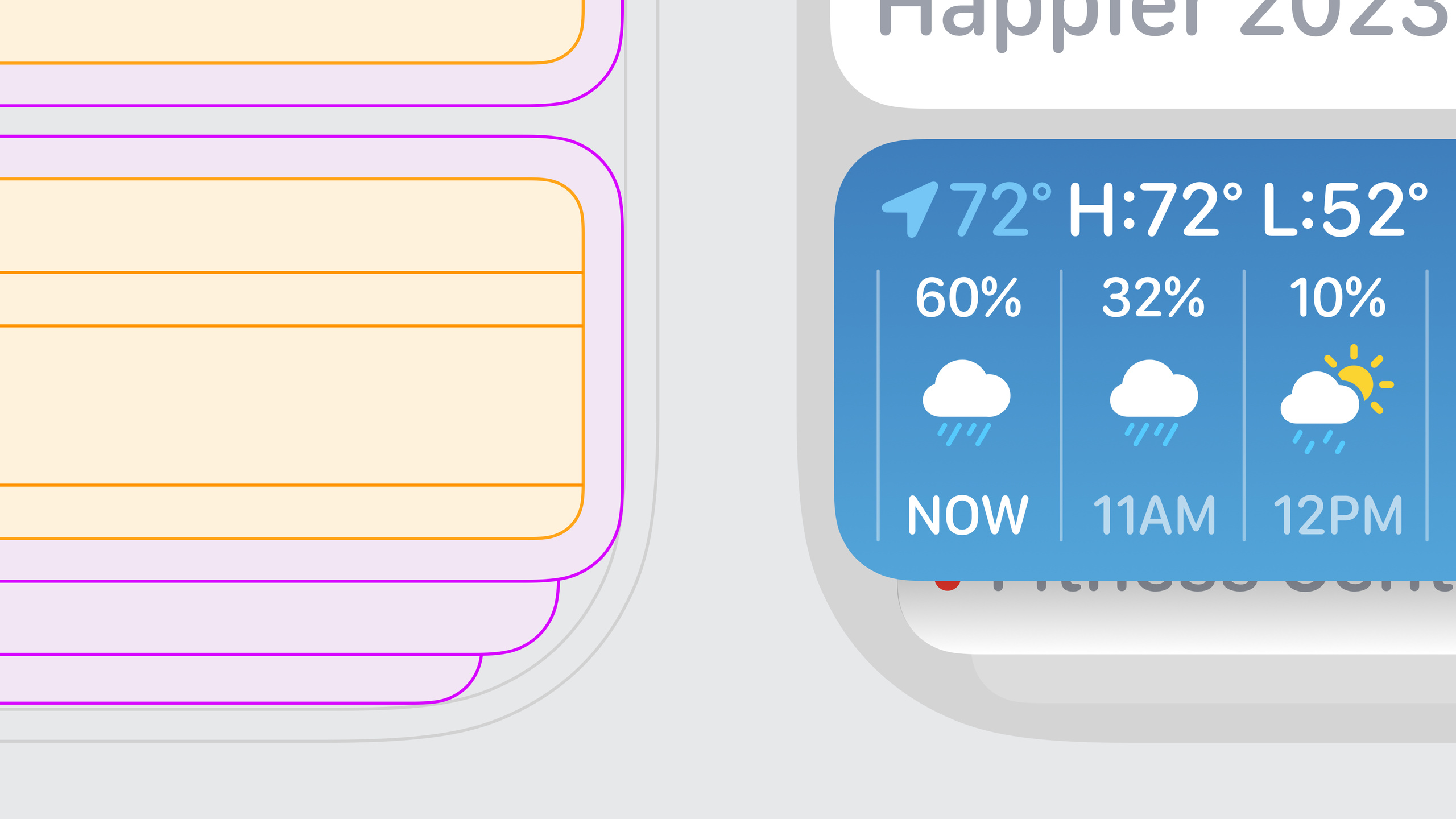
By default widgets use a dark material background with white text. Apple encourages developers to choose recognizable background colors: the Weather widget uses dynamic gradients to convey weather conditions, the Stocks widget uses red and green to distinguish rising and falling colors, and the Audiobook widget uses blurry book covers to create an atmosphere.
For icons, it is recommended to use SF Symbol or vector icons to match the text more harmoniously.
(07:02)
Cooperation between Session and widget
Session is an active state in an application with a clear start and end time, such as playing music, running a timer, and recording fitness records.
Smart Stack automatically generates a system-level Session Control widget on top. Therefore, if your widget is session-related (such as music or fitness), it should focus on auxiliary information before and after the session, such as recommending a song or showing today’s training plan. This avoids duplication of functionality and maintains the widget’s usefulness during the Session.
(08:41)
Relevancy: Let the widget appear when you need it most
The core capability of Smart Stack is intelligent sorting by relevance. Here are five signaling moments worth taking advantage of:
- Time and date approaching — Calendar widget boosts priority one hour before event starts
- Reach a specific location — Reminders triggered using GPS or inferred location (home, work, school)
- Headphones Detected — Audiobooks pinned when AirPods are connected
- Wake up or bed time — combined with sleep data
- Start or end movement — Activity is promoted when there is an active Workout
(10:01)
Detailed Content
Smart Stack’s interaction model
Smart Stack interaction is driven by two core behaviors:
- System Intelligent Sorting: Automatically adjust widget order based on time, location, device status and other signals
- Manual user control: add, delete, pin widgets
The Combo widget is the default component of every Smart Stack and supports three circular complications. It’s suitable for a circular app launcher, but a better use is to have three complications form an information combination, such as showing temperature, UV index and air quality simultaneously.
Design Practice Points
Widget design needs to answer three questions:
- Layout: Which standard layout does the content fit into? Need to customize?
- Recognizability: Can the background color and icon make users recognize your app at a glance?
- Timing: What signal will make your widget float to the top when you need it most?
Code Example: WidgetKit Infrastructure
Although this session is design-oriented and no code snippets are provided, implementing Smart Stack widgets requires the following WidgetKit infrastructure:
import WidgetKit
import SwiftUI

struct SmartStackWidget: Widget {
    let kind: String = "SmartStackWidget"

    var body: some WidgetConfiguration {
        StaticConfiguration(kind: kind, provider: Provider()) { entry in
            SmartStackWidgetView(entry: entry)
        }
        .configurationDisplayName("My App Widget")
        .description("Glanceable info for Smart Stack")
        .supportedFamilies([.accessoryRectangular])
    }
}

struct Provider: TimelineProvider {
    func getTimeline(in context: Context, completion: @escaping (Timeline<Entry>) -> ()) {
        var entries: [SimpleEntry] = []
        let currentDate = Date()

        // Generate the timeline based on the relevancy signal
        for hourOffset in 0 ..< 5 {
            let entryDate = Calendar.current.date(byAdding: .hour, value: hourOffset, to: currentDate)!
            let entry = SimpleEntry(date: entryDate, relevance: nil)
            entries.append(entry)
        }

        let timeline = Timeline(entries: entries, policy: .atEnd)
        completion(timeline)
    }
}

struct SimpleEntry: TimelineEntry {
    let date: Date
    let relevance: TimelineEntryRelevance?
}
Key points:
supportedFamiliesset to.accessoryRectangular, which is the widget size supported by Smart Stack -TimelineEntryRelevanceUsed to control the sorting priority of widgets in the stack- Provider’s
getTimelineMethod to pre-generate content at multiple points in time based on business logic
Use Relevancy to increase widget priority
import WidgetKit

struct RelevantProvider: TimelineProvider {
    func getTimeline(in context: Context, completion: @escaping (Timeline<RelevantEntry>) -> ()) {
        let now = Date()

        // Simulate an event that is about to start
        let eventStart = Calendar.current.date(byAdding: .minute, value: 30, to: now)!

        let entry = RelevantEntry(
            date: now,
            relevance: TimelineEntryRelevance(
                score: 100,  // Higher scores rank earlier
                duration: 3600  // Priority lasts for 1 hour
            )
        )

        let timeline = Timeline(entries: [entry], policy: .after(eventStart))
        completion(timeline)
    }
}

struct RelevantEntry: TimelineEntry {
    let date: Date
    let relevance: TimelineEntryRelevance?
}
Key points:
TimelineEntryRelevanceofscoreDetermine the relative position of the widget in the stack -durationSpecify the time window for which this priority lasts- Dynamically adjust score based on signals such as calendar events, location changes, or headphone connection
Core Takeaways
-
Make a “pre-meeting reminder” widget
- What to do: Automatically float to the top of the Smart Stack 15 minutes before the meeting starts, showing the meeting room location and participants
- Why it’s worth doing: Use time relevancy signals to solve the pain point of “I don’t remember to look at the schedule until the meeting is approaching”
- How to start: Use
TimelineEntryRelevance(score:duration:)Set high priority before the event. The widget uses a three-line text layout to display the meeting title, time, and location.
-
Make a “automatically switch when you get home” widget
- What to do: When the user arrives near home, the widget is placed on top to display smart home quick controls
- Why it’s worth doing: Use location relevancy to compress the three-step process of “open Home app → find device → operate” into a glance by raising your wrist
- How to start: Use
CLRegionDefine your home’s geofence, ingetTimelineReturns different relevance scores based on location status
-
Make a “Post-Exercise Data” widget
- What to do: Automatically display the summary of this exercise (duration, consumption, heart rate zone) after the Workout ends
- Why it’s worth doing: Complementary with the system Session Control widget, it appears when users need to review data most.
- How to start: Monitoring
HKWorkoutSessionState changes, passed at the end of the workoutWidgetCenter.shared.reloadTimelines(ofKind:)Trigger widget refresh and set high relevance
-
Make a “Headphone Connection Recommendation” widget
- What to do: When the headphone connection is detected, recommend the recently unfinished podcasts or playlists to the top
- Why it’s worth it: The same idea as Audiobooks reduces the decision-making cost of “what you want to listen to” to zero
- How to start: Use
AVAudioSessionMonitor routing changes and improve widget sorting through the relevance mechanism when the headset is connected.
Related Sessions
- Build widgets for the Smart Stack on Apple Watch — The accompanying code practice session teaches you step by step how to implement Smart Stack widgets
- Bring widgets to new places — A complete guide to WidgetKit cross-platform extensions
- Design dynamic Live Activities — The design concept of real-time activities is complementary to widgets
- Meet SwiftUI for spatial computing — Learn about Apple’s latest UI framework design concepts
Comments
GitHub Issues · utterances