
Highlight
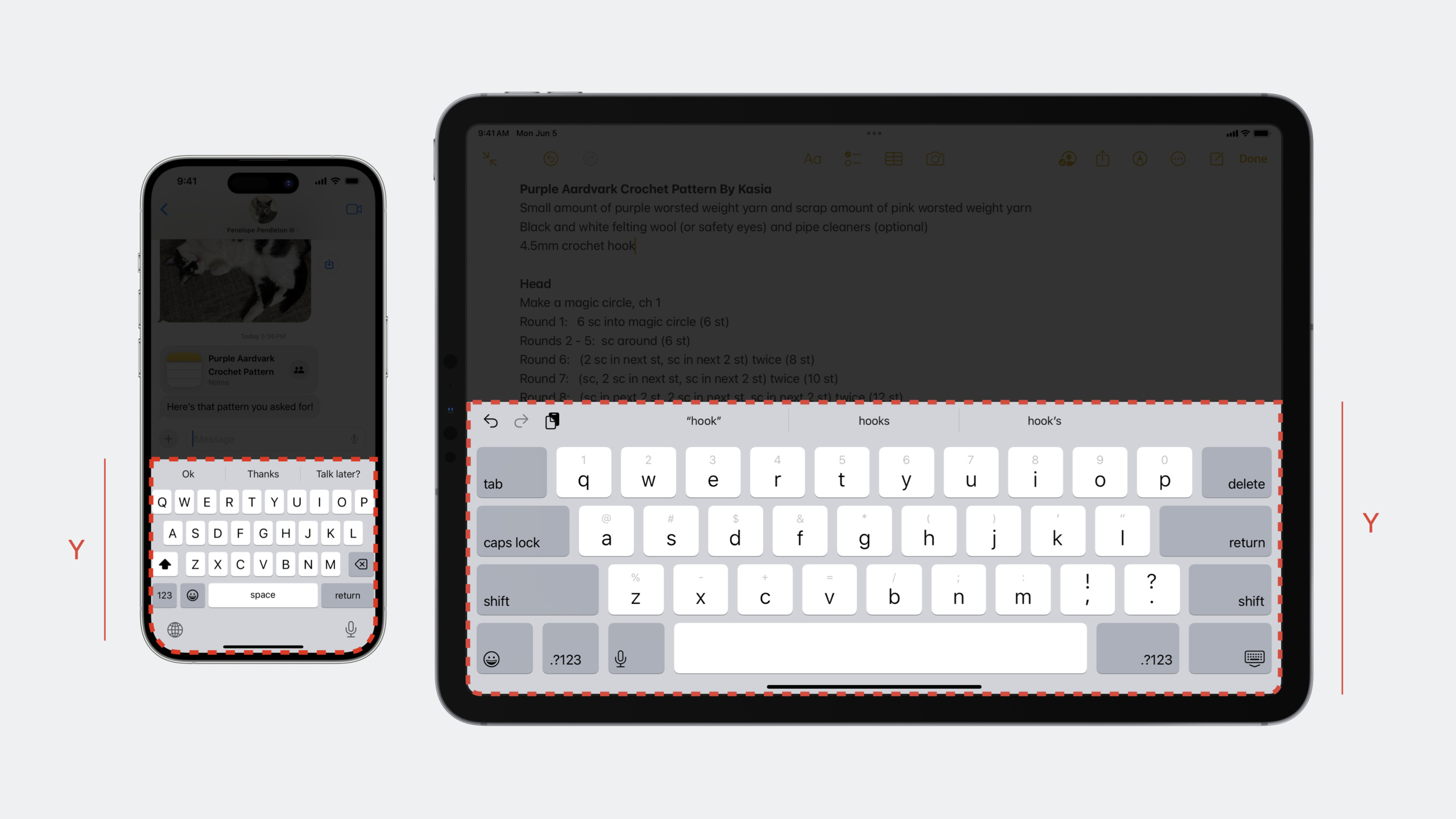
iOS 17 moves the keyboard to a separate process to improve security and memory efficiency, while also enhancing
UIKeyboardLayoutGuide, addfollowsUndockedKeyboard、usesBottomSafeAreaandkeyboardDismissPaddingAttributes allow developers to use Auto Layout constraints to handle floating keyboards, split-screen scenes, and keyboard retract animations, without having to manually calculate the keyboard height.
Core Content
Out-of-Process Keyboard
In iOS 17, the keyboard view and logic are independent from the App process. This brings two benefits:
- Security: App cannot directly contact user input during keyboard process, reducing the risk of privacy leakage
- Memory efficiency: Only one keyboard instance is needed for the entire system instead of one for each app
This change is transparent to most apps. But if the code is particularly sensitive to the timing of text input and selection changes, you need to pay attention to the new asynchronous behavior.
Layout challenges posed by Stage Manager
In full-screen mode, keyboard adaptation is very simple: just move the view up by the keyboard height. But Stage Manager breaks this assumption:
- The App may not be full screen, and the keyboard scene and App window may no longer be aligned
- What needs to be calculated is the intersection height of the keyboard and the App window, not the full height of the keyboard
- Multiple windows may exist simultaneously, each requiring independent adaptation calculations
traditionalUIKeyboardWillShowNotificationThe method requires additional processing of screen coordinate conversion and multi-window scenes under Stage Manager.
UIKeyboardLayoutGuide enhancement
Introduced in iOS 15UIKeyboardLayoutGuideGet three new capabilities in iOS 17:
followsUndockedKeyboard: Control whether to track position changes of the floating keyboardusesBottomSafeArea: Control whether the layout returns to the bottom of the safe area when the keyboard is retractedkeyboardDismissPadding: Set the extra spacing when the keyboard is retracted
Messages and Spotlight have been migrated toUIKeyboardLayoutGuidesolution, Apple recommends that developers prioritize using this method instead of manually listening for keyboard notifications.
Detailed Content
Basic usage: Keyboard Layout Guide
(06:21)
// Align the bottom of the text view with the top of the keyboard
view.keyboardLayoutGuide.topAnchor.constraint(
    equalTo: textView.bottomAnchor
).isActive = true
Key points:
keyboardLayoutGuideyesUIViewattribute, representing the layout area of the keyboard in the view coordinate system -topAnchorCorresponds to the top border of the keyboard- When the keyboard pops up,
topAnchorAutomatically move up, driving the constrained views to move together - When the keyboard is folded,
topAnchorReturn to the bottom of the screen and the view automatically resets - No need to manually listen for notifications, Auto Layout automatically handles animations
Control safe area behavior: usesBottomSafeArea
(07:56)
// Disable the bottom safe area so the layout returns to the bottom of the view, not the safe area, when the keyboard is dismissed
view.keyboardLayoutGuide.usesBottomSafeArea = false

// Keep system spacing between the top of the text field and the top of the backdrop
textField.topAnchor.constraint(
    equalToSystemSpacingBelow: backdrop.topAnchor,
    multiplier: 1.0
).isActive = true

// Keep the keyboard top at least one system spacing below the bottom of the text field
view.keyboardLayoutGuide.topAnchor.constraint(
    greaterThanOrEqualToSystemSpacingBelow: textField.bottomAnchor,
    multiplier: 1.0
).isActive = true

// Align the keyboard top with the bottom of the backdrop when the keyboard is dismissed
view.keyboardLayoutGuide.topAnchor.constraint(
    equalTo: backdrop.bottomAnchor
).isActive = true

// Ensure the bottom of the safe area never sits above the bottom of the text field
view.safeAreaLayoutGuide.bottomAnchor.constraint(
    greaterThanOrEqualTo: textField.bottomAnchor
).isActive = true
Key points:
usesBottomSafeArea = falseWhen the keyboard is retractedkeyboardLayoutGuide.topAnchorGo back to the bottom of the view, not the bottom of the safe area- This is important for layouts that need to fill the entire screen
-
greaterThanOrEqualToSystemSpacingBelowMake sure there is at least a system spacing between the keyboard and the text box - A combination of multiple constraints handles the pop-up and retract states of the keyboard
Keyboard closing spacing: keyboardDismissPadding
(09:40)
var dismissPadding = aboveKeyboardView.bounds.size.height

// Set the extra spacing used when the keyboard is dismissed
view.keyboardLayoutGuide.keyboardDismissPadding = dismissPadding
Key points:
keyboardDismissPaddingControls the extra space between the layout and the bottom of the screen when the keyboard is retracted- Suitable for scenarios with toolbars or additional views above the keyboard
- These additional views need to remain on screen when the keyboard is retracted
Manually handle keyboard notifications (alternative solution)
(12:11)
If you must use keyboard notifications, iOS 17 provides more precise screen-level information:
func handleWillShowOrHideKeyboardNotification(notification: NSNotification) {
    // Get the UIScreen object from the notification, added in iOS 16.1
    guard let screen = notification.object as? UIScreen else { return }

    // Confirm the notification's screen matches the screen containing the current view
    guard screen.isEqual(view.window?.screen) else { return }

    // Get the keyboard end position in screen coordinates
    let endFrameKey = UIResponder.keyboardFrameEndUserInfoKey
    guard let keyboardFrameEnd = notification.userInfo?[endFrameKey] as? CGRect else { return }

    // Convert from the screen coordinate space to the view's local coordinate space
    let fromCoordinateSpace: UICoordinateSpace = screen.coordinateSpace
    let toCoordinateSpace: UICoordinateSpace = view
    let convertedKeyboardFrameEnd = fromCoordinateSpace.convert(keyboardFrameEnd, to: toCoordinateSpace)

    // Calculate the intersection between the keyboard and the view
    let viewIntersection = view.bounds.intersection(convertedKeyboardFrameEnd)

    var bottomOffset = view.safeAreaInsets.bottom

    // If the keyboard intersects the view, use the intersection height as the offset
    if !viewIntersection.isEmpty {
        bottomOffset = viewIntersection.size.height
    }

    // Update the constraint and run the animation
    movingBottomConstraint.constant = bottomOffset

    // Use the animation parameters from the notification to perform the layout update
    // ...
}
Key points:
- iOS 16.1 onwards,
UIKeyboardWillShowNotificationofobjectyesUIScreen, you can accurately know which screen’s keyboard changes - Must use
screen.isEqual(view.window?.screen)Filter to avoid error handling in multi-window scenarios - Coordinate transformation must be used
UICoordinateSpace.convert(_:to:), cannot be used directlyCGRectOperation - The intersection height of the keyboard and the view is calculated, rather than the full height of the keyboard, which is crucial for Stage Manager split-screen scenarios
Inline Predictions: Inline Predictions
(14:38)
// Enable inline text predictions
textView.inlinePredictionType = .yes

// Disable inline text predictions
textField.inlinePredictionType = .no
Key points:
inlinePredictionTypeControls whether inline text predictions (gray suggested text) are shown- Three options:
.default(Decided by the system),.no(disabled),.yes(enable) - Suitable for password input boxes, verification code input and other scenarios where predictions should not be displayed
- Follow
UITextInputTraitsAll text input controls of the protocol are supported
Core Takeaways
1. Use Keyboard Layout Guide to refactor all keyboard adaptation code
What to do: Put all manual monitors in the projectUIKeyboardWillShowNotificationReplace the code withUIKeyboardLayoutGuideconstraint.
Why it’s worth doing:UIKeyboardLayoutGuideAutomatically handle complex scenarios such as floating keyboard, split screen, and multiple windows, reducing the amount of code by more than 80% and making the behavior more reliable.
How to start: Find the listening codes for all keyboard notifications, delete notification registrations and callbacks, andviewDidLoadAdd inkeyboardLayoutGuide.topAnchorconstraint. Test floating keyboard, split screen, rotation and other scenarios.
2. Optimize multi-window applications for Stage Manager
What to do: Ensure that in the iPad multi-window scenario, each window correctly handles keyboard pop-up independently.
Why it’s worth doing: Multiple App windows can be displayed at the same time under Stage Manager, and each window may require keyboard adaptation. Incorrect implementation can cause the keyboard of one window to affect the layout of another window.
How to get started: Open Stage Manager on iPad, open multiple windows of the app, trigger the keyboard in each window, and verify that the layout only affects the current window. usenotification.object as? UIScreenFilter notifications.
3. Disable inline prediction for sensitive inputs
What to do: Explicitly set in the password box, verification code box, and credit card number input boxinlinePredictionType = .no。
Why it’s worth doing: Inline prediction will display gray suggestion text in the input box, which is both a privacy issue and a user experience issue for sensitive information.
How to start: Traverse all text input controls and set fields involving sensitive informationinlinePredictionType = .no. Check at the same timeautocorrectionTypeandautocapitalizationTypeIs it also configured correctly?
4. Implement the smooth retracting of the toolbar above the keyboard
What to do: Place a custom toolbar above the keyboard that smoothly transitions to the bottom of the screen when the keyboard is retracted.
Why it’s worth it: Many applications (such as note-taking, document editing) have formatting toolbars above the keyboard.keyboardDismissPaddingMake this layout work correctly without manual calculations.
How to get started: Setupview.keyboardLayoutGuide.keyboardDismissPadding = toolbarHeight, and then constrain the bottom of the toolbar tokeyboardLayoutGuide.topAnchor。
Related Sessions
- Animate symbols in your app — SF Symbols animation
- Build better document-based apps — Build better document-based apps
- Create a more responsive camera experience — Create a responsive camera experience
- Create animated symbols — Create animated symbols
Comments
GitHub Issues · utterances