
Highlight
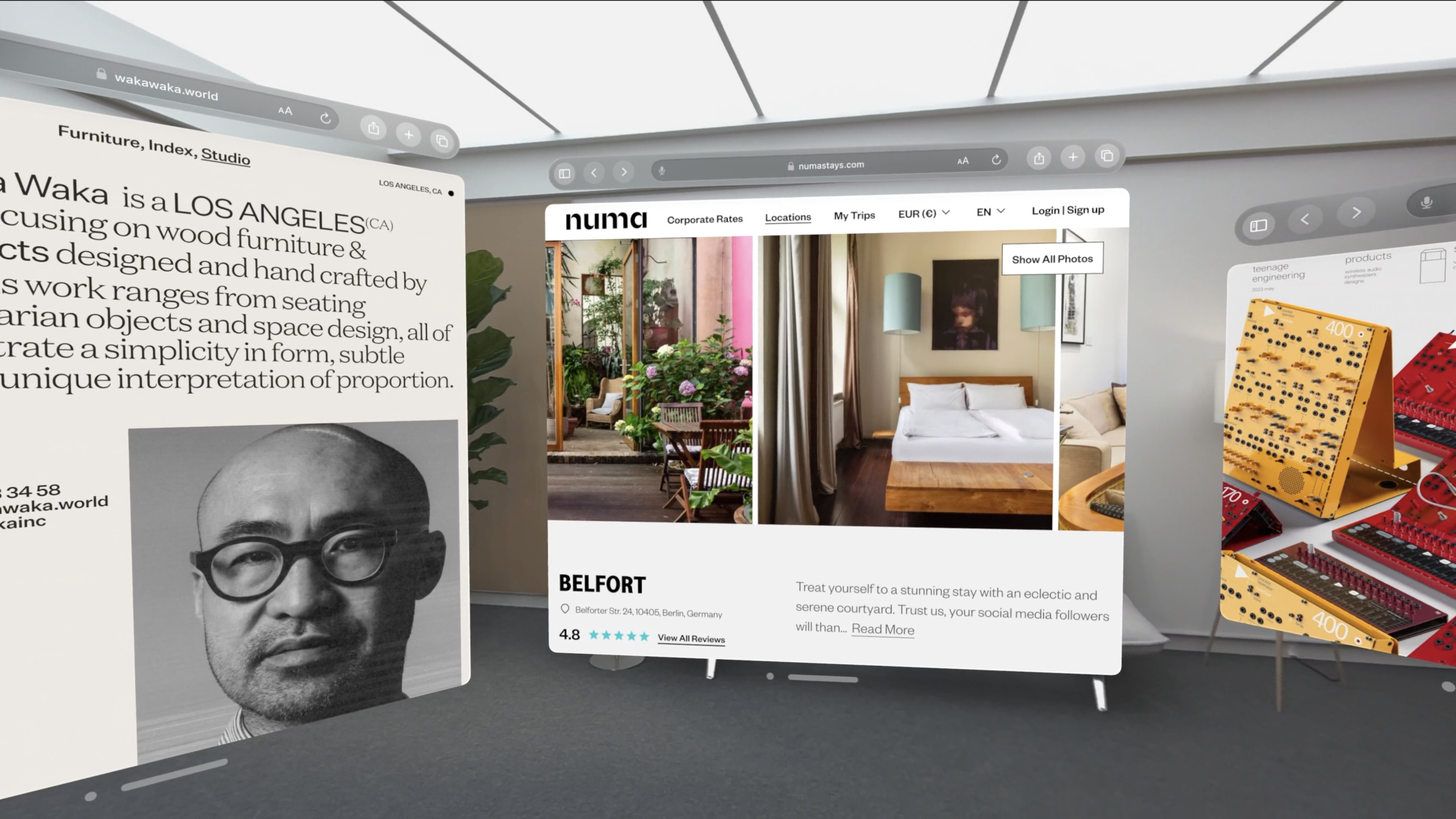
Safari uses the same WebKit engine as iPad/macOS on visionOS, and websites can run without modification. The core change lies in the visual feedback system of the input model (eye + hand fusion) and interactive regions (Interactive Regions), which also supports AR Quick Look, HTML
<model>Elements and WebXR are three ways to display 3D content in web pages.
Core Content
Existing website works out of the box
Safari on visionOS is a complete WebKit engine. All web standards-based sites run out of the box, and responsive design adapts from the size of an iPhone palm to filling an entire room.
Existing best practices still apply:
- Respond to window changes using CSS viewport units and media/container queries
- SVG is used first for UI elements to ensure that the window remains legible when moved closer
- Bitmap matching
devicePixelRatioand responsive image loading with correct resolution
(01:02)
Input model for eye+hand fusion
The main interaction method of visionOS is the combination of eye + pinch:
- When the user looks at an element, Safari will automatically highlight the element
- The user pinches their fingers to trigger a click
- When pinching starts, the position of the eyes is used for orientation
pointerdownevent - During the kneading process,
pointermoveTrack hand movements - Distributed when you release your finger
pointerup
You can also touch the window directly with your finger:
- Dispatched when the finger intersects with the window
pointerdown- Finger position determines event target - Dispatched when the finger leaves the window
pointerup
At the media query level, this input model is treated as a coarse pointer and does not support hover, similar to touch screens. But a Bluetooth-connected trackpad or keyboard will work too.
(03:33)
Interactive Regions
Highlighting while looking is done by Safari automatically generating “interactive areas”. WebKit automatically identifies interactive elements based on accessibility tags and CSS styles:
- Buttons, links, menus and elements corresponding to ARIA characters are automatically highlighted
- Input boxes and form elements will also be automatically highlighted
- Custom interactive elements need to be set up
cursor: pointer- Highlighted shapes powered by CSSborder-radiuscontrol
If internal sub-elements do not need to be highlighted individually, they can be setpointer-events: none, which not only simplifies the highlighting effect, but also unifies the goal of event processing.
(05:09)
Animation performance optimization
Animations on visionOS run at the highest frame rate supported by the device, which is faster than possible on an iPad. If the animation is based on fixed increments per frame, it will accelerate too quickly on high frame rate devices.
The correct approach is torequestAnimationFrameIn the callback, measure the time difference between each frame and use the time difference to calculate the animation progress:
let lastTime = 0;

function animate(currentTime) {
    const deltaTime = currentTime - lastTime;
    lastTime = currentTime;

    // Calculate progress with deltaTime instead of a fixed increment
    const progress = deltaTime * speed;
    element.style.transform = `translateX(${currentX + progress}px)`;

    requestAnimationFrame(animate);
}

requestAnimationFrame(animate);
Key points:
currentTimeyesrequestAnimationFrameThe high-precision timestamp passed in the callback -deltaTimeRepresents the actual number of milliseconds that elapsed between two frames- Animation progress with
deltaTimeProportional to ensure consistent speed on devices with different frame rates -Scroll event listener should use{ passive: true }, to avoid blocking scrolling
(10:56)
Differences in full screen behavior
When going full screen on visionOS, the window will be adjusted to a default size, and this size will also be used asscreenThe object’s dimensions are reported to JavaScript. This guarantees the expectationwindowandscreenSites with matching dimensions continue to work.
But full screen windows can be resized by the user on visionOS, possibly even beyond the reportedscreensize. Websites should not assume that the window size is fixed when full screen.
(10:05)
Detailed Content
Embed 3D content in web pages
Session introduces three ways to display 3D content in web pages.
AR Quick Look: Same as AR Quick Look introduced in iOS 12, with anchor links pointing to USDZ files:
<a rel="ar" href="model.usdz">
    <img src="preview.jpg" alt="3D Model Preview">
</a>
On visionOS, clicking displays a 3D object in user space, leveraging RealityKit’s advanced lighting and rendering.
(12:13)
HTML <model>Element: A proposed W3C standard equivalent to “img tag for 3D objects”:
<model src="model.usdz" interactive></model>srcSpecify the 3D object source file -interactiveProperties enable user interaction- JavaScript API provides camera control, animation playback and other capabilities
- Enabled via feature flag in Safari
This element will provide optimal rendering on different devices, from normal 2D views to stereoscopic views and ambient lighting.
(13:27)
WebXR: W3C standard for building fully immersive web scenes:
// Request an immersive WebXR session
const session = await navigator.xr.requestSession('immersive-vr');- Based on WebGL, many popular WebGL libraries have built-in support
- Enable the feature flag in the advanced settings of visionOS Safari
- Users will actually “enter” the scene instead of dragging it with the mouse
(14:25)
Debug interactive area
In the xrOS emulator:
-Mouse movement simulates gaze position
- Click to simulate pinch gesture
- Interactive areas can be inspected in Web Inspector
Frequently Asked Questions and Fixes:
- The button is not highlighted: Check whether the global setting is
cursorThe style overrides the defaultcursor: pointer2. Incorrect highlighted area: It may be that only the text is within the link, but the button itself is not part of the link. should give way<a>Label wraps the entire button - Highlight rounded corners do not match: Add the same visual style to the interactive element
border-radius4. Internal sub-elements are highlighted individually: Set for sub-elements that do not require interactionpointer-events: none
(07:12)
Core Takeaways
1. Add 3D product preview to e-commerce website
What to do: Use AR Quick Look on the product detail page or<model>The element displays a 3D model of the product.
Why it’s worth doing: visionOS users can directly view the products in their own space, which is more convincing than flat pictures. The code for AR Quick Look is fully compatible on iOS and visionOS.
How to start: Use Reality Composer Pro or Object Capture to generate a USDZ file, add it to the product image<a rel="ar">Link. Websites that already have iOS AR Quick Look don’t need any modifications.
2. Optimize interactive feedback of custom components
What to do: Review all custom interactive elements in your site (cards, list items, carousels, etc.) to ensure you get the correct highlighting feedback on visionOS.
Why it’s worth it: visionOS users rely on highlighting to confirm gaze targets. If the custom component does notcursor: pointer, the user cannot be sure whether they are looking at the correct element.
How to start: Globally search for custom click event processing elements and add themcursor: pointer. Check if inner child elements are neededpointer-events: none. Verify each in the xrOS simulator.
3. Build immersive WebXR experiences
What to do: Create fully immersive 3D scenes such as virtual showrooms, immersive data visualizations, and 3D storytelling using WebXR and Three.js/Babylon.js.
Why it’s worth it: WebXR on visionOS lets users truly enter the scene. This is a dimension of experience that the web has never had before.
How to get started: Enable the WebXR feature flag in Safari using Three.jsWebXRManageraskimmersive-vrsession, iterating from a simple 360-degree panorama.
4. Frame rate independent animation system
What to do: Make all based onrequestAnimationFrameThe animation is changed to time-driven to ensure consistent speed on ProMotion displays and visionOS high frame rate devices.
Why it’s worth it: visionOS’s rendering pipeline may run at a higher frame rate, and fixed-increment animations will be sped up. Time-driven animation behaves consistently at any frame rate.
How to start: Traverse allrequestAnimationFramecallback, put a fixed increment (such asx += 2) is changed to based ondeltaTimecalculation (such asx += speed * deltaTime)。
Related Sessions
- Develop your first immersive app — Develop your first immersive app and understand the basics of visionOS application development
- Explore the USD ecosystem — Explore the USD ecosystem and learn how to create and optimize 3D models
- What’s new in CSS — New CSS features, including container queries and new layout capabilities
Comments
GitHub Issues · utterances