
Highlight
Apple expanded the integration capabilities of HLS Interstitials and AirPlay at WWDC23. Developers can
AVPlayerInterstitialEventofrestrictionsThe properties control navigation restrictions (skip/jump) when ads are played, and these restrictions are automatically synchronized to AirPlay receivers (including third-party smart TVs) without additional code adaptation.
Core Content
Pain points of interstitials and AirPlay
Video applications often need to insert secondary content such as advertisements and trailers before, after, or in the middle of the main film. In traditional solutions, these interstitials are mixed with primary content, making it difficult to dynamically replace or accurately control.
HLS Interstitials treats ads as independent assets, marking playback points on the feature timeline. When the playback reaches the marked position, it will automatically switch to the advertising content. After the advertising ends, it will return to the main clip point and continue playing.
This method supports both VOD and live broadcast scenarios, and does not require modification of the feature content itself. Ads can be dynamically scheduled, canceled, and even support late binding (deciding which ad to display until closer to playback).
Cross-device synchronization difficulties with navigation restrictions
Advertisement playback is often contractually bound: users cannot skip ads, nor can they jump between ads at will. HLS Interstitials has two built-in navigation constraints:
- Skip: Disable advertising at non-standard rates (prevent fast-forward skipping)
- Jump: Disable jumping out of the current advertisement (preventing seek from skipping)
These two restrictions can be used alone or in combination. The problem is: when a user casts a video to a smart TV via AirPlay, the TV is running the receiver firmware, not the AVFoundation code. Developers were once worried that they would need to write additional adaptation code for the AirPlay receiver.
Apple’s answer is: No. Just pass the server side (HLS PlaylistX-RESTRICTproperty) or client (AVPlayerInterstitialEvent.restrictions) has configured navigation restrictions, AirPlay will automatically forward these restrictions to the receiving end for execution.
Server reuse for multiple subscription plans
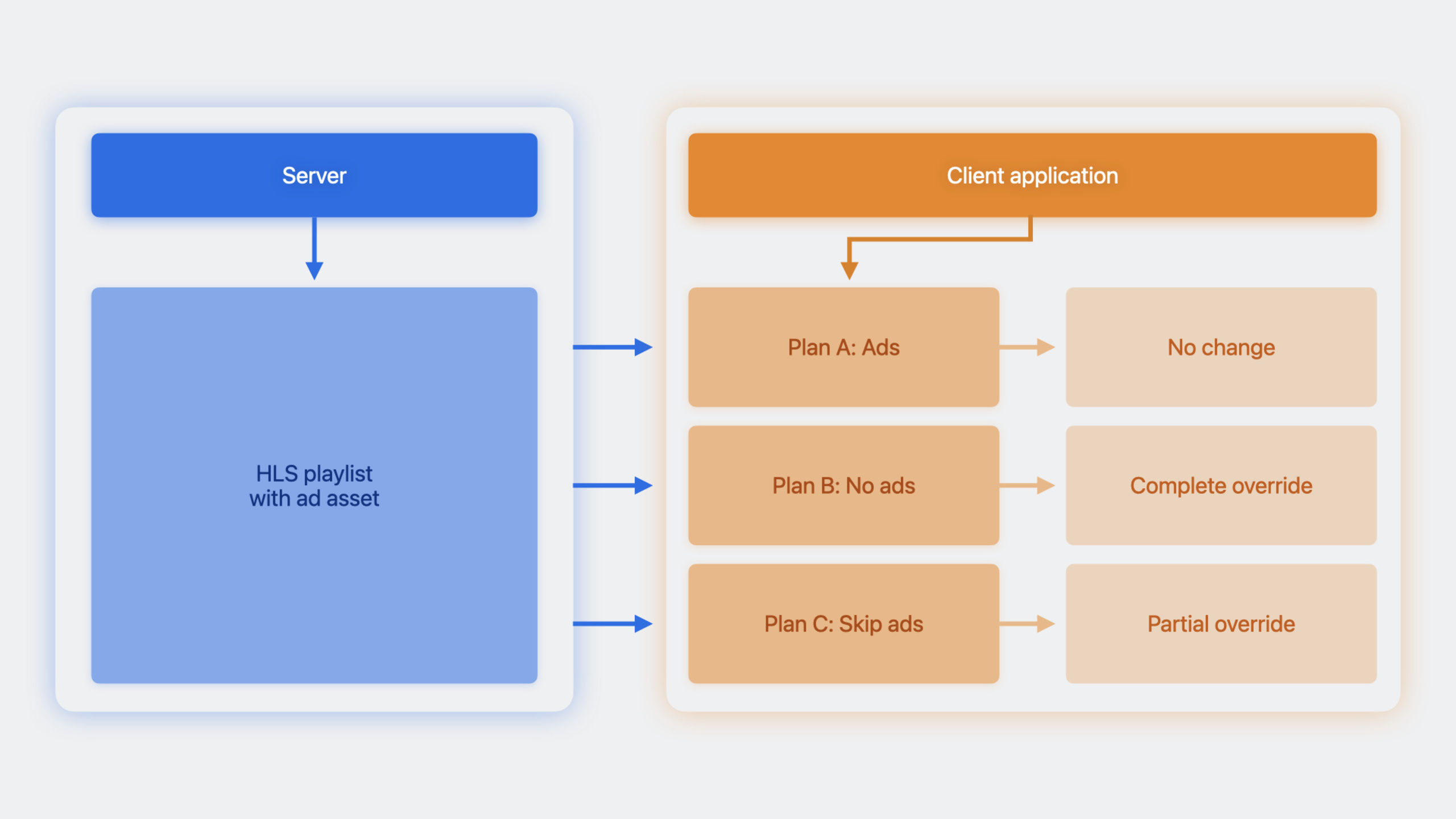
A typical VOD service has three subscription plans:
- Plan A: With ads, play/pause are the only operations allowed
- Plan B: No ads
- Plan C: You can skip subsequent ads after watching the first ad
Developers can use the same HLS Playlist to serve all users:
- Plan A does not require any client changes, and the restriction rules in the Playlist take effect directly
- Plan B is set on the client
automaticallyHandlesInterstitialEvents = false, ignore all insertion events configured in the Playlist - Plan C Copy and modify the second advertisement on the client
restrictionsproperty, clear its skip limit
This greatly reduces the complexity of the server side, and the same Playlist is suitable for multiple business models.
Detailed Content
Client driver: Set Skip limit
(09:19)
let player = AVPlayer(url: movieURL) // Main content, excluding ads
let controller = AVPlayerInterstitialEventController(primaryPlayer: player)

let ad1Item = [AVPlayerItem(url: ad1Url)]
let ad1event = AVPlayerInterstitialEvent(
    primaryItem: player.currentItem,
    time: CMTime(seconds: 5, preferredTimescale: 1)
)
ad1event.identifier = "ad1"
ad1event.templateItems = ad1Item

// Set the SKIP restriction: prevent fast-forwarding past ads
ad1event.restrictions = [.requiresPlaybackAtPreferredRateForAdvancement]

controller.events = [ad1event]
Key points:
AVPlayerInterstitialEventControllerResponsible for scheduling insertion events for the feature player -AVPlayerInterstitialEventDefines the position of the interstitial content on the main film timeline -templateItemsSpecify the content of the break (can be multiple pods) -restrictionsset to.requiresPlaybackAtPreferredRateForAdvancementThat is, Skip restriction, the user cannot fast forward and skip
Overriding server-side restrictions: Implementation of Plan C
(15:44)
let player = AVPlayer(url: movieURL)
let controller = AVPlayerInterstitialEventController(primaryPlayer: player)

let ad1Event = controller.events[0]
let ad2Event = controller.events[1]

let newEvent = ad2Event.copy() as! AVPlayerInterstitialEvent
// Clear restrictions on ad2
newEvent.restrictions = []

// Update the controller with the original ad1 and the modified ad2
controller.events = [ad1Event, newEvent]
Key points:
- Get dispatched events from the controller (possibly from the server Playlist)
-
copy()Create a copy of the event and modify itrestrictionsProperties - Clear
restrictionsAfterwards, users can freely skip when ad2 is playing - Finally, reassign the modified event array to the controller
Reduce AirPlay receiver switching delay
(09:46)
AirPlay receivers cover a variety of devices such as Apple TV, set-top boxes, smart TVs, speakers, etc., and their hardware and codec capabilities vary greatly. If the encoding parameters of feature films and advertisements do not match, there will be a significant delay when the receiving end switches decoders.
It is recommended to keep the media parameters of the main film and the interstitial content consistent:
| Video | Audio |
|---|---|
| Encoding format (AVC/HEVC) | Encoding format (AAC, etc.) |
| Frame rate | Sampling frequency |
| Aspect Ratio | Bit Depth |
| Channel Layout |
Additionally, the timestamps of all media components (audio, video, subtitles) must be precisely aligned to ensure synchronized playback.
Automatic matching of audio tracks and subtitles
(11:30)
If the interstitial content has similar audio tracks and subtitle tracks to the main film, the system will automatically select the matching track for playback. This behavior is consistent across local playback and AirPlay sessions and requires no additional code.
AirPlay Testing Suggestions
(11:53)
The test suite should cover a variety of sinks:
- Start with Apple TV, but choose at least one non-Apple AirPlay receiving device
- Bracked by media processing capabilities: high-end (supports Dolby Vision) and low-end (only supports SDR + stereo AAC)
- Even if the app is only for iPhone users, test different levels of receivers
Core Takeaways
1. Use the same Playlist to support multi-tier subscription mode
What to do: Implement three subscription plans in the video app: “Free with ads / Paid to remove ads / Advanced skippable”.
Why it’s worth doing: HLS Interstitials allows the client to override the server configuration. The server only needs to maintain a Playlist, and the client dynamically adjusts the advertising strategy based on the user’s subscription level.
How to start: Set according to user subscription status when the application startsautomaticallyHandlesInterstitialEvents, or traverse after player initializationcontroller.eventsModify each eventrestrictions。
2. Optimize advertising experience for AirPlay users
What to do: Detect whether the user is in AirPlay state, and automatically select creatives with matching encoding parameters when casting.
Why it’s worth it: The decoding capabilities of different AirPlay receivers vary greatly. Keeping the encoding parameters of feature films and advertisements consistent can significantly reduce switching delays and improve the viewing experience.
How to get started: PassAVPlayer.externalPlaybackActiveDetect AirPlay status, based on current receiver capabilities (can be passedAVPlayerItemofpreferredPeakBitRateand other attribute inference) to select creatives corresponding to the code rate.
3. Implement ad redirection based on viewing history
What it does: Automatically replace it with a new ad when the user rewinds to a clip they have already watched.
Why it’s worth doing: HLS Interstitials supports late binding and rebinding, which can decide which ad to display when the playback is close to the ad mark, avoiding repeated display of the same content.
How to start: MonitoringAVPlayerInterstitialEventMonitorevent, ininterstitialEventWillPlayDynamically updated according to the user’s viewing history in the callbacktemplateItems。
4. Insert real-time advertisements into live broadcast scenes
What to do: Dynamically insert ads into the live stream without delaying the live broadcast time due to ads.
Why it’s worth doing: HLS Interstitials supports live broadcast scenarios. After the commercial ends, the feature film will jump to the current time point of the live broadcast, and there will be no accumulation of live broadcast delays due to advertisements.
How to start: Insert into Live PlaylistEXT-X-DATERANGEtag, or useAVPlayerInterstitialEventofresumptionOffsetProperty controls where live broadcast resumes.
Related Sessions
- Tune up your AirPlay Audio experience — Learn more about AirPlay Audio optimization tips, including multi-room synchronization and audio quality improvements
- What’s new in AVKit — New features of the AVKit framework, used with AVFoundation to build a video playback interface
- Enhance your UI animations and transitions — Improve UI animations and transitions in video applications
- What’s new in Camera Capture — New features of camera capture, related to video content creation
Comments
GitHub Issues · utterances