
Highlight
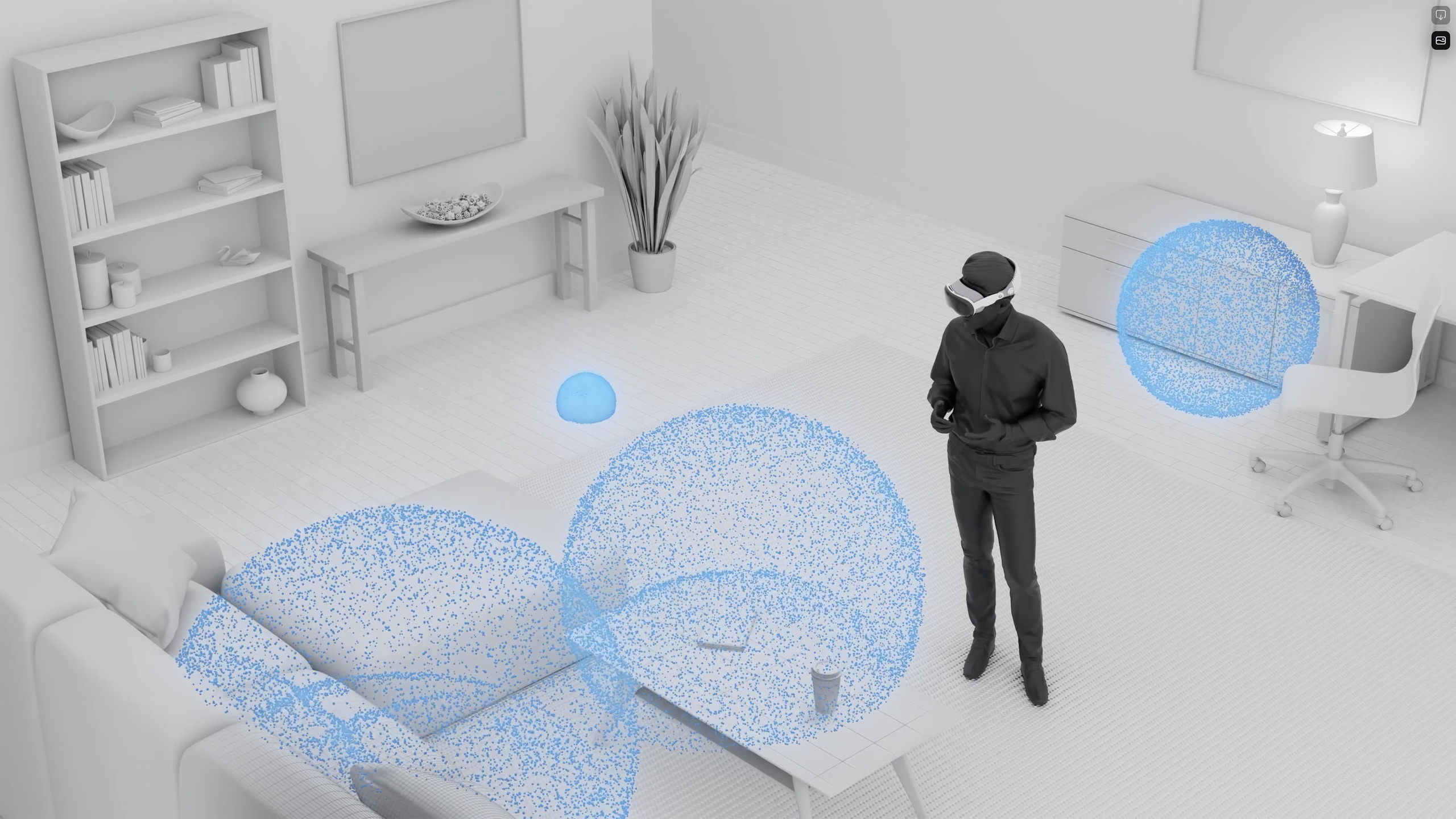
The spatial audio system of visionOS will automatically add reverberation based on the size and material of the physical space where the user is located. Developers only need to place the sound at a specific location in the three-dimensional space, and the system can achieve a natural presentation of a sense of direction, distance and environment.
Core Content
How spatial audio works
We constantly use spatial audio navigation in our daily lives. Hear the iPhone coming from the right and getting louder, and you can locate it in the room. The spatial audio system of visionOS simulates this experience.
(00:33)
The system will analyze the size and material of the space the user is in and automatically add appropriate reverberation to the sound. The same Find My sound will have completely different effects when played in an empty room and in a living room - the sound will come from a specific direction and have a natural feeling of environmental reflection.
(01:57)
Developers place sounds into the space as Spatial Audio Sources, and the system handles distance attenuation, directional positioning, and reverb effects.
Design of UI interactive sound effects
In visionOS, users interact with virtual interfaces through their hands and eyes, without physical contact. Subtle sound effects can make up for this lack of tactile feedback, giving users a sense of familiarity and confirmation.
(02:55)
Each key press on the virtual keyboard emits a sound from the corresponding key position. What’s more, the sound is slightly different each time the keys are pressed in succession - the pitch and amplitude are randomized. This change avoids a sense of mechanical repetition and makes interactions more natural.
(03:27)
The design process for the Photos app demonstrates the matching of sound effects with visual style:
- Select the transition sound when a photo goes from the grid into the 3D view
- Page turning sound when browsing photo albums
The initial attempts at “window opening” and “slide switching” sound effects were too concrete and inconsistent with the visual style. The resulting sound effects were chosen to be more abstract and subtle, consistent with the overall style of the system while emphasizing a sense of depth.
(04:19)
Design of immersive environmental sound
visionOS’s Environment (like Mount Hood) is a fully immersive experience, with each environment having a corresponding spatial soundscape.
(05:48)
While recording in the field, the design team discovered that the sound of real environments is not always ideal. There is a large drainage system next to the Mount Hood filming site that is so noisy that it drowns out all natural sounds. As a designer, you should “curate the best reality” - making the sound and vision complement each other, without necessarily being completely faithful to the original recording.
(06:57)
The recording process uses two types of equipment:
- Immersive Microphone: Record surround sound and capture the sense of air in the space
- High sensitivity directional microphone: Focus on specific sound sources, such as birdsong and wind
Recordings cover the entire day, ensuring the full range of vocal activity is captured.
Detailed Content
Two levels of constructing a spatial soundscape
Spatial Audio Sources: Sound elements that occupy specific points in space, such as birds, crickets, and frogs. Usually placed in the foreground and middle ground.
Ambient Background Audio: A surround audio file that continuously loops and is anchored around the entire space to provide the overall ambience.
(09:23)
The process of building the Mount Hood soundscape
Step 1: Place cricket and frog sounds to the left and right sides. The initial version was too loud and too close.
(10:08)
Adjustment: Lower the volume by a few decibels and push the sound source further into the background.
Step 2: Add a few frogs to the foreground shoreline. Use randomization techniques to alternate different frog recordings and randomize the position and timing of playback.
(10:45)
Step 3: Add ambient background sound. Surround sound files softly fill the entire space.
Eventually all the layers are blended together to form a complete spatial soundscape.
Sound design for non-immersive scenes
Spatial soundscapes can be used even if the app does not occupy the entire immersive space.
(12:24)
In the onboarding animation of visionOS, the animation of the “hello” text matches the foreground sound effect, while the ambient background sound fills the entire space. This layered approach keeps both short and long-term experiences fun and interactive.
Key Design Principles
- Randomization: Repeating sounds will cause fatigue, randomize pitch, amplitude, position and timing
- Distance Control: Pushing the sound source farther can create spatial depth
- Volume Balance: Distance and volume are used together to achieve the correct level balance.
- Subtle: UI sound effects only provide necessary feedback to avoid interference
- Consistent style: The sound effects should match the visual style and the overall feel of the system
(11:45)
Core Takeaways
-
Add spatial positioning sound effects to every interaction in visionOS applications
- What to do: Add subtle sound effects to button clicks, selection confirmations, transition animations and other interactions
- Why it’s worth doing: There is no physical contact feedback for users, and sound effects provide a sense of confirmation and familiarity
- How to get started: Use
AVFoundationSpatial audio API to bind sound effects to the three-dimensional position of UI elements
-
Add randomization parameters for high-frequency interactive sound effects
- What to do: High-frequency triggered sound effects such as keyboard input, scrolling lists, etc., fine-tuning the pitch and volume each time it is played
- Why it’s worth doing: Avoid mechanical repetition and make the application feel more natural and vital.
- How to start: Prepare 3-5 variant audio files, or use the audio engine to adjust pitch and gain parameters in real time
-
Create layered spatial soundscapes for menu/title pages
- What to do: Use a combination of spatial audio sources + ambient background sounds in your app’s non-immersive interface
- Why it’s worth doing: Even without entering full immersion mode, you can fill the space with sound and enhance the atmosphere.
- How to start: Place sound effects synchronized with the animation in the foreground, and add low-volume surround sound in the background
-
Create rather than copy real-life sounds
- What to do: Select and adjust sounds according to visual style, not necessarily true to the original recording
- Why it’s worth it: Real-life sounds are often disrupted by noise, and designers have the freedom to create the best experience
- How to start: Obtain materials from professional sound effects libraries, and adjust EQ, reverberation and spatial positioning according to the needs of the scene
Related Sessions
- Design for spatial input — Design interaction for spatial input
- Create immersive Unity apps — Create immersive apps with Unity
- Work with metal on visionOS — Using Metal on visionOS
- Design for spatial user interfaces — Spatial user interface design guide
Comments
GitHub Issues · utterances