
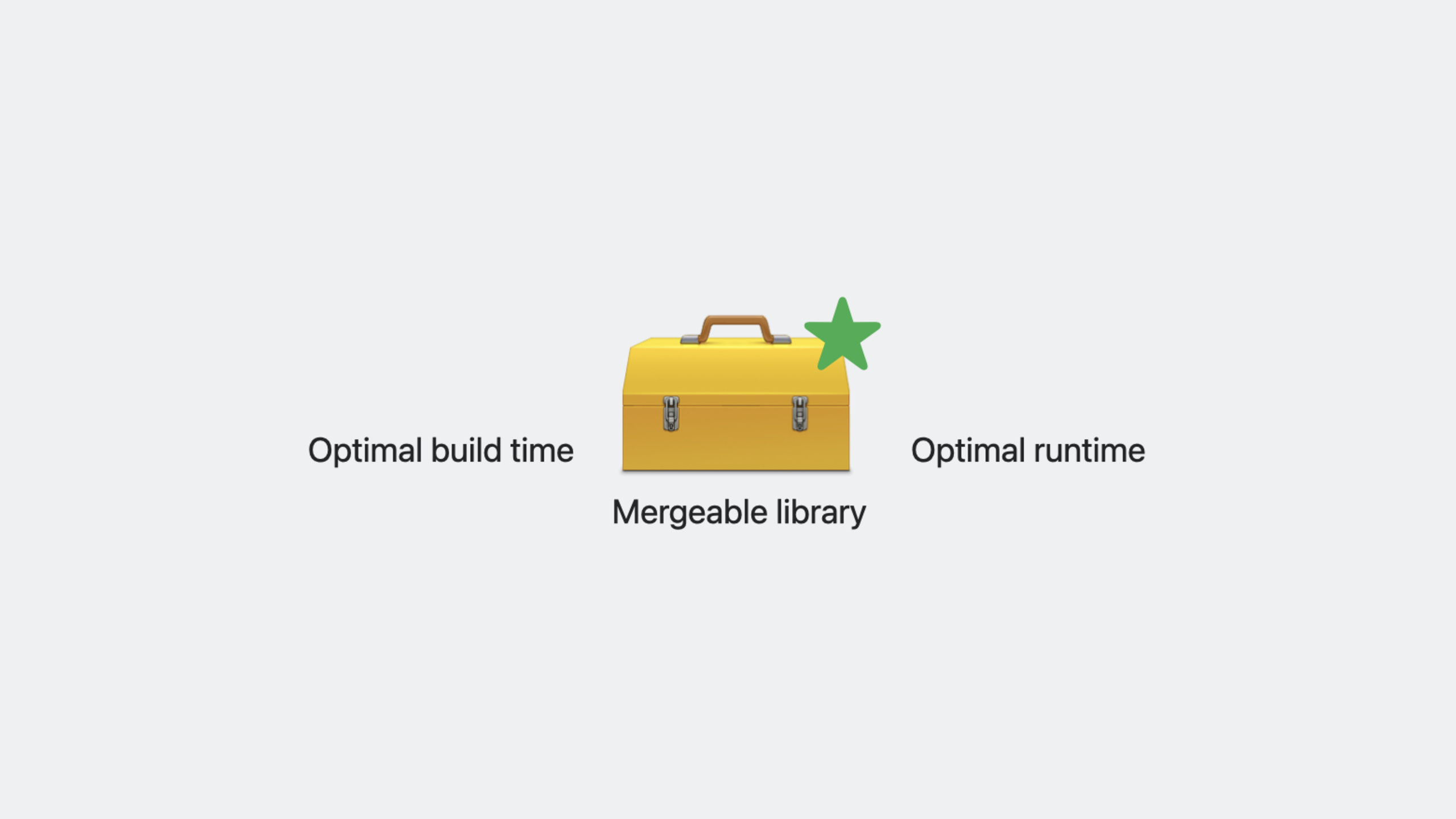
Highlight
Xcode 15 introduces Mergeable Libraries, which generate metadata at build time through the static linker, so that dynamic libraries can be merged into the final binary like static libraries to reduce size and speed up startup, while maintaining the build speed advantage of dynamic libraries during development.
Core Content
Trade-off between static libraries and dynamic libraries
Developers have long faced a dilemma when choosing a library type:
Static libraries copy code into the App binary at build time. The advantage is that it starts quickly and does not require dyld loading. The disadvantage is that every code change must be relinked, making iterative development and debugging slower.
Dynamic library (dylib) only records the installation path when building, and the code is not copied. The advantage is that the build is fast and the cost of adding or updating libraries is low. The disadvantage is that dyld must find and load all dependencies at startup. The more frameworks there are, the longer the memory usage and startup time will be.
(00:55)
The Apple platform has made a lot of optimizations for system libraries, but third-party frameworks embedded in App bundles do not enjoy these optimizations. Therefore tradeoffs have historically needed to be measured for specific applications.
How Mergeable Libraries work
The core of Mergeable Libraries is to generate additional metadata when building dynamic libraries.
(04:06)
When the static linker creates a dynamic library, use-make_mergeableOptions record metadata. This metadata is embedded inside the binary, allowing the linker to treat the library as if it were a static library during subsequent linking.
Used when merging-merge_libraryor-merge_frameworkoption, the linker utilizes metadata to incorporate the contents of the library into the final output. The merged binary retains the original file type (executables are still executables, frameworks are still frameworks).
(05:10)
Benefits of the merger:
- Size reduction: The linker can deduplicate strings, symbol references, Objective-C selectors, and objc_msgSend stub across libraries
- Startup acceleration: dyld and the kernel need to load fewer frameworks, reducing memory usage
- Build remains fast: No merging is performed in Debug mode, maintaining the build speed of dynamic linking
Special handling of Debug mode
In Debug mode, the linker does not actually merge the library, but uses the reexport mechanism.
(16:41)
Reexport allows code implementation to reside in a dynamic library, but appear to the outside world as another library implementation. This means that an App Extension or test target only needs to rely on the merged target to access all library APIs, with build speeds comparable to pure dynamic linking.
Detailed Content
Automatically merge configuration
Enabling automatic merging in Xcode requires just one setting:
MERGED_BINARY_TYPE = automatic(09:02)
In the Xcode interface:
- Select App Target
- Enter Build Settings
- Search for “Create Merged Binary”
- Set the value to “Automatic”
Automatic merging will make all directly dependent embedded framework targets mergeable. System frameworks (such as SwiftUI) are not affected.
Reduce export symbols to optimize size
After merging, the library’s exported symbols remain in the app. Apps typically do not need to export symbols, which can negatively impact volume and build time.
(10:04)
Add in Other Linker Flags:
-Wl,-no_exported_symbolsIf your app needs to preserve entry points for App Extensions, use the Export Symbols File to control exactly which symbols are preserved.
Manually merge configuration
Use manual mode when only part of the framework needs to be merged:
// On the merge target
MERGED_BINARY_TYPE = manual

// On the library target to be merged
MERGEABLE_LIBRARY = YES

// On the library target to preserve (default)
MERGEABLE_LIBRARY = NO(11:10)
Typical scenarios for manual merging: create a “group library” (such as ForestKit), merge multiple internal frameworks into it, and both the App and the test target link to this group library.
Limitations of runtime lookup API
If the code usesdlopenorNSBundle.bundleForClassWhen searching for the API at runtime, you need to pay attention to:
(19:26)
dlopenThe path needs to point to the merged framework target -Bundle(for:)/bundleForClass:Before iOS 12 relied on the framework binary to discover bundles, the merged framework did not have a standalone binary at runtime- Minimum deployment version requires iOS 12+ to use bundle lookup support
- If you do not rely on these APIs, you can add
-no_merged_libraries_hookOption to avoid deployment version restrictions
Distribute the Mergeable library
Mergeable libraries can be distributed by creating an XCFramework through Swift Package Manager or Xcode.
(23:17)
- Mergeable metadata roughly doubles dylib size
- Metadata will be discarded after the App is built and does not affect the final App size
- Metadata will be automatically stripped when embedding into the App to prevent volume expansion
Core Takeaways
-
Migrate static library to Mergeable dynamic library
- What to do: Change the static library used extensively in the project to a dynamic library and enable mergeable
- Why it’s worth doing: Retain the startup performance advantage of static libraries while gaining the build speed advantage of dynamic libraries
- How to start: Change the library target from Static Library to Framework, set
MERGEABLE_LIBRARY = YES
-
Enable automatic merging for large apps
- What to do: Turn on Automatic Merging on App Target
- Why it’s worth doing: One switch can reduce the number of embedded frameworks, reduce package size and startup time
- How to start: Search for “Create Merged Binary” in Build Settings and set to Automatic
-
Create Group Library to simplify dependency graph
- What: Merge multiple internal frameworks into a group framework
- Why it’s worth doing: App Extension and test target only need to link to one framework, reducing dyld loading overhead
- How to start: Create a new Framework target, enable manual merging, and set the subframework to mergeable
-
Optimize the exported symbols to further reduce the size
- What to do: Use
-no_exported_symbolsor an exact export symbol file - Why it’s worth doing: Apps usually don’t need to export symbols, and removing the post-linker can more effectively strip dead code.
- How to start: Add in Other Linker Flags
-Wl,-no_exported_symbols
- What to do: Use
Related Sessions
- Link fast: Improve build and launch times — Learn more about link optimization and improve build and launch speeds
- What’s new in Xcode 15 — Introduction to the new features of Xcode 15
- Write Swift macros — Writing and using Swift macros
- Meet Swift Package Manager for plugins — Swift Package Manager plugin
Comments
GitHub Issues · utterances