
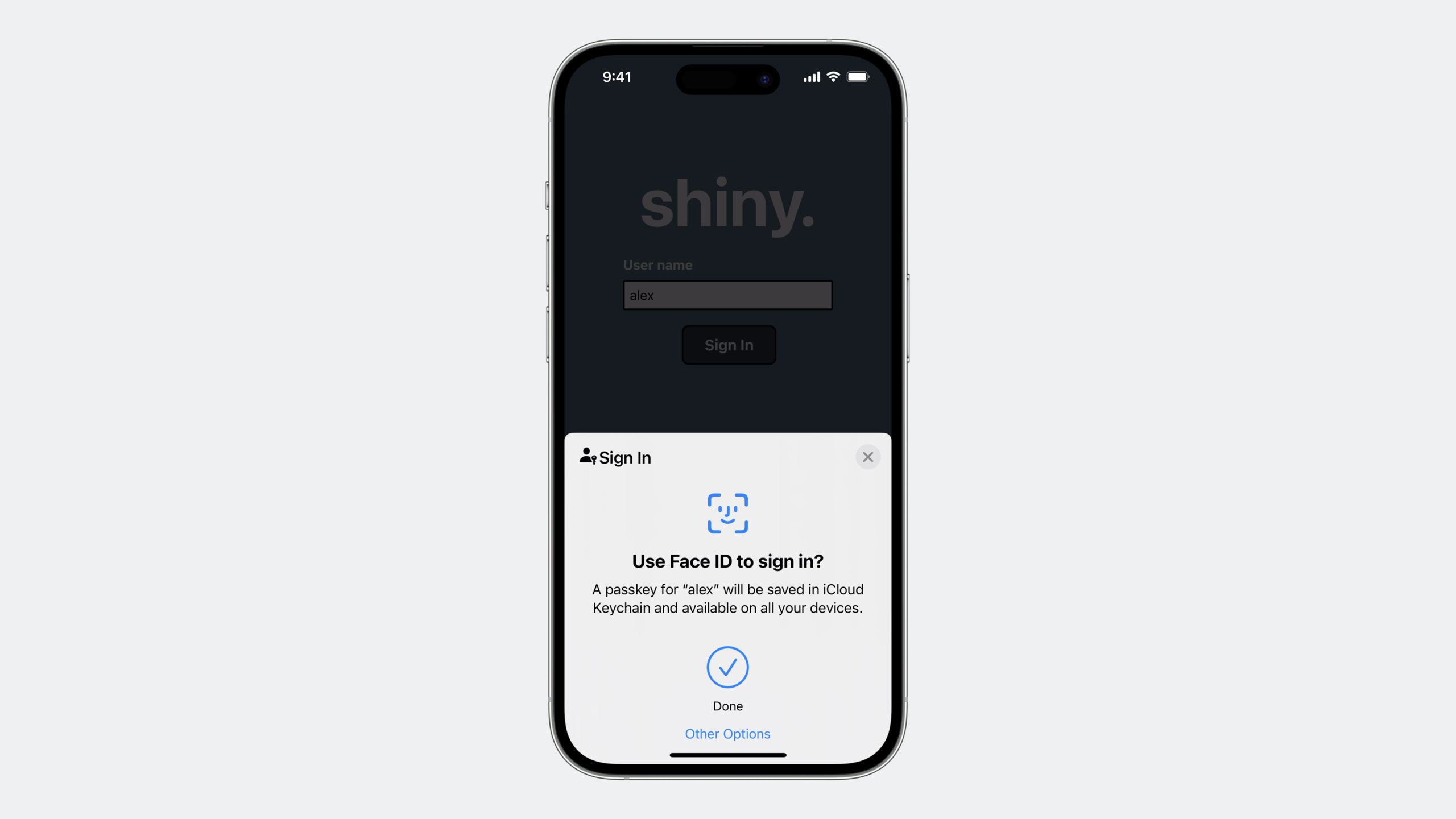
Highlight
Passkeys supports enterprise authentication configuration for iCloud Keychain, device access management controls, and declarative device management with Managed Apple ID, allowing enterprises to securely deploy passwordless logins on managed devices while preventing phishing attacks, credential theft, and 2FA bypasses.
Core Content
Three major security threats faced by enterprises
There are three main attacks that enterprises face every day (01:35):
Phishing Attack
According to Verizon’s 2022 Data Breach Investigations Report, out of more than 1 billion phishing attempts, 2.9% of employees clicked on a phishing link. The bigger the company, the higher the risk: about 3 clicks for a 100-person company, 15 for a 500-person company, and 29 for a 1,000-person company. A successful phishing attack is often the starting point for a full-scale invasion.
Passkeys eliminate this problem: there is nothing to type, each passkey is intrinsically tied to a specific website or app, and users will never use a passkey on the wrong website (02:47).
Credential Theft
40% of data breaches in 2022 involve stolen credentials. What is stored on the password server is a hash value. The hash can be stolen and cracked, and then the attacker uses the password of website A to try to log in to websites B and C.
Passkeys breaks this cycle: the server only stores the public key, nothing worth stealing (03:39).
Two-factor authentication bypass
SMS verification codes and TOTP (time-based one-time passwords) can both be phished just like passwords. Although push notifications cannot be phished, they are susceptible to “push fatigue attacks” - an attacker keeps sending push notifications until the user mistakenly accepts them.
Passkeys is not another patch that replaces a fundamentally broken old key with a new key that is secure by design (04:35).
Balancing safety and experience
Creating a passkey is faster and easier than creating a password. There is no need to remember or enter a password when logging in, just Face ID or Touch ID (05:17).
###Special needs of enterprise environment
IT administrators have four unique needs when deploying passkeys (06:41):
- Manage Apple ID accounts using iCloud Keychain and passkeys
- Only allow passkeys to be synced to managed devices, not employees’ personal devices
- Make sure the working passkeys are stored in the IT-managed iCloud Keychain for the Managed Apple ID
- Prove to the relying party that the passkey was created on the managed device
- Turn off passkeys sharing function
Managed Apple ID supports iCloud Keychain
Managed Apple IDs are created and managed by your organization in Apple Business Manager or Apple School Manager. Starting with macOS Sonoma, iOS 17, and iPadOS 17, Managed Apple ID supports iCloud Keychain (07:50).
Benefits:
- Users get a synchronized experience of passkeys on all devices
- IT can manage these accounts
- Passkeys in iCloud Keychain for Managed Apple ID cannot be shared
Device access management control
Apple Business Manager and Apple School Manager have added access management functions, with two control methods (08:34):
Control which devices employees can sign in to with their Managed Apple ID:
- any device (default)
- Managed devices only (ideal for BYOD scenarios)
- Managed supervision devices only (highest security level, suitable for organization-issued devices)
Control which devices iCloud content (including passkeys in iCloud Keychain) can be synced to:
There are the same three options as above.
The device management server needs to implement support for these features, which Apple Business Essentials provides out of the box.
Enterprise Passkey authentication configuration
Declarative device management adds enterprise passkey authentication configuration (10:07). This configuration can:
- Securely generate passkeys for users on the device
- Triggered when the user visits the website specified in the configuration
- Reference an identity asset used to perform standard Web Authentication authentication
- Access to relevant websites is allowed after relying party verification and authentication
Configuration example:
{
    "Type": "com.apple.configuration.security.passkey.attestation",
    "Identifier": "B1DC0125-D380-433C-913A-89D98D68BA9C",
    "ServerToken": "8EAB1785-6FC4-4B4D-BD63-1D1D2A085106",
    "Payload": {
        "AttestationIdentityAssetReference": "88999A94-B8D6-481A-8323-BF2F029F4EF9",
        "RelyingParties": [
            "www.example.com"
        ]
    }
}
Key points:
AttestationIdentityAssetReferenceReference identity assets -RelyingPartiesSpecify which websites will use this identity for authentication- After configuration activation, the identity certificate is provisioned from the enterprise certificate authority server
Certification process
- The MDM server sends passkey authentication configuration and identity assets to the device
- After configuration activation, provision the identity certificate from the enterprise CA server
- The user accesses the website and the website requests passkey
- Relying parties can instruct to only accept new passkeys with enterprise authentication
- The device generates a new passkey and uses the preconfigured identity certificate for authentication.
- The website verifies the certificate and checks whether the device certificate is linked back to the organization’s CA
The relying party needs to know which CA certificate to trust. Organization administrators can upload a copy of the CA certificate to the relying party (12:38).
WebAuthn Packed Attestation format
The relying party needs to check the authentication claim in the Web Authentication passkey creation response (13:12):
attestationObject: {
    "fmt": "packed",
    "attStmt": {
        "alg": -7, // for ES256
        "sig": bytes,
        "x5c": [ attestnCert: bytes, * (caCert: bytes) ]
    },
    "authData": {
        "attestedCredentialData": {
            "aaguid": "dd4ec289-e01d-41c9-bb89-70fa845d4bf2", // for Apple devices
            <…>
        },
        <…>
    },
    <…>
}
Key points:
- Check first
aaguidWhether to match the value of Apple devices -alg: -7Indicates the use of ES256 algorithm -sigis a certified signature -x5cArray containing authentication certificates and certificate chains, each in X.509 format
Detailed Content
Configure deployment process
Step 1: MDM Server Configuration
The MDM server sends the following statement to the device:
- Passkey Attestation Configuration: Specify the relying party and referenced identity assets
- Identity Asset: Contains the information required to obtain a certificate from the enterprise CA
Step 2: Device Activation
After the device receives the statement:
- parse configuration
AttestationIdentityAssetReference- Request an identity certificate from the enterprise CA server - Store certificate in keychain
Step 3: User visits the website
When a user accessesRelyingPartiesWhen a website is listed in:
- The website calls the WebAuthn API to request to create a passkey
- The device detects that enterprise authentication is required
- Use the provisioned certificate to authenticate the newly generated passkey
- Return the authentication object to the website
Step 4: Relying Party Verification
Website verification certification:
- Check
aaguidConfirm coming from an Apple device - Verify that the certificate chain links back to the organization’s CA
- Confirm that the passkey was created on the managed device
- Accept or reject passkey registration
User experience
Take Tailscale as an example (14:37):
- User selects passkey name
- Click “Create a passkey and join”
- Passkey is saved in iCloud Keychain of Managed Apple ID
- Click “Continue” to complete the login using Face ID
If a user attempts to create a passkey on a personal device, they will see the error: The device is not managed by the organization. This is achieved through passkey authentication.
Logging in again is easier: click “Sign in with passkey”, select the passkey you used before, and confirm with Face ID.
Core Takeaways
Enable Passkey login for internal tools website
- What to do: Change the login method of the company’s internal Wiki, Dashboard, CI system and other tools from password to passkey
- Why it’s worth it: Internal tools often have lax password policies and are high-value targets for phishing attacks. passkey eliminates the risk of passwords being stolen
- How to start: Implement the passkey registration and authentication process on a server that supports WebAuthn, and call the front end
navigator.credentials.create()andnavigator.credentials.get()
Unify management of employee credentials with Managed Apple ID
- What to do: Create Managed Apple IDs for employees, turn on iCloud Keychain, and set up managed device sync only
- Why it’s worth it: Ensure work passkeys are not synced to employees’ personal devices, reducing the risk of credential leakage
- How to get started: Create a Managed Apple ID in Apple Business Manager and configure access management control to “managed devices only”
Enterprise Passkey Certification for SaaS Integration
- What to do: Enable the company’s SaaS provider (e.g. Slack, Notion) to support enterprise passkey authentication and limit enrollment to managed devices
- Why it’s worth it: Combining MDM’s authentication configuration with SaaS’s WebAuthn support ensures employees can only access critical services using corporate devices
- How to get started: Provide the SaaS provider with an enterprise CA certificate and configure the relying party to only accept passkeys with enterprise certification
Phasing out SMS 2FA
- WHAT TO DO: After deploying passkey, phase out SMS and TOTP two-factor authentication for the account
- Why it’s worth doing: Both SMS and TOTP can be phished. The passkey itself is multi-factor authentication (device + biometric). Adding a fragile second factor will increase the attack surface.
- How to start: Pilot passkey on high-risk accounts (administrator, finance) first, and after verifying relying party support, turn off SMS 2FA for these accounts
Related Sessions
- Meet passkeys — Basic introduction to Passkeys
- What’s new in managing Apple devices — New features in Apple device management
- Do more with Managed Apple IDs — More uses of Managed Apple IDs
Comments
GitHub Issues · utterances