
Highlight
Playgrounds in Xcode 15 support automatic running, inline result display, and custom type descriptions. Developers can quickly prototype new features without rebuilding the project, reducing iteration time from minutes to seconds.
Core Content
You have a functional idea, but every time you modify it, you have to recompile, start the app, and navigate to the corresponding page to see the effect. This cycle may take several minutes, and the inspiration will have long since faded.
Xcode Playgrounds can break this cycle. Add it to the project, directly call the type in the project, and see the results in seconds after modifying the code.
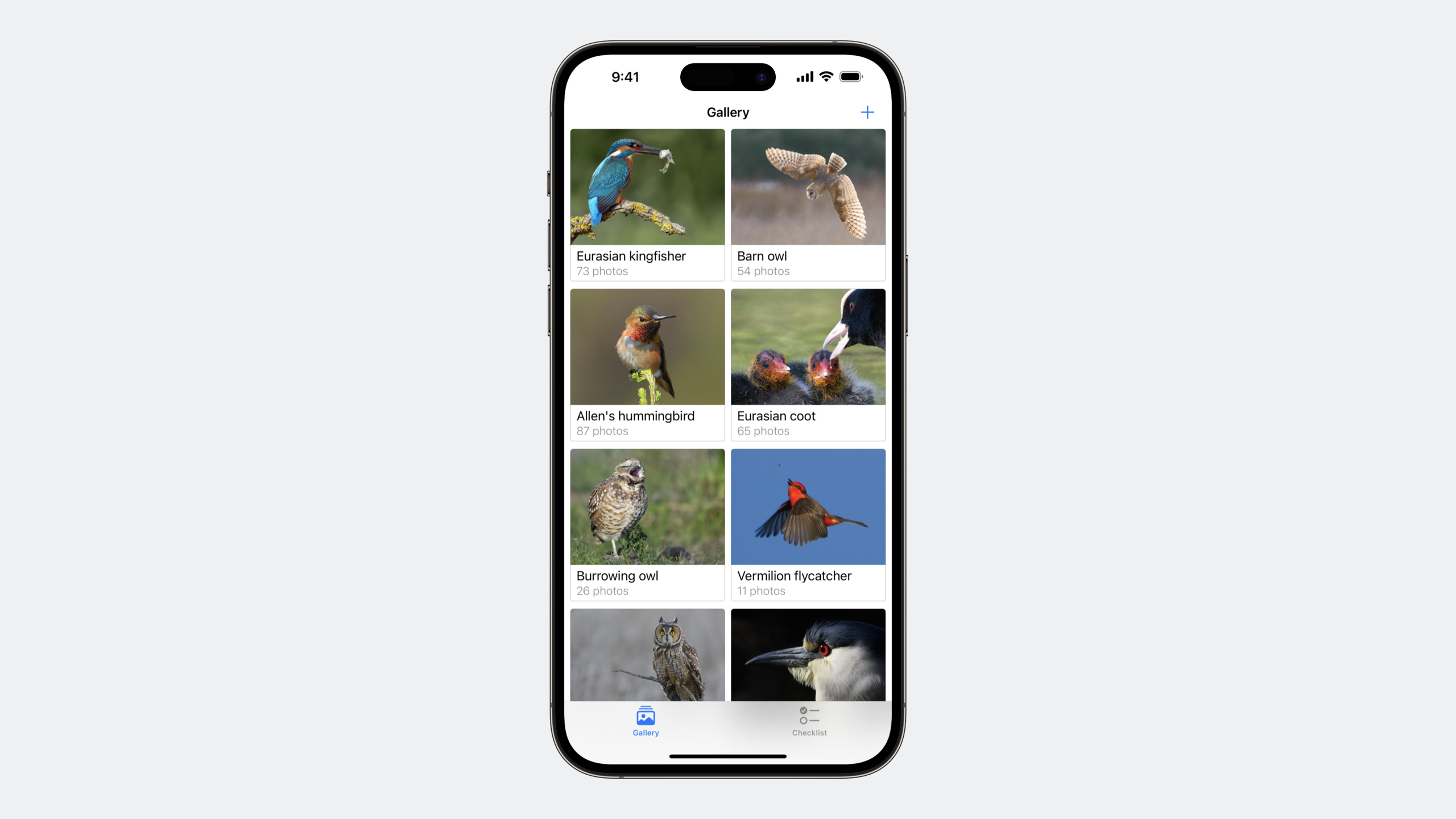
(02:34) The speaker is developing a wildlife photography app and wants to add a filtering function to the checklist. There are over 2,000 bird species on the list, all of which appear unfulfilling. he needs to be therebirdsToShowAdd filtering logic to calculated properties.
Create a new playground directly in the project (File > New > Playground) and select Blank. The playground in the project has two settings enabled by default:
- Build Active Scheme: Automatically build active scheme before each execution
- Import App Types: Automatically import app target module
This means that the playground can directly use the items defined in the projectBirdProvider、Birdand other types, no manual import is required.
(03:15) Switch the running mode to “Automatically run” and the Playground will execute automatically after stopping input. Now you can start experimenting.
Inline results and type exploration
(04:05) Declare aBirdProviderExample:
let birdProvider = BirdProvider(region: .northAmerica)The results bar on the right side of Xcode 15 displays the output of this line of code. Click the inline results toggle button to see the detailed structure:
-birdsarray
-regionenumeration value
Each line also has a type information label, and the tooltip displays the source module of the type. When expanding an array, Xcode 15 will highlight the source code that produces the result for easy correspondence.
(05:45) By default, custom typesBirdThe array elements only show the index number. letBirdfollowCustomStringConvertible:
extension Bird: CustomStringConvertible {
    public var description: String {
        return "\(commonName) (\(scientificName))"
    }
}
Key points:
descriptionReturns a combination of common and scientific names- This extension is added to the definition
BirdIn the source files, the debugger can also benefit from - After following, the Playground result bar directly displays the name of the bird, no need to expand it
(07:53) If you want to display a photo of a bird when a row is clicked, useCustomPlaygroundDisplayConvertible:
extension Bird: CustomPlaygroundDisplayConvertible {
    public var playgroundDescription: Any {
        return photo as Any
    }
}
Key points:
playgroundDescriptionOnly takes effect in playground environment- Explicit conversion
AnyAvoid compiler warnings about optional information being lost - return
nil, the Playground will fall back to the default display - Xcode 15 uses split-screen view to display object structure and preview simultaneously
Filtering and Verification UI
(09:35) First filter out the birds that do not have photos yet:
let birdsToFind = birdProvider.birds.filter { $0.photo == nil }It turned out there were more than 1,800 left. Then filter by category to see only owls:
let owlsToFind = birdsToFind.filter { $0.family == .owls }With only 5 left, the range is reasonable.
(11:15) Verify customizationChecklistView:
let checklist = ChecklistView()
for bird in owlsToFind {
    checklist.add(bird)
}
Value History mode in Xcode 15 uses a split-screen view to display the UI state after each loop iteration. The speaker noticed that the header still showed the plural “birds” even when there was only one bird.
(12:16) Add a plural variant (Vary By Plural) to this word in the String Catalog and change the singular form to “bird”. Back in the playground, the header displays the singular and plural forms correctly.
Integrate external dependencies
(14:27) The speaker wants to integrateBirdSightingspackage to get recent birding records. This package comes with the documentation Playground, which shows API usage:
let barnOwlCode = "BNOW"
let centralParkLocation = CLLocationCoordinate2D(latitude: 40.785091, longitude: -73.968285)

let sightingsProvider = SightingsProvider()
sightingsProvider.fetchSightings(of: barnOwlCode, around: centralParkLocation)
Experiment in your own playground:
import CoreLocation
import BirdSightings

let bird = owlsToFind.first!
let appleParkLocation = CLLocationCoordinate2D(latitude: 37.3348655, longitude: -122.0089409)

let sightingsProvider = SightingsProvider()
let sightings = sightingsProvider.fetchSightings(of: bird.speciesCode, around: appleParkLocation)

let mostRecentSighting = sightings.first
let sightingMapView = SightingMapView(sighting: mostRecentSighting)(18:55) Use Live View to view the map effect:
import PlaygroundSupport
PlaygroundPage.current.liveView = sightingMapView
Found that the map was positioned at the wrong location. Improved with Xcode 15CLLocationCoordinate2DPreview checked the coordinates and found that the longitude was missing the negative sign. Corrected map to correctly display the vicinity of Apple Park.
(22:20) Move the verified code back to the project:
func sightingToShow(for bird: Bird) -> Sighting? {
    let sightingsProvider = SightingsProvider()
    let sightings = sightingsProvider.fetchSightings(of: bird.speciesCode, around: lastCurrentLocation)
    let mostRecentSighting = sightings.first
    return mostRecentSighting
}
Detailed Content
Playground execution mode
Xcode 15 offers two execution modes:
- Automatically run: Automatically executed after stopping input, suitable for quick experiments
- Manually run: Manually control execution timing, suitable for situations involving time-consuming operations such as network requests.
Switching method: long press the bottom run button and select from the menu.
New controls for multi-expression rows
(09:48) Xcode 15 displays new sidebar comments when there are multiple expressions on a line. Click on the control to see the individual results for each expression. When hovering over the inline results toggle button, the corresponding source code range is highlighted.
Code migration from playground to project
Code verified in the playground can be copied directly into the project. Need to pay attention to:
- Available in Playground
!Forced unpacking, project code requires proper error handling - Network requests are executed manually in the playground, and asynchronous and loading states must be considered in the project
- Extensions in the Sources directory of the Playground only take effect within the Playground.
Core Takeaways
-
What to do: Add a “Scratch” Playground to the project, specifically for experimenting with new algorithms and APIs
-
Why is it worth doing: No need to rebuild the project or write temporary test code, you can see the results in seconds. The cost of idea verification approaches zero
-
How to start: File > New > Playground, select Blank, make sure Build Active Scheme and Import App Types are checked
-
What: Implemented for the core model types in the project
CustomStringConvertible- Why is it worth doing: The Playground result bar, debugger, and print will all display meaningful descriptions, greatly improving debugging efficiency. -
How to start: Add the most commonly used 3-5 model types
descriptionProperty, returns a business meaningful string -
What to do: Use Playground to verify the API of the third-party package and then integrate it into the project
-
Why it’s worth doing: The package’s documentation playground or your own experimental code can quickly understand the input and output of the API and avoid repeated compilation and debugging in the project.
-
How to start: Import the package to the Playground, call the key API with real parameters, and observe the structure and content of the return value
-
What: Preview complex custom UI components with Live View
-
Why it’s worth doing: Complex components such as MapView and Chart are expensive to view in the simulator. Live View provides full-size interactive preview
-
How to start: Create UI component instance, set up
PlaygroundPage.current.liveView, open Live View in Editor Options
Related Sessions
- Build programmatic UI with Xcode Previews — Use the #Preview macro to preview the UI in real time next to the code, complementary to Playgrounds
- What’s new in Xcode 15 — A comprehensive introduction to new features in Xcode 15
- Discover String Catalogs — Localized string management, the speech mentioned using String Catalog to handle complex numbers
Comments
GitHub Issues · utterances