
Highlight
New in iOS 17
GroupSessionJournalThe API allows SharePlay apps to transfer attachments (images, PDFs, voices, etc.) up to 100MB, leveraging Apple’s cloud infrastructure for fast, end-to-end encrypted transfers, and automatically handles status synchronization for latecomers.
Core Content
Limitations of GroupSessionMessenger
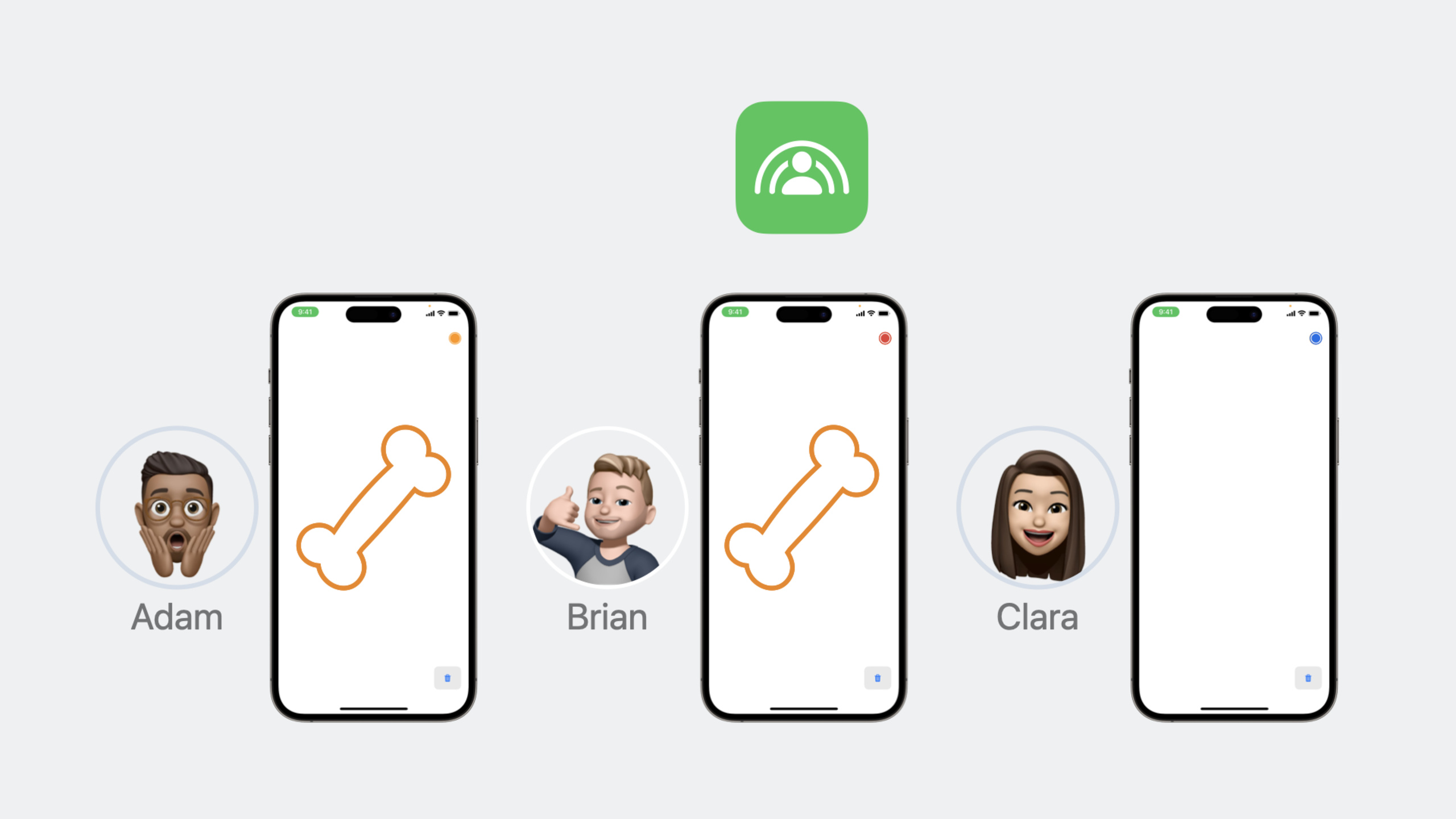
SharePlay app used beforeGroupSessionMessengersynchronous state, but it is only suitable for transmitting small message data. Imagine a collaborative drawing application: the brush trace can go through Messenger, but if the user drags a photo onto the canvas, this path will not work.
(00:58)GroupSessionJournalfills this gap. It uses the same Apple cloud infrastructure as FaceTime, with multiple layers of technology stacked to reduce the amount of transmitted data and waiting time, and is fully end-to-end encrypted.
How Journal works
(02:14)GroupSessionJournalbind to aGroupSession, all participants share the same Journal instance. one calls locallyadd, everyone’sattachmentsAsyncSequence will receive new attachment events; callremove, everyone is removed simultaneously.
Attachment types simply followTransferableprotocol, the system will handle the rest of the transmission logic.
Two key design constraints
(03:37) Attachment size limit is 100MB. This forces developers to distinguish content types: user-generated photos, PDFs, and voice memos are suitable for Journal; large files such as movies should be sent to the application’s own server.
(04:18) The life cycle is bound to GroupSession. Attachments remain as long as there are people online; they are automatically cleared when everyone leaves. This means that important data needs to be persisted locally before the end of the Session.
The latecomer problem is automatically solved
(04:47) Previously new joiners required other participants to resend state data. If the status contains large attachments, everyone will have to re-upload it. Journal now automatically synchronizes existing attachments to new joiners without requiring others to re-upload them.
Detailed Content
Integrate Journal in DrawTogether
Session takes the DrawTogether application as an example to demonstrate the four-step integration:
Step 1: Define the data model
createCanvasImageStructure to track images in Journal:
struct CanvasImage: Identifiable {
    let id: UUID
    let image: UIImage
    var position: CGPoint
}
Step 2: Create the Journal in the Canvas model
class Canvas: ObservableObject {
    @Published var images: [CanvasImage] = []
    @Published var selectedImageData: Data?

    private var journal: GroupSessionJournal?

    func configureGroupSession(_ session: GroupSession<DrawTogether>) {
        // Create a journal
        journal = GroupSessionJournal(session: session)

        // Listen for attachment changes
        Task {
            for await attachment in journal!.attachments {
                await handleAttachment(attachment)
            }
        }
    }

    func addImageToJournal(_ imageData: Data) {
        guard let journal = journal else { return }

        // Create a Transferable attachment and upload it
        let attachment = TransferableAttachment(data: imageData, type: .image)
        journal.add(attachment)
    }
}
Key points:
GroupSessionJournal(session:)Initialize with GroupSession -attachmentsis AsyncSequence, usefor awaitListen for new attachments -add()After uploading the attachment, all participants will receive
Step 3: Add image selection button
import PhotosUI

struct ControlBar: View {
    @ObservedObject var canvas: Canvas

    var body: some View {
        HStack {
            // Other buttons...

            PhotosPicker(selection: $canvas.selectedImageData,
                         matching: .images) {
                Image(systemName: "photo")
            }
        }
    }
}
Step 4: Display the image on the canvas
struct CanvasView: View {
    @ObservedObject var canvas: Canvas

    var body: some View {
        ZStack {
            // Draw strokes...

            // Show all images
            ForEach(canvas.images) { canvasImage in
                Image(uiImage: canvasImage.image)
                    .position(canvasImage.position)
                    .gesture(
                        DragGesture()
                            .onChanged { value in
                                canvasImage.position = value.location
                            }
                    )
            }
        }
    }
}
Key points:
PhotosPickerIs a SwiftUI built-in component, available on iOS 16+- For picture location
DragGestureImplement drag and drop - All picture status is synchronized to all participants through Journal
Attachment processing process
func handleAttachment(_ attachment: GroupSessionJournal.Attachment) async {
    do {
        let data = try await attachment.load(Data.self)
        if let image = UIImage(data: data) {
            let canvasImage = CanvasImage(
                id: attachment.id,
                image: image,
                position: .center
            )
            await MainActor.run {
                images.append(canvasImage)
            }
        }
    } catch {
        print("Failed to load attachment: \(error)")
    }
}
Key points:
attachment.load(Data.self)Load attachment data asynchronously- After loading is completed, switch back to the main thread to update the UI
- Attachment ID can be used for subsequent removal operations
Core Takeaways
-
Make a whiteboard application with picture collaboration
- What to do: Multiple people can post pictures, annotate and discuss on the same canvas
- Why it’s worth doing: Journal automatically handles image transmission and synchronization, and developers only need to focus on canvas interaction logic
- How to start: Use
GroupSessionJournalTo transfer image attachments, useGroupSessionMessengerSynchronize brush trajectories
-
Party application for sharing photo albums
- What to do: Share photos in real time with a group of people at an event or trip, everyone can see each other’s just-taken photos
- Why it’s worth it: Journal’s end-to-end encryption and automatic syncing make photo sharing both secure and instant
- How to start: Select the photo and use it
journal.add()Upload, monitorattachmentsReceive other people’s photos in sequence
-
Document review tool for collaborative annotation
- What to do: Team members review PDF documents together, adding comments and highlights individually
- Why it’s worth doing: PDF files are usually less than 100MB, so it’s suitable for Journal; for annotating data, Messenger can be used to create a complete experience.
- How to start: PDF files are transferred as Journal attachments, annotation coordinates and text are synchronized in real time through Messenger
-
Music application for sharing playlists
- What to do: A group of people edit a playlist together, everyone can add songs
- Why it’s worth doing: Although the audio files themselves do not go to Journal, metadata such as album covers and user notes can go to Journal for quick synchronization.
- How to start: Use Journal to synchronize cover images and playlist changes, and use Messenger to synchronize playback status
Related Sessions
- Add SharePlay to your app — Getting started with SharePlay and understanding the basics of the GroupActivities framework
- Build custom experiences with GroupActivities — Build custom shared experiences with GroupSessionMessenger
- Make a great SharePlay experience — SharePlay experience design best practices
Comments
GitHub Issues · utterances