
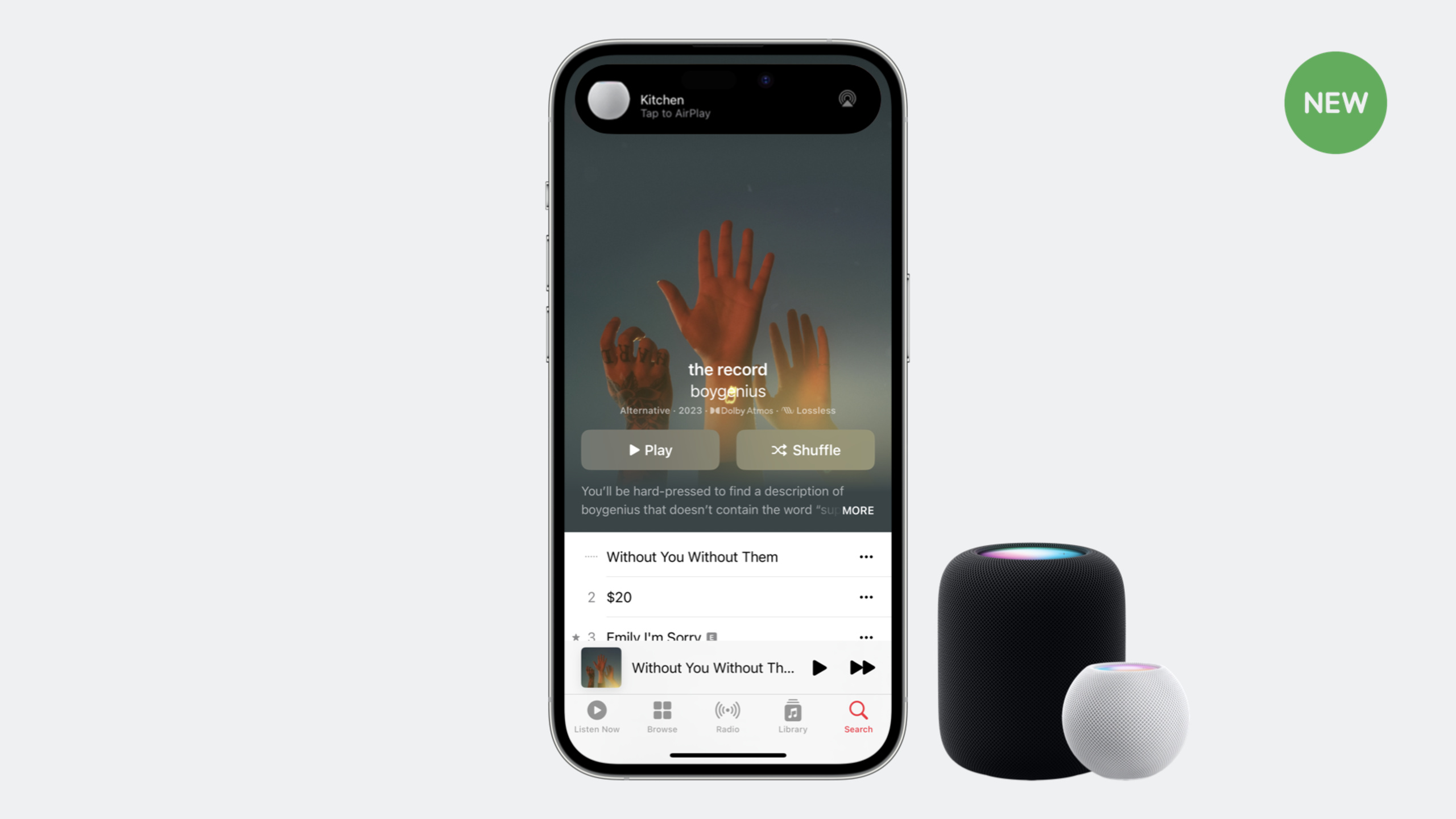
Highlight
Apple launched the AirPlay Enhanced Audio Buffering protocol in iOS 17. Through AVQueuePlayer or AVSampleBufferAudioRenderer, applications can gain faster audio stream buffering, more sensitive control response, multi-channel format support, and intelligent lossless playback capabilities.
Core Content
Why audio buffering needs to be enhanced
When listening to music with AirPlay, the two most annoying things for users are: the music cuts off as soon as the phone goes out of the Wi-Fi range, and it takes a long time for a response after clicking pause.
(02:17) Apple launched a new AirPlay enhanced audio buffering protocol this year, redesigned from the ground up. Its core improvements include three points: the audio stream is buffered at a speed faster than real-time playback, reducing interruptions; control commands (play, pause, switch songs) respond immediately; it supports multi-channel formats such as Dolby Atmos, and a new smart switch for lossless playback is added to iOS.
A typical scenario was demonstrated in the Session: the user took out the mobile phone to take out the trash, and the HomePod continued to play after leaving the Wi-Fi range; the user returned to the Wi-Fi range, and the phone seamlessly resumed control, and the music was not interrupted throughout the process.
Integration method: two paths
(06:11) Apple provides two sets of APIs to support enhanced audio buffering. Most developers should use AVQueuePlayer directly, which automatically handles enhanced audio buffering. Only applications that require custom DRM or audio preprocessing need to use the underlying AVSampleBufferAudioRenderer + AVSampleBufferRenderSynchronizer.
Detailed Content
Configure Audio Session
(04:00) Before integrating AirPlay, make sure the audio session is configured correctly:
let audioSession = AVAudioSession.sharedInstance()
try audioSession.setCategory(.playback, mode: .default, policy: .longFormAudio)
Key points:
.playbackCategory ensures audio continues playing after app enters background -.longFormAudioThe policy tells the system that this is long audio content such as music and podcasts, not system sound effects.- For podcasts or audiobooks, it is recommended to set the mode to
.spokenAudio
Smart AirPlay Suggestions
(04:43) iOS 17 adds new AirPlay recommendations based on on-device intelligence. The system will learn the user’s usage habits - for example, the user usually listens to music on the HomePod in the kitchen while cooking - and when the user opens your app, the nearby HomePod will automatically appear as a recommended target.
The way to enable it is very simple, add in Info.plist:
<key>AVInitialRouteSharingPolicy</key>
<string>LongFormAudio</string>
In Xcode, this key appears as “AirPlay optimization policy”.
AVQueuePlayer method (recommended)
(07:23) AVQueuePlayer is the simplest way to integrate and automatically obtain enhanced audio buffering:
let player = AVQueuePlayer()

let url = URL(string: "https://example.com/audio.m3u8")
let asset = AVAsset(url: url)
let item = AVPlayerItem(asset: asset)

player.insert(item, after: nil)
player.play()
Key points:
- create
AVQueuePlayerExample - use
AVAssetandAVPlayerItemPackage content URL -insert(item, after: nil)Add item to queue - Enhanced audio buffering automatically takes effect when routing to AirPlay
- Most of Apple’s own media apps also use AVQueuePlayer
Custom player method
(08:28) If AVQueuePlayer cannot meet your needs (such as custom DRM or audio preprocessing), use AVSampleBufferAudioRenderer:
let serializationQueue = DispatchQueue(label: "sample.buffer.player.serialization.queue")
let audioRenderer = AVSampleBufferAudioRenderer()
let renderSynchronizer = AVSampleBufferRenderSynchronizer()

renderSynchronizer.addRenderer(audioRenderer)(08:50) Enqueue audio data:
serializationQueue.async { [weak self] in
    guard let self = self else { return }

    self.audioRenderer.requestMediaDataWhenReady(on: serializationQueue) { [weak self] in
        guard let self = self else { return }

        while self.audioRenderer.isReadyForMoreMediaData {
            let sampleBuffer = self.nextSampleBuffer()
            if let sampleBuffer = sampleBuffer {
                self.audioRenderer.enqueue(sampleBuffer)
            } else {
                self.audioRenderer.stopRequestingMediaData()
            }
        }
    }

    self.renderSynchronizer.rate = 1.0
}
Key points:
serializationQueueIt is a serial queue, and all playback operations are performed on this queue. -AVSampleBufferRenderSynchronizerCreate a unified timeline -addRendererBind audio renderer to synchronizer -requestMediaDataWhenReadyCallback when the renderer is ready to receive data -isReadyForMoreMediaDataCheck if you can continue to join the queue- Called when data is exhausted
stopRequestingMediaData() rate = 1.0Start playing at natural rate
CarPlay support
(09:26) Automakers can now also support enhanced buffering in their CarPlay implementations. As more and more vehicles support wireless CarPlay, stable playback and responsive control are critical to the in-car audio experience. The good news is that CarPlay will automatically benefit as long as the application uses one of the two sets of APIs mentioned above.
Core Takeaways
-
Recommendations for turning on smart AirPlay when making podcast applications
- What: Let commonly used speakers automatically appear at the top of the AirPlay target list when users open the app
- Why is it worth doing: Just add a key to Info.plist, zero code cost and improved user experience
- How to start: Add
AVInitialRouteSharingPolicyforLongFormAudio, and make sure the audio session category is set to.playback
-
Synchronize music playback in multiple rooms
- What it does: Allows users to listen to multiple HomePod or AirPlay speakers at the same time for simultaneous playback throughout the house
- Why it’s worth it: The enhanced audio buffering protocol is specially designed for whole-house audio, with faster buffering and more accurate synchronization.
- How to start: Use AVQueuePlayer to play, the system will automatically handle multi-device synchronization, no additional logic is required at the application layer
-
Make an audio application that supports continuous playback in the background
- What: The speaker continues playing when the user walks out of Wi-Fi range; seamlessly resumes control when the user returns
- Why is it worth doing: This is the core capability of enhancing audio buffering. In the past, complex reconnection logic was required, but now the protocol layer automatically handles it.
- How to start: Make sure to use AVQueuePlayer, configure the correct audio session category, and leave the rest to the system
-
Make a player with custom audio processing
- What: Perform custom processing (such as real-time sound effects, visual analysis) before audio playback, and support AirPlay
- Why it’s worth it: AVSampleBufferAudioRenderer allows you to process audio data before enqueueing it, while enjoying the benefits of enhanced buffering
- How to start: Use
AVSampleBufferAudioRenderer+AVSampleBufferRenderSynchronizerBuild a custom player innextSampleBuffer()Insert processing logic into
Related Sessions
- Explore AirPlay with interstitials — Learn how to use HLS Interstitials for ad insertion in AirPlay
- Add SharePlay to your app — Add SharePlay to your app and work with AirPlay to achieve a shared experience
- Discover Continuity Camera for tvOS — Continuity Camera and AirPlay ecosystem on tvOS
Comments
GitHub Issues · utterances