
Highlight
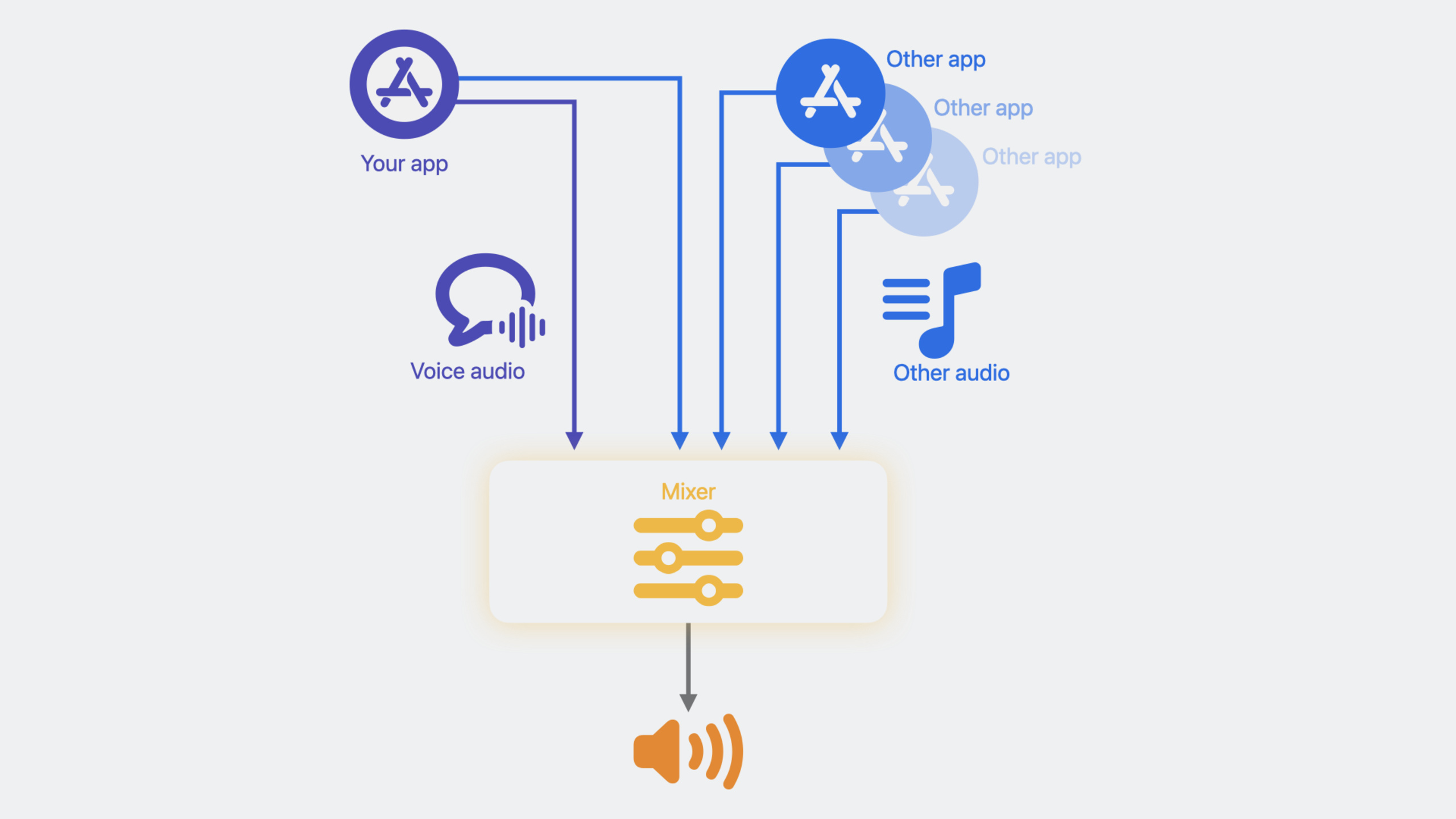
Apple has added two new capabilities to the speech processing API in iOS 17, macOS 14, and tvOS 17: fine-grained control of Other Audio Ducking, and Muted Talker Detection, allowing VoIP applications to intelligently adjust background volume and prompt users to unmute like FaceTime.
Core Content
Background sound avoidance: from one-size-fits-all to fine-grained control
Developers of voice call applications have all encountered this scenario: the user plays music or other audio at the same time during the call, and the background sound is too loud, causing the human voice to be inaudible. Apple’s speech processing API used to automatically lower the volume of other audio, but the amount of ducking was fixed, and some apps felt it was too much and some felt it wasn’t enough.
(03:16) This year Apple added a new avoidance configuration API to both AUVoiceIO and AVAudioEngine. Developers can now control two dimensions: dodge style (whether advanced dynamic dodge is enabled) and dodge intensity (four levels).
Advanced dynamic ducking works like FaceTime SharePlay: when either party speaks, the media volume is automatically lowered; when no one is speaking, the volume is restored. This allows calls and background audio to coexist naturally.
Silent speaker detection: Say goodbye to “I talked for a long time before I realized the microphone was not on”
One of the most embarrassing scenes in online meetings: the user talks enthusiastically, only to find that the microphone has been muted.
(07:58) Apple introduced silent speaker detection in iOS 15 and expanded it to macOS 14 and tvOS 17 this year. As long as the user is muted through the Speech Processing API’s mute interface, the system can detect whether the user is speaking while muted and notify the application. After the app receives the notification, it can prompt the user to unmute the sound.
For macOS applications that have not yet accessed Apple’s speech processing API, Apple also provides Core Audio HAL-level voice activity detection attributes as an alternative.
Detailed Content
Other audio ducking configurations
Apple provides two access methods: the underlying AUVoiceIO (Audio Unit) and the high-level AVAudioEngine.
AUVoiceIO method
(05:50) AUVoiceIO uses a C structure to configure ducking parameters:
typedef CF_ENUM(UInt32, AUVoiceIOOtherAudioDuckingLevel) {
    kAUVoiceIOOtherAudioDuckingLevelDefault = 0,
    kAUVoiceIOOtherAudioDuckingLevelMin = 10,
    kAUVoiceIOOtherAudioDuckingLevelMid = 20,
    kAUVoiceIOOtherAudioDuckingLevelMax = 30
};

struct AUVoiceIOOtherAudioDuckingConfiguration {
    Boolean mEnableAdvancedDucking;
    AUVoiceIOOtherAudioDuckingLevel mDuckingLevel;
};
Create and apply configuration:
const AUVoiceIOOtherAudioDuckingConfiguration duckingConfig = {
    .mEnableAdvancedDucking = true,
    .mDuckingLevel = AUVoiceIOOtherAudioDuckingLevel::kAUVoiceIOOtherAudioDuckingLevelMin
};

OSStatus err = AudioUnitSetProperty(
    auVoiceIO,
    kAUVoiceIOProperty_OtherAudioDuckingConfiguration,
    kAudioUnitScope_Global,
    0,
    &duckingConfig,
    sizeof(duckingConfig)
);
Key points:
mEnableAdvancedDuckingfortrue, the system will dynamically adjust the amount of dodge based on the voice activity of both parties. -mDuckingLevelThere are four levels:default(consistent with previous behavior),min(minimum dodge, maximum background sound),mid、max(Maximum dodge, clearest vocals)- The two control dimensions are independent of each other and can be used in combination to cover most scenarios
AVAudioEngine method
(07:20) AVAudioEngine provides the corresponding Swift API:
let engine = AVAudioEngine()
let inputNode = engine.inputNode

do {
    try inputNode.setVoiceProcessingEnabled(true)
} catch {
    print("Could not enable voice processing \(error)")
}

let duckingConfig = AVAudioVoiceProcessingOtherAudioDuckingConfiguration(
    enableAdvancedDucking: false,
    duckingLevel: .max
)

inputNode.voiceProcessingOtherAudioDuckingConfiguration = duckingConfig
Key points:
- call first
setVoiceProcessingEnabled(true)Enable speech processing mode -AVAudioVoiceProcessingOtherAudioDuckingConfigurationis a Swift struct, the parameter names are slightly different from the C version - Assign directly to
inputNode.voiceProcessingOtherAudioDuckingConfigurationIt will take effect
Silent speaker detection
AUVoiceIO implementation
(07:32)
AUVoiceIOMutedSpeechActivityEventListener listener = ^(AUVoiceIOMutedSpeechActivityEvent event) {
    if (event == kAUVoiceIOSpeechActivityHasStarted) {
        // The user starts speaking while muted; prompt them to unmute
    } else if (event == kAUVoiceIOSpeechActivityHasEnded) {
        // The user stops speaking
    }
};

OSStatus err = AudioUnitSetProperty(
    auVoiceIO,
    kAUVoiceIOProperty_MutedSpeechActivityEventListener,
    kAudioUnitScope_Global,
    0,
    &listener,
    sizeof(AUVoiceIOMutedSpeechActivityEventListener)
);

// When the user taps mute
UInt32 muteUplinkOutput = 1;
AudioUnitSetProperty(
    auVoiceIO,
    kAUVoiceIOProperty_MuteOutput,
    kAudioUnitScope_Global,
    0,
    &muteUplinkOutput,
    sizeof(muteUplinkOutput)
);
Key points:
- The listener is only triggered when the voice activity status changes and will not be called continuously.
- Must pass
kAUVoiceIOProperty_MuteOutputThe API must be muted so that the system can detect it correctly. - There are only two types of events:
kAUVoiceIOSpeechActivityHasStartedandkAUVoiceIOSpeechActivityHasEnded
AVAudioEngine implementation
(11:08)
let listener = { (event: AVAudioVoiceProcessingSpeechActivityEvent) in
    if event == .started {
        // The user starts speaking while muted; prompt them to unmute
    } else if event == .ended {
        // The user stops speaking
    }
}

inputNode.setMutedSpeechActivityEventListener(listener)

// When the user taps mute
inputNode.isVoiceProcessingInputMuted = true
Key points:
setMutedSpeechActivityEventListenerRegister listener- Mute is required
isVoiceProcessingInputMutedproperties, cannot be used in other ways - Swift’s enumeration value is
.startedand.ended, more concise than the C version
Core Audio HAL voice activity detection (macOS only)
(12:31) For macOS applications that are not connected to Apple’s speech processing API, you can use the HAL API:
// Enable voice activity detection for the input device
const AudioObjectPropertyAddress kVoiceActivityDetectionEnable = {
    kAudioDevicePropertyVoiceActivityDetectionEnable,
    kAudioDevicePropertyScopeInput,
    kAudioObjectPropertyElementMain
};

UInt32 shouldEnable = 1;
AudioObjectSetPropertyData(deviceID, &kVoiceActivityDetectionEnable, 0, NULL, sizeof(UInt32), &shouldEnable);

// Register a state listener
const AudioObjectPropertyAddress kVoiceActivityDetectionState = {
    kAudioDevicePropertyVoiceActivityDetectionState,
    kAudioDevicePropertyScopeInput,
    kAudioObjectPropertyElementMain
};

AudioObjectAddPropertyListener(deviceID, &kVoiceActivityDetectionState, listener_callback, NULL);
Listener implementation:
OSStatus listener_callback(
    AudioObjectID inObjectID,
    UInt32 inNumberAddresses,
    const AudioObjectPropertyAddress* inAddresses,
    void* inClientData
) {
    UInt32 voiceDetected = 0;
    UInt32 propertySize = sizeof(UInt32);
    OSStatus status = AudioObjectGetPropertyData(
        inObjectID, &kVoiceActivityDetectionState, 0, NULL, &propertySize, &voiceDetected
    );

    if (status == kAudioHardwareNoError) {
        if (voiceDetected == 1) {
            // Voice activity detected
        } else {
            // No voice activity detected
        }
    }
    return status;
}
Key points:
- Detects microphone input after echo cancellation, suitable for voice call scenarios
- The detection has nothing to do with the mute status of the application. The application needs to make its own judgment based on the mute status.
- It is recommended to use HAL’s process mute API, which can turn off the recording indicator light in the menu bar and protect user privacy.
Core Takeaways
-
Call application with intelligent volume adjustment
- What to do: Automatically adjust the background music/sound effect volume during voice calls, lower it when speaking and restore it when not speaking.
- Why is it worth doing: In the past, developers needed to write their own audio analysis and volume control logic, but now
enableAdvancedDuckingOne line of code can achieve FaceTime-level smart avoidance - How to start: Enable speech processing with AVAudioEngine, settings
voiceProcessingOtherAudioDuckingConfiguration, routing non-call audio to another node
-
Make a meeting application with “You are muted” prompt
- What to do: Detect whether the user is speaking when muted, and pop up a prompt on the interface
- Why it’s worth doing: This is a feature that FaceTime already has, and users have expectations for this interaction. use
setMutedSpeechActivityEventListenerJust a few lines of code can do it - How to start: After registering the listener,
.startedA floating layer prompt “You are speaking on mute” is displayed in the event, with a one-click unmute button.
-
Voice triggering tool for podcasting/live streaming
- What to do: Use voice activity detection to implement voice triggering functions, such as automatically switching scenes and displaying subtitles when the anchor is detected to speak.
- Why it’s worth it: The voice activity detection provided by the HAL API is based on pure audio after echo cancellation, which is more accurate than a simple volume threshold
- How to get started: Use on macOS
kAudioDevicePropertyVoiceActivityDetectionEnableEnable detection, register listeners, and trigger actions based on your own business logic
-
Make multiplayer game voice chat
- What to do: During in-game voice chat, game sound effects and teammate voices can coexist, and the system intelligently adjusts the volume.
- Why it’s worth it: tvOS 17 supports voice processing API for the first time. Combined with Continuity Camera, games on Apple TV can also have high-quality voice chat.
- How to start: Enable the voice processing mode of AUVoiceIO or AVAudioEngine on tvOS, select according to the game scenario
min(preserve the game atmosphere) ormax(Make sure instructions are clear) Dodge level
Related Sessions
- Discover Continuity Camera for tvOS — Learn how to use Continuity Camera on tvOS, working with the Speech Processing API
- Support voice input in your app — Support voice input in your app
- Add SharePlay to your app — Learn how SharePlay works with voice processing to enable a shared media experience
Comments
GitHub Issues · utterances