
Highlight
iOS 17 and macOS 14 make the integration of AirPods automatic switching, press muting and spatial audio almost zero cost to developers: media apps can participate in automatic switching by registering Now Playing, CallKit apps automatically get press muting, and spatial audio is available out of the box for AVPlayer and AudioQueue Apps.
Core Content
AirPods are the world’s most popular wireless headphones, used by hundreds of millions of people every day to listen to music, watch videos, and conduct video conferencing. iOS 17 and macOS 14 bring three key improvements to make the AirPods experience more seamless.
Automatic switching
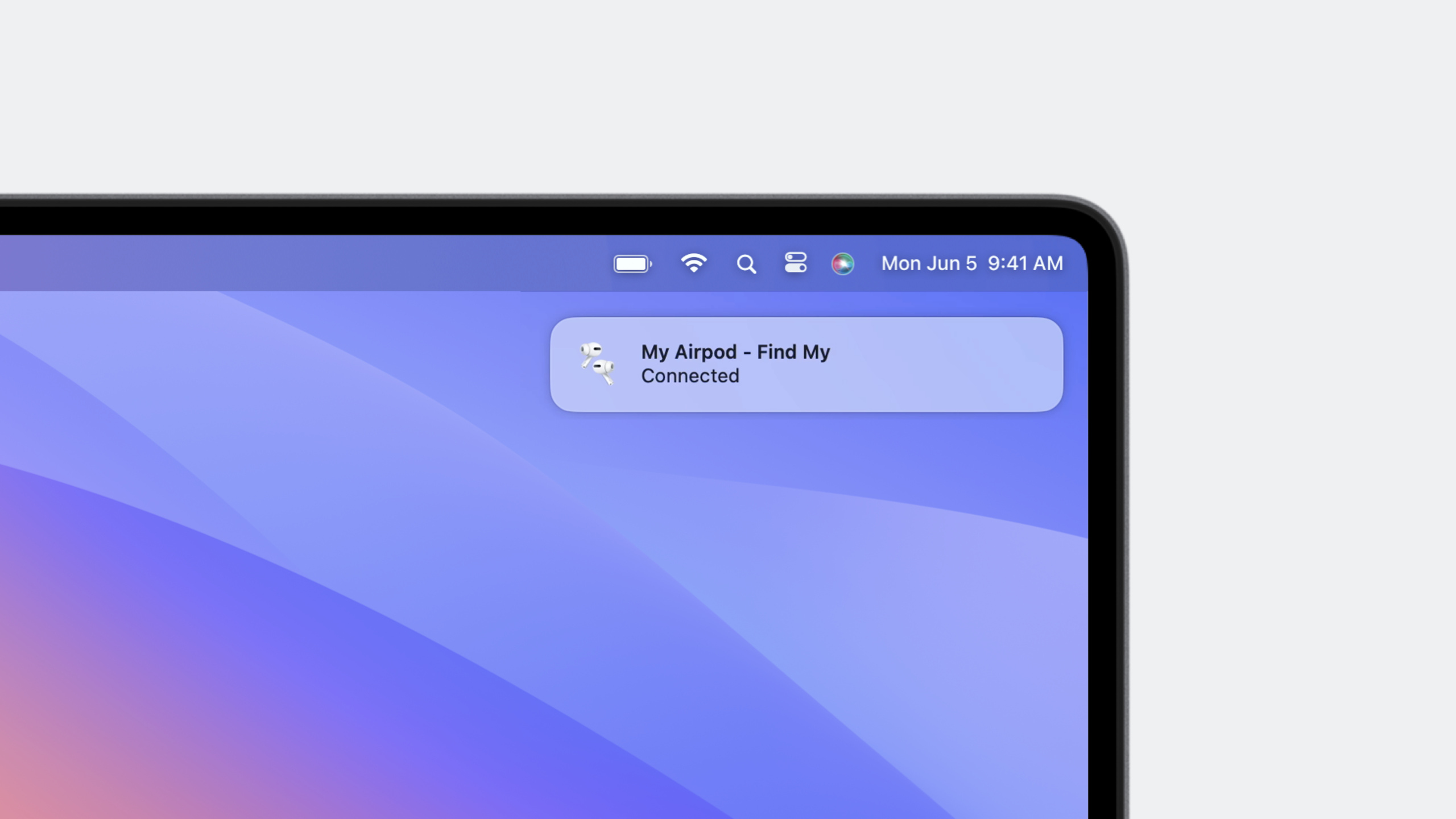
macOS 14 begins to support AirPods auto-switching. The user is listening to music on iPhone, receives a meeting notification on Mac, AirPods automatically connects and displays a banner confirmation after unlocking Mac, and music on iPhone is automatically paused. (01:33)
The good news is: All App Store apps and apps outside the sandbox do not need to make additional adaptations. The auto-switching algorithm makes routing decisions based on Now Playing registration and input audio activity.
But there are several best practices to optimize the experience: (05:17)
- It is recommended to register Now Playing for media/streaming media apps to help the system correctly prioritize routing.
- It is not recommended to register for conference/game apps Now Playing
- Use Audio Services API to play notification sound effects and distinguish notifications from media content
- The conference app only turns on the microphone during the call and turns it off immediately after the call ends.
- Media apps play audio using the default route chosen by the user
- Avoid playing silence after the user pauses it, limit it to 2 seconds if necessary
Press to mute
iOS 17 and macOS 14 support pressing the stem of AirPods to mute/unmute. When the user presses, the system displays a microphone status banner and plays a sound. (02:26)
On iOS, all CallKit apps automatically get this functionality with no additional code required. Non-CallKit communication apps need to use newAVAudioApplicationAPI access. (07:03)
The behavior on macOS is slightly different: after the app receives the mute gesture notification, it is responsible for muting the upstream audio. (09:47)
Spatial audio
More than 80% of Apple Music subscribers listen using spatial audio. Personalized spatial audio introduced in iOS 16 continues to expand support in iOS 17. (12:05)
macOS 14 supports spatial audio for AVPlayer and AVSampleBufferAudioRenderer. iOS and tvOS additionally support AURemoteIO and AudioQueue. The latter two have no API interfaces and are automatically enabled for apps that register Now Playing. Users can configure them in the control center.
Detailed Content
iOS press mute access
import AVFAudio
import Combine

class AudioManager: ObservableObject {
    @Published var isMuted = false
    private var cancellables = Set<AnyCancellable>()

    init() {
        let center = NotificationCenter.default
        center.publisher(for: AVAudioApplication.inputMuteStateChangeNotification)
            .sink { [weak self] notification in
                guard let self = self,
                      let userInfo = notification.userInfo,
                      let muteState = userInfo[AVAudioApplication.muteStateKey] as? Bool else {
                    return
                }
                self.isMuted = muteState
            }
            .store(in: &cancellables)
    }

    func toggleMute() {
        let instance = AVAudioApplication.shared
        instance.setInputMuted(!instance.isInputMuted)
    }
}
Key points:
AVAudioApplicationIs a new member of the AVAudioSession family, managing application-level audio behavior -inputMuteStateChangeNotificationNotification triggered when mute status changes -muteStateKeyfrom notificationuserInfoExtract new mute status from -setInputMuted()Called when mute is triggered within the app to keep system status synchronized -isInputMutedRead the current mute status- By subscribing to notifications, the app opts in to the press-to-mute feature
macOS Press to mute access
import AVFAudio
import CoreAudio

class MacAudioManager {
    let instance = AVAudioApplication.shared

    func setupMuteHandler() {
        instance.setInputMuteStateChangeHandler { isMuted in
            // Mute uplink audio
            self.muteUplinkAudio(isMuted)

            // Update UI state
            DispatchQueue.main.async {
                self.updateMuteUI(isMuted)
            }

            // Return whether handling succeeded
            return true
        }
    }

    func muteUplinkAudio(_ isMuted: Bool) {
        var propertyAddress = AudioObjectPropertyAddress(
            mSelector: kAudioHardwarePropertyProcessInputMute,
            mScope: kAudioObjectPropertyScopeInput,
            mElement: kAudioObjectPropertyElementMain
        )

        var muteValue: UInt32 = isMuted ? 1 : 0
        let size = UInt32(MemoryLayout.size(ofValue: muteValue))

        AudioObjectSetPropertyData(
            kAudioObjectSystemObject,
            &propertyAddress,
            0,
            nil,
            size,
            &muteValue
        )
    }

    func updateMuteUI(_ isMuted: Bool) {
        // Update the microphone status indicator
    }
}
Key points:
- on macOS
setInputMuteStateChangeHandlerIt is necessary. The system is only responsible for notifications. The mute logic is implemented by the App. - Handler returns
BoolIndicates whether the processing was successful and inappropriate mute operations can be rejected. -kAudioHardwarePropertyProcessInputMuteIt is a new property of CoreAudio. When enabled, it will mute all input audio of the process but keep IO running. - Handler should not be used for UI updates, UI updates should be passed
inputMuteStateChangeNotificationNotification handling -AudioObjectSetPropertyDataThe operation is a system-level audio object, and error codes need to be handled correctly.
Now Playing Register
Media App Registration Now Playing is key to engaging automatic switching and spatial audio:
import MediaPlayer

func setupNowPlaying() {
    var nowPlayingInfo = [String: Any]()
    nowPlayingInfo[MPMediaItemPropertyTitle] = "Song Title"
    nowPlayingInfo[MPMediaItemPropertyArtist] = "Artist Name"
    nowPlayingInfo[MPNowPlayingInfoPropertyPlaybackRate] = 1.0

    MPNowPlayingInfoCenter.default().nowPlayingInfo = nowPlayingInfo

    let commandCenter = MPRemoteCommandCenter.shared()
    commandCenter.playCommand.addTarget { _ in
        // Handle playback
        return .success
    }
    commandCenter.pauseCommand.addTarget { _ in
        // Handle pause
        return .success
    }
}
Key points:
MPNowPlayingInfoCenterRegister the currently playing content with the system- After registration the system can correctly route audio to the user’s selected device
- Spatial audio pairs AudioQueue and AURemoteIO are automatically enabled for apps registered with Now Playing
- Do not register Now Playing for conference/game apps to avoid interfering with the automatic switching algorithm
Audio routing change monitoring
import AVFAudio

func setupRouteChangeMonitoring() {
    NotificationCenter.default.addObserver(
        self,
        selector: #selector(handleRouteChange),
        name: AVAudioSession.routeChangeNotification,
        object: nil
    )
}

@objc func handleRouteChange(_ notification: Notification) {
    guard let userInfo = notification.userInfo,
          let reasonValue = userInfo[AVAudioSessionRouteChangeReasonKey] as? UInt,
          let reason = AVAudioSession.RouteChangeReason(rawValue: reasonValue) else {
        return
    }

    let session = AVAudioSession.sharedInstance()
    let currentRoute = session.currentRoute

    switch reason {
    case .newDeviceAvailable:
        // AirPods connected
        let hasHeadphones = currentRoute.outputs.contains { port in
            port.portType == .headphones || port.portType == .bluetoothA2DP
        }
        if hasHeadphones {
            print("AirPods connected")
        }
    case .oldDeviceUnavailable:
        // AirPods disconnected
        print("AirPods disconnected")
    case .categoryChange:
        // Audio category changed
        break
    default:
        break
    }
}
Key points:
routeChangeNotificationTriggered when audio routing changes -AVAudioSessionRouteChangeReasonEnumeration explains the reason for the change -currentRoute.outputsContains all current output ports -.bluetoothA2DPand.headphonesCan detect AirPods connection status- Handle it correctly
.oldDeviceUnavailableCan pause playback when AirPods are disconnected
Core Takeaways
1. Intelligent Conference Assistant
What to do: Integrate AirPods press-to-mute in video conferencing apps and display microphone status in real-time in the UI.
Why it’s worth doing: AVAudioApplication makes pressing mute access a matter of just a few lines of code, but it can significantly improve user efficiency in meetings.
How to get started: SubscribeinputMuteStateChangeNotification,use@PublishedProperty-driven SwiftUI’s microphone status indicator that displays a mute icon in the toolbar.
2. Cross-device audio status synchronization
What to do: Make a podcast or music app that automatically pauses AirPods when switching from iPhone to Mac, and resumes playback progress when switching back.
Why it’s worth doing: Automatic switching is a system-level function, but app-level playback status synchronization requires developers to implement it themselves.
How to get started: MonitoringrouteChangeNotification,exist.oldDeviceUnavailableSave the current playback progress when.newDeviceAvailableto check if it is the same pair of AirPods and resume playback.
3. Spatial Audio Game What to do: Add spatial audio to the game based on the player’s head direction, so enemy positions can be determined by sound. Why it’s worth it: Spatial audio is automatically enabled for AURemoteIO and AudioQueue Apps, just provide multi-channel content. How to get started: Encode game sound effects in an audio format that supports spatial audio (such as Dolby Atmos), play them through an AudioQueue, and the system will automatically handle head tracking.
4. AirPods connection-aware UI
What to do: Detect the AirPods connection status in the audio app, display the spatial audio switch when connected, and prompt the user to connect the headphones for the best experience when disconnected.
Why it’s worth it: Experiences vary widely across audio devices, and adjusting the UI based on device type can improve user satisfaction.
How to start: Regular inspectionsAVAudioSession.sharedInstance().currentRoute.outputs, dynamically adjust interface elements according to port type.
Related Sessions
- What’s new in AVFoundation — New features of the AVFoundation framework, including audio processing improvements
- Support HDR images in your app — Best practices for handling multimedia content
- Explore AirPods features for your app — More AirPods feature integration guides
Comments
GitHub Issues · utterances