
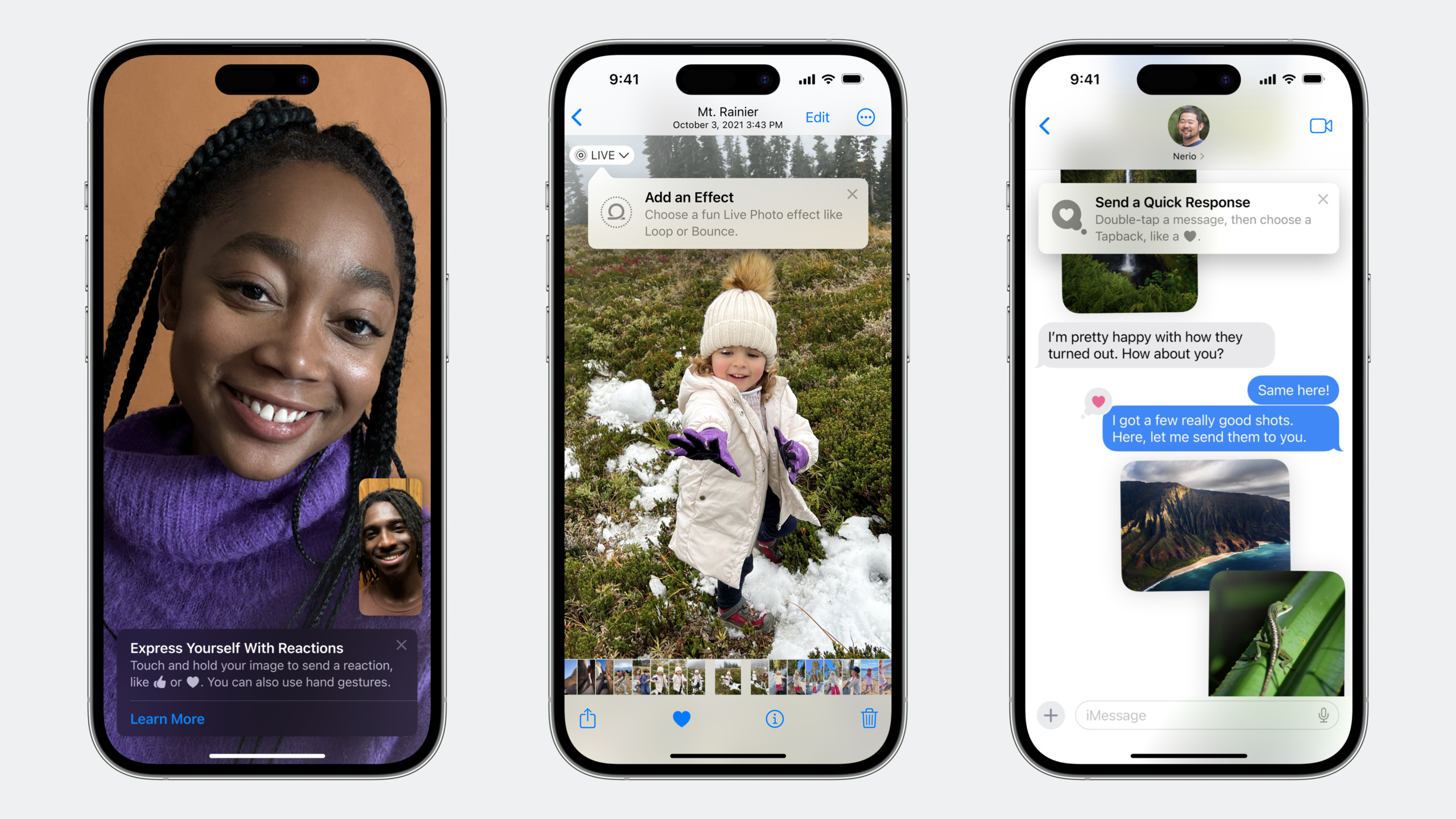
Highlight
TipKit makes the creation, display control and precise placement of App function prompts a matter of a few lines of code. It supports a combination of parameter rules and event rules to target target users and prevent educational information from turning into harassing pop-ups.
Core Content
There are good functions in the app, but users can’t find them—this is a dilemma that every developer encounters. The traditional approach is to create a long introduction page when you first launch it. Users will either skip it quickly or forget about it after reading it.
TipKit has a different idea: show the right tip to the right person at the right time. It covers iPhone, iPad, Mac, Apple Watch and Apple TV, and a set of APIs is common to all platforms.
Create prompt
A prompt consists of a title and a message. Use a direct action phrase for the title, such as “Collect your favorite backyard.” A message explains the benefit, such as “The favorite backyard will appear at the top of the list.” (01:53)
Tips can have icons (SF Symbol) and Action buttons attached. Icons help users create visual connections, and action buttons can jump to settings pages or guide processes.
But not all scenarios are suitable for TipKit. Advertising sales pitches, error messages, feature update notifications, complex multi-step instructions – these are not examples of user education. (02:25)
Two display methods
Popover: floating layer form, pointing to specific UI elements without changing the current page layout. Suitable for guiding users to click a button. tvOS only supports this method. (04:15)
Inline: Inline mode, the App UI automatically makes space and does not block the content. Suitable for displaying prompts in lists or forms.
Rule system
Rules are a core capability of TipKit, ensuring that tips are only shown to the people who need them most. (06:02)
Parameter-based: Persistent state based on Swift value types. For example, whether the user is logged in or whether a certain setting is turned on.
Event-based: Based on user behavior counting. For example, “The prompt will be displayed after visiting the details page 3 times.” Events can come with a time range (“Visited 3 times in the past 5 days”) and a custom correlation type (“Visited the same backyard 3 times”).
Rules can be combined. For example, “Logged in + visited the details page 3 times in the past 5 days + never favorited the backyard” - the prompt will only be displayed if all three conditions are met at the same time.
Display Control
When multiple prompts exist at the same time, the display rhythm needs to be controlled to avoid overwhelming the user. (09:57)
TipsCenterProvide global display frequency control:
.daily: Display at most one tip per day -.hourly: Maximum of one display per hour -.immediate: Display immediately when conditions are met, no frequency limit- Customize
TimeInterval: For example, one every 5 days
Individual prompts can be set.ignoresDisplayFrequency(true)Skip global frequency limits, suitable for particularly important feature guidance. You can also set.maxDisplayCount(5)Limit the total number of impressions, which will automatically expire if exceeded.
There are also several ways to eliminate the prompt: the user performs the operation described in the prompt (callinvalidate(reason: .userPerformedAction)), reaches the maximum number of impressions, or the developer calls based on any conditionsinvalidate()。(11:27)
test
TipKit provides a complete testing API, and you can see the prompt effect without meeting the rules: (12:46)
TipsCenter.showAllTips(): Show all tips -TipsCenter.showTips([tip1, tip2]): Only display the specified prompts -TipsCenter.hideAllTips():Hide all prompts -TipsCenter.resetDatastore(): Clear all TipKit data
These can also be configured through Xcode Scheme’s Launch Arguments to facilitate quick testing.
Detailed Content
Basic prompt definition
import TipKit

struct FavoriteBackyardTip: Tip {
    var title: Text {
        Text("Save as a Favorite")
    }

    var message: Text {
        Text("Your favorite backyards always appear at the top of the list.")
    }
}
Key points:
- comply with
TipAgreement, at least implementedtitleandmessage titleandmessagereturnTextType, supports SwiftUI modifiers- The prompt definition is a value type and can be reused by creating instances globally.
Prompt with icon and action
struct FavoriteBackyardTip: Tip {
    var title: Text {
        Text("Save as a Favorite")
            .foregroundColor(.indigo)
    }

    var message: Text {
        Text("Your favorite backyards always appear at the top of the list.")
    }

    var asset: Image {
        Image(systemName: "star")
    }

    var actions: [Action] {
        [
            Tip.Action(
                id: "learn-more",
                title: "Learn More"
            )
        ]
    }
}
Key points:
assetUse SF Symbol or custom images to help users establish visual associations -actionsArray defines buttons, each Action has a unique ID and title- in
.popoverMiniTipProcess clicks through action ID in the callback
Initial configuration
@main
struct BackyardBirdsApp: App {
    var body: some Scene {
        WindowGroup {
            ContentView()
        }
    }

    init() {
        TipsCenter.shared.configure()
    }
}
Key points:
TipsCenter.shared.configure()Must be called when app starts- It is responsible for the persistence of prompt status and event data
- If not called, the event count and prompt display status will not be retained after the app is restarted.
Popover Display
private let favoriteBackyardTip = FavoriteBackyardTip()

// ...

.toolbar {
    ToolbarItem {
        Button {
            backyard.isFavorite.toggle()
        } label: {
            Label("Favorite", systemImage: "star")
                .symbolVariant(
                    backyard.isFavorite ? .fill : .none
                )
        }
        .popoverMiniTip(tip: favoriteBackyardTip)
    }
}
Key points:
.popoverMiniTip(tip:)It is a SwiftUI modifier that automatically attaches the prompt floating layer to the target view.- The hint will automatically point to the view element where the modifier is located
- The display/hiding of tips is automatically managed by TipKit according to rules and does not require manual control
Parameter rules
struct FavoriteBackyardTip: Tip {
    @Parameter
    static var isLoggedIn: Bool = false

    var rules: Predicate<RuleInput...> {
        #Rule(Self.$isLoggedIn) { $0 == true }
    }
}
Key points:
@ParameterThe static properties of the tag are persistent and the value is retained after the app is restarted.- Set after successful login
FavoriteBackyardTip.isLoggedIn = true #RuleMacros define conditions and support comparison operators and logical combinations
Event rules
struct FavoriteBackyardTip: Tip {
    @Parameter
    static var isLoggedIn: Bool = false

    static let enteredBackyardDetailView: Event = Event<DetailViewDonation>(
        id: "entered-backyard-detail-view"
    )

    var rules: Predicate<RuleInput...> {
        #Rule(Self.$isLoggedIn) { $0 == true }
        #Rule(Self.enteredBackyardDetailView) { $0.count >= 3 }
    }
}

// Donate the event in the view
.onAppear {
    FavoriteBackyardTip.enteredBackyardDetailView.donate()
}
Key points:
EventThe definition requires a unique ID and can be associated with an associated typeDonationValue.donate()Called when an event occurs, TipKit automatically records the timestamp -$0.countReturns the total number of donations for this event- Multiple
#RuleThe default is AND relationship, which must all be satisfied
Event rules with time filtering
#Rule(Self.enteredBackyardDetailView) {
    $0.donations.filter {
        $0.date > Date.now.addingTimeInterval(-5 * 60 * 60 * 24)
    }
    .count >= 3
}
Key points:
$0.donationsReturns all donation records, includingdateand associated data- use
filterFilter records within a time range - For time calculation
addingTimeInterval, the unit is seconds
Event rules with associated types
extension FavoriteBackyardTip {
    struct DetailViewDonation: DonationValue {
        let backyardID: Int
    }
}

// Include data when donating
.onAppear {
    FavoriteBackyardTip.enteredBackyardDetailView.donate(
        with: .init(backyardID: backyard.id)
    )
}

// Group by backyardID in the rule
#Rule(Self.enteredBackyardDetailView) {
    $0.donations.filter {
        $0.date > Date.now.addingTimeInterval(-5 * 60 * 60 * 24)
    }
    .largestSubset(by: \.backyardID)
    .count >= 3
}
Key points:
- Association type compliance
DonationValueProtocol, can store any serializable data -.largestSubset(by:)Group by specified attributes and return the number of records in the largest group - This example means “Visited the same backyard detail page at least 3 times in the past 5 days”
- The smaller the associated data, the faster the query. It is recommended to only store the ID and not the complete object.
Display frequency configuration
// Global frequency: one tip per day
TipsCenter.shared.configure {
    DisplayFrequency(.daily)
}

// A single tip bypasses the frequency limit
struct FavoriteBackyardTip: Tip {
    var options: [Option] {
        [.ignoresDisplayFrequency(true)]
    }
}

// A single tip is shown at most 5 times
struct FavoriteBackyardTip: Tip {
    var options: [Option] {
        [.maxDisplayCount(5)]
    }
}
Key points:
- The global frequency is at
TipsCenterLevel configuration, affects all prompts -.ignoresDisplayFrequencyMake individual prompts independent of global restrictions -.maxDisplayCountLimit the total number of impressions of the prompt, which will automatically expire when reached.
Prompt invalid
Button {
    backyard.isFavorite.toggle()
    favoriteBackyardTip.invalidate(reason: .userPerformedAction)
} label: {
    Label("Favorite", systemImage: "star")
        .symbolVariant(backyard.isFavorite ? .fill : .none
}
.popoverMiniTip(tip: favoriteBackyardTip)
Key points:
.userPerformedActionIndicates that the user performed the operation described in the prompt- call
invalidate()The prompt disappears immediately and will not be displayed again. - can also be used
.tipClosedIndicates that the user manually closes or customizes the reason
Core Takeaways
1. Progressive function guidance system What to do: Design a system of progressive reminders for your app’s core features so new users discover features sequentially rather than cramming all the information at once. Why it’s worth doing: TipKit’s rule system makes “showing the right tips at the right time” programmable, and the user experience is much better than traditional landing pages. How to start: List 5-10 key features of your app, create Tips for each feature, and set event rules (e.g., “Prompt for Feature B after using feature A 3 times”).
2. Intelligent user stratification What to do: Based on user behavior data, use event rules to automatically differentiate between novices, ordinary users and advanced users, and display different prompts. Why it’s worth doing: The same tip is useful for novices, but is annoying to experienced users. TipKit’s custom donation types make granular tiering possible. How to start: Define user behavior events (such as “Create the first project”, “Use advanced feature X”), record behavior details with association types, and combine them in rules to determine user stages.
3. Cross-device prompt synchronization What to do: Leverage TipKit’s iCloud sync capabilities to ensure that tips users viewed on iPhone aren’t shown twice on iPad. Why it’s worth doing: With more and more multi-device users, repeated education will reduce the quality of the product. How to get started: TipKit turns on iCloud sync by default, no additional code required. Just make sure the prompt IDs are consistent across platforms.
4. A/B testing prompt copy
What to do: Prepare multiple sets of prompt copywriting for the same function, control the display ratio through event rules, and use conversion rate data to verify which set is more effective.
Why it’s worth doing: The title and message of the prompt directly affect whether users are willing to try new features, and copywriting optimization has a clear ROI.
How to start: Create two Tip types (e.g.FavoriteTipVariantAandFavoriteTipVariantB), use parameter rules to control the display ratio, and evaluate the effect through the click rate and function usage of the Action button.
Related Sessions
- Design App Shortcuts — Visual language design guide for App Shortcuts, which belongs to the same user discovery system as TipKit
- Design dynamic Live Activities — Design principles for real-time activities, learn how to display App information at the system level
- Meet SwiftUI for spatial computing — SwiftUI’s new features in spatial computing, TipKit also supports visionOS
Comments
GitHub Issues · utterances