
Highlight
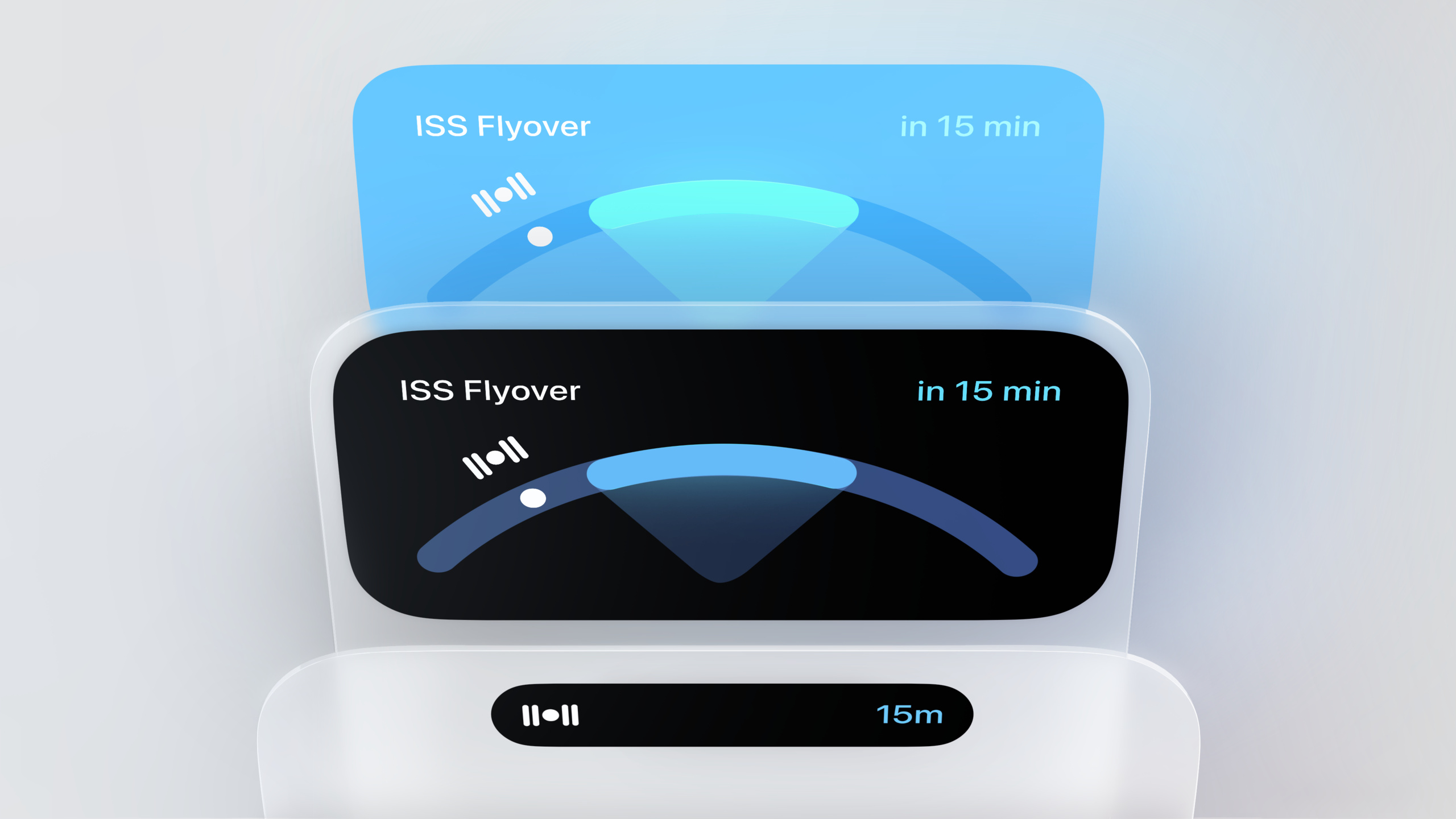
Live Activities allows apps to display real-time information on the lock screen, StandBy and Smart Island. Apple provides unique design specifications for each scenario, with the core goal of allowing users to keep track of ongoing tasks even after leaving the app.
Core Content
Lock screen: Graphical layout, get key information at a glance
In the past, users who wanted to check takeout progress or game scores had to unlock the phone, find the app, and open it to view. Lock screen notifications can only display static information, and the entire section is replaced during updates, making the experience stiff.
Live Activities changes this process. It stays at the top of the lock screen notification list, displays real-time data in a rich graphical layout, and the content updates seamlessly.
(01:18) Live Activity on lock screen uses 14pt margins, aligned with notifications. But when designing, don’t copy notification layouts; create a unique layout that is specific to the information being displayed.
(01:55) Think about what information users need most and prioritize amplifying these elements. In addition to displaying the name and remaining time, Timer’s Live Activity also provides pause and cancel buttons. But buttons should only be used to control the core actions of the activity itself, since they take up space for displaying information.
Brand Personality: Continuing the visual identity from the app icon
(02:27) The Live Activity should share the same visual personality as the application. Extracting the color and font properties from the app icon is the most straightforward way. The TV app’s Live Activity uses the same background and foreground colors as the app icon.
Don’t change colors between light and dark modes, as this breaks the visual association. Use bold colors to make your Live Activity stand out, or dynamically change colors based on the content.
If you use a branding logo, incorporate it into the layout itself rather than using the entire app icon directly.
Space efficiency: dynamically adjust height
(03:44) The lock screen may display a music player, notifications, and Live Activities at the same time, so the layout should be as compact as possible. Resize and position elements so they fit together better.
(04:05) A more advanced approach is to dynamically change the height. The taxi app has less information when waiting for the driver and keeps the layout compact; after the driver takes the order, it expands to display more information. When the game enters halftime, the quarter-by-quarter score area can be retracted.
Transition animation: Make updates more vivid
(04:38) In addition to adjusting the height when the state changes, you can also apply transition animation to a single element:
- For digital changes
numericContentTransition- Graphic and text replacementcontentReplacetransition - You can also customize the combination of scale, opacity, and position animations
(05:06) In the Nearby Friends example, markers on the map transition smoothly to new locations. When items in the list are moved, only the row being moved is animated, and other rows fade in and out to avoid overlap.
Reminder and end
(05:33) When users need to be reminded of important updates, use the alert function. This will light up the screen and play notification sounds. The information that triggers the reminder should be highlighted in the layout.
(05:49) It should be removed in time after the activity is over, and do not let it stay on the lock screen for too long, otherwise the user will have to manually close it every time.
StandBy: Environmental information display
(06:04) StandBy is a new feature of iOS 17, which turns the iPhone into an environmental information display when it is laid horizontally. The Live Activity is zoomed in 200% here and the background color automatically expands to full screen.
(06:35) If the layout has welt elements, they will be cropped by the sensor area after zooming in. It is recommended to use dividers or container shapes to separate different areas. You can also remove the background color completely so that the layout blends into the device frame to gain a larger display area.
(07:22) StandBy has a night mode, and the display will turn a red tone in low-light environments. Live Activity automatically adapts, but checks to see if the color contrast is sufficient.
Smart Island: Three forms of design
(07:42) Smart Island is a system layer that integrates software and hardware and can organically transform between different forms. Its design is inspired by biological forms and movement, making it elastic and alive.
Compact View
(11:09) The most common form. The goal is to allow users to keep an eye on background activities while using their phones. Content should fit snugly into the sensor area without wasting space. Try to fill the entire view, avoiding white space on the left side. If multiple sessions need to be displayed, they can be displayed alternately.
(12:18) When users need to be reminded, prioritize expanding Smart Island instead of sending push notifications.
Expanded view
(12:41) The user long presses Smart Island to enter. Display more information and provide core control. Capture the essence of the activity, not too much and not too little. Keep the relative position of elements consistent between compact and expanded.
(13:39) When laying out, avoid leaving a “forehead” at the top to emphasize the sensor area. It should fit snugly against the sensor, allowing the content to surround it and make the sensor almost disappear.
Minimal view
(13:53) Displayed when multiple sessions exist at the same time. Don’t just use a logo, find a way to continue conveying the message in this tiny space.
Concentric circle layout principle
(09:52) Smart islands are sensitive to the shape and position of internal elements. Round elements should be concentric with the island shape, maintaining even margins. The visual center of gravity of non-circular elements should also be comfortably embedded inside the smart island.
A tip: blur the object and check if the resulting shape is as concentric as possible with the outer bounding box. This places the content in the most optically comfortable position.
(10:35) When placing content, maintain concentric margins with the edge of the smart island to avoid poking corners. You can push the content inward or round the corners of the container.
Detailed Content
Key points of lock screen layout
(01:23) Live Activity uses 14pt margins on the lock screen, aligned with notifications. Although the layout is different, elements can be aligned on both sides to maintain a consistent visual rhythm.
Key design principles:
- Graphical layouts are better than text lists
- Prioritize the most important information
- Buttons are only used for core operations
- Dynamically adjust height to adapt to the amount of information
Color and Brand
(03:24) The background color and foreground color provided by Live Activity will be used by the system to generate the close button. Make sure the generated button looks correct.
// Configure colors in ActivityAttributes
struct DeliveryAttributes: ActivityAttributes {
    public struct ContentState: Codable, Hashable {
        var status: String
        var eta: Date
    }

    var orderId: String
    var restaurantName: String
}

// Set the appearance in ActivityConfiguration
ActivityConfiguration(for: DeliveryAttributes.self) { context in
    LockScreenLiveActivityView(context: context)
} dynamicIsland: { context in
    DynamicIsland {
        // Compact leading
        DynamicIslandExpandedRegion(.leading) {
            // Content close to the sensor
        }
        // Compact trailing
        DynamicIslandExpandedRegion(.trailing) {
            // Core information
        }
        // Expanded
        DynamicIslandExpandedRegion(.center) {
            // Full layout
        }
    } compactLeading: {
        // Minimized leading
    } compactTrailing: {
        // Minimized trailing
    } minimal: {
        // Minimal view
    }
}
Key Points:
-ActivityConfigurationDefine the appearance of your Live Activity
-dynamicIslandThree forms of closure configuration smart island
-DynamicIslandExpandedRegionDefine the zoning of the expanded view
-compactLeading/compactTrailingDefine the left and right content of the compact form
-minimalMinimal view when defining multiple sessions
Transition animation implementation
(04:47) The system provides default transition effects:
// Numeric transition
text("\(remainingTime)")
    .contentTransition(.numericText(countsDown: true))

// Content replacement transition
text(status)
    .contentTransition(.identity)
    .transition(.push(from: .bottom))
Key Points:
-.numericText(countsDown:)Make numbers count down like a timer
-.identityCooperate.transitionCustomizable replacement animation
- When a list item moves, only the target item animates, and other items fade in and out.
StandBy Adaptation
(06:18) Live Activity under StandBy is enlarged by 200%, and the background color is automatically expanded. Need to pay attention to:
- Welt elements will be cropped, use dividers or containers
- Remove the background to get a larger display area
- All materials need to be of high enough resolution
- Check the contrast in night mode (red tint)
Core Takeaways
Add real-time tracking for takeout/delivery apps
- What to do: After the user places an order, the delivery progress is displayed in real time on the lock screen and Smart Island.
- Why it’s worth doing: Users don’t need to open the app repeatedly to view it, and the experience is smoother
- How to start: Use
ActivityKitcreateActivityAttributes, called when order confirmationrequest(attributes:contentState:pushType:)
Live Activity designed for sports/fitness applications
- What to do: When running or cycling, display real-time pace, heart rate and distance on Smart Island
- Why it’s worth it: Users can keep track of their exercise data while using other apps
- How to start: In
ActivityConfigurationConfigure compact and expanded views innumericTextTransition animation update data
Create score tracking for event applications
- What to do: During the game, scores and key events will be updated in real time on the lock screen and Smart Island.
- Why it’s worth it: Users can do other things without missing out on match progress
- How to start: Dynamically adjust the Live Activity height - expand to display detailed data during normal games, and collapse during halftime
Designing status flow for taxi-hailing applications
- What to do: From requesting a ride to arriving, different information and operations are displayed on Smart Island at each stage
- Why is it worth doing: Users at different stages pay attention to different information, and dynamically adjusting the layout is more efficient.
- How to start: Define multiple
ContentState, updated when the status changesActivityofcontentState,CooperatecontentReplacetransition animation
Related Sessions
- Meet ActivityKit — Technical implementation details of the ActivityKit framework
- Design Shortcuts for Spotlight — Co-design of shortcut operations and Live Activity
- Build a great Lock Screen experience — Overall design of lock screen widgets and Live Activity
Comments
GitHub Issues · utterances