
Highlight
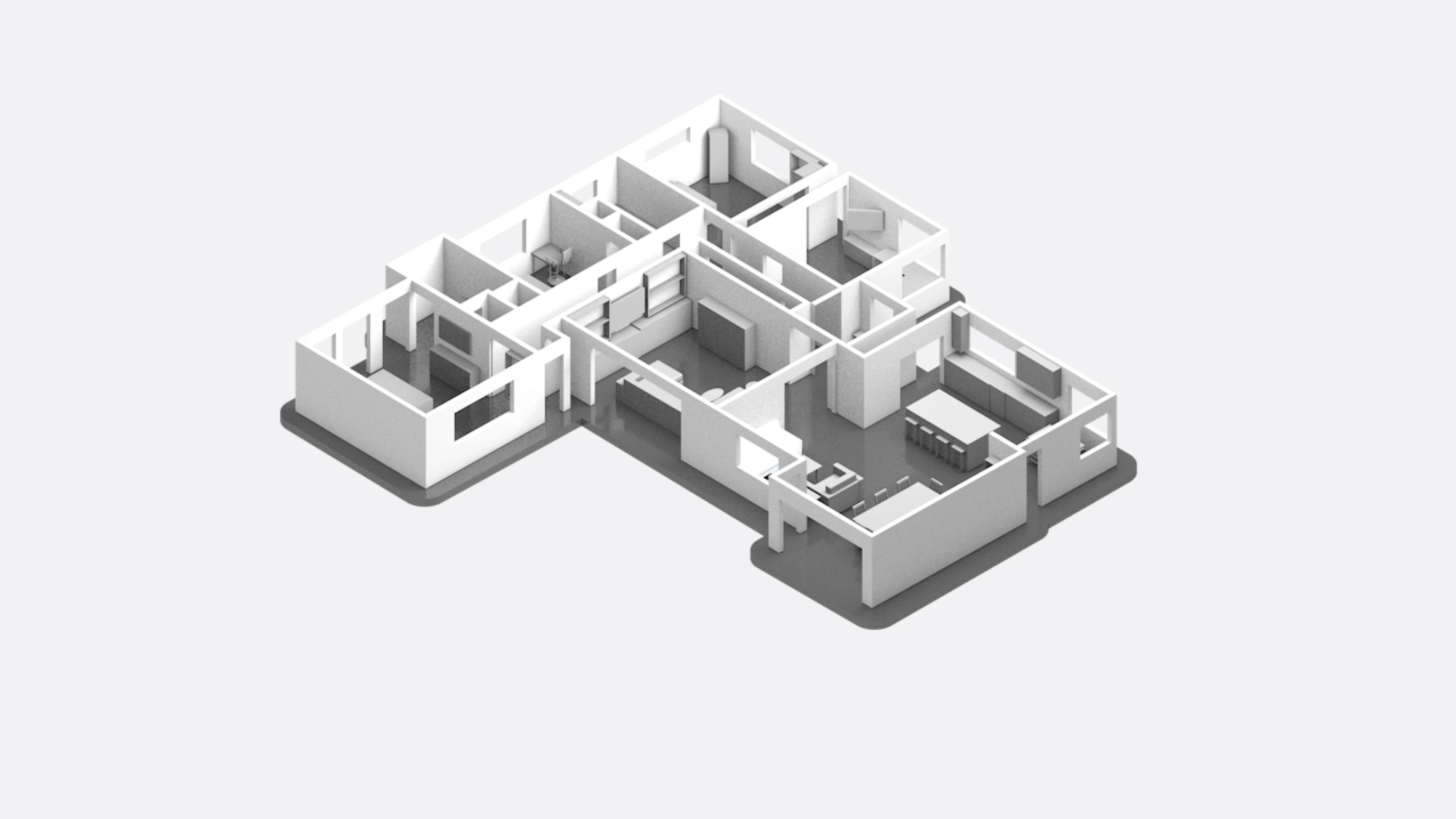
RoomPlan supports multi-room scan merging, custom ARSession integration, VoiceOver accessibility, and the replacement of block objects in scan results with 3D models in iOS 17, upgrading property mapping, interior design, and space planning applications from single-room tools to complete space solutions.
Core Content
Starting with iOS 16, RoomPlan gives iPhone and iPad the ability to scan a room and generate a 3D model. But the first version has obvious limitations: it can only scan one room, it cannot be mixed with other AR functions when scanning, and the furniture in the scan results is just colored squares.
Four updates to iOS 17 address these pain points.
Custom ARSession
(01:36) In the past, RoomPlan managed ARSession by itself, and developers could not plug in. It is now possible to pass in a custom ARSession during initialization:
// RoomCaptureSession now accepts an optional ARSession
public class RoomCaptureSession {
    public init(arSession: ARSession? = nil) {
        // ...
    }

    public func stop(pauseARSession: Bool = true) {
        // ...
    }
}
This opens up several new scenarios:
- AR interactive enhancement: Combine RoomPlan scanning results with ARKit’s scene geometry and plane detection to make virtual content more accurately fit the real space
- Real Estate Display Upgrade: Use ARKit to collect high-quality photos and videos while scanning a room, and generate a property page with 3D models and real-life photos.
- Does not interfere with existing AR: Adding RoomPlan to an existing AR experience will not destroy the existing ARAnchor
(03:20)stop(pauseARSession:)ofpauseARSessionThe parameter controls whether the ARSession continues to run after the scan ends. set tofalse, the ARSession remains active, preparing for the next function or the next scan.
Multi-room scanning
(03:53) In the past, after scanning the living room and then the bedroom, the two rooms were independent and had different coordinate systems. When manually merging, you would also encounter the problem of duplicate walls and duplicate furniture.
iOS 17 provides two solutions for multiple rooms to share the same coordinate system:
Option 1: Continuous ARSession
(05:02) After scanning the first room, do not pause ARSession and start scanning the next one directly:
// Start the first scan
roomCaptureSession.run(configuration: captureSessionConfig)

// End the first scan, but keep ARSession running
roomCaptureSession.stop(pauseARSession: false)

// Start the second scan
roomCaptureSession.run(configuration: captureSessionConfig)

// End the second scan (pauses ARSession by default)
roomCaptureSession.stop()
Key points:
pauseARSession: falseKeep ARSession running between scans- the same
roomCaptureSessionInstance reuses the same ARSession - All scan results automatically share the same world coordinate system
Option 2: ARSession relocation
(06:38) Suitable for scanning across time periods, such as scanning the living room today and the bedroom tomorrow:
// Load the previously saved ARWorldMap
let arWorldMap = try NSKeyedUnarchiver.unarchivedObject(
    ofClass: ARWorldMap.self,
    from: data
)

// Configure ARKit relocation
let arWorldTrackingConfig = ARWorldTrackingConfiguration()
arWorldTrackingConfig.initialWorldMap = arWorldMap

roomCaptureSession.init()
roomCaptureSession.arSession.run(arWorldTrackingConfig, options: [])

// Wait for relocation to complete...

// Start the second scan
roomCaptureSession.run(configuration: captureSessionConfig)

// End the second scan
roomCaptureSession.stop()
Key points:
- Save after first scan
ARWorldMap- Load before second scanARWorldMapTrigger relocation - After the relocation is completed, the current coordinate system is aligned with the previous one
- Suitable for scanning in different periods and times
Merge rooms: StructureBuilder
(09:40) After scanning multiple rooms, useStructureBuildermerge:
// Create a StructureBuilder instance
let structureBuilder = StructureBuilder(option: [.beautifyObjects])

// Load multiple CapturedRoom values
var capturedRoomArray: [CapturedRoom] = []

// Merge into a CapturedStructure
let capturedStructure = try await structureBuilder.capturedStructure(
    from: capturedRoomArray
)

// Export as USDZ
try capturedStructure.export(to: destinationURL)
Key points:
StructureBuilderAutomatically handle duplicate walls and duplicate objects -.beautifyObjectsOption to beautify object representation- output
CapturedStructureContains complete spatial information after merging
(10:11)CapturedStructureThe structure of:
public struct CapturedStructure: Codable, Sendable {
    public var rooms: [CapturedRoom]
    public var walls: [Surface]
    public var doors: [Surface]
    public var windows: [Surface]
    public var openings: [Surface]
    public var objects: [Object]
    public var floors: [Surface]
    public var sections: [Section]

    public func export(
        to url: URL,
        metadataURL: URL? = nil,
        modelProvider: ModelProvider? = nil,
        exportOptions: USDExportOptions = .mesh
    ) throws
}
Key points:
roomsArray retains original information for each room -walls、doors、windowsWait for the result after merging and deduplication. -sectionsDescribe the different functional areas of the room (living room, bedroom, etc.)- Supports export to USDZ, optionally with metadata and 3D models
Scanning experience optimization
(11:11) Best practices for multi-room scanning:
- Suitable for single-storey homes, typical floor plan with 1-4 bedrooms
- The total scan area is recommended to be no more than 2000 square feet (approximately 186 square meters)
- Lighting conditions are recommended to be above 50 lux
- Maintain image overlap between scan segments to aid system alignment
VoiceOver support
(12:00) RoomCaptureView adds VoiceOver audio feedback so that visually impaired users can also use the scanning function:
- “Move device to start”
- “Point camera at bottom edge of wall”
- “A fireplace. A wall.”
- “A window.”
The system verbally describes the detected objects and scanning progress, so low-vision users no longer need to rely on visual feedback.
Richer room representation
(12:32) RoomPlan now supports more room types and object configurations:
- Slanted walls and curved walls: Previously only straight walls could be processed, but now support polygonally described special-shaped walls
- Embedded Kitchen Equipment: Embedded equipment such as dishwashers, ovens, sinks, etc. can be detected and rendered correctly
- Sofa configuration: Different shapes such as single sofa, L-shaped sofa, square sofa, etc. can be recognized
- Section area: The room can be divided into functional areas such as living room, bedroom, kitchen, dining room, etc.
- Father-Son Relationship: The window belongs to a certain wall, the chair belongs to a certain table, and the dishwasher belongs to a certain cabinet
Replace blocks with 3D models
(17:26) Furniture in previous scans appeared as colored squares. Now it can be replaced with a real 3D model:
Step 1: Create a model directory
// Iterate through all supported object categories
for category in CapturedRoom.Object.Category.allCases {
    let url = generateFolderURL(category: category, attributes: [])
    FileManager.default.createDirectory(at: url, withIntermediateDirectories: true)

    // Create a subfolder for each attribute combination
    for attributes in category.supportedCombinations {
        let url = generateFolderURL(category: category, attributes: attributes)
        FileManager.default.createDirectory(at: url, withIntermediateDirectories: true)
    }
}
Step 2: Create directory index
struct RoomPlanCatalog: Codable {
    let categoryAttributes: [RoomPlanCatalogCategoryAttribute]
}

struct RoomPlanCatalogCategoryAttribute: Codable {
    let category: CapturedRoom.Object.Category
    let attributes: [any CapturedRoomAttribute]
    let folderRelativePath: String
    private(set) var modelFilename: String? = nil
}
Step 3: Package into catalog bundle
let catalog = RoomPlanCatalog(categoryAttributes: categoryAttributes)
let plistEncoder = PropertyListEncoder()
let data = try plistEncoder.encode(catalog)
let catalogURL = inputURL.appending(path: "catalog.plist")
try data.write(to: catalogURL)

let fileWrapper = try FileWrapper(url: inputURL)
try fileWrapper.write(
    to: outputURL,
    options: [.atomic, .withNameUpdating],
    originalContentsURL: nil
)
Step 4: Create ModelProvider from catalog
for categoryAttribute in catalog.categoryAttributes {
    guard let modelFilename = categoryAttribute.modelFilename else {
        continue
    }
    let folderRelativePath = categoryAttribute.folderRelativePath
    let modelURL = url.appending(path: folderRelativePath).appending(path: modelFilename)

    if categoryAttribute.attributes.isEmpty {
        try modelProvider.setModelFileURL(modelURL, for: categoryAttribute.category)
    } else {
        try modelProvider.setModelFileURL(modelURL, for: categoryAttribute.attributes)
    }
}
Step 5: Export USDZ with model
try capturedRoom.export(
    to: outputURL,
    modelProvider: modelProvider,
    exportOptions: .model
)
Key points:
ModelProviderMap object categories and properties to 3D model URLs- Objects without attributes are matched by category, and objects with attributes are matched by attribute combinations.
- Specify when exporting
.modelOption to replace blocks with real models - Sample code contains a prepopulated model directory as a starting point
Metadata mapping
(16:08) When exporting USDZ, you can attach a metadata mapping file to associate USDZ nodes with CapturedRoom elements:
try capturedRoom.export(
    to: outputURL,
    metadataURL: metadataURL
)
The generated mapping file is a dictionary from String to UUID, allowing you to query additional information such as wall dimensions and object properties when rendering scan results.
Detailed Content
Object Attributes detailed explanation
RoomPlan now uses attributes to describe objects more precisely. Take a chair as an example:
- Category:chair
- Attributes: It can be stool (stool), dining chair (dining chair), office chair (office chair)
Attributes are exposed through polymorphic enumeration arrays, but handling them is not intuitive enough. It is recommended to combineModelProviderMap attributes to specific 3D models.
Polygonal representation of walls and floors
Non-uniform walls are now usedpolygonCornersDescribed as a polygon. The floor appears as a rectangle during the scan and is transformed into a polygon after the scan is complete. Curved walls and curved windows are also rendered in the final result of RoomCaptureView.
Comparison of export options
| Options | Output | Usage |
|---|---|---|
.mesh | Mesh USDZ | Universal 3D Preview |
.model | USDZ with models | Scenarios that require real furniture models |
metadataURL | Mapping file | Query additional information |
Core Takeaways
1. Make a real estate display application
- What to do: Scan the entire house to generate a 3D model and combine it with high-quality photos to create an immersive listing display
- Why it’s worth doing: Multi-room merging + custom ARSession allows scanning and taking pictures at the same time, ModelProvider allows furniture to be displayed as a real model
- How to start: Scan each room with continuous ARSession, merge with StructureBuilder, export USDZ with metadata, and display it on the web page with Quick Look
2. Make an interior design planning tool
- What to do: Scan a client’s room and preview furniture placement in a 3D model
- Why it’s worth doing: RoomPlan automatically detects the positions of walls, doors and windows, Section distinguishes functional areas, and ModelProvider replaces blocks with real furniture models
- How to start: Scan the room to obtain the structure, use ModelProvider to load the furniture catalog, and preview the placement effect in AR in real time
3. Make a barrier-free spatial navigation application
- What: Help visually impaired users understand the layout of unfamiliar spaces
- Why it’s worth doing: VoiceOver supports making the scanning process itself barrier-free, and the scanning results can describe the room structure and object locations with voice
- How to start: Integrate RoomCaptureView, use voice to broadcast the detected walls, doors, windows, furniture and their relative positions after scanning
4. Make an AR preview function for furniture e-commerce
- What to do: Users scan their own rooms and preview the furniture on the e-commerce platform in the real space
- Why it’s worth doing: RoomPlan provides accurate room geometry, and custom ARSession can run plane detection and place virtual furniture at the same time
- How to start: Use RoomPlan to obtain the room structure, use ARKit plane detection to place furniture models on the floor/wall, and combine with ModelProvider to use real product models
Related Sessions
- Meet Object Capture for iOS — 3D object scanning on iOS, works with RoomPlan
- Create 3D models for Quick Look spatial experiences — Best practices for creating 3D content for visionOS Quick Look
- Meet Reality Composer Pro — Apple’s 3D content creation tool that further enhances RoomPlan export results
- Work with Reality Composer Pro content in Xcode — Integrate Reality Composer Pro content in Xcode
Comments
GitHub Issues · utterances