
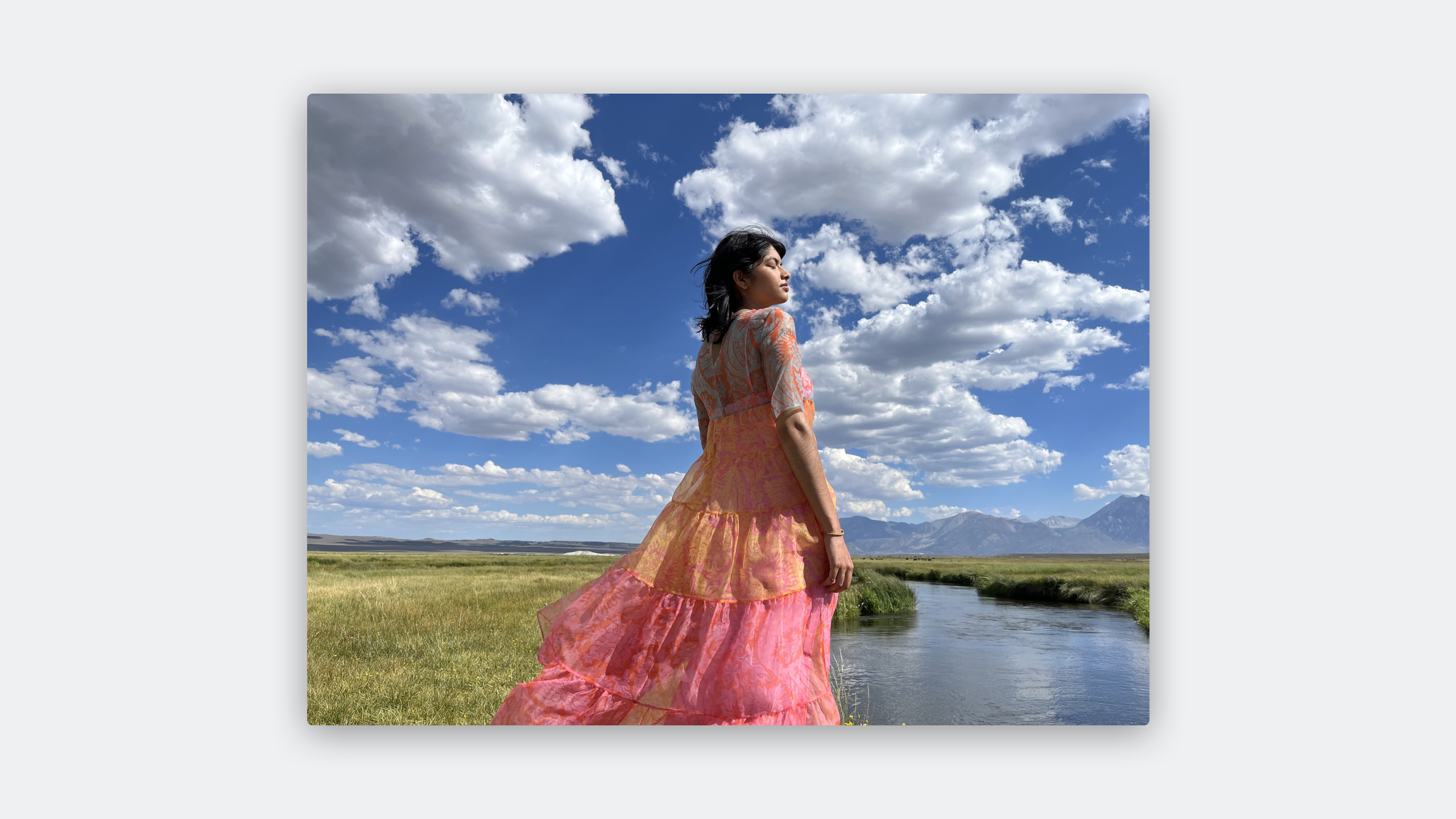
Highlight
iOS 17 introduces full support for the ISO HDR still image standard, allowing developers to directly load, display, and create HDR photos using SwiftUI, UIKit, and Core Graphics without having to manually deal with complex tone mapping.
Core Content
SDR (Standard Dynamic Range) monitors have a limited brightness range and the highlights in the scene can only be compressed or cropped. HDR displays can present a wider brightness range, making images closer to real scenes.
Apple introduced support for the ISO HDR standard this year. This standard (TS22028-5) defines how to encode HDR content into existing still image formats. Key parameters include: use of HLG or PQ as transfer function, BT.2020 wide color gamut, 10-bit or higher bit depth. HEIF can encode HDR, but traditional JPEG cannot (only 8 bits).
For developers, the biggest change is that the system framework has already handled HDR recognition and display for you. SwiftUIImage, UIKitUIImageView,as well asCALayerAll can automatically recognize HDR content and render it correctly. You just need to make sure the image metadata is correct, and the system will automatically utilize EDR (Extended Dynamic Range) to render content beyond the SDR white point brightness on supported displays.
Detailed Content
HDR Basic Concepts
(00:40) The core of HDR display is headroom. The brightest white of an SDR display is called reference white, and HDR can display content that is brighter than reference white.
In the EDR paradigm:
- reference white = 1.0
- peak = the maximum value that the monitor can represent
ISO HDR standard definition:
- Black: 0.0005 cd/m² -Default reference white: 203 cd/m²
- Anything above 203 is headroom
Compare SDR:
- Black for sRGB/Display P3: 0.2 cd/m²
- White: 80 cd/m²
Identify HDR images
(02:35) The system provides multiple ways to determine whether a picture is HDR:
SwiftUI automatic processing:
import SwiftUI

struct ContentView: View {
    var body: some View {
        Image("sunrise_hdr")
            .resizable()
            .scaledToFit()
    }
}SwiftUIImageHDR content is automatically recognized and rendered correctly on EDR-capable displays.
UIKit handling:
import UIKit

let imageView = UIImageView()
imageView.image = UIImage(named: "sunrise_hdr")
imageView.preferredImageDynamicRange = .high
Key points:
preferredImageDynamicRange = .highTells the system that this image should be rendered in HDR- EDR mapping is automatically handled by the system
Create HDR images from ProRAW/RAW
(04:30) ProRAW shot with iPhone contains high dynamic range data and can be exported as HDR still images:
import CoreImage
import ImageIO

// Create an HDR CGImage from ProRAW
guard let rawImage = CIImage(contentsOf: prorawURL,
                             options: [.rawFilterOptions: true]) else { return }

// Apply tone mapping to preserve HDR data
let toneMapped = rawImage.applyingFilter("CIToneCurve",
    parameters: [
        "inputPoint0": CIVector(x: 0, y: 0),
        "inputPoint1": CIVector(x: 0.25, y: 0.25),
        "inputPoint2": CIVector(x: 0.5, y: 0.5),
        "inputPoint3": CIVector(x: 0.75, y: 0.75),
        "inputPoint4": CIVector(x: 1, y: 1.2)  // Preserve super-white areas
    ])

// Export as HEIF with HDR
let context = CIContext()
guard let cgImage = context.createCGImage(toneMapped, from: toneMapped.extent) else { return }

let destination = CGImageDestinationCreateWithURL(outputURL,
                                                   UTType.heic.identifier as CFString,
                                                   1,
                                                   nil)
let hdrProperties: [String: Any] = [
    kCGImagePropertyHEICSDRHint as String: true,
    kCGImagePropertyHEICGainMap as String: gainMapData
]
CGImageDestinationAddImage(destination!, cgImage, hdrProperties as CFDictionary)
CGImageDestinationFinalize(destination!)
Key points:
- ProRAW preserves sensor-level dynamic range data
- Select HEIF format when exporting to support HDR metadata
-
kCGImagePropertyHEICSDRHintFlag image contains HDR content
Display HDR in CALayer
(06:15) For custom rendering scenes, you can useCALayerEDR support for:
import QuartzCore

let layer = CALayer()
layer.contents = hdrCGImage
layer.wantsExtendedDynamicRangeContent = true

// Set EDR headroom
layer.edrMetadata = .hdrContent(
    luminance: 1000.0  // Content peak brightness, in nits
)
Key points:
wantsExtendedDynamicRangeContent = trueEnable EDR rendering -edrMetadataTells the system the brightness range of the content, helping to map it correctly
Core Graphics support for ISO HDR
(08:00) Core Graphics has added support for reading and writing ISO HDR images:
import CoreGraphics

// Read HDR image metadata
let source = CGImageSourceCreateWithURL(imageURL as CFURL, nil)
let properties = CGImageSourceCopyPropertiesAtIndex(source!, 0, nil) as? [String: Any]

// Check HDR-related properties
let isHDR = properties?[kCGImagePropertyHDRDictionary as String] != nil
let transferFunction = properties?[kCGImagePropertyHDRTransferFunction as String]
// "HLG" or "PQ"

// Write an HDR image
let destination = CGImageDestinationCreateWithURL(outputURL as CFURL,
                                                   UTType.heic.identifier as CFString,
                                                   1, nil)
let hdrProps: [String: Any] = [
    kCGImagePropertyHDRDictionary as String: [
        kCGImagePropertyHDRTransferFunction as String: "HLG",
        kCGImagePropertyHDRReferenceWhite as String: 203.0
    ]
]
CGImageDestinationAddImage(destination!, cgImage, hdrProps as CFDictionary)
Key points:
kCGImagePropertyHDRDictionaryContains HDR specific metadata- Supports HLG and PQ transfer functions
- 10-bit bit depth is the minimum requirement for ISO HDR
Core Takeaways
1. HDR Export for Photo Editing Apps
- What: Allows users to export edited photos as HDR, preserving highlight details
- Why it’s worth it: More and more photos taken by iPhone 15 Pro series users are HDR. If you can only export SDR after editing, the original data will be wasted.
- How to get started: Use
CGImageDestinationExport HEIF, settingskCGImagePropertyHDRDictionarymetadata
2. HDR display of gallery/social apps
- What: Automatically identify and correctly display HDR photos in feeds and detail pages
- Why it’s worth doing: SwiftUI
Imageand UIKitUIImageViewAlready supported automatically, just make sure not to break metadata - How to start: Check the image loading process to ensure that HDR metadata is not lost; in
UIImageViewsettings onpreferredImageDynamicRange = .high
3. HDR photo preview in Camera App
- What: Display the HDR effect in the viewfinder in real time, allowing users to see the final image
- Why it’s worth it: HDR preview helps users judge exposure when composing shots, especially in backlit scenes.
- How to get started: Use
AVCaptureVideoPreviewLayer,set upwantsExtendedDynamicRangeContent = true
4. Batch generate HDR albums from ProRAW
- What: Batch convert user’s ProRAW photos to shareable HDR HEIF
- Why it’s worth it: ProRAW files are huge (25MB+), HDR HEIF is only a few MB, better for sharing and storage
- How to start: Use
CIImage(contentsOf:options:)Read ProRAW viaCGImageDestinationExport to HEIF with HDR metadata
Related Sessions
- Edit and play back HDR video with AVFoundation — Editing and playback of HDR video
- What’s new in SwiftUI — SwiftUI image display related updates
- Explore HDR Rendering with EDR — Learn more about the EDR rendering mechanism
Comments
GitHub Issues · utterances