
Highlight
Xcode 15 makes development workflows more efficient from coding to distribution with smaller installation packages (simulators download on demand), context-aware intelligent code completion, asset catalog Swift symbols, String Catalog localization, live document previews, bookmark navigator, improved source control commit editor, 45% faster test navigator, interactive UI test playback, OSLog structured logging console, and simplified internal distribution with TestFlight.
Core Content
Smarter code completion
When you write SwiftUI, giveVStackAdd modifiers and Xcode will suggestpadding;GiveTextadd modifier and it will suggestfont. Xcode makes these suggestions after analyzing the context of your code and common patterns.
(01:52)
When you create a new file, Xcode will suggest a type name based on the file name. When calling a function, press the right arrow key to expand the permutations and combinations of all default parameters and select the version you need. Modifiers that have already been used will be demoted to avoid repeated suggestions.
(03:28)
Swift notation for asset catalogs
In the past, strings were used to reference images and colors, and spelling errors were not discovered until runtime. Xcode 15 automatically generates Swift symbols for each resource in the asset catalog, directly references them in the code, reports build errors when renaming, and code completion corrections.
(03:50)
String Catalog centralized management of localization
Use Edit > Convert to String Catalog to convert the.stringsand.stringsdictFile migration to unified String Catalog. All translations are concentrated in one editor, the progress of each language is displayed on the left, and newly added and deleted strings are automatically detected during construction.
(04:34)
Real-time document preview
Editor > Assistant > Documentation Preview provides a real-time preview as you write documentation comments. Supports code examples and screenshot references, so you can see the final effect while writing.
(06:18)
Swift Macros integration
Xcode 15 fully supports macro development and debugging. Quick Actions (Command-Shift-A) can expand the macro to view the generated code, set breakpoints in the macro code, and debug step by step. The new macro package comes with sample templates.
(07:37)
New Preview API
#PreviewThe macro replaces the originalPreviewProviderprotocol. The syntax is simpler, supports multiple named previews, supports UIViewController/NSViewController previews of UIKit and AppKit, and supports timeline navigation for widget previews.
(08:50)
Bookmark Navigator
Xcode 15 adds a new bookmark navigator, which can mark code locations, Find query results, and supports grouping and sorting. Bookmarks can serve as a to-do list and can be deleted once marked.
(10:13)
Improved source control
New change navigator and commit editor with all changes viewed in a scroll view. You can modify the code directly in the submission editor, and the changes will be reflected immediately. Supports line-by-line stage/unstage, and files can contain both staged and unstaged modifications.
(12:30)
Test improvements
The test navigator was rewritten in Swift, running and reporting 45% faster. Test reports provide Insights pattern analysis to identify potentially relevant failing and time-consuming tests. UI test failures can be replayed in the interactive Automation Explorer to examine the UI hierarchy.
(15:07)
OSLog console
The Xcode 15 console fully supports OSLog and supports filtering by subsystem, category, and severity level. Log entries use background colors to distinguish severity levels, and metadata is hidden by default. Click to expand. Supports jumping from a log entry to the line of code that generated it.
(17:34)
Simplify distribution
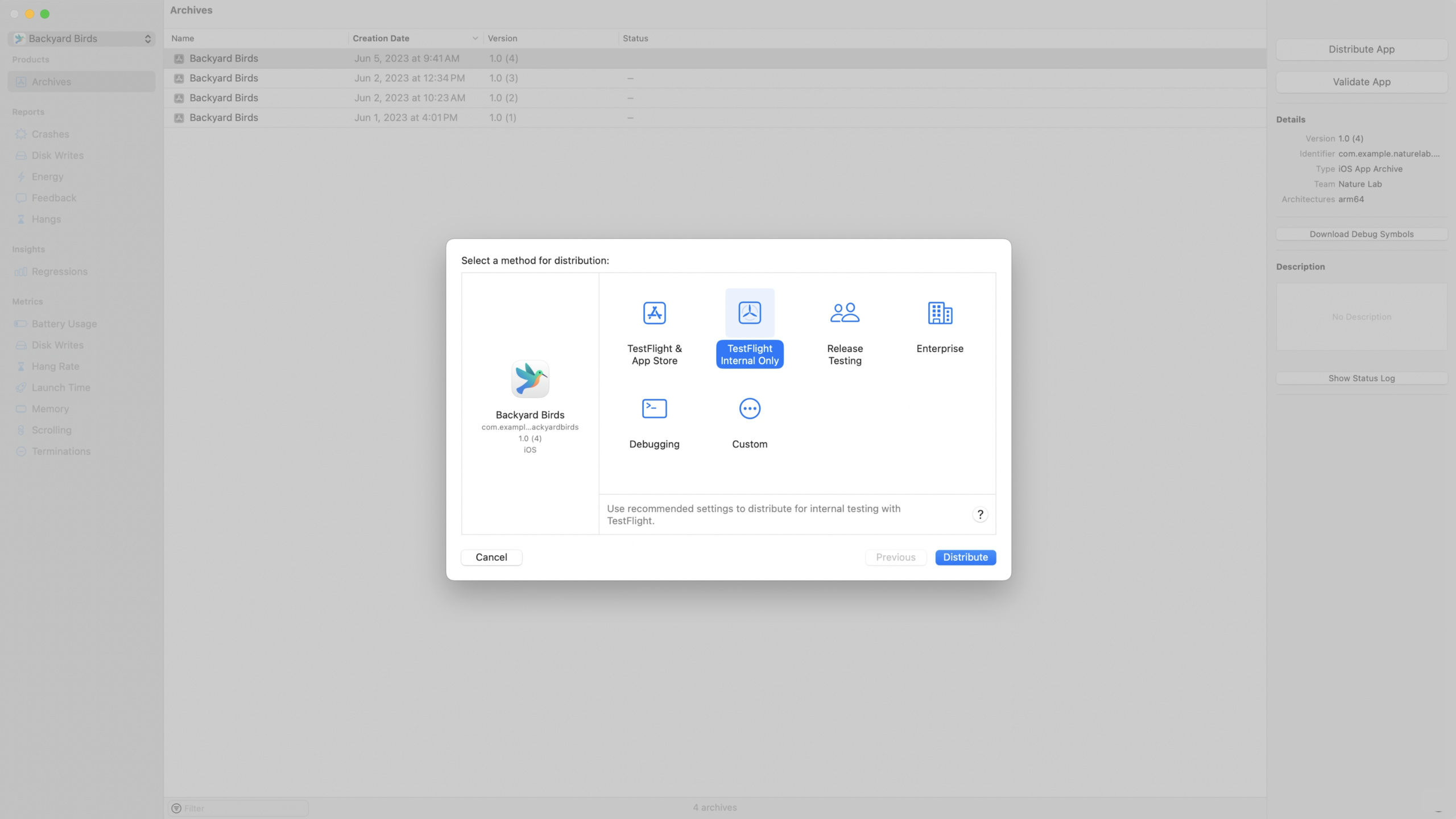
Xcode Cloud supports TestFlight test instructions to be managed along with the code, and supports automatic notarization for Mac applications. Xcode 15 has built-in common distribution methods and recommended settings, and TestFlight internal test builds are only visible to the team. Desktop notifications remind you of build status.
(18:51)
Detailed Content
Context-aware code completion
struct PlantSummaryRow: View {
    var plant: Plant
    var body: some View {
        VStack {
            ComposedPlant(plant: plant)
                .padding(4)
                .padding(.bottom, -20)
                .clipShape(.circle)
                .background(.fill.tertiary, in: .circle)
                .padding(.horizontal, 10)

            VStack {
                Text(plant.speciesName)
            }
        }
    }
}(01:52)
Key points:
- When creating a new file, Xcode suggests a type name based on the file name (e.g.
PlantSummaryRow.swiftsuggestionPlantSummaryRow) - Give
VStackWhen adding modifiers,paddingcomes first because it is the most commonly used modifier for this view - give
TextWhen adding modifiers,fontat the front - Modifiers that have been used (such as added
font) will be demoted to avoid repeated suggestions - Smart association of pairwise attributes: input
latitudeAfter that, the next suggestion would belongitude
Function default parameter expansion
// Press the Right Arrow key to expand all argument combinations
.frame(/* Multiple options shown after expansion */)
// .frame(width:)
// .frame(height:)
// .frame(minWidth:idealWidth:maxWidth:minHeight:idealHeight:maxHeight:alignment:)(02:32)
Key points:
- When calling a function, press the right arrow key to expand the permutations and combinations of all default parameters.
- Choose the version you need and avoid manually deleting unnecessary parameters
- Especially useful for SwiftUI modifiers like
frame、paddingwait
Asset Catalog Swift Symbols
// Before: string references, no type safety
Image("MyCustomImage")

// Xcode 15: Swift symbol references
Image(.myCustomImage) // Code completion is available, and renaming causes a build error(03:50)
Key points:
- Automatically generate Swift symbols for color and image assets
- Direct references in the code, enjoy code completion and type checking
- After renaming the asset, an error occurred during the build, which was quickly corrected through code completion.
- Completely eliminate the problem of “picture not found” during runtime
String Catalog Migration
// Before migration: scattered .strings files
// Localizable.strings
// "welcome_title" = "Welcome";

// After migration: centralized management with String Catalog
// Automatically extracts strings from source code at build time
// The left sidebar shows translation progress for each language
// Added/deleted strings are marked automatically(04:34)
Key points:
- Edit > Convert to String Catalog starts the migration
- Automatically collect all storyboard, .strings, .stringsdict files
- Automatically extract strings from source code when building, keeping them in sync
- Newly added strings are marked with badges, so the translation progress can be seen at a glance
Document comments and real-time preview
/// Create the bird icon view.
///
/// The bird icon view is a tailored version of the ``ComposedBird`` view.
///
/// Use this initializer to display an image of a given bird.
///
///
```swift
/// var bird: Bird
///
/// var body: some View {
/// HStack {
/// BirdIcon(bird: bird)
/// .frame(width: 60, height: 60)
/// Text(bird.speciesName)
/// }
/// }
///
```
///
/// (06:18)
Key points:
- Use Markdown syntax to write documentation comments
ComposedBirdCreate symbolic links to related types```swiftcode blocks show usage examplesreferences images in the documentation catalog- Editor > Assistant > Documentation Preview shows the result in real time
Using Swift Macros in Xcode
// CaseDetection macro: automatically generates the isXxx attribute of the enumeration
@CaseDetection
enum Element {
    case one
    case two
}

var element: Element = .one
if element.isOne {
    // Handle interesting case
}(08:07)
// Macro implementation example
public struct CaseDetectionMacro: MemberMacro {
    public static func expansion<
        Declaration: DeclGroupSyntax, Context: MacroExpansionContext
    >(
        of node: AttributeSyntax,
        providingMembersOf declaration: Declaration,
        in context: Context
    ) throws -> [DeclSyntax] {
        declaration.memberBlock.members
            .compactMap { $0.decl.as(EnumCaseDeclSyntax.self) }
            .map { $0.elements.first!.identifier }
            .map { ($0, $0.initialUppercased) }
            .map { original, uppercased in
                """
                var is\(raw: uppercased): Bool {
                    if case .\(raw: original) = self {
                        return true
                    }
                    return false
                }
                """
            }
    }
}
(07:37)
Key points:
- Quick Actions (Command-Shift-A) expands macros to inspect generated code
- You can set breakpoints in macro-generated code for debugging
- New macro packages include templates and examples
- Macro-generated code is ordinary Swift code and can be debugged like handwritten code
New Preview API
// SwiftUI preview
#Preview {
    AppDetailColumn(screen: .account)
        .backyardBirdsDataContainer()
}

#Preview("Placeholder View") {
    AppDetailColumn()
        .backyardBirdsDataContainer()
}

// UIKit preview
#Preview {
    let controller = DetailedMapViewController()
    controller.mapView.camera = MKMapCamera(
        lookingAtCenter: CLLocation(latitude: 37.335_690, longitude: -122.013_330).coordinate,
        fromDistance: 0,
        pitch: 0,
        heading: 0
    )
    return controller
}
(08:50)
Key points:
- The
#Previewmacro replaces thePreviewProviderprotocol - Supports named previews, making different scenarios easy to distinguish
- Supports ViewController previews for UIKit and AppKit
- Widget previews support timeline navigation to inspect state at different times
OSLog Structured Logging
import OSLog

let logger = Logger(subsystem: "BackyardBirdsData", category: "Account")

func login(password: String) -> Error? {
    var error: Error? = nil
    logger.info("Logging in user '\(username)'...")

    // ...

    if let error {
        logger.error("User '\(username)' failed to log in. Error: \(error)")
    } else {
        loggedIn = true
        logger.notice("User '\(username)' logged in successfully.")
    }
    return error
}(17:34)
Key points:
LoggerOrganize logs by subsystem and category- support
.debug、.info、.notice、.errorlevel - Xcode console uses background color to distinguish severity levels
- Supports filtering by subsystem, category, and level
- Click on a log entry to jump to the line of code that generated it
Core Takeaways
1. Migrate asset catalog to Swift symbol reference
Search all itemsImage("string")andColor("string")usage, replaced by symbol references. This eliminates the risk of missing runtime resources while enjoying code completion. The entry point is to build the project, Xcode 15 will automatically generate symbols, and then replace the string references one by one.
2. Replace scattered localization files with String Catalog
Migrate the project to a unified localization management system through Edit > Convert to String Catalog. Subsequently added strings will be automatically extracted, and the translation progress can be seen at a glance. The entry point is the Xcode menu Edit > Convert to String Catalog.
3. Replace all PreviewProviders with #Preview
Use directly for new projects#PreviewMacros, old projects are gradually replaced. The code is more concise and supports more preview scenes (UIKit, AppKit, Widget timeline). The entrance isstruct Xxx_Previews: PreviewProviderChange to#Preview { ... }。
4. Replace print and NSLog with OSLog
introduced in the projectimport OSLog,useLoggersubstituteprintandNSLog. Structured logs support filtering, jumping, and severity level differentiation, greatly improving debugging efficiency. Entry is defined at the module levelLoggerConstant, progressively replacing log calls.
5. Manage development tasks with the bookmark navigator
During the development process, right-click > Bookmark to mark the locations that need to be reviewed. Can mark lines of code, Find query results, and supports grouping and completion marks. The entry point is to right-click on the line of code or Find result and select Bookmark.
Related Sessions
- Write Swift macros — A complete tutorial on writing Swift macros from scratch
- Build programmatic UI with Xcode Previews — In-depth usage of the new Preview API
- Debug with structured logging — Detailed usage and best practices of OSLog
- Simplify distribution with Xcode and Xcode Cloud — The complete process of application distribution
Comments
GitHub Issues · utterances