
Highlight
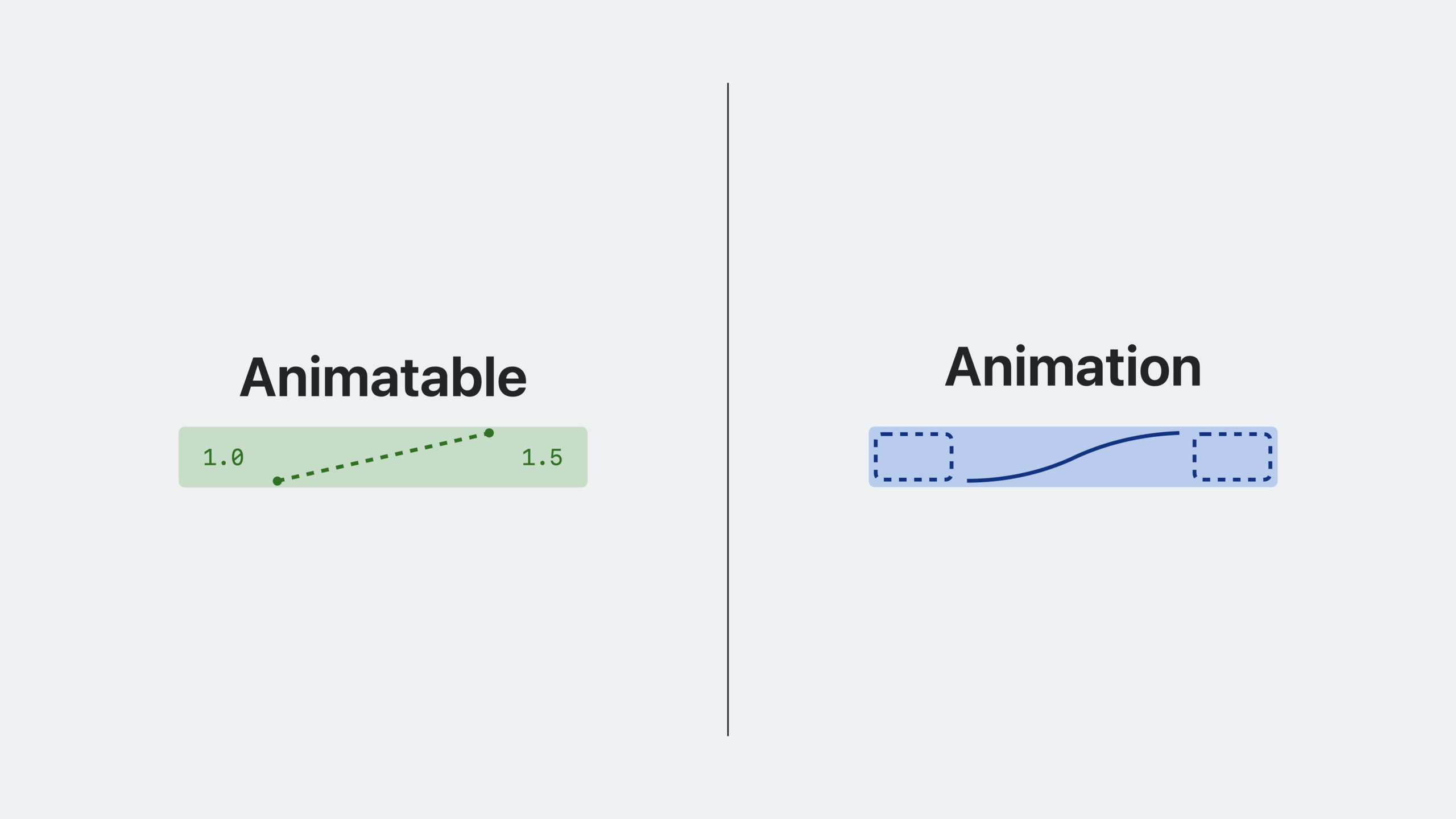
SwiftUI’s animation system consists of four core mechanisms: view refresh (attribute graph update), Animatable protocol (determines which attributes participate in interpolation), Animation type (defines interpolation curve) and Transaction (transfers animation context). Developers can pass
withAnimation、.animation()Modifiers and custom TransactionKeys precisely control animation behavior.
Core Content
Why animation is important in SwiftUI
Kyle, from the SwiftUI team, uses a pet voting app as an example throughout. Each pet avatar in this app can be clicked to vote, and the avatars will be rearranged when the number of votes changes. The avatar zooms in when the avatar is clicked - this simple interaction is stiff without animation, but immediately becomes vivid with animation.
SwiftUI is designed to make animation simple. Animation can bring clarity and vitality to the UI, and SwiftUI’s declarative architecture is naturally suitable for animation.
Anatomy of view refresh
(02:08) SwiftUI maintains a long-term dependency graph (attribute graph). Each node is called an attribute, which corresponds to a fine-grained part of the UI. when@StateWhen dependencies change:
- The event is triggered and an update transaction is opened.
- Dependency changes, view is marked as invalid
- When the transaction is closed, the framework calls
bodyGenerate new view value - The value of attribute is updated layer by layer.
- The graph issues a drawing command to update the rendering.
This is the complete flow of SwiftUI view updates. Understanding this process is crucial to understanding animation.
Add animation
(04:13) usedwithAnimationPackage status changes:
struct Avatar: View {
    var pet: Pet
    @State private var selected: Bool = false

    var body: some View {
        Image(pet.type)
            .scaleEffect(selected ? 1.5 : 1.0)
            .onTapGesture {
                withAnimation {
                    selected.toggle()
                }
            }
    }
}
Key points:
withAnimationAnimating within a transaction -selectedAfter the change, the downstream attribute is marked as invalid -bodyis called to generate a new attribute value -scaleEffectIt is an animatable attribute. If a value change is detected and there is animation in the transaction, the animation will be copied and interpolated.- SwiftUI completes interpolation calculations in the background thread without calling any view code
Animatable protocol
(06:35)AnimatableThe protocol determines “which properties require animation interpolation”. Types that conform to this protocol need to be declaredanimatableDataAttributes, types must followVectorArithmetic。
VectorArithmeticVector addition and scalar multiplication are supported.CGFloatandDoubleis a one-dimensional vector,CGPointandCGSizeis a two-dimensional vector,CGRectis a four-dimensional vector. SwiftUI uses a unified generic implementation to animate all these types.
scaleEffectActually a four-dimensional vector is defined: width scaling, height scaling, anchor point x, anchor point y. useAnimatablePairConcatenate multiple vectors into a larger vector.
(09:00) CustomAnimatableAn example: the pet podium view usesRadialLayoutDistribute subviews along arcs. By default, when changing the offset angle, the pet portrait moves in a straight line. By having Podium followAnimatableand use the offset angle asanimatableData, which allows the avatar to move along an arc.
But be careful: CustomizeAnimatablewill be called every framebody, much more expensive than built-in effects. Only used if this is not possible with built-in effects.
Animation type
(12:16) SwiftUI animations are divided into several categories:
Timing curve animation: defined with curve and duration. likeeaseInOut、linear、easeIn、easeOut。UnitCurveTypes can independently calculate values and velocities at any point in time.
Spring Animation: Calculate values via spring simulation. Starting from iOS 17,withAnimationThe default animation ofeaseInOutbecamesmoothspring. Three built-in presets:smooth(no bounce),snappy(a small amount of bounce),bouncy(more bounce).
Higher order animation: Modify basic animation, such as deceleration, acceleration, delay, and repetition.
Custom Animation: PassedCustomAnimationThe protocol implements custom animation algorithms.
Transaction
(19:57) Transaction is a dictionary of update contexts that SwiftUI implicitly passes, similar to Environment and Preferences. Each view update has a Transaction, which is most commonly used to carry animation configuration.
withAnimationonlywithTransactionthin package. The transaction is discarded after the update is complete, so every value is restored to its default value.
(22:44).animation()Modifiers allow precise control of animation scope:
Image(pet.type)
    .scaleEffect(selected ? 1.5 : 1.0)
    .animation(.bouncy, value: selected)
Key points:
- only in
valueWrite the animation to the transaction only when it changes - Avoid unexpected animations caused by indiscriminate animation overlays
Multiple animation modifiers can be stacked:
Image(pet.type)
    .shadow(radius: selected ? 12 : 8)
    .animation(.smooth, value: selected)
    .scaleEffect(selected ? 1.5 : 1.0)
.animation(.bouncy, value: selected)(25:20) For generic components that contain arbitrary child content, usebodyclosed.animation()Modifier that narrowly scopes the animation to the specified animatable attribute:
struct Avatar<Content: View>: View {
    var content: Content
    @Binding var selected: Bool

    var body: some View {
        content
            .animation(.smooth) {
                $0.shadow(radius: selected ? 12 : 8)
            }
            .animation(.bouncy) {
                $0.scaleEffect(selected ? 1.5 : 1.0)
            }
            .onTapGesture {
                selected.toggle()
            }
    }
}(28:45) Custom TransactionKey can pass custom data in transaction:
private struct AvatarTappedKey: TransactionKey {
    static let defaultValue = false
}

extension Transaction {
    var avatarTapped: Bool {
        get { self[AvatarTappedKey.self] }
        set { self[AvatarTappedKey.self] = newValue }
    }
}

Image(pet.type)
    .scaleEffect(selected ? 1.5 : 1.0)
    .transaction(value: selected) {
        $0.animation = $0.avatarTapped ? .bouncy : .smooth
    }
    .onTapGesture {
        withTransaction(\.avatarTapped, true) {
            selected.toggle()
        }
    }
Key points:
- Create unique types to follow
TransactionKey,supplydefaultValue- existTransactionDeclaring computed properties in extensions - use
withTransactionset value,withAnimationis its thin package - new version
.transaction()Modifiers are also supportedvalueparameters andbodyClosures to precisely control scope
Detailed Content
Custom animation
(17:25)CustomAnimationThe protocol provides the same low-level entry point as SwiftUI’s built-in animations:
struct MyLinearAnimation: CustomAnimation {
    var duration: TimeInterval

    func animate<V: VectorArithmetic>(
        value: V,
        time: TimeInterval,
        context: inout AnimationContext<V>
    ) -> V? {
        if time <= duration {
            value.scaled(by: time / duration)
        } else {
            nil // animation has finished
        }
    }
}
Key points:
animateReceives target vector, elapsed time and context- returns the current animation value, or
nilIndicates the end of animation - What is actually animated is the delta vector (the amount of change from the old value to the new value), from 0 to the target value
- Because of the generic implementation, it supports animatable data of any dimension
(19:50) optionalvelocityMethod for preserving speed when merging animations:
func velocity<V: VectorArithmetic>(
    value: V, time: TimeInterval, context: AnimationContext<V>
) -> V? {
    value.scaled(by: 1.0 / duration)
}shouldMergeDetermines whether new animations are merged into running animations. Timing curve returns false (overlay runs), spring returns true (velocity preserved and retargeted).
Spring model
(13:56)SpringTypes can be used independently:
let spring = Spring(duration: 1.0, bounce: 0)
spring.value(target: 1, time: 0.25)
spring.velocity(target: 1, time: 0.25)
Key points:
durationis the duration of perception,bounceControl the bounce level- Can calculate position and velocity at any point in time
- Three built-in presets:
smooth、snappy、bouncy
UnitCurve
(12:48)UnitCurveDefines the speed curve of the animation:
let curve = UnitCurve(
    startControlPoint: UnitPoint(x: 0.25, y: 0.1),
    endControlPoint: UnitPoint(x: 0.25, y: 1))
curve.value(at: 0.25)
curve.velocity(at: 0.25)
Key points:
- Define curves with Bezier control points
- Can calculate values and speeds at any relative time point
- Built-in presets:
linear、easeIn、easeOut、easeInOut
Core Takeaways
-
Interactive feedback animation
- What to do: Add scaling or shadow animations to interactive elements such as buttons and cards
- Why it’s worth doing: SwiftUI
.animation(.bouncy, value:)It makes the implementation extremely simple, and uses physical spring animation by default, giving it a natural feel. - How to start: at
onTapGestureSwitch between@State,use.animation(.bouncy, value: isPressed)Modify the target view
-
Custom layout animation
- What to do: Animate subviews in a custom layout along a specific path (such as circular arrangement, grid rearrangement)
- Why it’s worth doing: Follow
AnimatableAfter the protocol, SwiftUI will call every framebodyAnd pass in the interpolated data - How to get started: Let’s customize
LayoutorViewfollowAnimatable,statementanimatableData,existbodyCalculate the subview position based on this value
-
Differentiated animation effects
- What it does: Use different animation curves for different properties of the same view
- Why it’s worth doing: for shading
.smoothLooks stable and can be used for zooming.bouncyIt looks lively and has richer layers when combined. - How to start: Stack multiple
.animation()modifiers, each specifying a differentvalueparameter
-
Programmatically triggered animation
- What to do: Trigger view animation from outside (such as network request completion, timer)
- Why it’s worth doing: Use
withAnimationPackage status changes, animation can be played without user interaction - How to start: Will
@StateChange to@Binding, external passwithAnimation(.spring) { selected = true }trigger
-
Transaction passes custom context
- What to do: Distinguish between “animation triggered by user click” and “animation triggered by program”, using different animation curves
- Why it’s worth doing: User interaction can be more lively and program changes can be more restrained
- How to start: Definition
TransactionKey, used when clickingwithTransactionSet the mark in.transactionSelect animation based on marker in modifier
Related Sessions
- Animate with springs — In-depth understanding of the principles and uses of spring animation
- Wind your way through advanced animations in SwiftUI — Multi-step animation and keyframe animation
- SwiftUI essentials — SwiftUI basic concepts
- Beyond scroll views — ScrollView animations and transitions
Comments
GitHub Issues · utterances