
Highlight
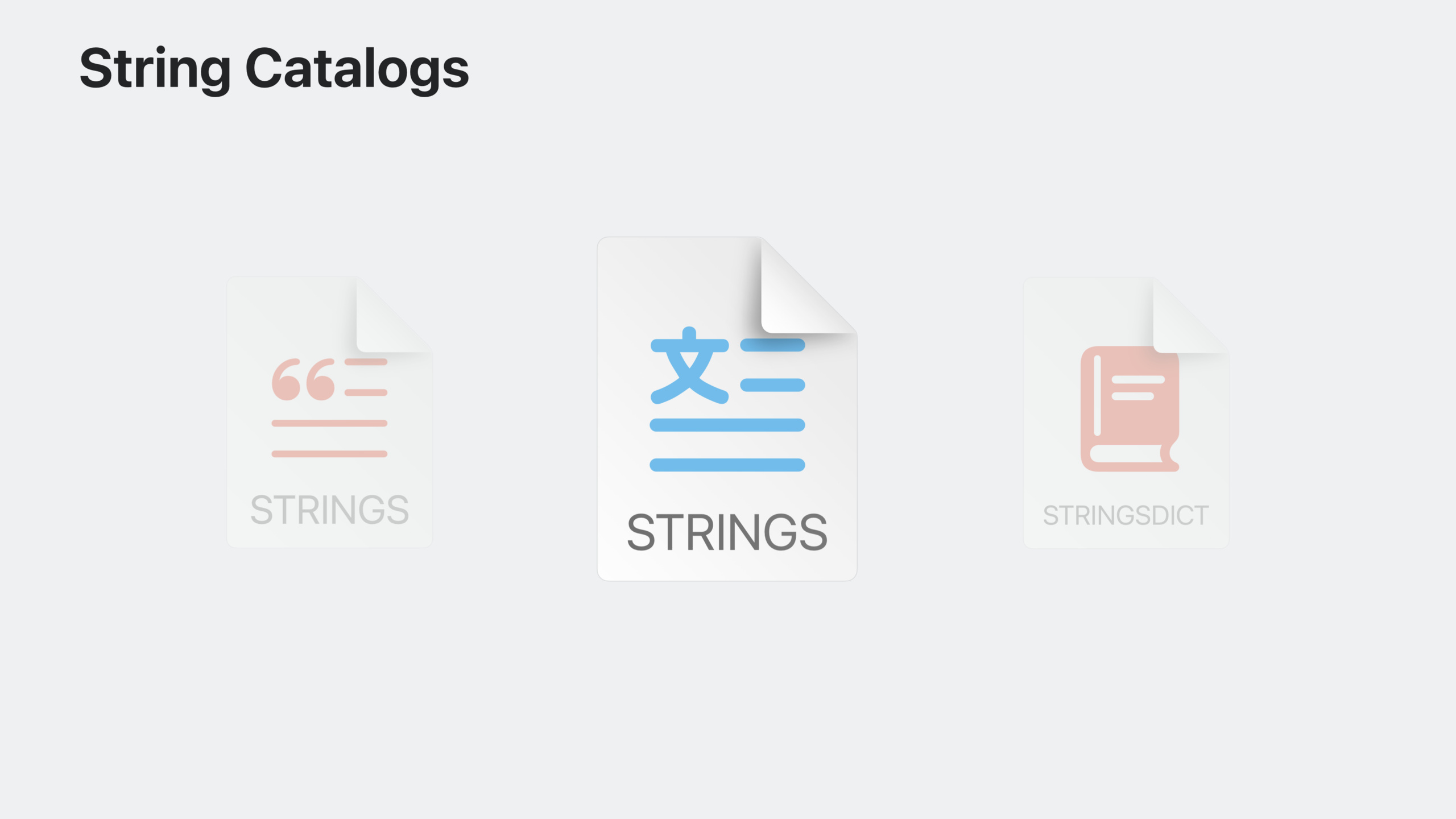
Xcode 15 introduces String Catalogs, which combines .strings and .stringsdict files into a single JSON format file, supports automatic string extraction from SwiftUI, Swift, Objective-C, C and Interface Builder, and provides a visual editor to manage translation progress and plural variants.
Core Content
Old pain points of localization management
In the past, when doing localization, developers needed to maintain two sets of files: .strings to store ordinary strings, and .stringsdict to store plural rules. These files must be manually synchronized every time the code is changed. Missing a string will cause users to see unlocalized English content. What’s even more troublesome is that the plurality rules vary greatly in different languages. For example, English only has two plural forms, singular and plural, but Ukrainian has three plural forms. Manually maintaining the plist format of .stringsdict is prone to errors.
Solution for String Catalogs
Xcode 15 introduces String Catalogs (.xcstrings files) to manage string and plurality rules in a visual editor. When compiling, .xcstrings will be automatically converted to .strings and .stringsdict, and there is no need to increase the minimum deployment version. Xcode will automatically scan the localizable strings in the code every time it is built, automatically add them to the Catalog, and the translation progress will be displayed in the sidebar in real time.
Automatically extract the source of the string
(01:40) Xcode 15 can automatically extract strings from multiple sources:
- Accepted in SwiftUI
LocalizedStringKeyControls (Label, Button, Text, etc.) - used in Swift
String(localized:)andLocalizedStringResourcecode - Used in Objective-C
NSLocalizedStringmacro code - Used in C code
CFCopyLocalizedStringcode - Interface Builder files (Storyboard and xib)
- Info.plist file
Translation status management
(13:30) The String Catalog Editor displays four states for each string:
- New (yellow): newly added, not yet translated
- Needs Review (orange): The source string has changed and the translation needs to be checked
- Translated (green): Translation completed
- Stale (gray): The code has been removed, but the translation is still there
With status reflected in real-time as a progress percentage in the sidebar, developers can be confident that all content is localized before submission to the App Store.
Detailed Content
Localized strings in SwiftUI
(07:36) SwiftUI makes localization seamless. Any string literal used in a view is automatically considered localizable:
struct ContentView: View {
    var body: some View {
        VStack {
            Label("Thanks for shopping with us!", systemImage: "bag")
                .font(.title)

            HStack {
                Button("Clear Cart") { }
                Button("Checkout") { }
            }
        }
    }
}
Key points:
Label、Button、TextThe string parameter type of the control isLocalizedStringKey, SwiftUI will automatically extract- These strings will be put into a file named
Localizable.xcstringsin the String Catalog - use
TextThe initializer can add comments to help the translator understand the context
If you need more fine-grained control, you can useLocalizedStringResource:
struct CardView: View {
    let title: LocalizedStringResource
    let subtitle: LocalizedStringResource

    var body: some View {
        ZStack {
            RoundedRectangle(cornerRadius: 10.0)
            VStack {
                Text(title)
                Text(subtitle)
            }
            .padding()
        }
    }
}

CardView(title: "Recent Purchases", subtitle: "Items you've ordered in the past week.")
Key points:
LocalizedStringResourceis the recommended type for passing localizable strings- Xcode sees initialization with string literals
LocalizedStringResource, you know that this string needs to be localized -Supports specifying comments, table names and default values
Localization in Swift code
(09:03) In the model layer or in scenarios where lazy loading of strings is required, use Foundation’slocalized:Initializer:
import Foundation

func stringsToPresent() -> (String, AttributedString) {
    let deferredString = LocalizedStringResource("Title")

    return (
        String(localized: deferredString),
        AttributedString(localized: "**Attributed** _Subtitle_")
    )
}
Key points:
LocalizedStringResourcecan be converted at runtime toStringorAttributedString- Support rich text localization- Requires “Use Compiler to Extract Swift Strings” to be enabled in Build Settings
Plural variations
(15:25) String Catalog Editor has built-in plural variant support. Right-click the string and select “Vary by Plural”. Xcode will automatically create the corresponding plural case according to the default language.
For complex strings containing multiple parameters, use substitutions:
Text("\(birds.count) birds in \(backyards.count) backyards")In the editor, you can set separate plural variants for each parameter, creating something like@birdsand@yardsTwo substitutions, the correct plural form is automatically selected based on the parameter value at runtime.
Key points:
- Different languages have different numbers of plural cases, and Xcode will automatically generate cases suitable for that language.
- English available
oneandother, Ukrainian hasone、few、manyandother- Substitution name can be customized to improve readability
Device Variants
(02:47) Multi-platform apps may need to display different text based on device type. For example “tap to learn more” should read “click to learn more” on Mac:
Right-click on the string -> “Vary by Device” -> select Mac to provide different translations for different devices.
Export and import translations
(23:02) Export an XLIFF file via Product > Export Localizations to send to translators. After the translation is completed, import it through Product > Import Localizations, and the translation will be automatically merged into the corresponding String Catalog.
Variant strings in XLIFF use a new format identifier:
<trans-unit id="%lld Recent Visitors|==|plural.one">
    <source>%lld Recent Visitor</source>
    <target>%lld Visitante Recente</target>
</trans-unit>
Key points:
- The format is
key|==|variation.specifier-Support multiple variant types such as plural, device, etc. - You can set “Localization Prefers String Catalogs” to Yes in Build Settings
Migrate existing projects
(28:51) Existing projects can be migrated gradually. Right-click the .strings or .stringsdict file and select “Migrate to String Catalog” and Xcode will automatically convert all translations. String Catalogs can coexist with older formats, and developers can migrate table by table as needed.
For Swift Packages, set the default localization in Package.swift and add the .xcstrings file:
// swift-tools-version:5.9
let package = Package(
    defaultLocalization: "en",
    // ...
)
Core Takeaways
-
One-click multi-language support
- What to do: Add 5-10 language support to existing apps
- Why it’s worth doing: String Catalogs automatically extracts strings, visualizes translation progress, and significantly lowers the localization threshold.
- How to start: Add to project
Localizable.xcstrings, build once, Xcode automatically extracts all strings, and then exports XLIFF to the translator
-
Intelligent plural processing
- What to do: Use the plural variant in UI that displays quantities
- Why it’s worth doing: Avoid grammatical errors like “1 items” and automatically adapt to pluralization rules in different languages
- How to start: Right-click the string in the String Catalog Editor and select “Vary by Plural”, fill in the correct translation for each case
-
Multi-platform text adaptation
- What it does: Unify the codebase for iOS/iPadOS/macOS, but display platform-specific text
- Why it’s worth doing: One set of code runs on all platforms, but the user experience is natural (tap vs click)
- How to get started: Add “Vary by Device” to key strings in Catalog to provide adapted text for Mac and Apple Watch
-
Real-time translation progress dashboard
- What to do: Integrate translation integrity checks in CI
- Why it’s worth doing: Preventing incompletely localized versions from being published to the App Store
- How to start: Use the String Catalog’s status tags (New/Needs Review/Translated) to check for untranslated strings in the build script
-
Swift Package Localization
- What to do: Add localization support to the open source Swift Package
- Why it’s worth doing: Let developers around the world use your library
- How to start: Set up in Package.swift
defaultLocalization, add the .xcstrings file to the resources of target
Related Sessions
- Spotlight your app with App Shortcuts — Localization improvements for App Shortcut phrases
- SwiftUI essentials — SwiftUI basics and localization integration
- Build accessible apps for visionOS — Accessibility and localization practice
- Meet SwiftUI for spatial computing — SwiftUI multi-platform localization
Comments
GitHub Issues · utterances