
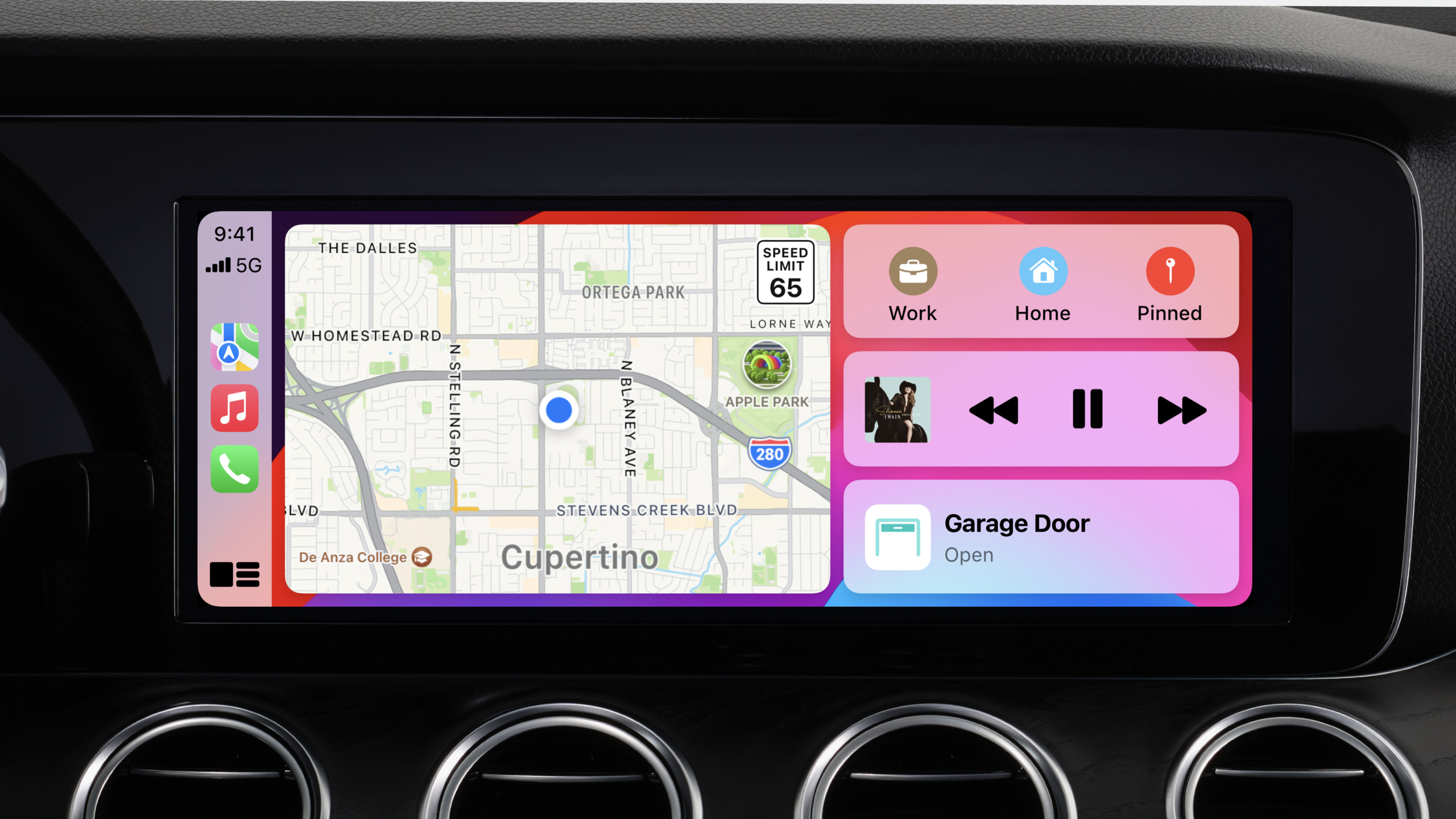
Highlight
Apple introduces CarPlay visual integration and infrastructure upgrades for automakers and in-vehicle system developers, including dynamic screen adaptation, rounded corner crop masks, UI focus shifting, appearance mode synchronization, wireless connection simplification, HEVC video encoding support, and infrastructure requirements to prepare for the next generation of CarPlay.
Core Content
Display adaptation: from rectangle to any shape
Displays in modern cars come in a variety of shapes. Some are wide, some are tall, some are non-rectangular, and some mix the CarPlay UI and the in-car system UI.
(01:22) CarPlay uses two concepts to solve the adaptation problem. The View Area defines the boundaries of the UI that CarPlay draws. The Safe Area is the largest rectangle within the display area. CarPlay draws interactive content within a safe area to ensure that all important UI is visible.
If the display is non-rectangular, define the view area as the smallest rectangle surrounding the display and the safe area as the largest rectangle within the display. CarPlay correctly handles pixels outside the safe area.
(02:55) A new safe area flag allows CarPlay to draw the background outside of the safe area. This allows the CarPlay background to extend to the edge of the display, creating a more immersive visual effect. This flag is only valid for the main display.
Rounded Corner Cropping Mask
(03:59) The CarPlay UI’s rounded corners display a black background by default. When CarPlay is displayed in a window, the black triangle with rounded corners does not match the wallpaper of the car system.
The rounded corner clipping mask solves this problem. The iPhone provides a blend mask that contains transparency information, and the car system applies this mask to each corner of the CarPlay UI, removing the black triangles. The background of the car system can then be drawn all the way to the rounded edges of CarPlay.
This feature cannot be used together with “Draw outside safe area”.
UI focus transfer
(05:09) For systems that support knobs or trackpads, seamless focus switching between CarPlay and the in-car system UI is required.
When CarPlay is started, the car system determines the focus. When the driver moves focus toward CarPlay, the system releases the focus and provides orientation and location information. CarPlay uses this information to display focus highlighting on the most intuitive UI elements.
When the driver moves the focus back to the in-car system, CarPlay provides the focus, and the system displays its own focus highlight after obtaining it. The API ensures that only one focus highlight occurs at a time.
If the system displays CarPlay as a window and supports a knob or trackpad, it should support UI focus transfer.
Appearance mode synchronization
(06:54) CarPlay supports light and dark themes. The in-car system should keep the look and feel of CarPlay consistent with the system UI.
CarPlay’s appearance changes automatically based on vehicle status, user settings and time of day. For example, if the system switches to a dark theme at night, CarPlay will also automatically switch. The map UI has separate appearance settings that need to be synchronized separately.
Multi-display content
(08:36) Modern vehicles have a main display, a dashboard display, and a heads-up display. CarPlay offers different content for each display:
- Main display: Displays the CarPlay video stream, using iAP2 metadata to drive the in-vehicle system’s built-in UI controls
- Dashboard: Displays CarPlay navigation UI flow, supports map zooming
- Heads-up display: Use iAP2 metadata to display information such as turn prompts
If the in-vehicle system has a map widget, you can populate the widget with the CarPlay Navigation UI flow when CarPlay Navigation is activated, displaying the ETA, speed limit signs, and compass.
Wireless connection improvements
(10:06) First-time pairing supports out-of-band pairing, and the driver only needs to plug the iPhone into the car to complete wireless CarPlay pairing. This is a standard requirement for wireless CarPlay.
(10:33) iOS 17 supports pairing CarPlay via the car key connection if the system supports digital car keys. After adding the car key, the system prompts to pair wireless CarPlay, and the pairing is completed through the car key connection.
(11:20) A simplified connection process is preferred. Use your existing iAP2 connection to exchange IP address and port information, no more Bonjour required. Easier implementation, faster connections, and support for WPA3-only networks. Compatible with iOS 14 and above devices.
(11:55) Digital car keys also support instant connectivity. When the driver approaches the vehicle with a digital car key, the system prepares the CarPlay stack in advance and checks the corresponding pairing relationship. CarPlay appears to be activated instantly.
Audio enhancement
(13:42) Enhanced Buffered Audio is the platform of choice for streaming audio. iPhone streams audio to the car system at faster than real-time, and the communications plug-in includes an audio buffer of up to 2 minutes. This improves responsiveness and allows audio to continue playing during brief disconnections.
The system needs to support simultaneous mixing of multiple audio streams: primary audio, enhanced buffered audio, alternative audio, and auxiliary audio.
Video encoding upgrade
(15:48) CarPlay UI streams, previously encoded with H.264, now support HEVC encoding. HEVC is more efficient and supports higher resolution displays. Systems need to continue to support H.264 to maintain backward compatibility.
EV routing
(16:24) Apple Maps can plan electric vehicle trips that include stops at charging stations. New this year: Users can select their preferred charging network, and a map shows real-time charging station availability.
The in-vehicle system needs to provide Apple Maps with electric vehicle characteristic information and support real-time power status communication. If there is an automaker app, support for SiriKit intents allows users to use EV routing in or out of the car.
Detailed Content
View area and security area configuration
(01:50) CarPlay’s view area defines the UI drawing boundaries. The system should give CarPlay as much space as possible, and CarPlay will automatically create appropriate padding.
Dynamic screen resizing allows users to seamlessly switch between different layouts. For example, when switching from full-screen CarPlay to displaying CarPlay and system widgets side by side, CarPlay automatically resizes.
For non-rectangular displays:
- View area = smallest rectangle surrounding the display
- Safe area = largest rectangle within the display
- CarPlay interactive content is drawn in a safe area
- Pixels outside the safe area appear black (unless drawing outside the safe area is enabled)
Focus transfer protocol process
(06:03) The specific process of focus coordination:
- CarPlay starts, and the system determines the initial focus.
- The driver moves the focus to CarPlay, and the system releases the focus and provides heading and position
- CarPlay receives the information and displays focus highlighting on the appropriate UI element
- The driver returns focus to the system and CarPlay provides focus
- The system obtains focus and displays its own focus highlight
This protocol ensures a consistent focus experience for drivers when switching between CarPlay and the system UI.
Connectivity Best Practices
(12:44) Maintain a stable wireless CarPlay connection:
- Detect interference sources on wireless channels
- Use channel switching notification to avoid interference
- If the system supports multiple wireless radios, use BSS transition management to direct the iPhone to another access point
- Prioritize operation in the 5 GHz band
- Do not close the CarPlay TCP socket when temporarily disconnected
Preparation for the next generation of CarPlay
(17:26) All of the infrastructure improvements introduced this year are in preparation for the next generation of CarPlay:
-Visual integration: dynamic screen adaptation, rounded corner mask, focus shift
- Connectivity: Simplified connection process, instant connection
- Audio: enhanced buffering
- Video: HEVC encoding support
These features are required in the next generation of CarPlay specifications.
Core Takeaways
-
Add CarPlay support to vehicle infotainment system
- If developing vehicle system software, implement view area, safety area and focus transfer according to CarPlay specifications
- Supports simplified connection process and out-of-band pairing
- Entrance: developer.apple.com/carplay to get the latest specifications
-
Optimize the visual experience of the existing CarPlay system
- Enable rounded cropping mask to eliminate black triangles
- Synchronize appearance modes of CarPlay and system UI
- Support dynamic screen size adjustment
- Entry: corner clipping mask API in CarPlay communication plug-in
-
Add CarPlay EV routing support for electric vehicles
- Provide vehicle battery characteristics and real-time charge levels to Apple Maps
- Support SiriKit intents for voice control of EV routing
- Entrance: iAP2 battery status message + SiriKit Vehicle intents
Related Sessions
- What’s new in MapKit — New MapKit features, support for CarPlay navigation UI
- Tune Up Your AirPlay Audio Experience — Detailed explanation of AirPlay audio enhancement buffering technology
- Advances in CarPlay Systems — An in-depth introduction to CarPlay system-level integration
- Design and build apps for CarPlay — CarPlay application design and development guide
Comments
GitHub Issues · utterances