
Highlight
Core Location uses the same permission model and API as iOS on visionOS, but the definition of “in use” is based on the user’s gaze direction rather than the foreground state: the positioning accuracy is about 100 meters when the headset is used alone, and a nearby iPhone can improve the accuracy to mobile phone level; window applications will stop receiving location updates within a short grace period after the user looks away.
Core Content
Permission model: familiar but needs to be re-understood
(00:50) Requesting location permissions on visionOS is exactly the same as on iOS. createCLLocationManager, callrequestWhenInUseAuthorization(), and set it in Info.plistNSLocationWhenInUseUsageDescriptionDescription string.
(02:14) The authorization pop-up window users see is also similar to iOS: they can choose to allow once, allow or deny during use, and can also choose precise or fuzzy positioning. But “allowed when using” here has a completely different meaning on spatial computing platforms.
(02:52) Key principle: Only request permission in the context where targeting is really needed. Requesting permissions at startup will reduce the probability of user authorization and also violates privacy design principles.
Positioning accuracy: Equipment combination determines accuracy
(04:04) The visionOS device has a positioning accuracy of about 100 meters when used alone, which is comparable to a Mac. This is enough for finding nearby restaurants, parks, etc.
(04:24) But if the user’s iPhone is nearby, a cooperative connection between the two devices can improve location accuracy to iPhone levels. This means that your application needs to adapt its behavior based on the current accuracy - there is no point in doing precise navigation at 100 meters accuracy.
A new definition of “in use”
(05:02) This is the core content of session. On iPhone, “in use” is equivalent to “app in the foreground.” But on visionOS, the concept is completely different.
(05:33) For fully immersive apps, as long as the user is running your app, it is considered “in use” and can get location updates.
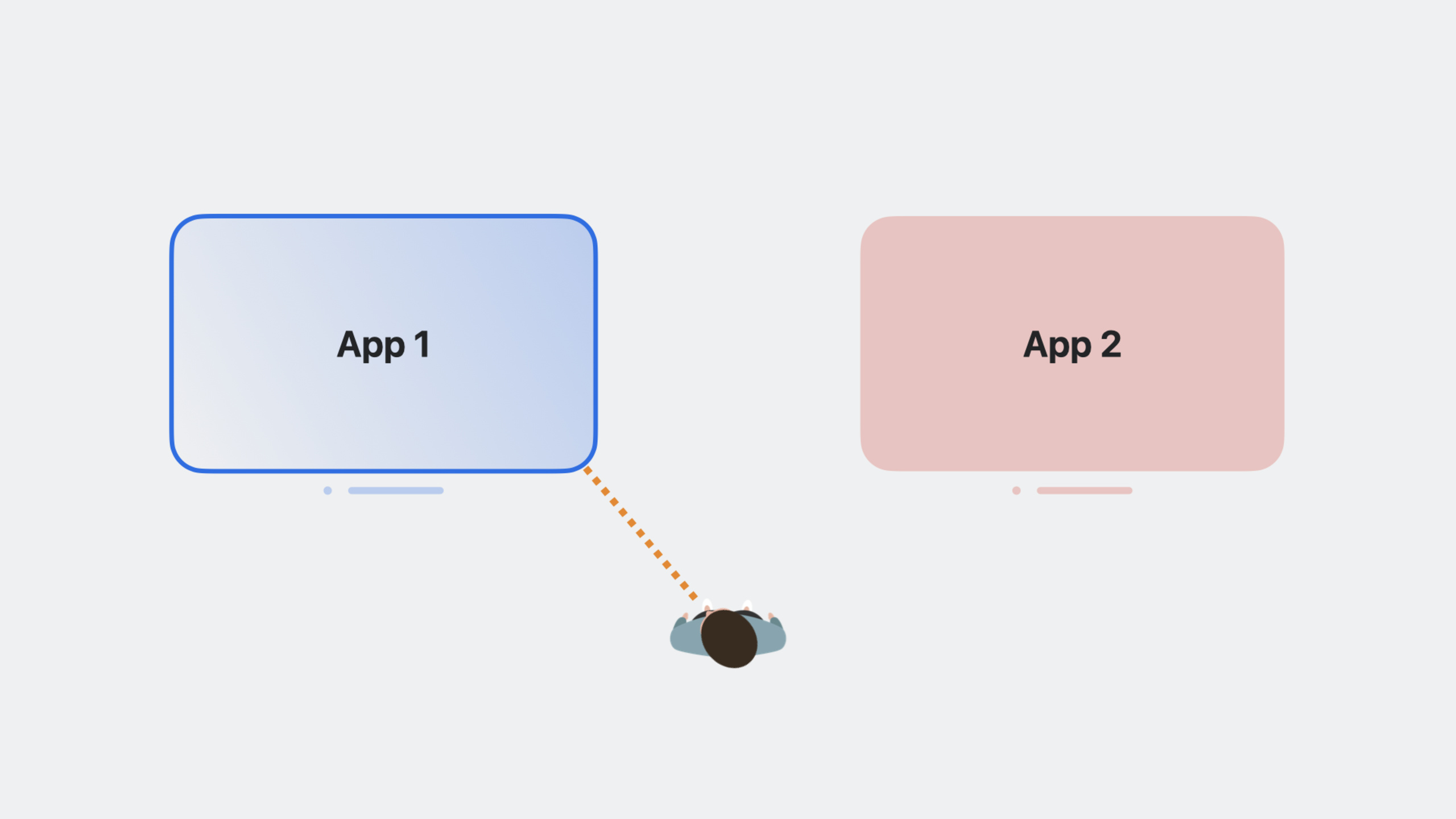
(05:56) For windowed applications, Core Location only considers the application to be “in use” if the user has “recently looked at” it. If the user looks away, the app will stop receiving location updates after a short grace period (a few seconds).
(06:17) Specific scenarios:
- User is not interacting with any app: neither app receives location updates
- The user looks to the left application: the left application can obtain location updates, but the right application cannot
- The user moves the two windows together and sees them simultaneously: both apps can get location updates
- The user’s gaze switches between the left and right apps: both apps can get updates during a short grace period
(07:33) The application will not receive any location updates when it is not running, and updates from the monitoring API (such as zone monitoring) will not be delivered. This is fundamentally different from the background behavior of iOS.
Behavior in compatibility mode
(07:54) If your iPhone or iPad app runs directly on visionOS (compatibility mode), you need to pay attention to the following changes:
- Requests for Always authorization will be redirected to WhenInUse authorization -Always option will not appear in Settings
- Regional monitors (CLMonitor/CLCircularRegion) will not receive events
- Background location updates are not available
If your iOS app assumes that certain APIs are always available, you may experience unexpected behavior on visionOS. It is recommended to test performance in compatibility mode before publishing.
Detailed Content
Code to request location update
(00:54) useCLLocationUpdateGet real-time location updates:
import CoreLocation

actor LocationActor {
    func startUpdates() async {
        // Request authorization
        let manager = CLLocationManager()
        manager.requestWhenInUseAuthorization()

        // Get live location updates
        for await update in CLLocationUpdate.liveUpdates() {
            if let location = update.location {
                print("Latitude: \(location.coordinate.latitude)")
                print("Longitude: \(location.coordinate.longitude)")
                print("Accuracy: \(location.horizontalAccuracy) meters")
            }
        }
    }
}
Key points:
CLLocationUpdate.liveUpdates()Returns an asynchronous sequence, conforming to the Swift Concurrency pattern- Need to be set in Info.plist
NSLocationWhenInUseUsageDescription- examinehorizontalAccuracyTo determine whether the current accuracy meets the requirements
Adjust application behavior based on accuracy
func handleLocationUpdate(_ location: CLLocation) {
    let accuracy = location.horizontalAccuracy

    if accuracy <= 10 {
        // iPhone-level accuracy, suitable for precise navigation
        showDetailedNavigation()
    } else if accuracy <= 100 {
        // Accuracy when the headset is used on its own
        showNearbyPlaces()
    } else {
        // Lower accuracy; only show the approximate area
        showGeneralArea()
    }
}
Sight-aware window application design
(06:17) Window applications need to adapt to the gaze-driven position update mode:
import SwiftUI
import CoreLocation

struct LocationView: View {
    @StateObject private var locationModel = LocationModel()

    var body: some View {
        VStack {
            if let location = locationModel.lastLocation {
                Text("Current: \(location.coordinate.latitude), \(location.coordinate.longitude)")
                Text("Accuracy: ±\(Int(location.horizontalAccuracy))m")
                    .foregroundColor(accuracyColor(location.horizontalAccuracy))
            } else {
                Text("Looking away - location updates paused")
                    .foregroundColor(.secondary)
            }
        }
        .task {
            await locationModel.startMonitoring()
        }
    }

    func accuracyColor(_ accuracy: CLLocationAccuracy) -> Color {
        if accuracy <= 10 { return .green }
        if accuracy <= 100 { return .yellow }
        return .orange
    }
}

@MainActor
class LocationModel: ObservableObject {
    @Published var lastLocation: CLLocation?

    func startMonitoring() async {
        let manager = CLLocationManager()
        manager.requestWhenInUseAuthorization()

        for await update in CLLocationUpdate.liveUpdates() {
            if let location = update.location {
                self.lastLocation = location
            }
        }
    }
}
Key points:
- use
.taskModifier starts position listening when view appears - When the user looks away, updates are paused and the UI should show the appropriate status
-
@MainActorMake sure UI updates are executed on the main thread
Core Takeaways
-
Design sight-aware positioning experience
- What to do: Design a UI for visionOS window applications that adapts to line-of-sight driven position updates and clearly displays positioning active status
- Why it’s worth doing: Location updates will be paused when the user looks away. The UI needs to allow users to understand this behavior to avoid confusion.
- How to get started: To add a location status indicator to the view, use
.taskManage the lifecycle of location updates and handle UI state when updates are paused
-
Dynamic adjustment function based on accuracy
- What to do:Based on
horizontalAccuracyThe value of dynamically adjusts the granularity of functionality provided by the application - Why it’s worth doing: There is a huge difference between the 100-meter accuracy when the headset is used alone and the meter-level accuracy when used with an iPhone. The same UI has completely different experiences under the two accuracies.
- How to get started: Check the accuracy value when getting location updates, and design different functional levels and UI performance for different accuracy ranges
- What to do:Based on
-
Test location behavior in compatibility mode
- What to do: Test location-related functionality of existing iOS apps in compatibility mode on the visionOS emulator and device
- Why it’s worth doing:Always authorization is downgraded, regional monitoring does not work, and background updates are unavailable. These changes may cause existing applications to behave abnormally.
- How to get started: Select the visionOS simulator in Xcode to run an existing iOS app and test location requests, zone listening, and background behavior
-
Use device collaboration to improve positioning experience
- What to do: When designing the function, consider the high-precision scene where the iPhone is nearby and the low-precision scene when the headset is used alone.
- Why it’s worth doing: Both scenarios are encountered by real users, and the application should provide a reasonable experience in both situations.
- How to get started: Prompt users in the UI to place iPhone nearby to obtain more precise positioning, while designing degradation solutions for low-precision scenarios
Related Sessions
- Meet Core Location Monitor — New CLMonitor API for monitoring geographical areas and Beacon events
- Discover streamlined location updates — CLLocationUpdate’s real-time location update API
- Develop your first immersive app — Introduction to visionOS immersive application development
- Meet SwiftUI for spatial computing — SwiftUI adaptation on spatial computing platform
Comments
GitHub Issues · utterances