
Highlight
Apple brought a number of updates to the in-app purchase testing tool at WWDC23: StoreKit Testing in Xcode 15 added a static renewal rate and a multi-instance transaction manager, Sandbox supports billing problem message simulation and grace period testing, and will soon launch Family Sharing in-app purchase testing support.
Core Content
StoreKit Testing in Xcode: Fast iteration locally
(01:15) StoreKit Testing has been the go-to solution for testing in-app purchases locally since its introduction at WWDC20. It runs completely offline, does not require product configuration in App Store Connect, and does not rely on servers. You can create and manage test products in StoreKit configuration files, modify the code and immediately verify it on the simulator or real device.
(02:35) Xcode 15 brings new static renewal rate options. Previously, renewal rates were tied to subscription length—monthly subscriptions renewed every minute, and annual subscriptions renewed every 30 minutes. Now you can choose a set renewal rate that will renew at the same frequency regardless of the subscription length. This makes testing the interaction behavior of different subscription types more controllable.
(03:06) Another practical update is the multi-instance transaction manager. If you run multiple instances of your app at the same time (such as the iPhone and iPad simulators), the transaction manager displays transactions for each instance separately. You can also initiate purchases directly from the transaction manager without opening the app, making it easy to test the processing logic of external transactions.
(02:04) The ability to sync products from App Store Connect to Xcode is also worth mentioning. Click the sync button, and your in-app purchase product definitions will be automatically imported into Xcode’s StoreKit configuration file, eliminating the need to manually maintain two sets of data.
App Store Sandbox: End-to-End Verification
(04:07) Sandbox uses real product data you configured in App Store Connect to test the in-app purchase process close to production. You need a device with a registered developer account and create a Sandbox Apple ID in Users and Access of App Store Connect.
(06:05) This year, Sandbox added Billing Problem Messaging. When the user’s subscription enters the billing retry state due to payment failure, the system will pop up a billing problem prompt sheet to guide the user to solve the payment problem without leaving the app. You can simulate this process in Sandbox: first subscribe to an automatically renewing subscription, then turn off the “Allow Purchases & Renewals” switch in the device’s Sandbox account settings to simulate a payment failure. After returning to the application, StoreKit’s Message API will send a message with reason billingIssue, triggering the billing issue sheet.
(09:12) The Billing Grace Period test has also been added to the Sandbox. After setting a grace period in App Store Connect, subscriptions in the Sandbox will enter a grace period when payment fails, during which the user can continue to access paid content. The grace period length in the Sandbox is automatically adjusted according to the renewal rate you set, without waiting for the actual grace period time.
(10:40) Family Sharing in-app purchase testing is coming soon to the Sandbox. You need to organize your Sandbox family members in Users and Access in App Store Connect, and then purchase a product that has Family Sharing enabled. Transactions are created for each family member, and your app can identify family shared products through StoreKit’s isFamilySharable attribute and handle permission revocation when a member exits sharing through revocationDate.
(14:01) Later this year, three new options will be added to the iOS Sandbox account settings page: adjust renewal rate, test interrupted purchases, and clear purchase history. These features, previously only available in App Store Connect, can now be done directly on the device.
TestFlight: Collect real feedback
(15:12) TestFlight is used to distribute apps to internal and external testers and collect feedback from real users. When making in-app purchases for apps downloaded through TestFlight, the Apple ID logged in on the device is used, but no actual charges are made. Auto-renewable subscriptions renew at the same rate as Sandbox.
(16:58) This year, TestFlight has simplified tester management: it supports filtering testers by status, number of sessions, etc., and adding or removing group members in batches. The new “Internal Only” distribution method ensures that builds are only available to internal testers and are not accidentally submitted to the App Store for review.
Detailed Content
Applicable scenarios for the three sets of tools
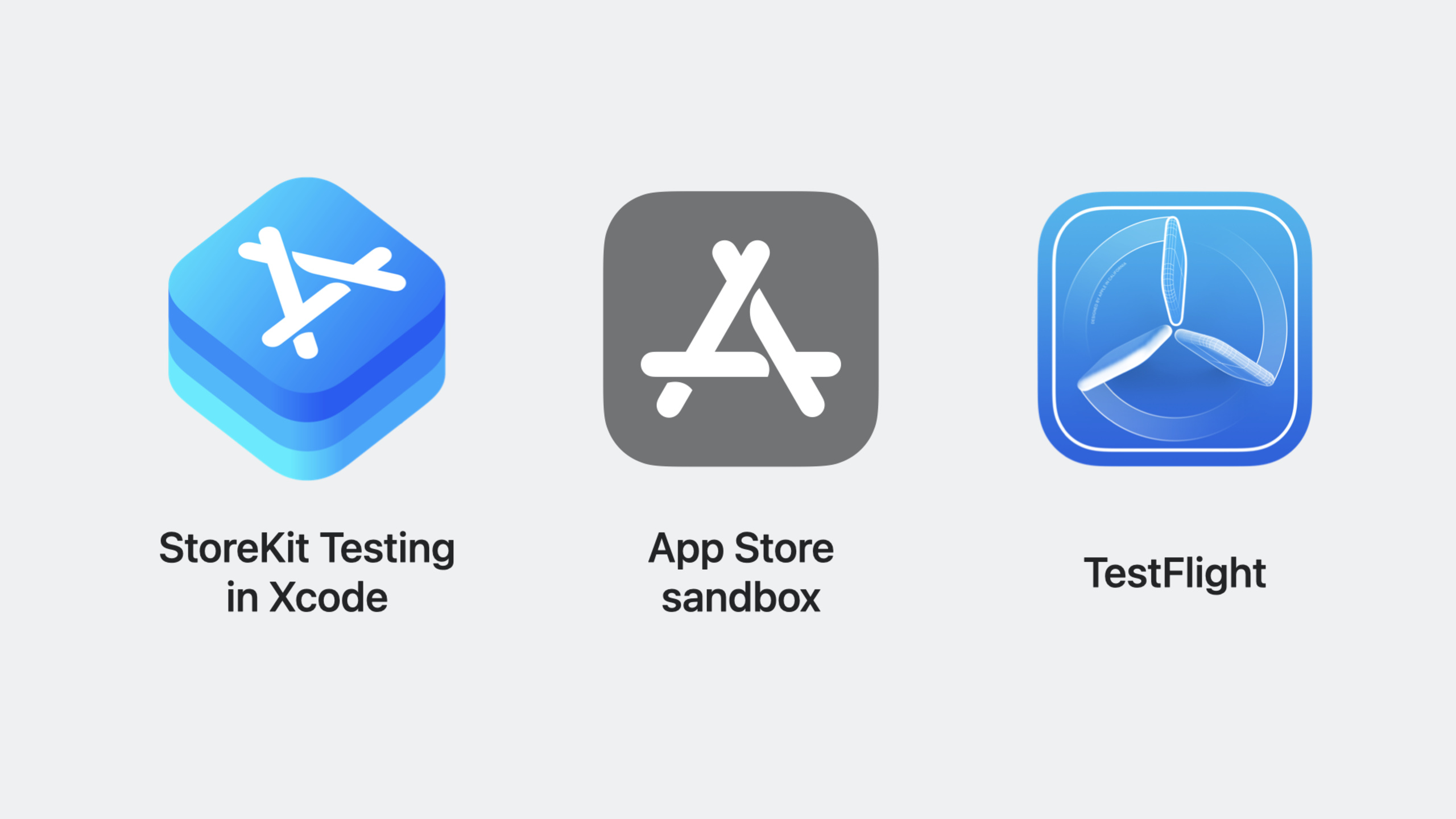
(18:10) The three sets of tools each have their own focus and can be used in combination:
| Tools | Best Use Stage | Core Competencies |
|---|---|---|
| StoreKit Testing in Xcode | Early development | Completely offline, rapid iteration, automated testing |
| App Store Sandbox | Functional verification period | End-to-end verification, server integration testing |
| TestFlight | Pre-launch | Real user feedback, multi-device validation |
(18:12) Specific function support:
- Coupon code redemption and price increase sheet: StoreKit Testing in Xcode only
- Billing retries and grace periods: StoreKit Testing in Xcode + Sandbox
- Server Side Validation: Sandbox + TestFlight (supports App Store Server Notifications and Server API)
- User Feedback Collection: TestFlight only
Implementation of billing problem message
(06:59) Billing problem messages use StoreKit 2’s Message API with reason type billingIssue.
import StoreKit

// By default, the Message API displays automatically when the app launches or enters the foreground
// You can choose to defer or suppress message display in specific views

for await message in StoreKit.Message.messages {
    if message.reason == .billingIssue {
        // Display it at the right time, or decide based on the current UI state
        await message.display()
    }
}
Key points:
- Message API displays automatically by default, but you can control the display timing by listening to the message flow.
- Display should be delayed in views that may confuse users (such as payment processes)
- After the user clicks Continue, it will jump to the iOS account settings page to update the payment method.
Sandbox testing steps
(07:49) Complete process for testing billing problem messages:
- Make sure the Sandbox Apple ID is subscribed to an active auto-renewable subscription
- Open the device’s Settings → App Store → Sandbox Account
- Turn off the “Allow Purchases & Renewals” switch
- Wait for the subscription to fail at the renewal rate and enter the billing retry state
- Return to the application and StoreKit sends the
billingIssuemessage - The billing problem sheet appears, click Continue
- Re-enable “Allow Purchases & Renewals” in Account Settings
- The subscription was successfully renewed and the billing problem message disappeared.
Grace period configuration
(09:38) Enable grace period in App Store Connect:
- Enter the App Subscriptions page
- Find the Billing Grace Period section and click “Set Up Billing Grace Period”
- Select the grace period length (effective in production environment)
- Select the applicable subscriber and environment (Sandbox or both)
- Click Confirm
The grace period and billing retry duration in the Sandbox are automatically preset based on the renewal rate, without waiting for real time.
Core Takeaways
-
Establish an automated testing pipeline for in-app purchases
- What to build: Use the StoreKitTest framework to write automated tests, covering core processes such as purchase, restoration, and subscription status changes.
- Why it’s worth doing: Xcode 15’s multi-instance transaction manager makes concurrent testing possible, and static renewal rates make test times predictable
- How to start: Import StoreKitTest in the test target, use
SKTestSessionto create a test session, and write XCTest use cases covering the main in-app purchase scenarios
-
Preview payment failure scenario in Sandbox
- What to build: Systematically test edge scenarios such as billing issues, grace periods, refunds, etc. to ensure that the application behaves correctly when payment exceptions occur
- Why it’s worth doing: Payment failure in the production environment is the main cause of user churn. Verifying the recovery process in Sandbox in advance can significantly reduce involuntary churn.
- How to start: Turn off purchase permissions in the Sandbox account settings and observe the application’s billing issue message processing; test the subscription recovery logic after enabling the grace period
-
Prepare for testing of home sharing function
- What to build: Configure Family Sharing product in App Store Connect, organize Sandbox family members, verify sharing logic
- Why it’s worth doing: Family Sharing can attract new users and increase engagement, but you need to ensure that the permission granting and revoking logic is correct
- How to start: Enable Family Sharing for auto-renewable subscriptions, add Sandbox family members in Users and Access, test transaction receipt for each member after purchase and permission revocation when exiting sharing
-
Optimize TestFlight testing process
- What to build: Organize internal testing more efficiently with TestFlight’s new filtering and batch management capabilities
- Why it’s worth doing: “Internal Only” distribution method avoids mistaken submission for review, and batch management saves testers maintenance time
- How to start: Select Internal Only distribution for internal test builds, use the filtering function to organize testers by status, and regularly clean up inactive testers
Related Sessions
- What’s new in App Store server APIs — New feature of App Store Server API, necessary for server-side verification
- Meet the App Store Server Library — Official open source library that simplifies server-side API integration
- What’s new in StoreKit 2 — StoreKit 2 client API update
- Subscription Offers Best Practices — Design and implementation of subscription offers
Comments
GitHub Issues · utterances