
Highlight
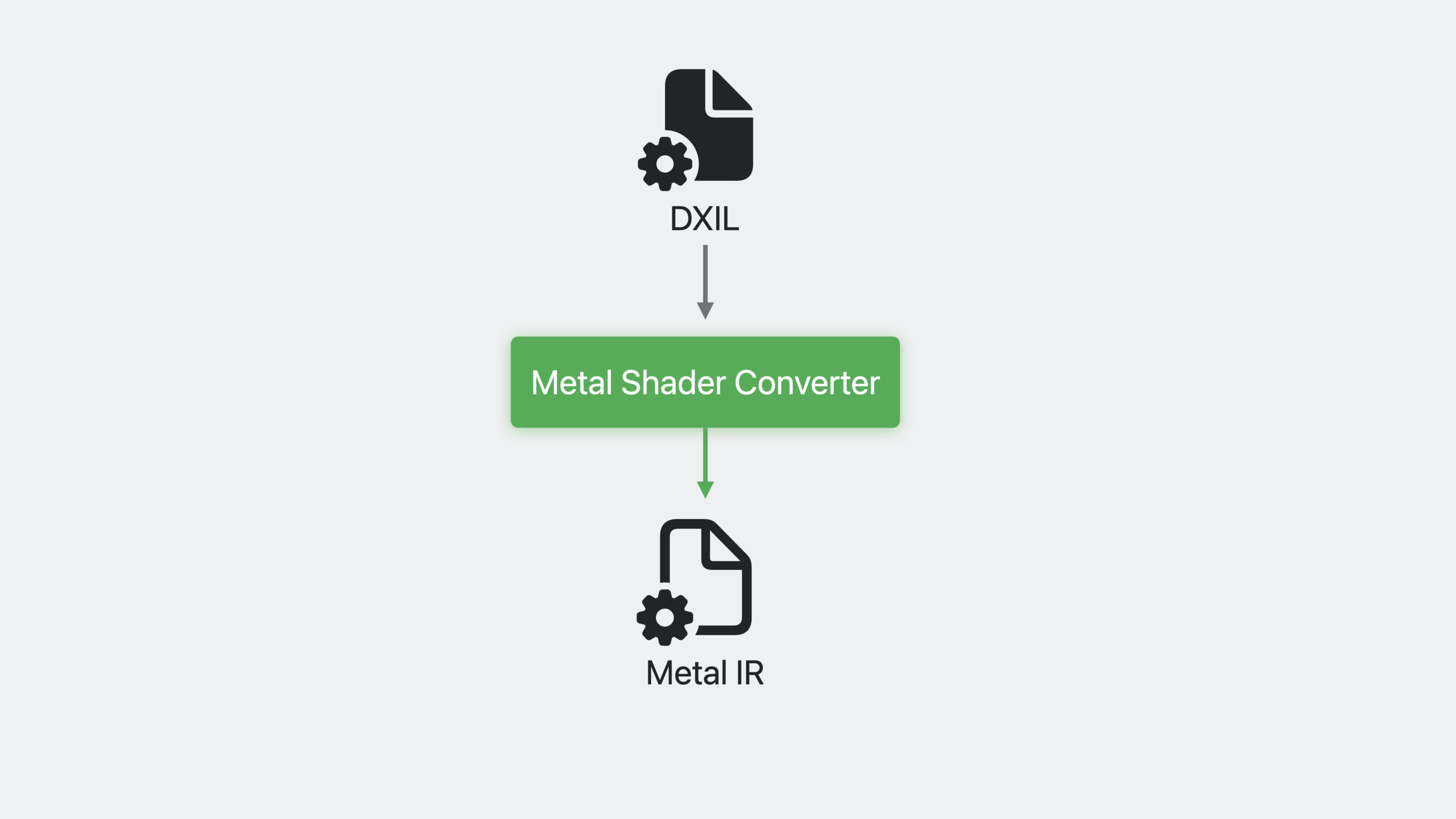
Metal Shader Converter accepts DXIL input and output Metal IR, completes HLSL to Metal conversion at the binary level, supports all stages from traditional geometry shaders to modern mesh shaders, and can eliminate runtime shader compilation lags with offline GPU binary compilation.
Core Content
Why do you need Shader Converter?
The Metal compilation tool chain can compile Metal Shading Language (MSL) into Metal IR in advance and store it in the Metal library. But developers from other platforms already have a large number of HLSL shaders and need a migration path.
Metal Shader Converter fills this gap. It consumes DXIL (DirectX Intermediate Language) and produces Metal IR. Together with the open source DXC compiler, a complete HLSL → DXIL → Metal IR pipeline is formed.
Conversion occurs at the binary level and is extremely fast, significantly reducing shader asset build times.
(01:27)
Supported shader stages
Metal Shader Converter covers almost all shader types used in modern games:
- Traditional graphics pipeline: vertex shader, fragment shader, geometry shader, tessellation
- Compute shaders
- Ray tracing stages and shaders
- Amplification and Mesh shaders
(02:41)
Command line usage
The simplest usage scenario is to convert shaders one by one via the terminal:
# 1. Compile HLSL to DXIL with DXC
dxc -T ps_6_0 -E main myshader.hlsl -Fo myshader.dxil

# 2. Convert DXIL to a Metal library with Shader Converter
metal-shaderconverter myshader.dxil -o myshader.metallib
Default output includes:
- A Metal library file (
.metallib) - A JSON reflection data file
At runtime, this Metal library is passed to the Metal device, and the pipeline state object is loaded and constructed.
(03:06)
Dynamic library integration method
If your game engine has a custom asset builder, or you want to integrate the conversion process on Windows, you can use the dynamic library version:
// The dynamic library provides a pure C interface
// Available on both macOS and Windows
#include <metal_shader_converter.h>

// Initialize the converter
MSCConverterRef converter = MSCCreateConverter();

// Configure conversion options
MSCConversionOptions options = {};
options.inputFormat = MSCInputFormatDXIL;
options.outputFormat = MSCOutputFormatMetalIR;

// Perform conversion
MSCConvert(converter, dxilData, dxilSize, &options, &metalIR, &metalIRSize);
Key Points:
- The functions of dynamic libraries and CLI tools are exactly the same
- Pure C interface, easy to integrate into existing code bases
- macOS and Windows dual platform support
(04:36)
Resource binding model
Resources in HLSL are bound to slots through the register declaration. Metal uses Argument Buffer, which is more flexible. Shader Converter provides two layout modes:
Auto Layout: Resources are arranged in order, the simplest.
Explicit Layout: Matches the root signature, suitable for separate texture/sampler tables or bindless scenarios.
// Automatic layout: bind one Argument Buffer and reference all resources through it
[encoder setVertexBuffer:argumentBuffer offset:0 atIndex:0];

// Explicit layout: match the root signature structure
struct RootSignature {
    MTLResourceID* textureTable;
    float* myBuffer;
    uint32_t myConstant;
    MTLResourceID* samplerTable;
};
The Argument Buffer is a resource shared by the CPU and GPU and requires coordinated access when writing. It is recommended to use bump allocator: allocate a large Metal Buffer, allocate resources from the neutron in each frame, and make a shadow buffer for the resources being processed in each frame.
(05:22)
Geometry and tessellation mapped to Mesh Shader
Metal is a modern API, viewport ID and amplification make the traditional geometry/tessellation stage unnecessary. But if the game relies on these pipelines, manual conversion is expensive.
Shader Converter automatically maps geometry and tessellation pipelines to Mesh Shaders. Tools perform complex mapping tasks, including mapping traditional fixed-function tessellators to Metal IR.
New to Metal this year is the ability to link visible functions to the object and mesh stages of the Mesh Shader. When building a Mesh Render Pipeline Descriptor, Metal compiles and links all Metal IRs, baking all functions into a single pipeline, completely avoiding function call overhead.
(07:16)
Detailed Content
Offline GPU binary compilation
Compiling shaders into the Metal library is not enough. When creating a Pipeline State Object (PSO) at runtime, the Metal library also needs to be finalized into a GPU binary. This step is usually performed when the app starts, resulting in longer loading times. Delaying on-demand compilation until runtime can cause framerate drops.
Metal GPU Binary Compiler lets you generate GPU binaries at build time:
- Prepare Metal library and pipeline configuration script (JSON format)
- Use the
metal-tttool to generate a binary archive - Package the binary archive into the application
JSON pipeline script example:
{
  "libraries": {
    "paths": [
      {"path": "ba.metallib", "label": "myMetalLib"}
    ]
  },
  "pipelines": {
    "render_pipelines": [{
      "vertex_function": "alias:myMetalLib#v",
      "fragment_function": "alias:myMetalLib#f",
      "raster_sample_count": 2,
      "color_attachments": [{
        "pixel_format": "BGRA8Unorm"
      }],
      "depth_attachment_pixel_format": "Depth32Float"
    }]
  }
}
Key Points:
libraries.pathsspecifies the Metal library path and aliaspipelines.render_pipelinesdefines the rendering pipeline configurationvertex_functionandfragment_functionrefer to functions in the library- Other fields correspond to pipeline status descriptor properties in Metal API
(14:28)
Test binary archive hits
Verify that the binary archive contains all required pipelines before publishing:
// Create the pipeline descriptor
MTLComputePipelineDescriptor *computeDesc = [MTLComputePipelineDescriptor new];
computeDesc.binaryArchives = @[existingBinaryArchive];
computeDesc.computeFunction = computeFn;

id<MTLComputePipelineState> computePS =
    [device newComputePipelineStateWithDescriptor:computeDesc
                                          options:MTLPipelineOptionFailonBinaryArchiveMiss
                                            error:&err];

if (computePS == nil) {
    // The binary archive is missing the compiled result for this shader
    NSLog(@"Binary archive miss for compute shader");
}
Key Points:
MTLPipelineOptionFailonBinaryArchiveMissmakes Metal return nil on archive miss- instead of falling back to on-device compilation
- This allows missing pipeline configurations to be discovered in advance
(16:30)
Multiple OS version support
Not all players use the latest system. Generate a binary archive for each major OS version:
MTLComputePipelineDescriptor *computeDesc = [MTLComputePipelineDescriptor new];

if (@available(macOS 14, *)) {
    computeDesc.binaryArchives = @[binaryArchive_macOS14];
} else {
    computeDesc.binaryArchives = @[binaryArchive_macOS13_3];
}

computeDesc.computeFunction = computeFn;
id<MTLComputePipelineState> computePS =
    [device newComputePipelineStateWithDescriptor:computeDesc
                                          options:nil
                                            error:&err];
Key Points:
- Check OS version at runtime
- Select the corresponding binary archive
- Metal automatically selects the appropriate binary for the current GPU from the archive
(17:03)
Core Takeaways
-
What to build: Batch convert existing HLSL shaders with Metal Shader Converter
- Why it’s worth doing: Binary level conversion, extremely fast, supports all shader stages, eliminating manual rewriting
- How to start: Install DXC and Shader Converter, write shell script for batch processing:
dxccompile HLSL to DXIL,metal-shaderconverterconvert to Metal library
-
What to build: Precompile GPU binaries at build time to eliminate runtime compilation lags
- Why it’s worth doing: Players do not have to wait for shaders to be compiled when starting the game, and there will be no frame rate drop caused by compilation during the game.
- How to start: Use the
metal-tttool with the JSON pipeline script to generate a binary archive during the build phase
-
What to build: Integrate Shader Converter into existing build pipeline using dynamic library version
- Why it’s worth doing: Game engines usually have custom asset builders, and CLI tools are not easy to integrate.
- How to start: Link the
metal_shader_converterdynamic library and use pure C interface to complete the conversion in memory
-
What to build: Mix Converter-generated libraries and native MSL libraries
- Why it’s worth doing: You can migrate step by step, convert existing HLSL first, new functions are written in MSL, and the two can be mixed in the same pipeline
- How to start: The format of the Metal library output by the Converter and the library generated by the Metal compiler are exactly the same and can be loaded together directly.
Related Sessions
- Bring your game to Mac, Part 1: Make a game plan — Use the Game Porting Toolkit to evaluate the feasibility of Windows games on Mac
- Bring your game to Mac, Part 3: Render with Metal — High-performance rendering in Metal
- Optimize GPU renderers with Metal — Optimized GPU renderer using the latest features of Metal
Comments
GitHub Issues · utterances