
Highlight
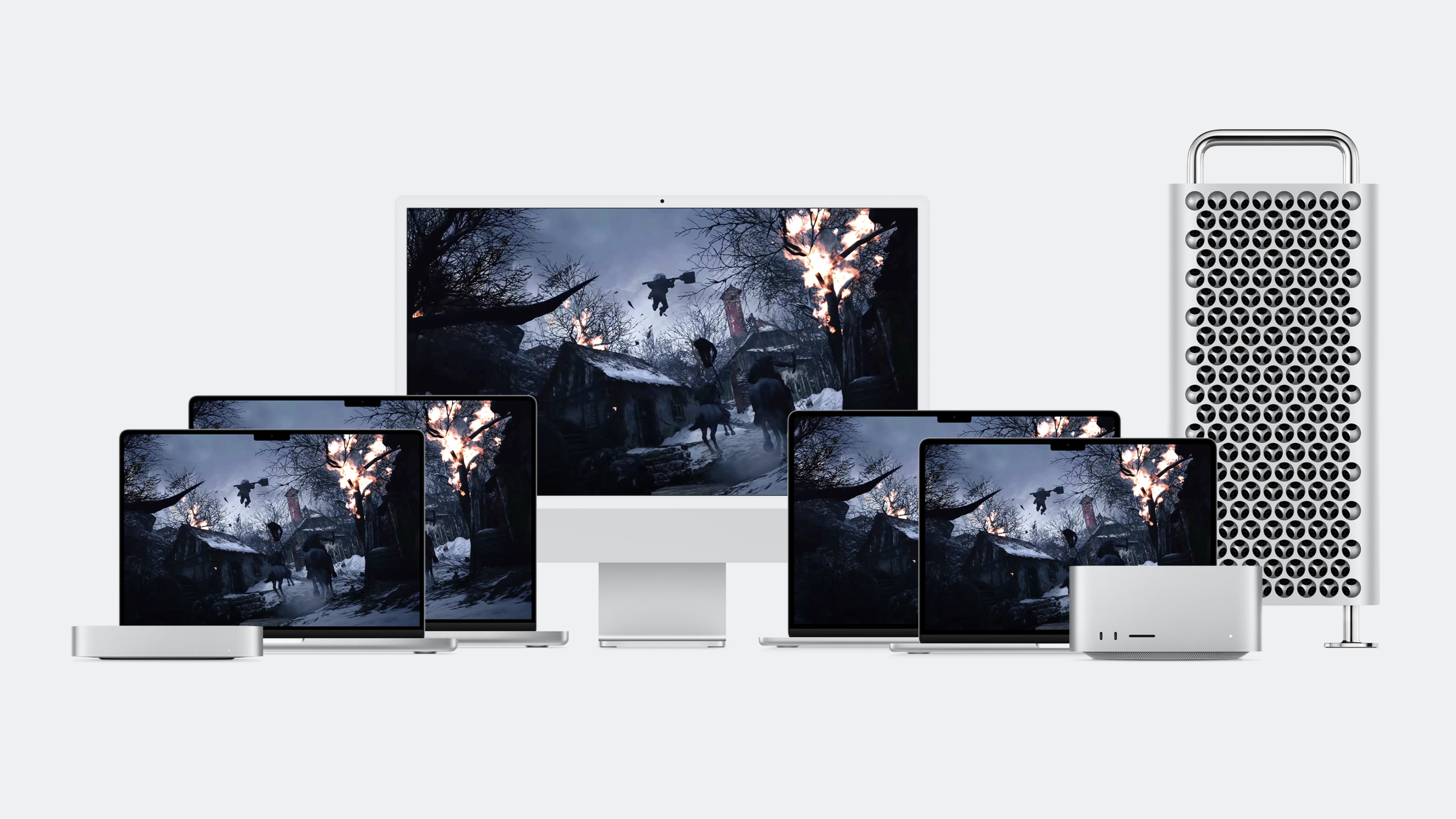
Apple releases Game Porting Toolkit, which allows developers to run Windows DirectX games on Mac without modification, quickly evaluate graphics function compatibility and performance baselines, and make decisions for native porting.
Core Content
Pain points of porting games
Bringing Windows games to the Mac often involves a long process: recompiling source code, converting thousands of HLSL shaders, reimplementing the graphics subsystem, dealing with audio input display and HDR—a lot of work before you can even see the first frame.
Game Porting Toolkit changes this process. It provides a translation environment that allows unmodified Windows games to run directly on Mac.
(00:59)
What does the toolkit translate?
The Game Porting Toolkit translates the game’s Intel x86 instructions and Windows API calls:
- Keyboard, mouse, and gamepad input
- audio playback
- Network and file system
- Graphics API (DirectX 11/12)
All modern graphics features are supported: GPU-driven pipeline, SIMD operations, tessellation, geometry shaders.
(03:06)
Practical demonstration: The Medium
The Bloober team used the Game Porting Toolkit to evaluate their game The Medium. The steps are as follows:
- Install the toolkit
- Copy Windows version of game to Mac
- Launch the game from the terminal
# Launch the game in Terminal
game-porting-toolkit /path/to/TheMedium.exe
The terminal will display log and debug information. The developers of Bloober saw that the game was running fine, with transparency effects, reflections, geometry shaders, tessellation, and global illumination all correctly translated to Metal 3.
(03:37)
Performance evaluation workflow
The performance of the toolkit runtime includes translation overhead, so the data you see is a baseline rather than an upper limit. Performance will be significantly improved after native porting.
Recommended assessment workflow:
- Enable Metal Performance HUD to play games
- Find where the frame rate drops or drops
- Capture Metal System Trace with Instruments
- Analyze the GPU timeline to find the root cause of the problem
The enhanced HUD displays, in addition to standard information:
- Instruction set translation details
- Direct3D API version
- Number of render encoders
- Number of geometry shader and tessellation shader uses per frame
- Resource copy and clear operations
(05:53)
Input, audio and display
Input: The Game Controller framework of the Apple platform supports handles, keyboards, mice, steering wheels, and joysticks. System-level support for per-application input remapping, screenshots, screen recording, and 15-second highlight playback.
Audio: Cross-platform audio middleware (Wwise, Unity, FMOD) has native Apple Silicon SDK on Apple platforms. If you use the underlying API directly, you can use Spatial Mixer Audio Unit, PHASE, and AVAudioEngine.
Display: CAMetalLayer supports Extended Dynamic Range (EDR) and can migrate HDR and tone mapping logic. The CAMetalDisplayLink API provides fine-grained input and display latency control.
(09:42)
Detailed Content
Metal Shader Converter
The Game Porting Toolkit includes the Metal Shader Converter, which automatically converts HLSL GPU shaders to Metal. This saves the effort of manually rewriting thousands of shaders.
The converted shaders directly generate Metal library files, which can be packaged into applications to avoid runtime compilation overhead.
(02:03)
Use Instruments to analyze performance
When the HUD displays an abnormal frame rate in a scene, use Instruments to capture Metal System Trace:
- Open Instruments and select the Metal System Trace template
- Attach to game process
- Reproduce performance problem scenarios
- Stop recording and analyze GPU timeline
Common findings: Large gaps in the GPU timeline, low utilization, and no scheduled work at all on some frames. This is usually caused by instruction translation or API translation overhead - these issues will disappear after a native port.
(06:13)
Core Takeaways
-
What to build: Use the Game Porting Toolkit to quickly assess the feasibility of Windows games on Mac
- Why it’s worth doing: See how your game looks on Mac in a matter of hours instead of waiting months for a native port
- How to start: Download the toolkit from developer.apple.com, configure it according to the documentation, and run the Windows game executable file directly
-
What to build: Use Metal Performance HUD and Instruments to establish performance baselines during the evaluation phase
- Why it’s worth doing: The performance data when the toolkit is running includes translation overhead. There will be a significant improvement after native transplantation. You can know where the bottleneck is in advance.
- How to start: Play the game with HUD enabled, find frame drop points, and capture Metal System Trace with Instruments
-
What to build: Use MetalFX Upscaling to improve the frame rate of the native version
- Why it’s worth doing: The Windows version cannot use MetalFX when running through the toolkit, but it can be turned on after native porting, and the frame rate is greatly improved.
- How to start: After the evaluation is completed, enter the migration stage and integrate MetalFX in the rendering pipeline
-
What to build: Add controller vibration and haptic feedback to the Mac version of the game
- Why it’s worth doing: The Game Controller framework natively supports these functions, and the XInput logic of Windows games can be directly mapped
- How to start: Replace XInput/GameInput calls with Game Controller framework
Related Sessions
- Bring your game to Mac, Part 2: Compile your shaders — Convert HLSL shaders to Metal using Metal Shader Converter
- Bring your game to Mac, Part 3: Render with Metal — High-performance rendering in Metal
- Optimize GPU renderers with Metal — Optimized GPU renderer using the latest features of Metal
Comments
GitHub Issues · utterances