
Highlight
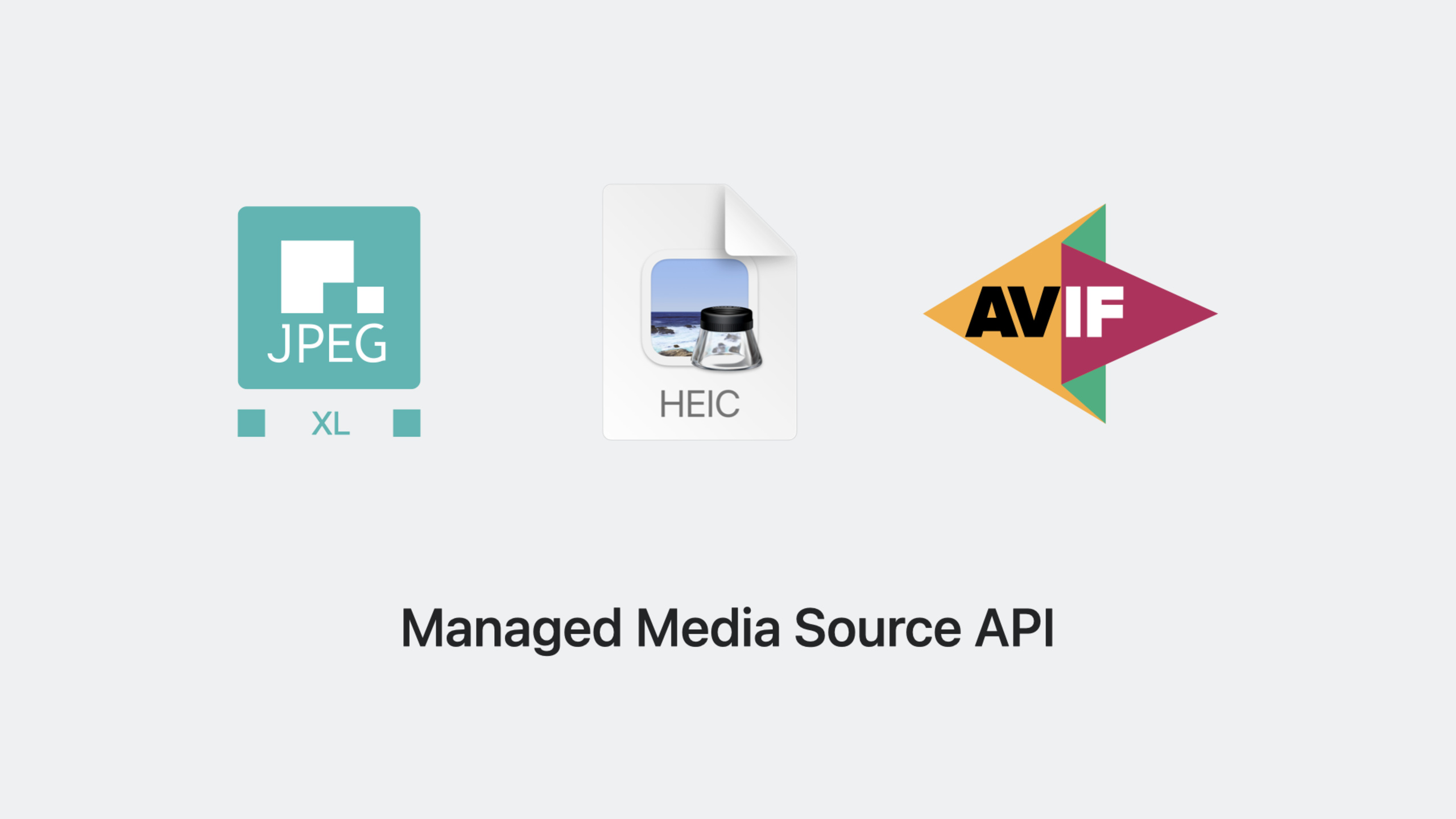
Safari 17 adds support for JPEG XL, AVIF, and HEIC modern image formats, and introduces the Managed Media Source API so web video streaming on iPhone can use 5G with significantly lower power draw.
Core Content
The Image Format Problem
Web images have relied on decades-old formats for years. GIF is 36 years old, supports only 8-bit color, and produces huge animated files. JPEG has been in use for over 30 years—good for photos but lossy compression hurts quality. PNG supports transparency but compresses less efficiently than JPEG. All browsers support these formats, but the technology is outdated.
Safari 17 adds four modern image formats developers can choose from:
- WebP: supported since Safari 14, smaller files than legacy formats, animation quality close to video
- JPEG XL: newly added, supports lossless conversion from existing JPEG files with up to 60% size reduction
- AVIF: uses AV1 video encoding, can be up to 10× smaller than JPEG with the broadest browser support among modern formats
- HEIC: default format for iPhone and iPad photos, hardware-accelerated rendering directly in WKWebView
(02:56)
Let the Browser Choose the Format
Developers do not need to detect browser type in code. HTML’s picture element lists multiple source options; the browser picks the first supported format from top to bottom.
<picture>
  <source srcset="image.heic" type="image/heic">
  <source srcset="image.jxl" type="image/jxl">
  <source srcset="image.avif" type="image/avif">
  <img src="image.jpg" alt="Description">
</picture>
Key points:
sourceelements insidepictureare matched in order- Browser tries HEIC first, then JPEG XL, then AVIF
- If none are supported, falls back to the JPEG in the
imgtag - No User-Agent string parsing required
(06:59)
Video Streaming Power Consumption
Media Source Extensions (MSE), published by W3C in 2013, let web pages control video buffering and resolution switching. But it gives too much control to the web page—the browser cannot optimize request timing and power. MSE was never enabled on iPhone because testing showed reduced battery life.
(11:05)
Managed Media Source API
Safari 17 introduces Managed Media Source, returning buffering control to the browser. The browser decides when to download data so the cellular modem can stay in low-power mode longer.
Migration is straightforward:
// Check if Managed Media Source is available
const MediaSource = window.ManagedMediaSource || window.MediaSource;

// Create video element
const video = document.createElement('video');
const mediaSource = new MediaSource();
video.src = URL.createObjectURL(mediaSource);

// Listen for buffering events
mediaSource.addEventListener('startstreaming', () => {
  // Start fetching new content
  fetchAndAppendNextSegment();
});

mediaSource.addEventListener('endstreaming', () => {
  // Stop fetching, enter low-power mode
});

// Listen for buffer content being cleared
sourceBuffer.addEventListener('bufferedchange', (event) => {
  // Check which data was removed
  console.log('Removed ranges:', event.removedRanges);
});
Key points:
ManagedMediaSourceis available by default on macOS and iPadOS in Safari 17; on iPhone behind an experimental flagstartstreamingtells the player when to start fetching dataendstreamingtells the player when to stop so the device enters low powerbufferedchangehandles buffer content being cleared- Following these event hints enables 5G high-speed networking on iPhone and iPad
(14:49)
AirPlay Support
MSE video cannot AirPlay because AirPlay needs a sendable URL. Add an HLS source as a fallback on the video element:
<video id="my-video" controls>
  <source src="my-video.m3u8" type="application/vnd.apple.mpegurl">
</video>
When the user taps AirPlay, Safari automatically switches from Managed Media Source to the HLS stream. Call disableRemotePlayback() on the video element if you do not want AirPlay support.
(18:01)
Detailed Content
Choosing Modern Image Formats
JPEG XL, AVIF, and HEIC all support wide gamut and HDR. Wide gamut preserves more color information; HDR defines darker blacks and brighter whites. Together they render outdoor landscapes, high-contrast scenes, and complex skin tones better.
Selection guidance:
- AVIF as the primary fallback—broadest browser support among modern formats
- JPEG XL for images needing progressive loading and lossless conversion from existing JPEG
- HEIC for use inside WKWebView to display iPhone uploads directly
(05:53)
Simplifying Video with HLS.js
If you do not want to handle Managed Media Source details yourself, use HLS.js:
const video = document.getElementById('my-video');

if (video.canPlayType('application/vnd.apple.mpegurl')) {
  // Safari native HLS support
  video.src = 'my-video.m3u8';
} else if (Hls.isSupported()) {
  // HLS.js automatically supports Managed Media Source
  const hls = new Hls();
  hls.loadSource('my-video.m3u8');
  hls.attachMedia(video);
}
Key points:
- HLS.js automatically uses Managed Media Source on Safari 17
- Non-Safari browsers can also play HLS video
- A few lines cover most browsers
(19:03)
Core Takeaways
-
What to do: Add AVIF and JPEG XL support for site images
- Why it matters: AVIF can be up to 10× smaller than JPEG; JPEG XL can losslessly convert existing JPEG and shrink by 60%
- How to start: Use the
pictureelement with multiplesourcetags and let the browser choose automatically
-
What to do: Migrate video playback sites to Managed Media Source
- Why it matters: MSE-like functionality is available on iPhone for the first time, with faster 5G downloads and lower power use
- How to start: Replace
new MediaSource()withnew ManagedMediaSource()and addstartstreamingandendstreamingevent listeners
-
What to do: Add AirPlay support for video
- Why it matters: Users expect to cast from phone to TV; MSE video previously did not support this
- How to start: Add a
sourcechild element pointing to an HLS playlist inside thevideoelement
-
What to do: Use HEIC images directly in WKWebView apps
- Why it matters: iPhone photos are HEIC by default—display without conversion with hardware-accelerated rendering
- How to start: Use HEIC files directly as image sources; WKWebView natively supports them in Safari 17
Related Sessions
- What’s new in CSS — New CSS features in Safari 17
- Rediscover Safari developer features — Learn how to enable feature flags to try Managed Media Source
- Meet Web Push for Safari — New Web Push features in Safari
Comments
GitHub Issues · utterances