
Highlight
macOS Sonoma lets you add any website to the Dock as a standalone Web App with its own window, cookies, and system-level permission management; combined with a Web App Manifest you can control the toolbar, link navigation scope, and display mode, while Web Push notifications and badges work on both macOS and iOS/iPadOS Home Screen Web Apps.
Core Content
Web Apps on macOS
macOS Sonoma introduces Web Apps. While browsing any site in Safari, choose File > “Add to Dock…” and the site appears in the Dock as a standalone app. Cookies from Safari are copied when added, so users usually stay signed in.
Web Apps have a simplified toolbar, and the site’s theme color blends into the toolbar background. Like native macOS apps, they support Stage Manager, Mission Control, and Command+Tab switching, and can be opened from the Dock, Launchpad, and Spotlight.
Permission management matches native apps. Camera, microphone, and location access go through system permission dialogs and are managed in System Settings > Privacy & Security.
(00:51)
Customizing with Web App Manifest
Developers control Web App behavior through the Web App Manifest. Add to the HTML head:
<link rel="manifest" href="/manifest.json">Key manifest fields:
name: Web App name (replaces the page title)display: display mode;standalonemeans no toolbarstart_url: URL loaded when the Web App first opensscope: defines which links open inside the Web Appid: unique identifier to distinguish different Web Apps on the same domain
(05:01)
display: standalone behaves differently by platform:
- macOS: no toolbar shown
- iOS/iPadOS: opens as a Home Screen Web App with isolated cookies and storage, separate from the browser
To use Web Push and badges on iOS, you must use standalone mode.
Link Navigation and Scope
Every Web App has an associated scope. Links within scope open inside the Web App; links outside scope open in the default browser. The default scope is the host of the page used to create the Web App.
You can narrow scope further with the manifest scope field. For example, setting scope to example.com/browserpets means links to example.com/webkittens open in the default browser.
In iOS Home Screen Web Apps, out-of-scope links open in Safari View Controller.
(05:53)
Authentication and Cookies
When a Web App is created, cookies from Safari are copied, so users usually stay signed in. local storage is not copied. If auth state is split between cookies and local storage, users need to sign in again.
Apple recommends keeping auth state in cookies. OAuth flows usually open inside the Web App (via heuristics); report issues to Apple if you find problems. Links opened with window.open always stay inside the Web App and are not limited by scope.
Auto-login links in email open in the default browser and do not automatically sign in to an existing Web App. Consider one-time codes in email as an alternative. Passkey authentication is the preferred approach.
(07:37)
Web Push Notifications and Badges
Web Apps on macOS support standard Web Push. If you already implemented Web Push to web standards, it works in macOS Web Apps with no extra work.
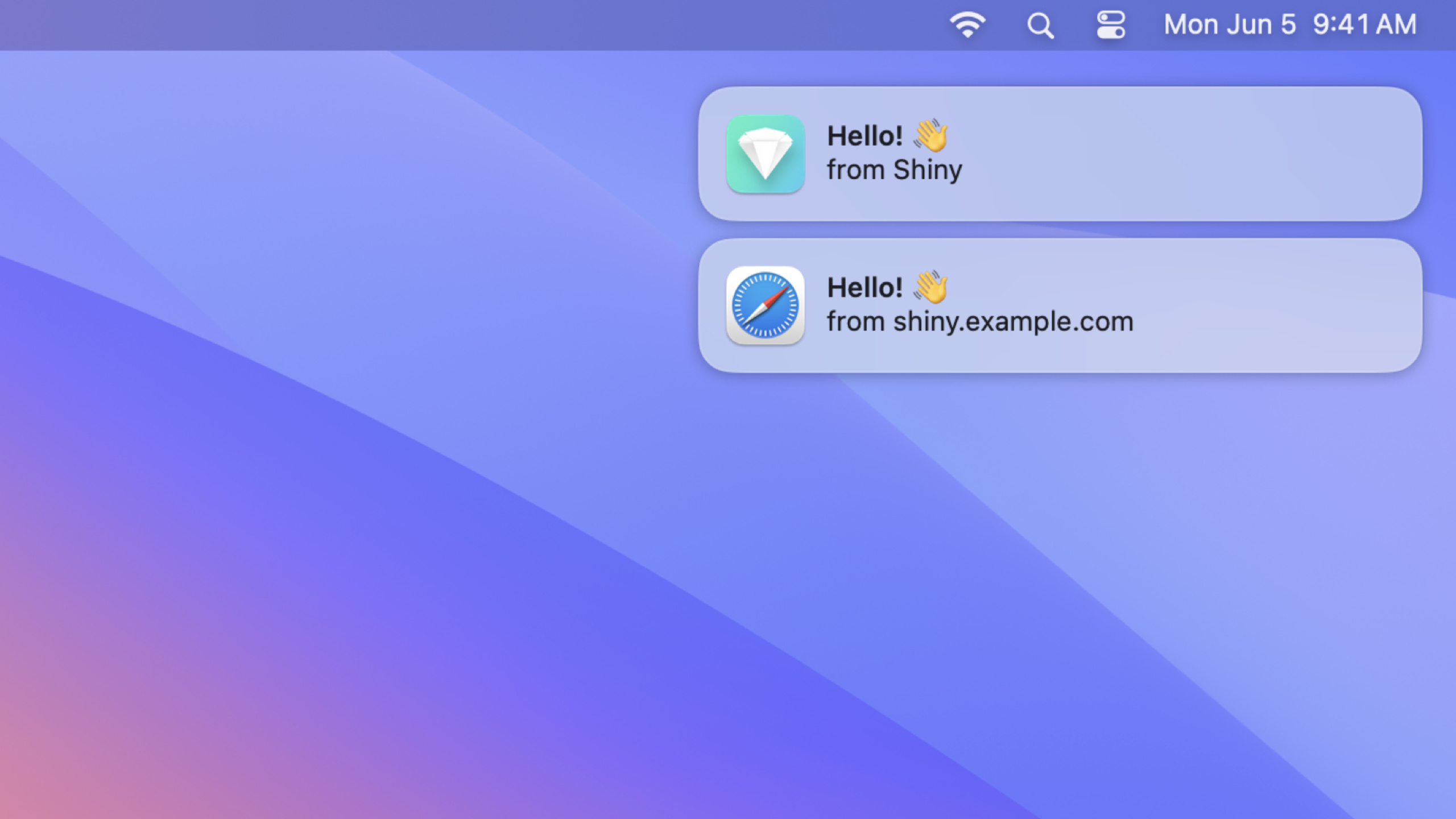
Notifications show the Web App icon (not the Safari icon), giving users the right context.
Sound behavior follows platform conventions: enabled by default on iOS/iPadOS, off by default on macOS. Override with the Notification API silent option:
new Notification("New message", { silent: false });Badges are supported on macOS Web Apps and iOS Home Screen Web Apps. When users allow notifications, badge permission is granted too. Badges can update while the Web App is open or while handling push events in the background.
(10:00)
Focus Mode Integration
Web App notifications integrate with Focus modes. Users can set different notification preferences per Focus mode, synced across devices.
The manifest id field distinguishes different Web Apps on the same domain. For example, if a domain has shop and forums Web Apps, set id: "shop" and id: "forums" so users can set different notification preferences for each.
Focus settings sync by name + id. Users can create multiple instances of the same site on one device (such as “Forums” and “Forums - Work”) with different notification and Focus preferences.
(12:54)
New Web APIs
Safari added these APIs this year:
- User Activation API: tells the site whether the user performed a transient or persistent activation, useful before calling features that require user activation (such as requesting notification permission)
- Fullscreen API: Safari 16.4 removed prefixes on macOS and iPadOS, supporting the standard Fullscreen API
- Screen Orientation API: initial support for
type,angleproperties and theonchangeevent
(14:29)
Detailed Content
Complete Web App Manifest Example
{
  "name": "Browser Pets",
  "short_name": "Pets",
  "description": "A virtual pet community",
  "start_url": "/browserpets",
  "scope": "/browserpets",
  "display": "standalone",
  "theme_color": "#FF6B6B",
  "background_color": "#FFFFFF",
  "icons": [
    { "src": "/icon-192.png", "sizes": "192x192" },
    { "src": "/icon-512.png", "sizes": "512x512" }
  ],
  "id": "browserpets"
}
Key points:
nameis shown in the Dock/Home Screen;short_nameis used when space is limitedstart_urlis the page loaded when the Web App first opensscopelimits which links open inside the Web App; must be a subdirectory of the manifest URLdisplay: standalonehides the toolbar on macOS and creates an isolated Home Screen Web App on iOStheme_coloraffects the macOS toolbar backgroundiddistinguishes different Web Apps on the same domain for Focus mode sync
Referencing the Manifest in HTML
<!DOCTYPE html>
<html lang="en">
<head>
  <meta charset="UTF-8">
  <meta name="viewport" content="width=device-width, initial-scale=1.0">
  <meta name="theme-color" content="#FF6B6B">
  <title>Browser Pets - Your Virtual Pet Community</title>
  <link rel="manifest" href="/manifest.json">
  <link rel="apple-touch-icon" href="/icon-192.png">
</head>
<body>
  <!-- Page content -->
</body>
</html>
Key points:
- Keep the
theme-colormeta tag consistent with manifesttheme_color apple-touch-iconis used for the iOS Home Screen icon- The
manifestlink must be inhead
Web Push and Service Worker
// Register Service Worker
if ('serviceWorker' in navigator) {
  navigator.serviceWorker.register('/sw.js')
    .then(registration => console.log('SW registered'))
    .catch(err => console.error('SW registration failed', err));
}

// Request push notification permission
async function subscribeToPush() {
  const registration = await navigator.serviceWorker.ready;

  const subscription = await registration.pushManager.subscribe({
    userVisibleOnly: true,
    applicationServerKey: urlBase64ToUint8Array(
      'BEl62i...'
    )
  });

  // Send subscription to server
  await fetch('/api/push-subscription', {
    method: 'POST',
    headers: { 'Content-Type': 'application/json' },
    body: JSON.stringify(subscription)
  });
}
Key points:
- Web Push requires Service Worker support
pushManager.subscriberequires user activation (click or similar) to callapplicationServerKeyis the server’s VAPID public keyuserVisibleOnly: truemeans every push shows a notification
Handling push in the Service Worker:
// sw.js
self.addEventListener('push', event => {
  const data = event.data?.json() ?? {};

  event.waitUntil(
    self.registration.showNotification(data.title, {
      body: data.body,
      icon: '/icon-192.png',
      badge: '/badge-72.png',
      silent: false,
      data: { url: data.url }
    })
  );
});

// Open the right page when notification is clicked
self.addEventListener('notificationclick', event => {
  event.notification.close();
  event.waitUntil(
    clients.openWindow(event.notification.data.url)
  );
});
Key points:
showNotificationdisplays a system notification from the Service Workersilent: falseoverrides macOS default silence and plays notification soundbadgeis a small icon shown in the notification area and Dock badgenotificationclickhandles user taps on notifications
Badge API Usage
// Set badge number
navigator.setAppBadge(42);

// Clear badge
navigator.clearAppBadge();

// Update badge while handling push in background
self.addEventListener('push', event => {
  event.waitUntil(
    getUnreadCount().then(count => {
      return self.navigator.setAppBadge(count);
    })
  );
});
Key points:
navigator.setAppBadge()sets the badge on the Dock (macOS) or Home Screen icon (iOS)- Badge permission is granted automatically when notification permission is allowed
- Update via
self.navigator.setAppBadge()in the Service Worker - Badges update in both foreground and background
Auth State Management
// Recommended: keep auth state in cookies
// Server-side setting
// Set-Cookie: session=abc123; Path=/; HttpOnly; Secure; SameSite=Lax

// Avoid: splitting auth state across localStorage
// Web App creation does not copy localStorage, so users must sign in again

// If you must use localStorage, check on first load and guide re-authentication
async function checkAuthState() {
  const sessionCookie = document.cookie.match(/session=([^;]+)/);
  const localToken = localStorage.getItem('auth_token');

  if (sessionCookie && !localToken) {
    // Cookie exists but localStorage is missing—refresh the token
    const response = await fetch('/api/refresh-token', {
      credentials: 'include'
    });
    const data = await response.json();
    localStorage.setItem('auth_token', data.token);
  }
}
Key points:
- Web App creation copies cookies but not localStorage
- Sites with cookie-only auth usually keep users signed in
- Hybrid auth needs detection and re-auth guidance on first load
- Passkeys are more secure and convenient than email links
Core Takeaways
1. Add a Web App Manifest to your site
- What to do: Add manifest.json to your existing site with
name,display: standalone,theme_color, andicons - Why it matters: macOS users can add your site to the Dock as a standalone app; iOS users get a Home Screen Web App experience
- How to start: Create manifest.json, add a link tag in HTML head, test Safari’s “Add to Dock” and “Add to Home Screen” flows
2. Implement Web Push notifications
- What to do: Add push notifications to your Web App, including new message alerts and badge updates
- Why it matters: Re-engage users even when the Web App is not open; badges show unread counts
- How to start: Register a Service Worker, subscribe with the Push API, integrate Web Push on the server, handle the
silentoption per platform
3. Replace traditional auth with Passkeys
- What to do: Migrate login from passwords or email links to Passkeys
- Why it matters: Passkeys work in Web Apps and browsers, are not limited by cookie copying, and are more secure than email codes
- How to start: Integrate the Web Authentication API; see the WWDC22 “Meet passkeys” session for implementation guidance
4. Create separate Web Apps for distinct site features
- What to do: If your site has multiple independent features (shop and forums), create separate Web Apps distinguished by the
idfield - Why it matters: Users can set independent notification and Focus preferences per feature, closer to native apps
- How to start: Create separate manifest files per feature with different
idandscope; ensure links open in the correct Web App
5. Handle out-of-scope links correctly
- What to do: Define scope boundaries clearly so external links (third-party login, partner pages) navigate correctly
- Why it matters: Out-of-scope links open in the default browser; OAuth misclassified as external may block sign-in
- How to start: Test all external links and OAuth flows; use
window.open()when links must stay in the Web App; report misclassified OAuth domains to Apple
Related Sessions
- Meet Web Push for Safari — Web Push standard implementation in Safari
- Rediscover Safari developer features — Comprehensive update to Safari developer features
- What’s new in Web Inspector — New debugging features in Safari Web Inspector
- What’s new in Safari extensions — New Safari extension APIs and capabilities
- Meet passkeys — Introduction to Passkey authentication
Comments
GitHub Issues · utterances