
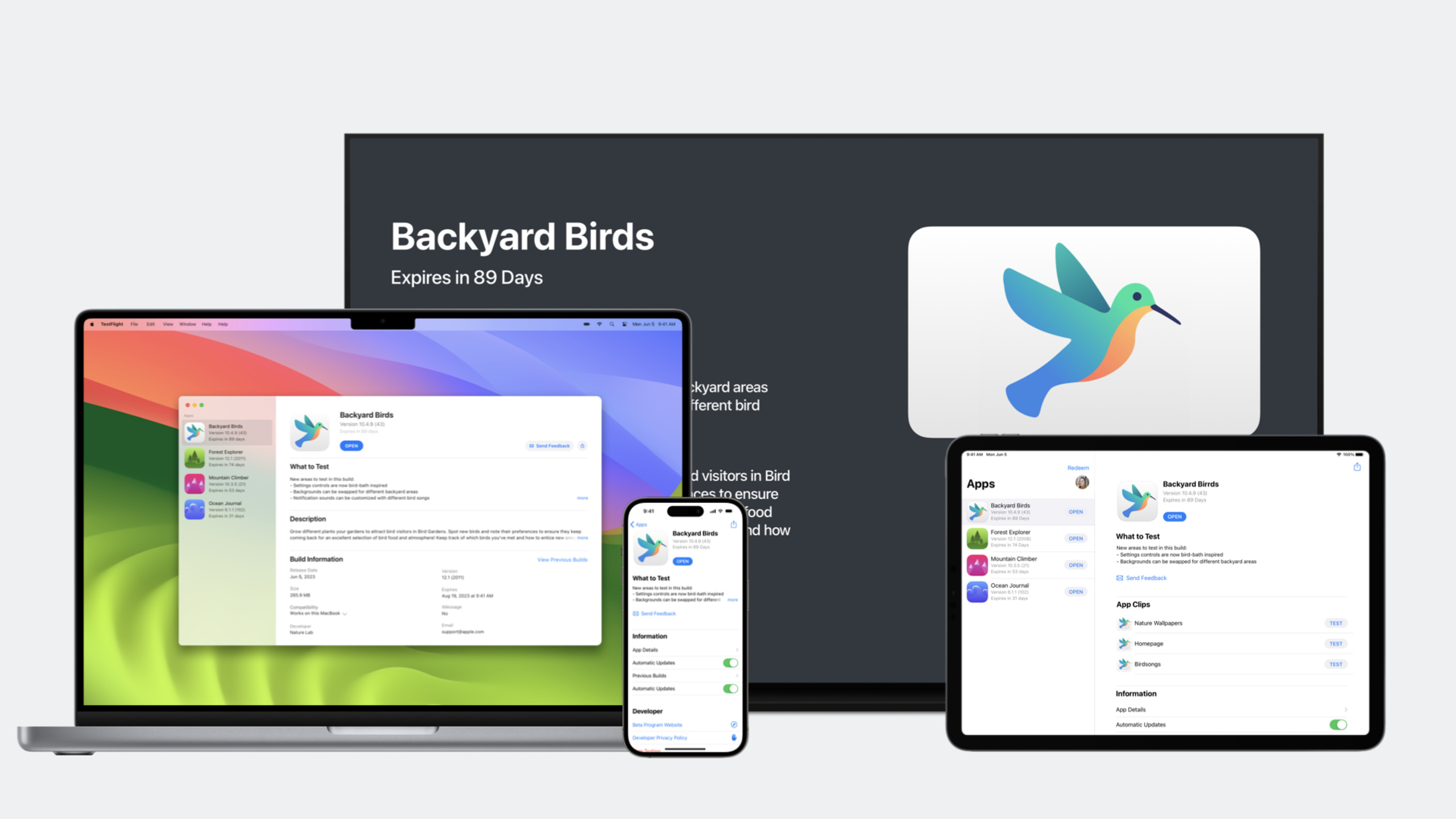
Highlight
Apple has added 900 new price tiers, TestFlight internal build tags, sandbox Family Sharing testing, regionalized pre-orders and Game Center API support in App Store Connect, giving developers more granular control over the entire process from pricing to testing to launch.
Core Content
In-app purchases and pricing
In the past, doing in-app purchases (IAP) required writing a lot of UI code, as well as dealing with localization, accessibility, and adaptation to different platforms. Developers often put in days of work on a purchasing interface.
Apple launched StoreKit for SwiftUI this year. After configuring the product in App Store Connect, you can return to Xcode to generate a complete purchase interface with just a few lines of code. This interface automatically supports all App Store languages and system accessibility features.
You can use the simplest version to get online quickly, or you can customize the background, buttons, and styles to unify the purchase page with the app style. If you promote IAP on the App Store, you can also directly call the promotion icon to display it on the purchase page.
(01:11)
In terms of pricing, Apple has expanded its original selection to 900 price tiers this year. Developers can:
- Select a base region and automatically convert prices in other regions and currencies
- Let the App Store automatically adjust international pricing based on exchange rate and tax rate changes, or choose to manage it manually
- Set IAP and subscription availability by region
(02:09)
TestFlight Test Management
Tester management has always been a pain point. Although TestFlight can distribute test packages, it is difficult for developers to determine which testers actually participated in the test, how many crashes they encountered, and how much feedback they provided.
This year, TestFlight added a new device column, which displays the device and system version of the tester’s most recent installation of the test package. You can filter by test data and select testers in batches to re-invite, add to groups, or remove. All this data is available through the App Store Connect API.
(03:59)
More critical is building distribution control. When distributing a build from Xcode, you can mark a build as “TestFlight Internal Only”. Flagged builds do not enter external TestFlight and cannot be submitted for App Store review. In App Store Connect, these builds are clearly identified to avoid accidental leakage of prototype code.
(04:41)
Xcode Cloud also adds automatic uploading for TestFlight “What to Test”. You can place a TestFlight folder in the same directory as the project and write a plain text list of test points in it; or write a custom build script to extract test instructions from the commit message. This information is automatically synced to App Store Connect and distributed to testers.
(05:12)
Sandbox testing enhancements
Family Sharing allows users to share subscriptions and IAPs with family members, but this feature was previously unavailable for testing in a sandbox environment.
This year Apple is allowing test accounts to be combined into homegroups of up to 6 accounts in the sandbox. On iOS devices, sandbox testers can now:
- View family members and stop sharing auto-renewable subscriptions or non-consumable items
- Modify subscription renewal rate
- Test interrupt purchase flow
- Clear purchase history directly on your device
(05:59)
Product Pages and Privacy
The introduction of xrOS brings new private data types. If your app collects data about the user’s surrounding environment, you need to select “Environment Scanning” in the privacy tab; select “Hands” to collect hand structures or movements; select “Head” to collect head movements. These tags will appear on the App Store on all platforms, including iOS apps using ARKit.
(07:34)
The pre-order function now supports opening by region. You can officially launch it in some areas (soft launch) and open pre-orders in other areas at the same time. This is managed through a redesigned availability page.
Product page optimization testing (A/B testing) has also been improved: the test will run until you manually stop it and will no longer be affected by new version releases. You can monitor running tests while pushing updates.
(08:37)
App Store Connect API Extension
The API adds IAP and subscription management, customer review responses, and sandbox tester management this year. Upcoming Game Center API support:
- Create, configure and archive leaderboards and achievements
- Submit score and achievement unlock events via the server-to-server API
- Remove scores and players from leaderboards to automatically handle cheating
- Match players with custom rules such as skill level or region
API certifications are also updated. You can generate API keys specific to marketing and customer service, limiting them to managing marketing metadata or replying to comments. You can also create user-based keys with permissions consistent with your role in App Store Connect.
(10:24)
Detailed Content
How to use StoreKit for SwiftUI
At the heart of StoreKit for SwiftUI are two views: StoreView and SubscriptionStoreView.
import StoreKit
import SwiftUI

struct ContentView: View {
    var body: some View {
        // Show all available IAP products
        StoreView(ids: ["premium_monthly", "premium_yearly"])

        // Show subscription options
        SubscriptionStoreView(groupID: "premium_group")
    }
}
Key points:
StoreView(ids:)Incoming product ID list configured in App Store ConnectSubscriptionStoreView(groupID:)passes in the ID of the subscription group- These two views automatically handle product loading, localization, accessibility and purchasing processes
- No need to manually call
SKProductsRequestor handle the transaction state machine
Custom style example:
SubscriptionStoreView(groupID: "premium_group") {
    VStack {
        Image("app_icon")
            .resizable()
            .frame(width: 80, height: 80)
        Text("Upgrade to Premium")
            .font(.title)
    }
}
.storeButton(.visible, for: .restorePurchases)
.subscriptionStoreButtonLabel(.multiline)
Key points:
- Customize top content area in closure
.storeButton(.visible, for: .restorePurchases)Show restore purchase button.subscriptionStoreButtonLabel(.multiline)Let the subscribe button display multiple lines of information
TestFlight “What to Test” file structure
Create a folder structure in the Xcode project or workspace sibling directory:
MyApp/
├── MyApp.xcodeproj
├── MyApp/
│   └── ...
└── TestFlight/
    └── WhatToTest.en-US.txt
    └── WhatToTest.zh-Hans.txt
Key points:
- The
TestFlight/folder must be at the same level as.xcodeprojor.xcworkspace - The file name format is
WhatToTest.{locale}.txt - Supports all App Store language locales
- Xcode Cloud will automatically read and upload to App Store Connect when building
Or extract from git log with build script:
#!/bin/bash
# Put this in Xcode Cloud ci_post_xcodebuild.sh
COMMITS=$(git log --pretty=format:"- %s" $CI_PREVIOUS_SUCCESSFUL_COMMIT..HEAD)
echo "$COMMITS" > "$CI_ARCHIVE_PATH/WhatToTest.txt"
Key points:
ci_post_xcodebuild.shis Xcode Cloud’s post-build hook script$CI_PREVIOUS_SUCCESSFUL_COMMITis the commit hash of the last successful buildWhatToTest.txtoutput to$CI_ARCHIVE_PATHwill be recognized by Xcode Cloud
App Store Connect API New Endpoint
Game Center API example (using JWT authentication):
# Create a leaderboard
JWT_TOKEN=$(generate_jwt)

curl -X POST \
  https://api.appstoreconnect.apple.com/v1/gameCenterLeaderboards \
  -H "Authorization: Bearer $JWT_TOKEN" \
  -H "Content-Type: application/json" \
  -d '{
    "data": {
      "type": "gameCenterLeaderboards",
      "attributes": {
        "referenceName": "Weekly High Score",
        "vendorIdentifier": "weekly_high_score",
        "defaultSortOrder": "DESCENDING",
        "scoreFormatType": "INTEGER"
      },
      "relationships": {
        "gameCenterGroup": {
          "data": {
            "type": "gameCenterGroups",
            "id": "GROUP_ID"
          }
        }
      }
    }
  }'
Key points:
- JWT authentication method using App Store Connect API
referenceNameis the display name of the leaderboardvendorIdentifieris the ID you reference in your codedefaultSortOrdercan beDESCENDINGorASCENDINGscoreFormatTypesupportsINTEGER,FLOATand other formats
server-to-server submission score:
curl -X POST \
  https://api.appstoreconnect.apple.com/v1/gameCenterLeaderboardEntries \
  -H "Authorization: Bearer $JWT_TOKEN" \
  -H "Content-Type: application/json" \
  -d '{
    "data": {
      "type": "gameCenterLeaderboardEntries",
      "attributes": {
        "score": 15000,
        "playerId": "PLAYER_ID",
        "context": 1
      },
      "relationships": {
        "gameCenterLeaderboard": {
          "data": {
            "type": "gameCenterLeaderboards",
            "id": "LEADERBOARD_ID"
          }
        }
      }
    }
  }'
Key points:
playerIdis the unique identifier of the Game Center playercontextis optional additional data, which can be used to store information such as level numbers- Suitable for cross-platform games, and submit scores uniformly on the server side
Core Takeaways
1. Use StoreKit for SwiftUI to replace the custom purchase page
- What to build: Migrate existing IAP purchase flow from manual
SKProductsRequest+ custom UI to StoreKit for SwiftUI - Why it’s worth doing: Replace hundreds of lines of UI and state management code with a few lines of code, automatically getting localization, accessibility, and system style
- How to start: Configure the product in App Store Connect, use
StoreVieworSubscriptionStoreViewin the SwiftUI view, and gradually replace the old code
2. Establish TestFlight automated testing workflow
- What to build: Use Xcode Cloud to automatically extract commit messages as “What to Test” content, and manage build distribution with Internal Only tags
- Why it’s worth doing: Testers can see the key points of this change every time they receive a build, and internal prototypes will not accidentally leak out
- How to start: Add
TestFlight/WhatToTest.en-US.txtto the project and configure Xcode Cloud’sci_post_xcodebuild.shscript to extract git log
3. Test subscription sharing with Sandbox Family Sharing
- What to build: Create 2-6 sandbox test accounts in App Store Connect to form a family group and test the complete process of subscription sharing
- Why it’s worth doing: Family Sharing is an important conversion channel for subscription apps. It could not be tested before, but now it can be verified before release.
- How to start: Create an account and configure a home group in App Store Connect > Users and Access > Sandbox Testers, log in to different accounts on the device to test
4. Use Game Center API to implement cross-platform rankings
- What to build: Submit scores and achievements from the game backend server via the server-to-server API
- Why it’s worth doing: Cross-platform games (such as having both iOS and Web versions) can manage Game Center data uniformly on the server side
- How to start: Generate API key in App Store Connect, use JWT authentication to call Game Center endpoint to create rankings, and integrate score submission logic in game server
5. Phased release by region
- What to build: First officially launch it in the core market to collect feedback, and open pre-orders in other markets at the same time
- Why it’s worth doing: Reduce the risk of global simultaneous release, use real user data to optimize the product before expanding the market
- How to start: In the App Store Connect availability page, select some areas as “Downloadable” and others as “Pre-order”
Related Sessions
- What’s new in App Store pricing — Dive into pricing updates and App Store Connect API pricing endpoints
- Meet StoreKit for SwiftUI — Implement in-app purchase and subscription interfaces in just a few lines of code
- Simplify distribution in Xcode and Xcode Cloud — Simplify the distribution process for Xcode and Xcode Cloud
- Explore testing in-app purchases — StoreKit tests, sandbox tests, and TestFlight tests
- What’s new in privacy — Privacy updates and new third-party SDK features
Comments
GitHub Issues · utterances