
Highlight
The Apple Maps design team shares how they used SwiftUI as a design tool to redesign the Maps app for watchOS 10. SwiftUI’s declarative syntax and real-time previews allow designers to iterate quickly, validate design concepts on real devices, and discover details that static design tools cannot expose.
Core Content
SwiftUI as a design tool
SwiftUI is not only a development framework, but also a powerful design tool. Its declarative syntax allows designers to describe interfaces directly without requiring a deep understanding of the underlying implementation. Xcode’s real-time Canvas allows every modification to be immediately reflected in the preview, greatly shortening the design iteration cycle.
The Apple Maps design team emphasizes that SwiftUI helps them validate design concepts on real devices to uncover issues that static design tools cannot expose. For example, when designing the walking radius, it was discovered through device testing that the Digital Crown’s zoom speed was too fast and the sensitivity needed to be adjusted.
Test on real device
Testing your design on real devices can expose many issues that cannot be found in a simulator or design tool:
- Performance Issue: Complex animations may stutter on real devices
- Interaction details: The sensitivity of input devices such as Digital Crown and gestures needs to be fine-tuned
- Environmental Adaptation: readability in sunlight, contrast in different lighting conditions
Use real data
Testing your design with real data can expose problems masked by idealized data. For example, when testing an elevation chart, it looks fine using data from San Francisco (mountainous), but when using data from New York (flat), the chart looks overly exaggerated and the Y-axis scale needs to be adjusted.
Create design tools
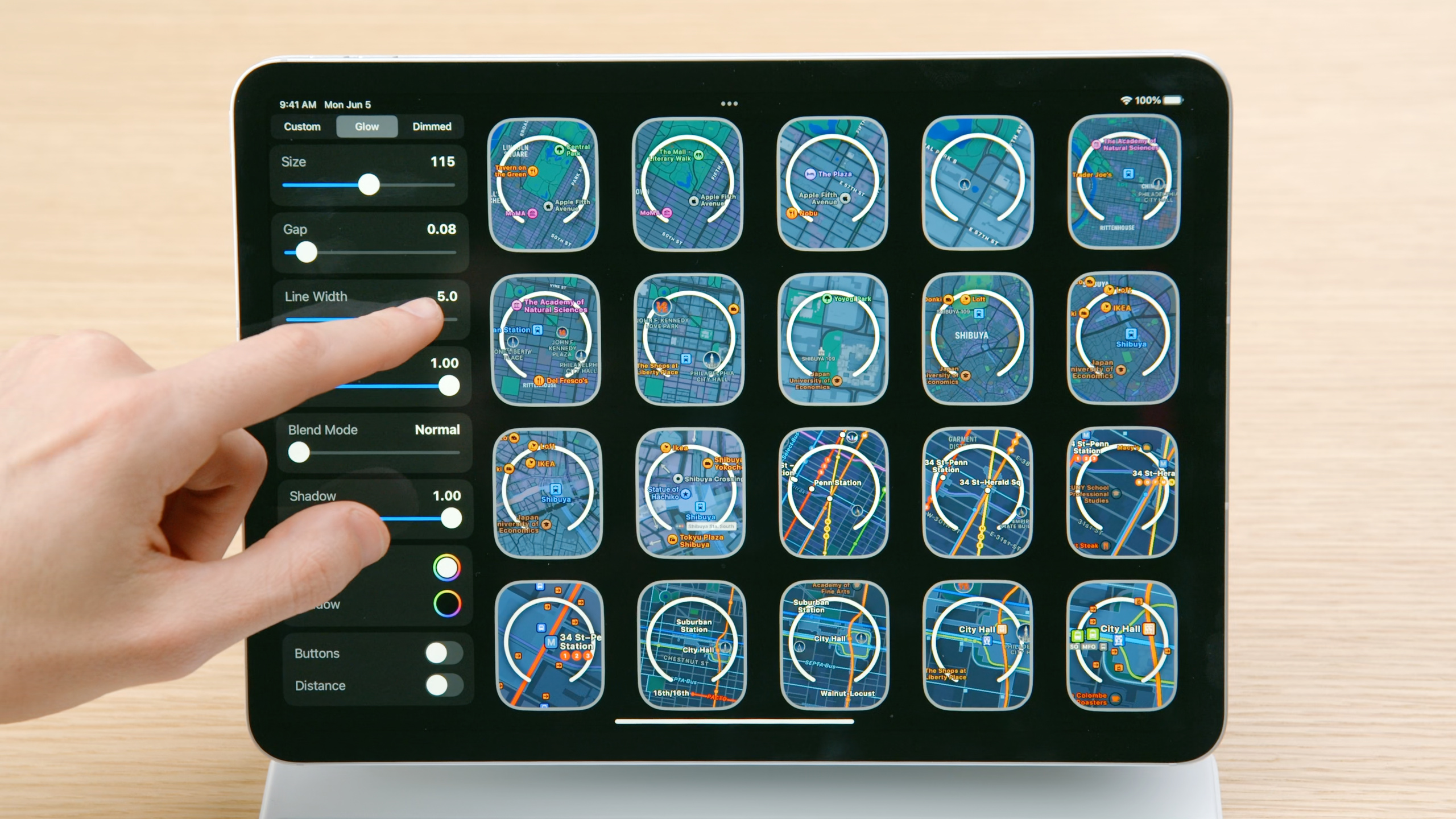
SwiftUI can quickly create parametric design tools to help explore different design variations. For example, create a tool that lets you adjust line width, transparency, and blending modes to test how walking radius behaves in different map environments.
Detailed Content
Declarative syntax
SwiftUI’s declarative syntax makes interface description intuitive:
// Describe a button
Button(action: {
    // Button action
}) {
    Text("Tap me")
        .font(.title)
        .foregroundColor(.blue)
}

// Describe an image
Image("map-icon")
    .resizable()
    .scaledToFit()
    .frame(width: 100, height: 100)
Real-time preview
Xcode’s Canvas provides real-time preview functionality:
struct ContentView_Previews: PreviewProvider {
    static var previews: some View {
        ContentView()
            .previewDevice("Apple Watch Series 8")
    }
}
Animation and interaction
SwiftUI provides powerful animation and interaction support:
// Use the Digital Crown to control zoom
@State private var zoomLevel: CGFloat = 1.0

Map()
    .focusable()
    .digitalCrownRotation($zoomLevel, from: 0.5, through: 3.0, by: 0.1)
Core Takeaways
-
What to build: Integrate SwiftUI as a design tool into the design process
- Why it’s worth doing: SwiftUI’s declarative syntax and live previews allow designers to iterate quickly and validate design concepts on real devices
- How to start: Learn the basic syntax of SwiftUI and use Xcode Canvas for real-time preview
-
What to build: Test the design on real devices
- Why it’s worth doing: Real devices can expose issues that emulators can’t find, such as performance, interaction details, and environmental adaptation.
- How to start: Deploy design prototypes to real devices and test them in different environments
-
What to build: Test the design using real data
- Why it’s worth doing: Real data can expose problems that idealized data masks, such as edge cases and data diversity
- How to start: Collect real data samples and replace placeholder data in design tools
Related Sessions
- What’s new in SwiftUI — New features in SwiftUI
- Meet SwiftUI for spatial computing — SwiftUI application in spatial computing
- What’s new in UIKit — New features in UIKit
Comments
GitHub Issues · utterances