
Highlight
On visionOS, SwiftUI automatically adapts multiplatform apps with glass backgrounds, dynamic scaling, vibrancy materials, and hover effects—letting existing SwiftUI apps run in Shared Space with almost zero changes, while ornaments, vector assets, and a few tweaks unlock the platform’s unique spatial interactions.
Core Content
From iPad to visionOS: One Step Away
You have a SwiftUI app for iPhone, iPad, Mac, and Apple Watch, and you want it on visionOS. Adapting to a new platform used to mean rewriting lots of UI code. visionOS is different—SwiftUI was designed with this platform in mind from the start.
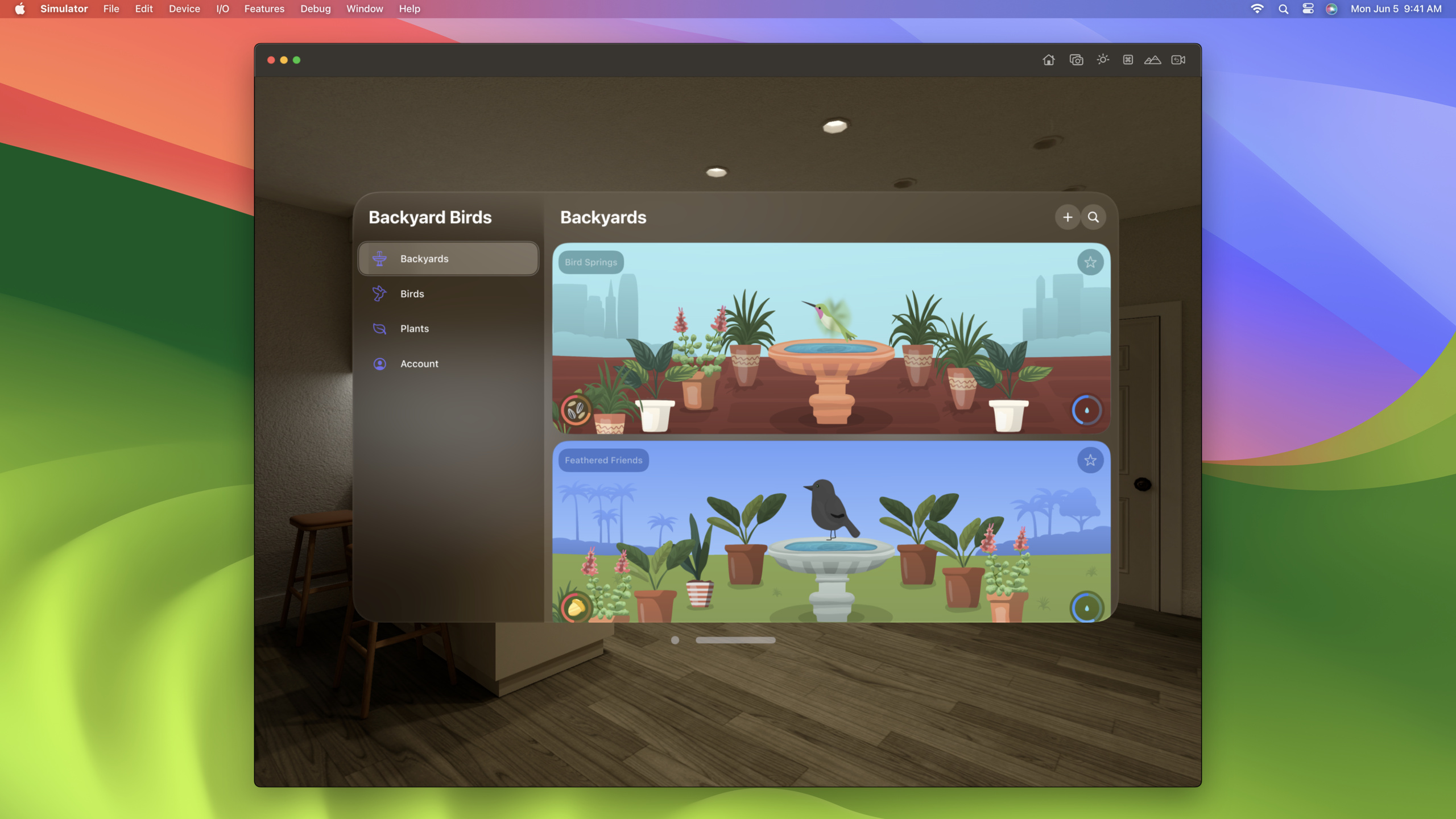
Add visionOS in Xcode’s Supported Platforms menu and your app runs in the simulator. Layout stays iPad-like, but details have changed: windows get glass backgrounds, navigation bar buttons become circular, list rows highlight on gaze. SwiftUI handles all of this automatically.
(02:51)
Glass and Vibrancy: A World Without Light/Dark
visionOS doesn’t distinguish light and dark mode. Glass backgrounds automatically adjust contrast based on ambient light and colors behind the window. You can no longer rely on colorScheme checks to set different colors per mode.
Solid colors look fixed on glass and can’t adapt to environmental changes. SwiftUI semantic styles automatically adopt vibrancy materials for readability on glass. Switching custom view backgrounds from solid colors to semantic styles like .fill simplifies code and looks correct on every platform.
(06:58)
Hover Effect: Visual Feedback for Spatial Interaction
visionOS has four interaction modes: indirect pinch (most common), direct touch, trackpad pointer, and accessibility. Whatever the mode, interactive content needs hover effects for visual feedback.
SwiftUI system controls include hover effects automatically. Custom interactive views need them manually:
// Add a hover effect to custom interactive views
BirdView()
    .hoverEffect()
Key points:
hoverEffect()provides a highlight by default—the view brightens slightly on gaze- System hover effects run outside your app process for privacy—your app can’t directly get the user’s gaze position
- Your app only receives pinch, touch, hovering finger, or pointer events
If hover effect boundaries aren’t ideal, customize with contentShape:
BirdView()
    .contentShape(.hoverEffect, RoundedRectangle(cornerRadius: 12))
    .hoverEffect()
Key points:
contentShape(.hoverEffect, ...)specifies the hover effect shape and bounds- Here a rounded rectangle gives the hover effect rounded corners and appropriate padding
Better yet, make the interactive view a Button directly:
Button(action: showBirdDetails) {
    BirdView()
}
.buttonStyle(.plain)
Key points:
Buttonon visionOS has a border by default;.plainremoves the background- Plain buttons automatically get standard hover effects and tap scale animation
(10:16)
Ornament: Controls Outside the Window
visionOS windows aren’t limited by screen size, and controls don’t have to stay inside the window. Ornaments are control containers attached to window edges, commonly used for auxiliary features.
TabView on visionOS automatically becomes an ornament on the window’s left edge—collapsed by default, expanding to show labels when you gaze at icons.
Toolbars can become ornaments via .bottomOrnament placement:
.toolbar {
    ToolbarItem(placement: .bottomOrnament) {
        TimeRangePicker()
    }
}
Custom ornaments use the ornament() modifier:
.ornament(
    attachmentAnchor: .scene(.bottom),
    contentAlignment: .center
) {
    NotificationBanner()
        .glassBackgroundEffect()
}
Key points:
attachmentAnchor: .scene(.bottom)attaches the ornament to the window bottomcontentAlignment: .centeraligns the ornament center with the anchor point- Custom ornaments have no glass background by default—add
.glassBackgroundEffect()manually
(13:34)
Detailed Content
Vector Assets: The Key to Dynamic Scaling
Apps on visionOS may be far away, pulled close in front of you, or viewed from the side. The system uses dynamic scaling to keep content sharp at any distance. That requires vector resources.
Text and SF Symbols are already vector. Custom icons and graphics need Single Scale in the Asset Catalog with Preserve Vector Data enabled:
Asset Catalog settings:
- Scales: Single Scale
- Preserve Vector Data: ✅
Bitmap images blur when enlarged. Replacing bitmaps with vectors keeps graphics sharp whether users move close or far.
(05:52)
From NavigationSplitView to TabView
On iPad, Regular horizontal size class prefers a sidebar. On visionOS, window size isn’t constrained, and sidebars eat content space. TabView is a better fit:
TabView {
    BackyardsView()
        .tabItem {
            Label("Backyards", systemImage: "tree")
        }
    PlantsView()
        .tabItem {
            Label("Plants", systemImage: "leaf")
        }
    BirdsView()
        .tabItem {
            Label("Birds", systemImage: "bird")
        }
}
Key points:
- TabView on visionOS automatically displays as a left-side ornament
- Each tab item needs a title and icon
- Tab bar collapses when not interacting, saving content space
(12:15)
Core Takeaways
-
What to build: Port your existing iPad SwiftUI app to visionOS
- Why it’s worth doing: Just add a visionOS target in Xcode and your app runs in Shared Space. SwiftUI automatically handles glass backgrounds, control adaptation, and hover effects—minimal porting cost
- How to start: Open project settings, add visionOS to Supported Platforms, run in the simulator and observe automatic adaptations
-
What to build: Design a custom ornament notification system for your app
- Why it’s worth doing: Ornaments attach outside the window without using content area—ideal for status hints, quick actions, and auxiliary info
- How to start: Use
.ornament(attachmentAnchor:contentAlignment:content:)with.glassBackgroundEffect()for floating notifications
-
What to build: Replace all bitmap icons with vector graphics
- Why it’s worth doing: On visionOS users may pull your app close; bitmaps expose pixels. Vectors stay sharp at any scale
- How to start: Check Asset Catalog, replace multi-scale bitmaps with Single Scale vectors, enable Preserve Vector Data
-
What to build: Audit all
colorScheme-based conditional rendering in your app- Why it’s worth doing: visionOS has no light/dark distinction, and glass backgrounds change dynamically. Solid colors can’t adapt—semantic styles and vibrancy are the right approach
- How to start: Search for
.colorSchemeand hardcodedColor(...), replace with semantic styles like.filland.background
-
What to build: Add hover effects to all custom interactive controls
- Why it’s worth doing: In spatial computing users select targets by gaze—hover effects confirm “this control is interactive.” Without them, users get confused
- How to start: Prefer converting tappable views to
Button; for views that can’t, add.hoverEffect()and.contentShape(.hoverEffect, ...)
Related Sessions
- Meet SwiftUI for spatial computing — SwiftUI spatial computing intro and platform fundamentals
- Take SwiftUI to the next dimension — 3D content and Volume in SwiftUI
- Go beyond the window with SwiftUI — Create immersive space experiences with Immersive Space
- Meet UIKit for spatial computing — How UIKit-based apps adapt to visionOS
Comments
GitHub Issues · utterances