
Highlight
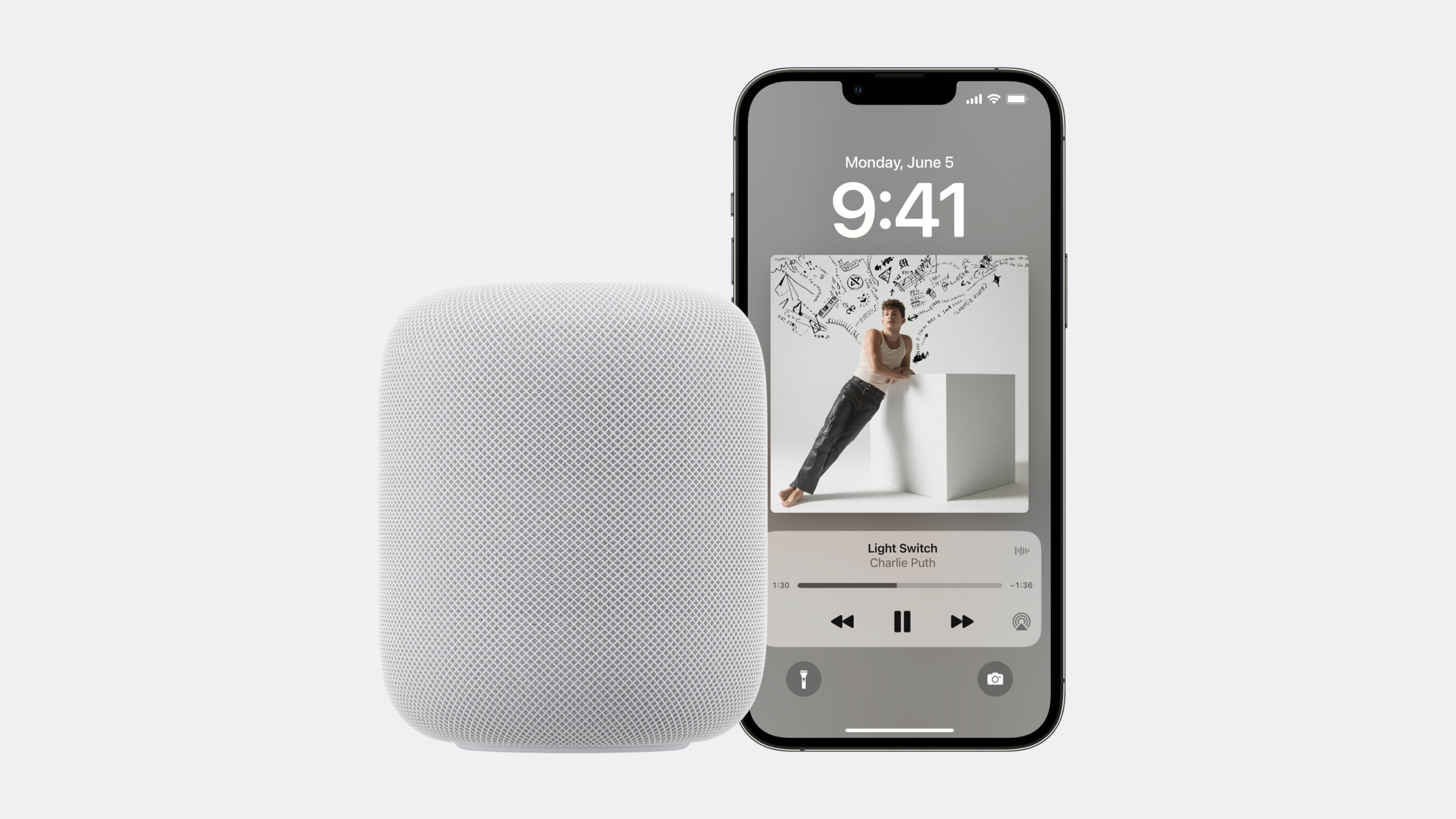
iOS 17 lets HomePod users play content from media apps installed on iPhone or iPad directly via Siri. Apps with existing SiriKit Media Intents support work with no code changes—the system routes requests over Wi-Fi to the user’s device, and the app streams content back to HomePod via AirPlay after launching.
Core Content
How It Works
When a user asks HomePod to play content, the flow is:
- HomePod processes the voice request and generates a SiriKit Intent
- The Intent is sent over Wi-Fi to the user’s iPhone (primary device)
- iPhone launches the app, which handles the playback request
- Audio streams back to HomePod via AirPlay
Devices must be on the same Wi-Fi network, but physical proximity isn’t required. A user can speak to HomePod in the living room while their phone charges in the bedroom.
(00:50)
Supported Media Types and Requests
Supported media types include music, audiobooks, podcasts, radio, meditations, and more. Play, Add, and Affinity (like/add to playlist) requests all route to the primary device.
Request examples:
- “Play jazz on Control Audio” — genre + app name
- “Play Push It by Dukes on Control Audio” — song name + app name
- “Play my audiobook” — resume last playback
- “Play the latest news” — podcast/news request
- “Add this to my playlist” — add to playlist
- “I like this song” — mark as favorite
(02:15)
Implementing SiriKit Media Intents
import Intents

class PlayMediaIntentHandler: NSObject, INPlayMediaIntentHandling {
    func handle(intent: INPlayMediaIntent, completion: @escaping (INPlayMediaIntentResponse) -> Void) {
        // Check the specific content of the request
        if let mediaName = intent.mediaSearch?.mediaName,
           mediaName == "Push It" {
            let mediaItem = INMediaItem(
                identifier: "song-push-it",
                title: "Push It",
                type: .song,
                artwork: nil
            )
            let response = INPlayMediaIntentResponse(
                code: .success,
                userActivity: nil
            )
            response.mediaItems = [mediaItem]
            completion(response)
            return
        }

        // Check whether this is an unsupported media type
        if intent.mediaSearch?.mediaType == .music {
            let response = INPlayMediaIntentResponse(
                code: .failureRequiringAppLaunch,
                userActivity: nil
            )
            completion(response)
            return
        }

        // Default: content not found
        completion(INPlayMediaIntentResponse(code: .failure, userActivity: nil))
    }
}
Key points:
- Apps with existing SiriKit Media Intents support need no changes
- New apps need an Intents Extension implementing
INPlayMediaIntentHandling - Return specific error reasons (unsupported media type, login required)—Siri gives more helpful responses
(04:11)
Response Options
import Intents

func handle(intent: INPlayMediaIntent, completion: @escaping (INPlayMediaIntentResponse) -> Void) {
    // Option one: play in the background (recommended for audio)
    let backgroundResponse = INPlayMediaIntentResponse(
        code: .handleInApp,
        userActivity: nil
    )

    // Option two: launch in the foreground
    let foregroundResponse = INPlayMediaIntentResponse(
        code: .continueInApp,
        userActivity: nil
    )

    // Use handleInApp for audio playback; unlocking the phone is not required
    completion(backgroundResponse)
}
Key points:
handleInApplaunches the app in the background for playback—no need to unlock the phonecontinueInAppbrings the app to the foreground- Background playback works better for HomePod since the phone may not be in hand
(07:10)
Detailed Content
Audio Session Configuration
Correct audio session configuration is the foundation for background playback.
import AVFoundation

func configureAudioSession() {
    let session = AVAudioSession.sharedInstance()

    do {
        // Set the playback category to support background playback
        try session.setCategory(.playback, mode: .default)

        // Use spokenAudio mode for podcasts and audiobooks
        // Pause when interrupted instead of lowering volume
        try session.setCategory(.playback, mode: .spokenAudio)

        // Activate the session
        try session.setActive(true)
    } catch {
        print("Failed to configure audio session: \(error)")
    }
}
Key points:
- Set category to
.playbackbefore activating the session .spokenAudiomode pauses on interruption instead of ducking—ideal for podcasts and audiobooks- Without correct configuration, playback stops when the app goes to background (e.g., lock screen)
(08:55)
AirPlay Integration
import MediaPlayer

func setupNowPlayingAndRemoteCommands() {
    // Set Now Playing information
    var nowPlayingInfo: [String: Any] = [
        MPMediaItemPropertyTitle: "Push It",
        MPMediaItemPropertyArtist: "Dukes",
        MPNowPlayingInfoPropertyPlaybackRate: 1.0
    ]
    MPNowPlayingInfoCenter.default().nowPlayingInfo = nowPlayingInfo

    // Receive remote control commands
    let commandCenter = MPRemoteCommandCenter.shared()

    commandCenter.playCommand.addTarget { event in
        self.resumePlayback()
        return .success
    }

    commandCenter.pauseCommand.addTarget { event in
        self.pausePlayback()
        return .success
    }

    commandCenter.nextTrackCommand.addTarget { event in
        self.skipToNext()
        return .success
    }

    commandCenter.previousTrackCommand.addTarget { event in
        self.skipToPrevious()
        return .success
    }
}
Key points:
MPNowPlayingInfoCenterreports current playback to the systemMPRemoteCommandCenterreceives play/pause/skip remote commands- Both are required for AirPlay to work properly
(10:52)
Handling Playback Interruptions
import AVFoundation

class AudioPlayerManager: NSObject {
    override init() {
        super.init()

        NotificationCenter.default.addObserver(
            self,
            selector: #selector(handleInterruption),
            name: AVAudioSession.interruptionNotification,
            object: nil
        )
    }

    @objc func handleInterruption(_ notification: Notification) {
        guard let userInfo = notification.userInfo,
              let typeValue = userInfo[AVAudioSessionInterruptionTypeKey] as? UInt,
              let type = AVAudioSession.InterruptionType(rawValue: typeValue) else {
            return
        }

        switch type {
        case .began:
            // Pause playback
            pausePlayback()
        case .ended:
            if let optionsValue = userInfo[AVAudioSessionInterruptionOptionKey] as? UInt {
                let options = AVAudioSession.InterruptionOptions(rawValue: optionsValue)
                if options.contains(.shouldResume) {
                    // Resume playback
                    resumePlayback()
                }
            }
        @unknown default:
            break
        }
    }
}
Key points:
- Listen for
AVAudioSession.interruptionNotification - Phone calls, navigation prompts, Siri requests, and more trigger interruptions
- After interruption ends, resume based on the
shouldResumeoption
(10:28)
Request Routing Mechanism
How Siri determines which device to use:
- Requests route to the primary iPhone (the device sharing location in Apple ID and Find My settings)
- The requesting user must be registered in Home and have “Recognize My Voice” enabled
- Personal Requests don’t need to be enabled
- On first use of an app, Siri requests permission to access app data
(11:46)
Personal App Vocabulary
import Intents

func donatePersonalVocabulary() {
    let intent = INAddMediaIntent(
        mediaSearch: INMediaItem(
            identifier: "playlist-workout",
            title: "Workout Mix",
            type: .playlist,
            artwork: nil
        )
    )

    // Donate personal vocabulary to the system
    let interaction = INInteraction(intent: intent, response: nil)
    interaction.donate { error in
        if let error = error {
            print("Donation failed: \(error)")
        }
    }
}
Key points:
- Use personal app vocabulary to tell the system about user-specific entities
- Includes personal playlists, purchased audiobooks, favorite podcasts, and more
- Improves Siri recognition of personalized requests
(08:30)
Core Takeaways
-
What to build: SiriKit Media Intents support for your media app
- Why it’s worth doing: Your app becomes available on HomePod with no extra code, covering an entirely new usage scenario
- How to start: Add an Intents Extension, implement
INPlayMediaIntentHandling, handlemediaNameandmediaTypefields
-
What to build: Optimized AirPlay audio experience
- Why it’s worth doing: HomePod scenarios depend entirely on AirPlay—buffering and latency directly affect user experience
- How to start: Configure
AVAudioSessionwith.playbackcategory, set upMPNowPlayingInfoCenterandMPRemoteCommandCenter, use buffered playback APIs to eliminate resume latency
-
What to build: Specific error feedback
- Why it’s worth doing: Vague “content not found” confuses users—specific errors help them solve problems
- How to start: Return
.failureRequiringAppLaunchfor unsupported media types, give specific reasons in-app (e.g., “genre not supported”, “login required”)
-
What to build: Audio session optimization for podcasts and audiobooks
- Why it’s worth doing:
.spokenAudiomode pauses on interruption instead of ducking, so users don’t miss content - How to start: Set
AVAudioSessionmode to.spokenAudio, handleinterruptionNotificationto resume after interruption ends
- Why it’s worth doing:
-
What to build: Personal vocabulary donations to improve recognition
- Why it’s worth doing: User-created playlist names and favorite content titles aren’t recognized by general models
- How to start: Donate user-specific media items with
INInteractionso Siri learns personalized content
Related Sessions
- Spotlight your app with App Shortcuts — Trigger app features via voice with App Shortcuts
- Explore enhancements to App Intents — Latest App Intents framework enhancements
- Tune up your AirPlay experience — Optimize AirPlay audio experience
Comments
GitHub Issues · utterances