
Highlight
Instruments 15 introduces the RealityKit Trace template, providing frame-by-frame rendering analysis, bottleneck detection, and system power impact measurement to help developers optimize spatial computing apps on visionOS.
Core Content
Your visionOS app runs smoothly in the simulator but stutters on device. The problem might be GPU, CPU, offscreen rendering, or simply too much work in a SwiftUI view body. On conventional platforms, dropping a few frames occasionally may go unnoticed. On visionOS, rendering latency directly maps to visual discontinuity — from degraded experience to discomfort.
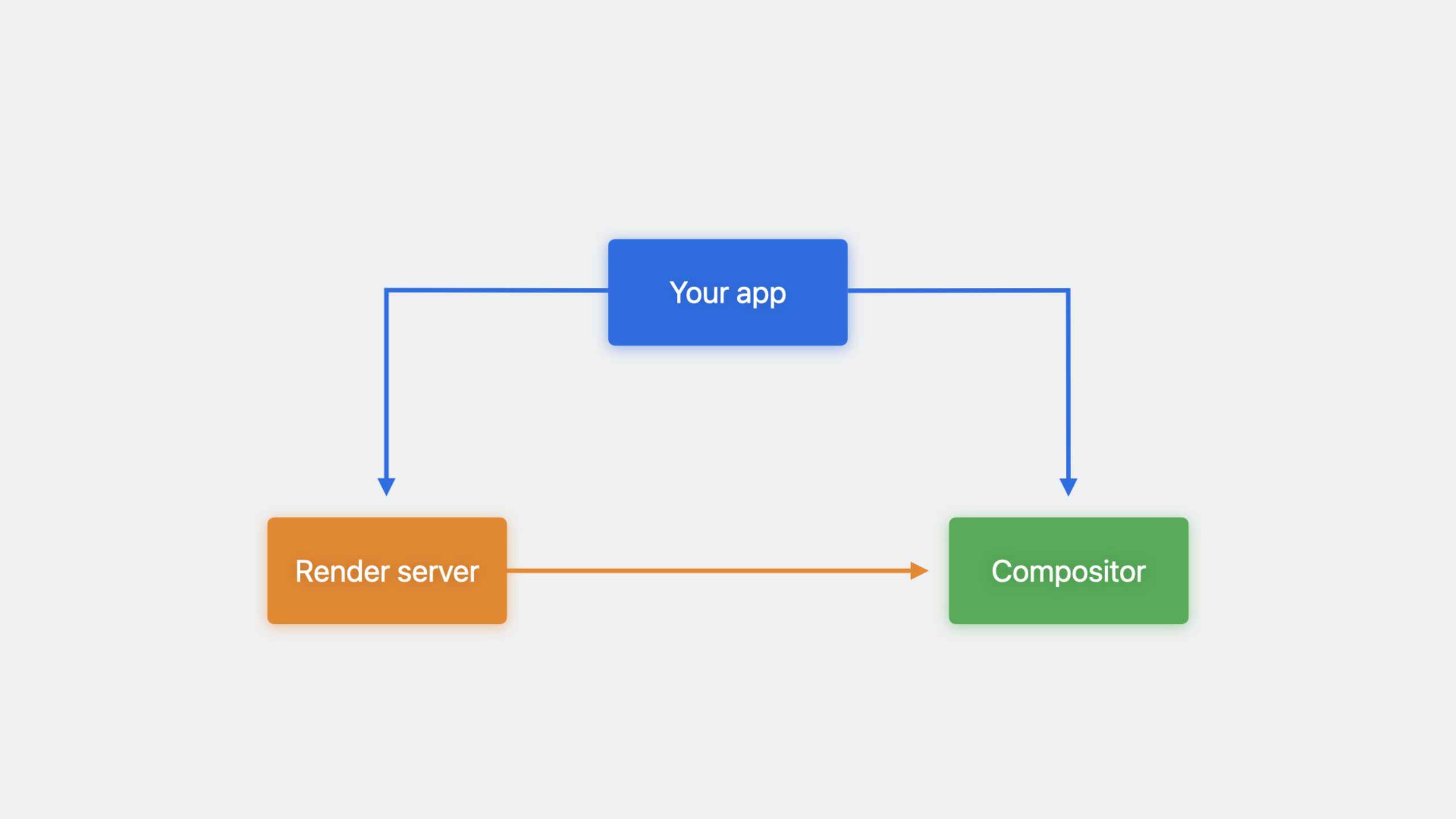
RealityKit Trace is a new Instruments 15 template designed for visionOS’s rendering pipeline. It covers three components: the app process, render server, and compositor — a dedicated toolset.
Rendering Pipeline Architecture
(00:49) A frame travels through three stages from code to screen:
- App process: Your SwiftUI/RealityKit code runs here, submitting draw commands
- Render server: A system daemon that manages GPU resources and performs actual rendering
- Compositor: Composites render output to the display buffer and applies time warp for head motion
In Shared Space, multiple apps share the render server and compositor. Other apps’ rendering affects your frame rate. In Full Space, only your app renders — performance is no longer affected by other apps.
(01:52) Testing strategy: When investigating performance or analyzing power, test in isolation first (Full Space). When validating coexistence with other apps, test in Shared Space.
RealityKit Frames Instrument
(04:13) This instrument tracks rendering time frame by frame. Each frame is color-coded: green means well within deadline, orange means just in time, red means missed deadline (dropped frame). Target frame rate is 90fps, but the system dynamically adjusts based on content and environment.
(05:49) The RealityKit Metrics instrument flags detected bottlenecks at the top level. These bottlenecks come from combined timing across the entire rendering pipeline. Prioritize bottlenecks that coincide with red frames.
Case Study: Hello World App Optimization
The presenter demonstrated a complete optimization workflow with a Hello World app featuring a launch screen (SwiftUI), an orbital object list (3D models), and an immersive Earth orbit experience.
Case 1: Offscreen rendering in SwiftUI views
(07:48) The launch screen had many dropped frames. RealityKit Metrics identified Core Animation Encoding as the bottleneck. Expanding the Core Animation track revealed offscreen prepares far above the recommended threshold — averaging 180.
(10:50) Inspecting SwiftUI code found .shadow(radius: 10) on a button. Shadows are especially expensive, particularly combined with transparency. Disabling shadows reduced offscreen renders 4x and dropped frames largely disappeared.
Four main operations trigger offscreen rendering: shadows, masking, rounded rectangles, and visual effects.
Case 2: Excessive 3D model polygon count
(11:41) The orbital object view had many GPU Work Stalls bottlenecks. Expanding the 3D Render track showed triangle and vertex counts far above recommended thresholds. Switching to low-poly models made all frames complete on time, with large drops in 3D render stats and no obvious visual loss.
Case 3: CPU overload causing power spike
(14:06) Zooming the Earth felt sluggish. System Power Impact stayed high for extended periods. Time Profiler showed 100% average CPU, with heaviest stacks in Entity.makeModel and Entity.generateCollisionShapes.
(16:34) Root cause: makeGlobe() was called in the SwiftUI view body. Every state change reloaded the model and regenerated collision shapes — expensive operations. Fix: create a reusable Earth entity in the ViewModel and use the cached entity directly in the view body.
After the fix, power returned to nominal and CPU dropped from 100% to 10%.
Detailed Content
SwiftUI View with High Offscreen Rendering
private struct Item: View {
    var module: Module
    let cornerRadius = 20.0

    var body: some View {
        NavigationLink(value: module) {
            VStack(alignment: .leading, spacing: 3) {
                Text(module.eyebrow)
                    .font(.titleHeading)
                    .foregroundStyle(.secondary)
                VStack(alignment: .leading, spacing: 7) {
                    Text(module.heading)
                        .font(.largeTitle)
                    Text(module.abstract)
                }
            }
            .padding(.horizontal, 5)
            .padding(.vertical, 20)
        }
        .buttonStyle(.bordered)
        .shadow(radius: 10)  // Triggers offscreen rendering
        .buttonBorderShape(.roundedRectangle(radius: cornerRadius))
        .frame(minWidth: 150, maxWidth: 280)
    }
}
Key points:
.shadow(radius: 10)combined with.buttonStyle(.bordered)triggers offscreen rendering- On visionOS, spatial apps render continuously — offscreen rendering happens every frame
- Static UI must be efficient enough to maintain the system target frame rate
- Optimization: remove unnecessary shadows, or use pre-rendered textures instead of real-time shadows
Entity Factory Pattern
class EarthEntity: Entity {
    static func makeGlobe() -> EarthEntity {
        EarthEntity(earthModel: Entity.makeModel(
            name: "Earth",
            filename: "Globe",
            radius: 0.35,
            color: .blue)
        )
    }

    static func makeCloudyEarth() -> EarthEntity {
        let earthModel = Entity()
        earthModel.name = "Earth"

        Task {
            if let scene = await loadFromRealityComposerPro(
                named: WorldAssets.rootNodeName,
                fromSceneNamed: WorldAssets.sceneName
            ) {
                earthModel.addChild(scene)
            } else {
                fatalError("Unable to load earth model")
            }
        }

        return EarthEntity(earthModel: earthModel)
    }
}
Key points:
makeGlobe()uses procedural models — low creation cost, no async loadingmakeCloudyEarth()loads asynchronously from Reality Composer Pro — may delay several frames- Calling
makeGlobe()in the view body recreates the model on every state change - Performance tip: cache entities in the ViewModel; avoid expensive operations in body
Optimized ViewModel
class ViewModel: ObservableObject {
    // Cache the reusable Earth entity to avoid recreating it in the view body
    @Published var globeEarthEntity: EarthEntity = .makeGlobe()
    @Published var orbitEarthEntity: EarthEntity = .makeGlobe()

    @Published var isShowingGlobe: Bool = false
    @Published var isShowingOrbit: Bool = false
    @Published var orbitImmersionStyle: ImmersionStyle = .mixed

    // Orbit configuration
    @Published var orbitEarth: EarthEntity.Configuration = .orbitEarthDefault
    @Published var orbitSatellite: SatelliteEntity.Configuration = .orbitSatelliteDefault
    @Published var orbitMoon: SatelliteEntity.Configuration = .orbitMoonDefault
    @Published var orbitSunAngle: Angle = .degrees(150)
}
Key points:
- Entities are created once at ViewModel initialization and reused afterward
@Publishedproperty changes trigger view updates, but entities are no longer reloaded- Configuration objects (
EarthEntity.Configuration) are lightweight and suit frequent updates - Separating “entities” (heavy) from “configuration” (light) is a key RealityKit architecture pattern
Orbit View
struct Orbit: View {
    @EnvironmentObject private var model: ViewModel

    var body: some View {
        Earth(
            world: model.orbitEarthEntity,  // Use the cached entity
            earthConfiguration: model.orbitEarth,
            satelliteConfiguration: [model.orbitSatellite],
            moonConfiguration: model.orbitMoon,
            showSun: true,
            sunAngle: model.orbitSunAngle,
            animateUpdates: true
        )
        .place(
            initialPosition: Point3D([475, -1200.0, -1200.0]),
            scale: $model.orbitEarth.scale)
    }
}
Key points:
world: model.orbitEarthEntityuses the cached entity from the ViewModelanimateUpdates: trueenables animated transitions for state changes.place()sets 3D position in meters- The view body only passes lightweight configuration — no model loading
Core Takeaways
1. Establish performance baseline testing
Use RealityKit Trace to record performance traces in key scenarios (launch, main interaction, complex scene loading) and establish baselines for frame rate, GPU time, and power. Compare against baselines after each code change to catch regressions early. Entry point: Instruments 15 RealityKit Trace template + on-device testing.
2. Optimize SwiftUI view offscreen rendering
Audit all uses of shadow, mask, rounded rectangle, and visual effect in your app. On visionOS, these effects trigger offscreen rendering every frame — far costlier than on traditional platforms. Entry point: “Offscreens” metric in RealityKit Metrics Core Animation track.
3. Move expensive operations out of SwiftUI view body
Model loading, collision shape generation, texture decoding, etc. must never live in the view body or @Published property getters. Complete these at ViewModel initialization or via async tasks in the background. Entry point: Time Profiler on view body call stacks — look for Entity.makeModel, generateCollisionShapes, etc.
4. Simplify 3D assets
Use Reality Composer Pro to check triangle count, vertex count, and draw calls. If above recommended thresholds, simplify geometry or use instancing to reuse the same mesh. Entry point: Reality Composer Pro statistics panel + RealityKit Metrics 3D Render track.
Related Sessions
- Explore rendering for spatial computing — Understand how the RealityKit rendering pipeline works internally to build a foundation for performance optimization
- Build great games for spatial computing — Games are the most performance-sensitive apps; learn how to choose rendering and input strategies
- Meet Reality Composer Pro — Check asset complexity while assembling 3D scenes to avoid performance issues at the source
Comments
GitHub Issues · utterances