
Highlight
visionOS supports games across a full spectrum of immersion — from 2D windows in the Shared Space to fully immersive experiences — with RealityKit, Unity, Metal, and standard game controllers all available as development paths.
Core Content
If you’ve built iOS games, maybe VR games too. visionOS offers possibilities between the two: your game can be a board floating on a desk, an action game that fills the room, or a fully immersive world that replaces reality. Which form you choose depends on how much of the player’s attention you want to capture.
Four Immersion Levels
All apps and games start in the Shared Space. In this mode, your game coexists with other apps, system UI, and the real environment. A virtual board sits on a real table; a virtual pet sits on a real floor. Players can freely choose what to interact with.
(01:45) Entering Full Space closes other windows and volumes, focusing entirely on your content. Players still see their surroundings through passthrough. This suits action games — for example, a spaceship flying out of a hole in the wall.
(02:08) A Fully Immersive experience completely replaces the player’s field of view. The real world disappears, replaced by a virtual environment. This is the traditional VR experience.
(02:18) Traditional 2D games also run on visionOS. Players can place windows on a desk, hang them on a wall, or put them in front of them as a giant screen. Windows have real depth — you can render layered content for parallax, or let elements like smoke and sparks fly out of the plane.
Rendering Features
Rendering on visionOS differs from traditional platforms. You don’t render every pixel; you describe the scene (models, textures, shaders), and the device renders for each eye automatically.
(04:36) The system automatically applies dynamic foveation, using higher resolution where the player is looking — no developer intervention required.
(05:07) RealityKit samples real-room lighting by default and applies it to virtual objects for realism. You can also diverge from this path with custom IBL or MaterialX shaders for a fantastical style.
(05:55) The system automatically applies several system-wide effects: depth mitigation (content becomes transparent when occluded by real objects), near-field vignette (content fades when too close), breakthrough (virtual content becomes transparent when a real person approaches), and ground shadows (virtual objects cast shadows when near real surfaces).
Audio
(07:57) visionOS uses Spatial Audio to position sound in the player’s space. With standard iOS audio APIs like AVAudioEngine, audio is positioned relative to the app window. To have sound come from different objects in the scene, play audio on specific entities through RealityKit.
Input Methods
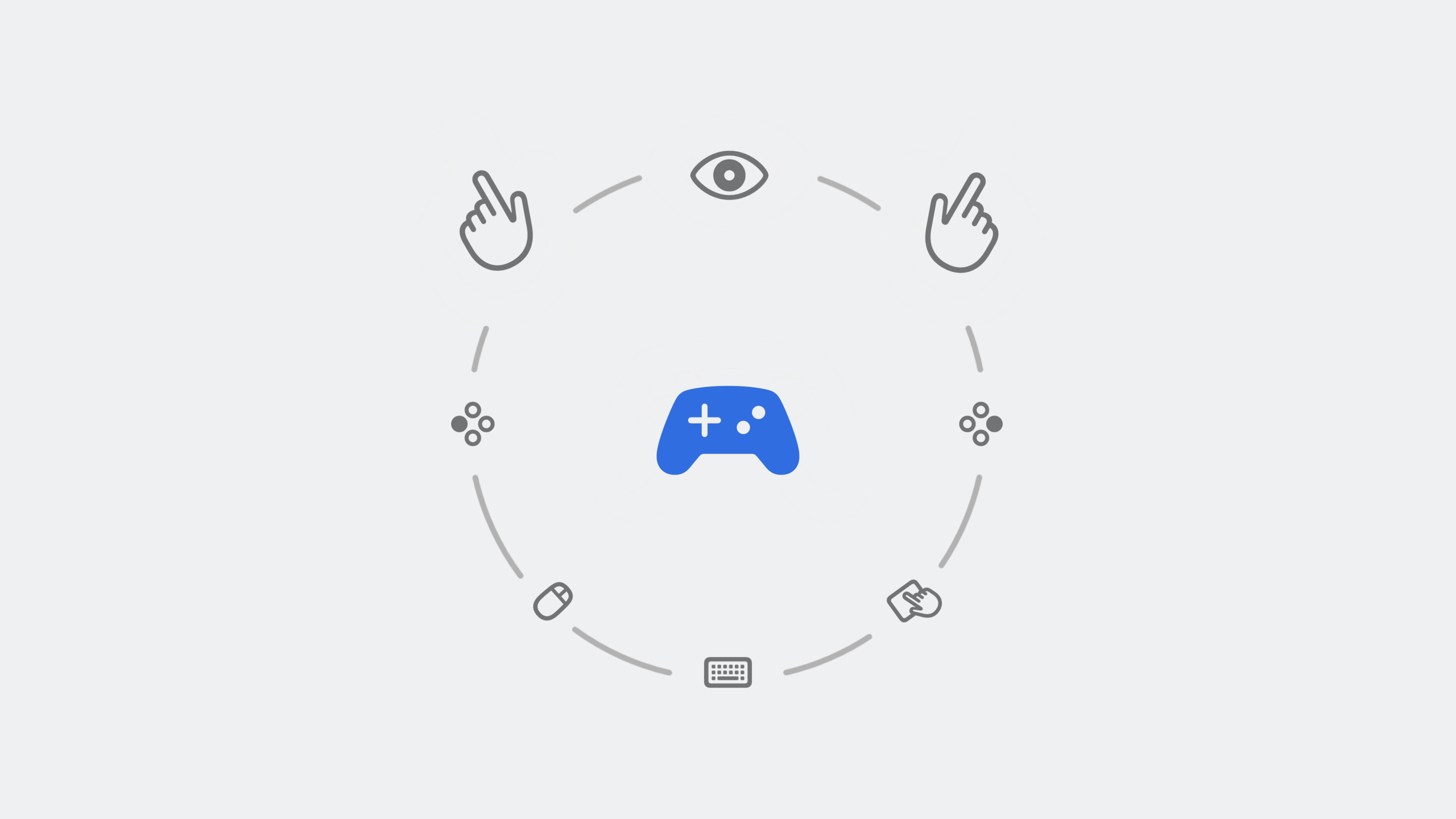
(08:52) The system provides the standard look-and-tap gesture. For gestures to work on 3D objects, objects need both a CollisionComponent (collision shape) and an InputTargetComponent (marked as interactive).
(09:19) visionOS supports Bluetooth game controllers, keyboards, mice, and trackpads. For games needing fast or concurrent input, controllers are the better choice. Declare GCSupportsControllerUserInteraction in Info.plist and add the Game Controller capability.
(09:53) More unconventional input includes body tracking. Use ARKit hand tracking data to let players grab virtual objects or implement custom gestures like pointing and karate chops. Note: hands are only tracked when in camera view; fast motion is hard to track.
Scene Understanding
(10:25) In Full Space you can request scene understanding to get a room mesh, plane detection (horizontal and vertical surfaces), and surface materials (carpet or wood). This makes the room itself part of game input. Like hand tracking, user authorization is required.
Framework Choices
(12:15) Choose a framework based on game type:
- 2D games: SwiftUI or SpriteKit
- Existing Unity games: Unity supports visionOS with passthrough, high-resolution rendering, and native gestures
- Native 3D games: RealityKit with ECS, physics, animation, particles, and audio
- Custom engines: CompositorServices API + Metal + ARKit
(14:38) visionOS Xcode templates give you a SwiftUI window with RealityView. To go beyond windows, use Volume (you specify size; players place it) or Space (renders content around the player). Anchors can attach content to real-world surfaces or hands. Portals can “punch holes” in walls to reveal virtual worlds inside.
Detailed Content
Making 3D Objects Respond to Gesture Input
To make system gestures work on RealityKit entities, add two components:
// Create an interactive 3D object
let entity = Entity(named: "game_piece")

// Provide a collision shape, the basis for gesture detection
entity.components.set(CollisionComponent(shapes: [.generateSphere(radius: 0.1)]))

// Mark it as an interactive target
entity.components.set(InputTargetComponent())
Key points:
CollisionComponentdefines the physical boundary for gesture detectionInputTargetComponenttells the system this entity can receive input events- Without both components, look-and-tap gestures won’t trigger on that object
- Collision shapes can differ from visual models — use simpler geometry for performance
Declaring Game Controller Support
Add to Info.plist:
<key>GCSupportsControllerUserInteraction</key>
<true/>
And add the Game Controller capability in Xcode Signing & Capabilities.
Key points:
- After declaring support, the App Store product page shows a controller support badge
- visionOS supports Xbox, PlayStation, and other MFi controllers
- Bluetooth keyboards and mice are also supported
- Players can see their physical controller through passthrough
Requesting Scene Understanding
import ARKit

// Request scene understanding in a Full Space
let session = ARKitSession()
let planeDetection = PlaneDetectionProvider(alignments: [.horizontal, .vertical])
let sceneReconstruction = SceneReconstructionProvider()

try await session.run([planeDetection, sceneReconstruction])

// Handle detected planes
for await update in planeDetection.anchorUpdates {
    switch update.event {
    case .added, .updated:
        let plane = update.anchor
        // Use plane.originFromAnchorTransform to get the position
        // Use plane.extent to get the plane size
    case .removed:
        break
    }
}
Key points:
- Scene understanding is only available in Full Space
- User authorization is required, similar to location/microphone permissions
PlaneDetectionProviderdetects horizontal and vertical surfacesSceneReconstructionProviderprovides a room mesh- Surface material information can be retrieved (e.g., carpet, wood)
Displaying 3D Content with Volume
Unlike Window, Volume size is specified by the developer; players can only change position, not size:
@main
struct MyGameApp: App {
    var body: some Scene {
        WindowGroup {
            ContentView()
        }
        .windowStyle(.volumetric)  // Use the volumetric window style
        .defaultSize(width: 1.5, height: 1.0, depth: 1.0, in: .meters)
    }
}
Key points:
.windowStyle(.volumetric)turns the window into a volume.defaultSizespecifies width, height, and depth in meters- Content is clipped at volume boundaries
- Players can drag the volume anywhere, but size is fixed
Core Takeaways
1. Design a tabletop board game
Use Shared Space features to design a virtual board game on a real table with 3D pieces. Players move pieces with look-and-tap, or use a Bluetooth controller for faster play. Entry point: RealityKit + CollisionComponent/InputTargetComponent + SwiftUI window.
2. Create a room-scale action game
Use Full Space + scene understanding so game content interacts with the real room. Enemies appear from behind real walls; players dodge real furniture. Entry point: ARKit’s SceneReconstructionProvider + PlaneDetectionProvider with RealityKit entity placement.
3. Add 3D elements to an existing iOS game
If your game is already 2D (puzzle, card, strategy), no rewrite needed. Add RealityKit volumetric content in a SwiftUI window — 3D animations when playing cards, or parallax depth in the scene. Entry point: embed RealityView in an existing SwiftUI view.
4. Build a gesture-controlled motion game
Use ARKit hand tracking for custom gestures as game input — e.g., a karate chop game where players slice incoming objects. Entry point: HandTrackingProvider + custom gesture recognition + CollisionComponent for collision detection.
Related Sessions
- Explore rendering for spatial computing — Deep dive into RealityKit rendering, lighting, shadows, and material control
- Meet RealityKit Trace — Profile and optimize rendering performance for spatial computing apps
- Bring your Unity VR app to a fully immersive space — Step-by-step guide to migrating existing Unity VR games to visionOS
Comments
GitHub Issues · utterances