
Highlight
RealityKit on visionOS adds custom image-based lighting, grounding shadows, tone mapping control, and dynamic content scaling — giving developers precise control over how 3D content looks and performs in spatial computing.
Core Content
You’ve built 3D apps with RealityKit on iOS and macOS. Lighting, materials, shadows—these concepts are familiar. But putting the same content on visionOS reveals subtle differences: system default lighting may not match your scene mood, 3D objects float in midair without grounding, UI colors don’t match 3D material colors, and models at the edges flicker.
This session addresses these problems across four dimensions: lighting and shadows, materials and tone mapping, rasterization rate map performance optimization, and dynamic content scaling for clarity.
Custom lighting: image-based lighting
RealityKit uses image-based lighting (IBL) to make 3D content look realistic. IBL consists of two parts: environment probe textures from ARKit (reflecting real room lighting) and system IBL textures (ensuring content looks good in any environment). Together they form the final IBL.
(02:29) visionOS adds the ability to override system IBL. You can load custom environment resources to light 3D objects with a specific lighting environment. For example, a solar system showcase app can use a “sunlight” environment resource to bathe satellite models in starlight.
Shadows: grounding shadow
When 3D objects sit on a plane without shadows, users struggle to judge relative height. A vase floating in the center of a plane looks like it’s hovering.
(04:16) After adding GroundingShadowComponent with castsShadow: true, the object casts a shadow downward. This shadow appears on the 3D model and on real-world object surfaces. Users can instantly see the vase is above the plane.
Materials and tone mapping
RealityKit on visionOS supports all iOS/macOS material types: PhysicallyBasedMaterial, SimpleMaterial, UnlitMaterial, VideoMaterial, plus the new ShaderGraphMaterial.
(06:34) All materials’ default output goes through tone mapping. Tone mapping remaps color values above 1.0 into the visible range, preserving more detail in highlights. For example, a TV screen texture shows clearer petal highlights with tone mapping enabled.
But some scenarios need precise color matching. A traffic light app needs 3D model light colors to exactly match SwiftUI button colors. UnlitMaterial isn’t affected by lighting, but output still goes through tone mapping, causing subtle differences from SwiftUI colors.
(08:48) UnlitMaterial adds an applyPostProcessToneMap parameter; set it to false to disable tone mapping and achieve precise color matching with SwiftUI UI elements.
Rasterization rate maps
visionOS displays have high resolution and the system updates multiple times per second. To save performance, the system uses rasterization rate map technology: high-resolution rendering in the center of the field of view where the user looks, lower resolution at the edges.
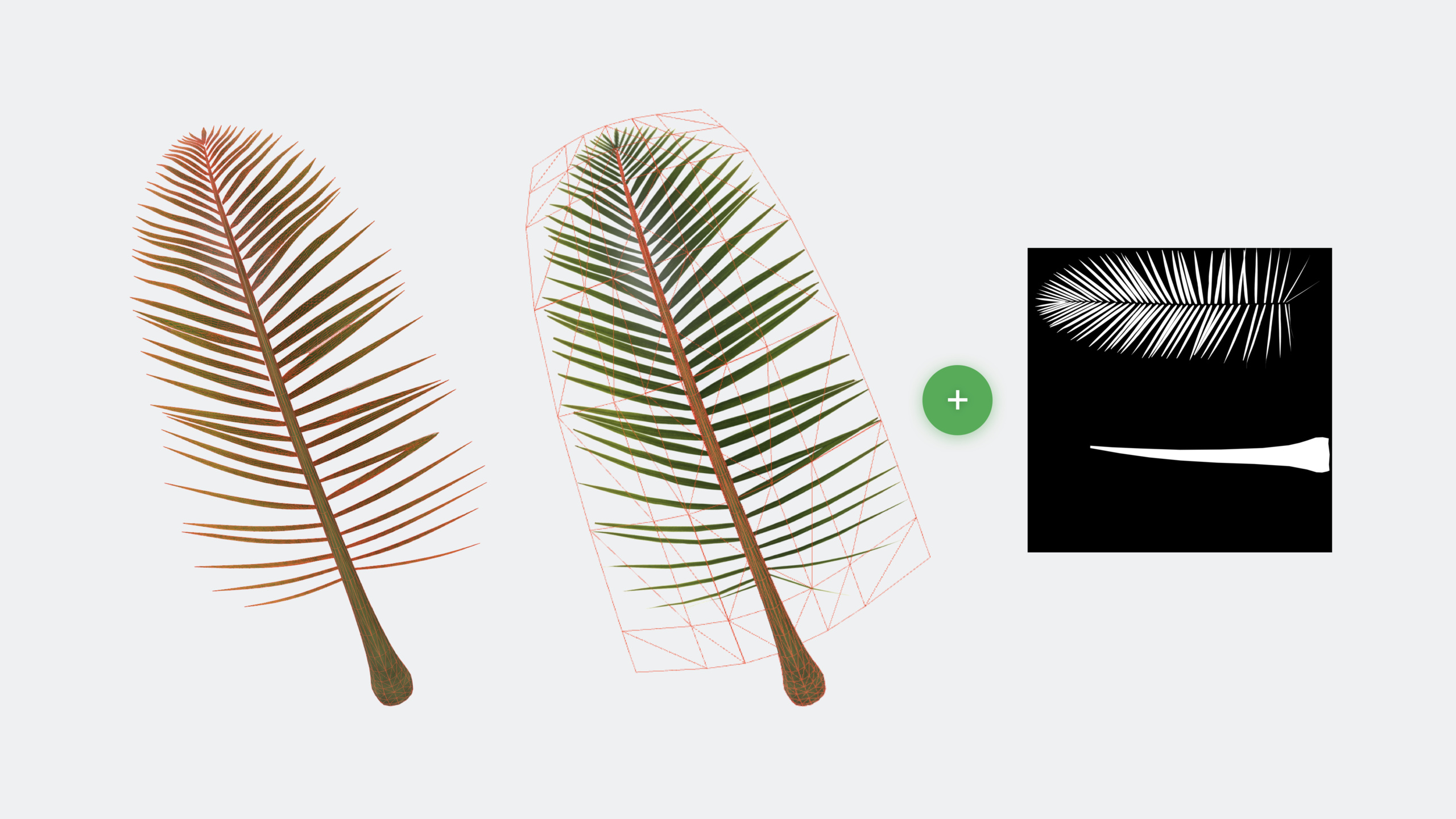
(10:27) This optimization is automatically enabled in RealityKit, but some content may need adjustment. The presenter shows a palm leaf model; when looking at the right side of the screen, the left palm leaf flickers. The cause is many small triangles producing aliasing in low-resolution edge regions.
(12:14) The solution is enlarging small triangles and storing detail in opacity textures. RealityKit automatically generates mipmaps for textures, using appropriate levels in low-resolution regions to eliminate flickering.
Dynamic content scaling
SwiftUI and UIKit apps on visionOS automatically benefit from dynamic content scaling. The system rasterizes UI content at different resolutions based on gaze position—highest clarity where the user looks, slightly lower around it, lowest at the edges.
(15:34) If you build UI directly with Core Animation, enable it manually: set CALayer.wantsDynamicContentScaling = true. This technique relies on high-resolution rasterization and isn’t suitable for bitmap-heavy content.
Detailed Content
Custom image-based lighting
RealityView { content in
    async let satellite = Entity(named: "Satellite", in: worldAssetsBundle)
    async let environment = EnvironmentResource(named: "Sunlight")

    if let satellite = try? await satellite, let environment = try? await environment {
        content.add(satellite)

        satellite.components.set(ImageBasedLightComponent(
           source: .single(environment)))

        satellite.components.set(ImageBasedLightReceiverComponent(
           imageBasedLight: satellite))
   }
}
Key points:
EnvironmentResource(named:)loads custom environment lighting resourcesImageBasedLightComponentspecifies the IBL source, replacing system default IBLImageBasedLightReceiverComponentlets the entity receive lighting from that IBL- Add the receiver component to other entities to share the same lighting
Adding grounding shadow
RealityView { content in
    if let vase = try? await Entity(named: "flower_tulip") {
        content.add(vase)

        vase.components.set(GroundingShadowComponent(castsShadow: true))
    }
}
Key points:
GroundingShadowComponent(castsShadow: true)enables shadow casting- Shadows cast onto 3D models and real-world objects
- Just one line of code; no manual light or shadow map configuration
Disabling tone mapping for precise colors
RealityView { content in
    if let trafficLight = try? await Entity(named: "traffic_light") {
        content.add(trafficLight)

        if let lamp = trafficLight.findEntity(named: "red_light") {
            if var model = lamp.components[ModelComponent.self] {
                let material = UnlitMaterial(
                    color: .init(color),
                    applyPostProcessToneMap: false  // Disable tone mapping
                )

                model.materials = [material]
                lamp.components[ModelComponent.self] = model
            }
        }
    }
}
Key points:
applyPostProcessToneMap: falsedisables post-process tone mapping on the material- Suitable for scenarios requiring precise color matching with SwiftUI UI
- Also suitable for HUDs, menus, and other precise color display needs
- This parameter is also exposed in Reality Composer Pro’s material editor
Enabling dynamic content scaling
// Enable on Core Animation CALayer
layer.wantsDynamicContentScaling = true
Key points:
- SwiftUI and UIKit apps enable automatically; no extra action needed
- Core Animation UI requires manually setting
wantsDynamicContentScaling - Relies on high-resolution rasterization; not suitable for bitmap-heavy content
- System automatically adjusts rendering resolution in different regions based on gaze
Core Takeaways
1. Add scene-specific lighting for 3D showcase apps
If your app displays artwork, cars, furniture, or other 3D models, default system IBL may not highlight product features. Prepare several environment lighting resources (studio lighting, natural light, warm tones) and let users switch. Entry point: EnvironmentResource + ImageBasedLightComponent.
2. Add grounding shadow to all 3D objects on surfaces
3D objects without shadows look unstable and break immersion. Whether it’s a virtual keyboard, 3D icon, or game character, if it stands on a surface, add GroundingShadowComponent. Entry point: one line .set(GroundingShadowComponent(castsShadow: true)).
3. Build color-precise design tools
For design apps (3D modeling, material preview, color tools), users need to see “this red is exactly #FF0000.” Disable tone mapping, use UnlitMaterial for precise colors, and compare with SwiftUI Color views alongside. Entry point: UnlitMaterial(color:applyPostProcessToneMap: false).
4. Optimize 3D assets for rasterization rate maps
Check whether your 3D models use many tiny triangles (smaller than a pixel). If so, merge small triangles and move cutout detail to opacity textures. This prevents flickering in low-resolution edge regions. Entry point: view triangle statistics in Reality Composer Pro, reference “Rendering at Different Rasterization Rates” documentation.
Related Sessions
- Build great games for spatial computing — Learn about rendering, audio, and input for visionOS game development, including immersion level selection and RealityKit usage
- Meet RealityKit Trace — Analyze RealityKit rendering performance with Instruments to identify GPU bottlenecks and optimization opportunities
- Create 3D models for Quick Look spatial experiences — Best practices for creating 3D content for visionOS, including geometry optimization and material setup
Comments
GitHub Issues · utterances