
Highlight
ARKit and RealityKit are deeply integrated into the operating system on visionOS. World tracking and scene understanding become system services, giving apps camera pass-through, hand matting, and automatic World Map persistence for free. Migrating iOS AR apps requires understanding new spatial presentation modes, RealityView replacing ARView, and API changes where Data Providers replace Configurations.
Core Content
Evolution of ARKit’s three core concepts
(00:25) When ARKit launched on iOS in 2017, it defined three core concepts:
- World Tracking: Six-degree-of-freedom tracking of device position, anchoring virtual content to the real world
- Scene Understanding: Semantic information about the surrounding environment, enabling intelligent content placement and interaction with the real world
- Rendering Registration: Correct registration and compositing of virtual content through camera transforms and intrinsics
On visionOS, all of these concepts remain, but the implementation has fundamentally changed.
System-level service architecture
(01:34) ARKit tracking and scene understanding now run as system services, powering everything from window placement to spatial audio. The system takes on responsibilities that previously belonged to apps:
- Camera pass-through is built in; apps get it for free
- Hand matting is built in; apps get it for free
- World Maps are continuously persisted by system services; apps no longer need to handle this themselves
This lets developers focus on building content and experiences.
Three spatial presentation modes
(04:25)
Shared Space: Apps run side by side, similar to a Mac desktop. Apps can open one or more windows or create 3D Volumes. Content stays within its boundaries and shares space with other apps.
Volume: A container for displaying 3D content in Shared Space. For example, one window shows a board game list, another shows rules, and the selected game opens in a separate Volume.
Full Space: The app takes over the entire space; only that app’s windows, Volumes, and 3D objects are visible. In Full Space, apps can use AnchorEntity to fix content to surfaces like tables and floors, and can access ARKit data.
RealityView: the bridge between SwiftUI and RealityKit
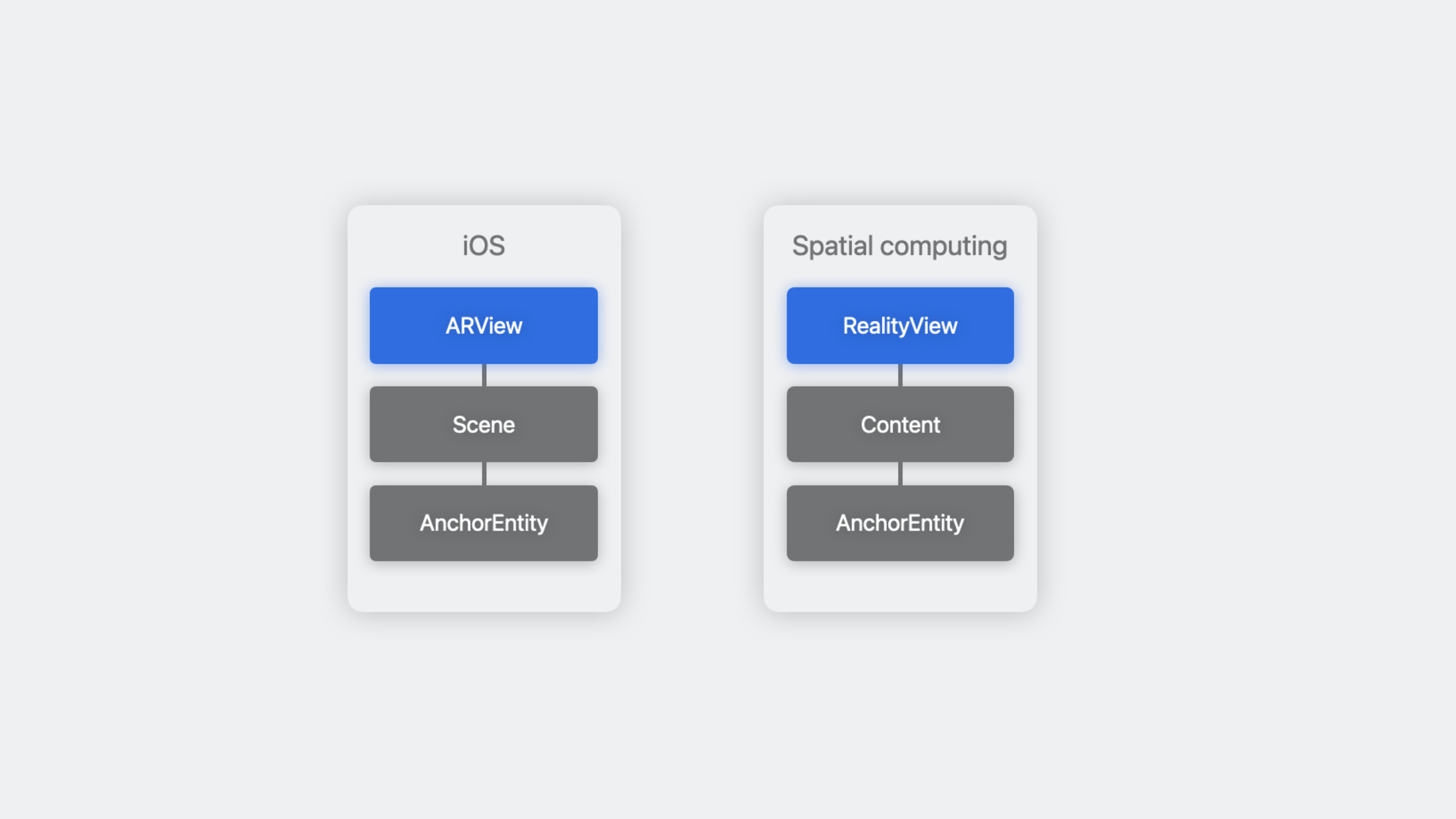
(08:44) RealityView is the new SwiftUI view replacing ARView on iOS. It accommodates both 2D and 3D elements, letting users interact with entities using system gestures.
RealityView vs ARView comparison:
| Feature | ARView (iOS) | RealityView (visionOS) |
|---|---|---|
| Container type | Scene | Content |
| Gesture support | Touch gestures | Spatial gestures (reach to select/drag) |
| Anchoring entities | Requires ARSession + permission | System service support, no permission needed |
| Underlying tracking | ARSession | System service |
(10:09) RealityKit’s Entity Component System still applies: entities are containers for 3D content, components define appearance and behavior (ModelComponent, CollisionComponent, etc.), and systems operate on entities with the required components.
Privacy-friendly AnchorEntity design
(14:19) On visionOS, AnchorEntity can be used without requesting user permission. The system finds the target (such as a table) and automatically anchors content, but does not reveal underlying transform data to the app.
New AnchorEntity targets include hands—you can anchor content to palms or wrists, and content follows hand movement.
Child entities of different AnchorEntities cannot see each other because they exist in separate coordinate spaces.
Raycasting in spatial computing
(17:01) On iOS, raycasting converts 2D input into 3D positions. On visionOS, users can interact with content directly using their hands, but raycasting remains useful—it lets users reach objects beyond arm’s length.
Two raycasting approaches:
System gesture raycasting: Add CollisionComponent and InputTargetComponent to an entity, add SpatialTapGesture to RealityView. When the user looks at an entity and taps, the event returns a position in world space.
Hand data raycasting: Use ARKit hand anchors to get finger joint information, build ray origin and direction, and raycast against entities in the scene.
ARKit API refactor: Data Provider pattern
(22:08) iOS ARKit uses the Configuration pattern:
// iOS approach (deprecated)
let configuration = ARWorldTrackingConfiguration()
configuration.sceneReconstruction = .mesh
configuration.planeDetection = [.horizontal, .vertical]
let session = ARSession()
session.run(configuration)
visionOS uses the Data Provider pattern:
// visionOS approach
let sceneReconstruction = SceneReconstructionProvider(modes: [.classification])
let planeDetection = PlaneDetectionProvider(alignments: [.horizontal, .vertical])
let session = ARKitSession()
try await session.run([sceneReconstruction, planeDetection])
Key points:
- Each capability has its own Data Provider
- Hand tracking also has its own Provider
- Parameters are configured when initializing Providers
ARKitSession.run()accepts an array of Providers
Asynchronous anchor updates
(23:50) On iOS, a single delegate receives anchor updates aggregated in ARFrame. On visionOS, each Data Provider independently publishes anchor updates asynchronously:
SceneReconstructionProviderpublishesMeshAnchorPlaneDetectionProviderpublishesPlaneAnchor- No type discrimination needed
- Anchor updates are decoupled from other Providers with lower latency
- ARFrame is no longer provided because the system handles display automatically
World Anchor persistence
(25:12) On iOS, apps must handle World Map and anchor persistence themselves: request, save, load, and wait for relocalization.
On visionOS, the system continuously persists World Maps in the background, automatically loading, unloading, creating, and relocalizing. Apps only need to focus on World Anchors themselves:
// Add WorldAnchor using WorldTrackingProvider
let worldTracking = WorldTrackingProvider()
try await session.run([worldTracking])

let anchor = WorldAnchor(originFromAnchorTransform: placementTransform)
try await worldTracking.add(anchor)
The system automatically saves these anchors. When the device returns to the same environment, the app automatically receives previously persisted anchor updates.
Detailed Content
Building collision entities from ARKit Mesh Anchors
(18:17) Scene reconstruction data is delivered as mesh chunks. Create an entity for each chunk:
// Create entity representing a mesh chunk
let entity = Entity()

// Place entity using mesh anchor transform
entity.transform = Transform(matrix: meshAnchor.originFromAnchorTransform)

// Generate collision shape from mesh anchor
let shape = try await ShapeResource.generateStaticMesh(from: meshAnchor)
entity.components[CollisionComponent.self] = CollisionComponent(shapes: [shape])

// Add InputTargetComponent for gesture interaction
entity.components[InputTargetComponent.self] = InputTargetComponent()
Key points:
originFromAnchorTransformcorrectly places the entity in Full SpaceShapeResource.generateStaticMeshgenerates collision shapes from mesh anchorsCollisionComponentenables hit testing on the entityInputTargetComponentlets the entity receive system gestures- Scene reconstruction data updates; listen for changes and update entities
Performing raycasts with hand data
// Build ray from finger joint positions
let handAnchor = latestHandAnchors.left

if let indexTip = handAnchor.handSkeleton?.joint(.indexTip),
   let indexIntermediate = handAnchor.handSkeleton?.joint(.indexIntermediate) {
    let origin = indexTip.anchorFromJointTransform.columns.3.xyz
    let direction = normalize(
        indexIntermediate.anchorFromJointTransform.columns.3.xyz - origin
    )

    // Perform raycast
    let hits = content.entities(
        raycastingFrom: origin,
        in: direction,
        length: 10.0
    )

    if let hit = hits.first {
        // Place WorldAnchor at hit position
        let anchor = WorldAnchor(originFromAnchorTransform: hit.position)
        try await worldTracking.add(anchor)

        // Create entity and set transform
        let modelEntity = try Entity.load(named: "ship")
        modelEntity.transform = Transform(matrix: anchor.originFromAnchorTransform)
        content.add(modelEntity)
    }
}
Key points:
- Get ray origin and direction from finger joints
raycastingFrom:in:length:raycasts against scene entitiesCollisionCastHitprovides hit entity, position, and surface normal- Use
WorldAnchorto keep content anchored to the real world - When ARKit updates WorldAnchor, sync entity transforms
Core Takeaways
1. Migrate an iOS AR furniture placement app to visionOS
- What to do: Bring your existing AR furniture preview app to visionOS, letting users view furniture in Shared Space and place it in a real room in Full Space
- Why it’s worth it: The system handles World Map persistence for free; AnchorEntity anchors to tables without permission. Users can grab and place furniture directly with their hands
- How to start: Replace ARView with RealityView, display furniture models in a Volume in Shared Space, then use AnchorEntity or ARKit PlaneAnchor for placement after switching to Full Space
2. Build gesture-driven 3D content creation tools
- What to do: Let users place, scale, and rotate 3D models in the real environment using gestures
- Why it’s worth it: ARKit hand tracking provides full skeletal data; RealityKit’s collision system supports raycast interaction. System gestures let users naturally reach out to select objects
- How to start: Run ARKitSession in Full Space, subscribe to HandTrackingProvider for hand data, build rays from finger joint positions, and raycast against mesh entities
3. Create a persistent spatial notes app
- What to do: Let users leave virtual notes or markers at specific locations in the real environment
- Why it’s worth it: WorldAnchors persist automatically; notes reappear when users return to the same location. The system handles all World Map management; apps only focus on anchors
- How to start: Use WorldTrackingProvider to add WorldAnchors, associate note content with anchor identifiers, and listen for anchor updates to load/display corresponding notes
4. Develop collaborative spatial design review tools
- What to do: Let design teams review architecture or product designs together in 3D space
- Why it’s worth it: Multiple apps can run side by side in Shared Space; team members can view design documents and 3D models simultaneously. Full Space mode allows anchoring designs to real desks for 1:1 scale review
- How to start: Display design documents in windows in Shared Space, show 3D models in Volumes. After switching to Full Space, use AnchorEntity to anchor models to the desk
Related Sessions
- Meet ARKit for spatial computing — Deep dive into new ARKit spatial computing APIs
- Meet RealityKit for spatial computing — New RealityKit features for spatial computing
- Go beyond the window with SwiftUI — SwiftUI spatial scene types explained
Comments
GitHub Issues · utterances