
Highlight
SharePlay on visionOS introduces Shared Context and the System Coordinator API, placing Spatial Personas in FaceTime at real spatial positions. The system automatically manages participant and app spatial arrangement through templates—developers only need to focus on visual consistency to build natural collaboration experiences.
Core Content
New Concepts in Spatial Sharing
FaceTime on visionOS lets Spatial Personas occupy physical space in the user’s room rather than being confined to windows. This brings two core concepts:
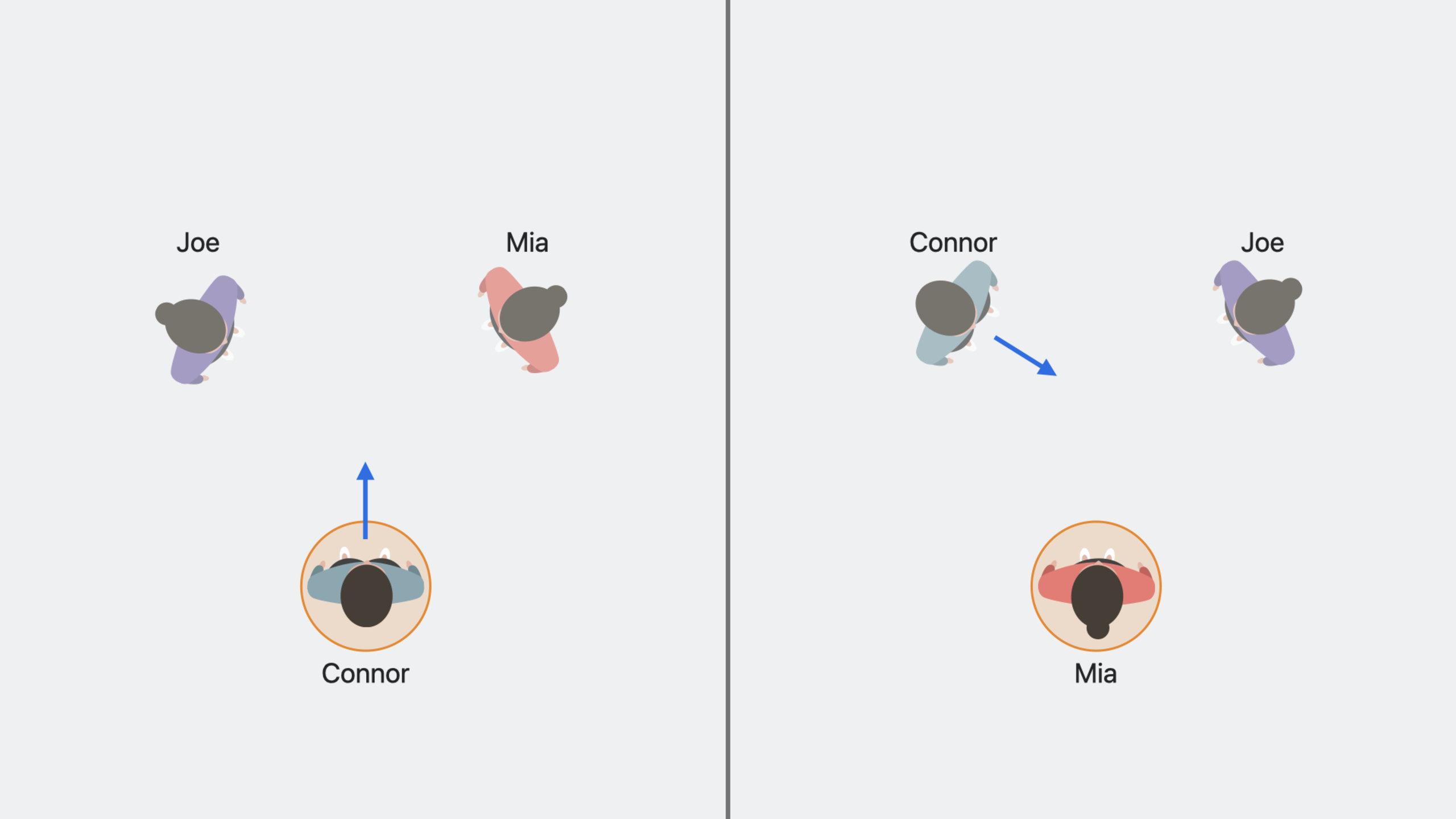
Shared Context: Everyone sees each other and shared content at the same relative positions. When Connor points at Mia’s Persona, Mia sees Connor pointing at her. The system handles this spatial consistency through templates automatically—the app does not need to calculate displacements itself.
Visual Consistency: Everyone sees the same content in the app. When Connor points at a block in the app, Mia must also see Connor pointing at the block. The app must synchronize content state itself (scroll position, selected items, 3D object orientation).
System Coordinator
SystemCoordinator is a new API in the GroupActivities framework responsible for two things: receiving system state for SharePlay sessions and letting apps provide additional configuration.
Three Spatial Templates
The system uses templates to determine spatial arrangement of participants and apps:
- Side-by-Side: Participants face the app in an arc; the default template, suitable for regular window scenarios.
- Conversational: Participants sit in a semicircle with the app in front; suitable for music playback and other non-content-focused scenarios.
- Surround: Participants form a circle with the app at the center; only available for Volume scenes.
Apps can provide preferences through spatialTemplatePreference, and FaceTime will try to apply them.
The isSpatial Flag
localParticipantState.isSpatial indicates whether the local participant is in spatial mode. This determines whether content position needs to be synchronized:
- In spatial mode, participants have spatial context; scroll position and similar operations need synchronization
- In non-spatial mode (such as regular FaceTime), these operations are not synchronized to avoid unexpected UI changes for the other party
Scene Association
Multi-window apps need to tell the system which window hosts the SharePlay activity. Single-window apps handle this automatically. If multi-window apps do not set this, the system randomly selects a window, which may be wrong.
Scene association is configured in two ways:
- Scene Activation Conditions: Use
handlesExternalEvents(SwiftUI) orUIScene.activationConditions(UIKit) to declare which activity identifiers a scene can handle. - Scene Association Behavior: Set
.content("identifier")in GroupActivity metadata, matching scenes with content identifiers (such as document IDs).
Starting SharePlay from the Share Menu
Starting in iOS 17, SharePlay can be launched from the Share menu. Apps expose relevant GroupActivities in the window’s Share banner, letting users start sharing directly from the menu without a dedicated in-app SharePlay button.
Implementation registers GroupActivities through UIActivityItemsConfiguration; the system searches along the responder chain and displays them in the Share menu.
SharePlay for Immersive Apps
Immersive apps use ImmersiveSpace to create borderless experiences. For SharePlay, configure the supportsGroupImmersiveSpace flag so the system knows the Immersive Space is shared.
When participants join a group session with this flag enabled, their Immersive Space becomes a Group Immersive Space. The system moves the spatial origin to the shared position defined by the template, establishing a shared coordinate system.
Group Immersion Style: The groupImmersionStyle async sequence provides the immersion style other participants enter (such as .full, .mixed) or nil (departure). Apps can automatically open or close matching Immersive Spaces to keep everyone together.
System Experience Displacement: The immersiveSpaceDisplacement(in:) method on GeometryReader3D returns the displacement of the spatial origin relative to the local user. Inverting it gives the local user’s position relative to the spatial origin, used to place private UI (such as control menus).
Content Extent: The distance between participants and the app in templates is dynamically adjusted based on app size. For apps with only a Group Immersive Space, use the contentExtent modifier to specify the distance from the center to the farthest edge (in points), helping the system calculate appropriate distance.
Detailed Content
Observing Local Participant Spatial State
(04:08)
for await session in ExploreActivity.sessions() {
    guard let systemCoordinator = await session.systemCoordinator else { continue }

    let isLocalParticipantSpatial = systemCoordinator.localParticipantState.isSpatial

    Task.detached {
        for await localParticipantState in systemCoordinator.localParticipantStates {
            if localParticipantState.isSpatial {
                // Start syncing scroll position
            } else {
                // Stop syncing scroll position
            }
        }
    }
}
Key points:
session.systemCoordinatorgets the system coordinator; may be nillocalParticipantState.isSpatialdetermines if the local participant is in spatial modelocalParticipantStatesis an async sequence producing new values on state changes- Sync scroll position and similar operations in spatial mode; stop syncing in non-spatial mode
- Use
Task.detachedto avoid blocking the main thread
Configuring Spatial Template Preference
(06:10)
for await session in ExploreActivity.sessions() {
    guard let systemCoordinator = await session.systemCoordinator else { continue }

    var configuration = SystemCoordinator.Configuration()
    configuration.spatialTemplatePreference = .sideBySide
    systemCoordinator.configuration = configuration

    session.join()
}
Key points:
SystemCoordinator.Configuration()creates a configuration objectspatialTemplatePreferencesets template preference; options include.none,.sideBySide,.conversational- Configuration must be set before calling
session.join() .nonefollows system default: Side-by-Side for regular windows, Surround for Volume scenes
Configuring Scene Activation Conditions (SwiftUI)
(09:10)
@main
struct ExploreTogetherApp: App {
    var body: some Scene {
        WindowGroup {
            ContentView()
                .handlesExternalEvents(
                    preferring: ["com.example.explore-together.activity"],
                    allowing: ["com.example.explore-together.activity"]
                )
        }
    }
}
Key points:
handlesExternalEvents(preferring:allowing:)declares which external events a scene can handlepreferringindicates the scene is better suited to handle these identifiersallowingindicates the scene can handle these identifiers- Use the GroupActivity identifier as the matching condition
Configuring Scene Activation Conditions (UIKit)
(09:30)
class SceneDelegate: NSObject, UISceneDelegate {

    func scene(_ scene: UIScene, willConnectTo session: UISceneSession, options connectionOptions: UIScene.ConnectionOptions) {
        // ...

        scene.activationConditions.canActivateForTargetContentIdentifierPredicate =
                NSPredicate(format: "self == %@", "com.example.explore-together.activity")

        scene.activationConditions.prefersToActivateForTargetContentIdentifierPredicate =
                NSPredicate(format: "self == %@", "com.example.explore-together.activity")
    }
}
Key points:
canActivateForTargetContentIdentifierPredicatedeclares activity identifiers the scene can handleprefersToActivateForTargetContentIdentifierPredicatedeclares activity identifiers the scene is better suited to handle- The system evaluates all scenes in can → prefers order and selects the best association
- If no scene matches, the system launches a new window scene
Setting Scene Association Behavior
(10:40)
struct ExploreActivity: GroupActivity {
    var metadata: GroupActivityMetadata {
        var metadata = GroupActivityMetadata()
        // ...
        metadata.sceneAssociationBehavior = .content("document-1")
        return metadata
    }
}
Key points:
sceneAssociationBehaviorcontrols scene association.defaultmatches scenes using the GroupActivity identifier (default behavior).content("identifier")matches using a custom content identifier, suitable for document apps.nonedisables scene association, suitable for immersive apps or scenarios with different content per participant- All participants use the same identifier to match scenes
Starting SharePlay from the Share Menu
(13:44)
// Create the activity
let activity = ExploreActivity()

// Register the activity on the item provider
let itemProvider = NSItemProvider()
itemProvider.registerGroupActivity(activity)

// Create the activity items configuration
let configuration = UIActivityItemsConfiguration(itemProviders: [itemProvider])

// Provide the metadata for the group activity
configuration.metadataProvider = { key in
    guard key == .linkPresentationMetadata else { return nil }
    let metadata = LPLinkMetadata()
    metadata.title = "Explore Together"
    metadata.imageProvider = NSItemProvider(object: UIImage(named: "explore-activity")!)
    return metadata
}
self.activityItemsConfiguration = configuration
Key points:
NSItemProvider.registerGroupActivity(activity)registers the activity on the item providerUIActivityItemsConfigurationwraps item providersmetadataProviderprovides the title and icon displayed in the Share menu- The system searches along the responder chain for
activityItemsConfiguration - Setting this on a view controller with SharePlay content lets the system discover it automatically
Configuring Group Immersive Space
(16:03)
for await session in ExploreActivity.sessions() {
    guard let systemCoordinator = await session.systemCoordinator else { continue }

    var configuration = SystemCoordinator.Configuration()
    configuration.supportsGroupImmersiveSpace = true
    systemCoordinator.configuration = configuration
}
Key points:
supportsGroupImmersiveSpace = truedeclares the app supports shared immersive space- After participants join, their Immersive Space becomes a Group Immersive Space
- The system automatically moves the spatial origin to the shared position
- Participants can see each other’s Personas in space
System Experience Displacement
(17:51)
var body: some Scene {
    ImmersiveSpace(id: "earth") {
        GeometryReader3D { proxy in
            let displacement = proxy.immersiveSpaceDisplacement(in: .global).inverse

            Control()
                .offset(displacement.position)
                .rotation3DEffect(displacement.rotation)
        }
    }
}
Key points:
GeometryReader3Dprovides 3D geometry informationimmersiveSpaceDisplacement(in: .global)gets displacement of the spatial origin relative to the local user.inverseinverts to get the local user’s position relative to the spatial origin- Use displacement
positionandrotationto place private UI - Displacement is calculated only at initial spatial placement, not updated as the user moves
- Suitable for placing relative-position content that does not need precise user tracking
Template Configuration with Content Extent
(20:46)
for await session in ExploreSolarActivity.sessions() {
    guard let systemCoordinator = await session.systemCoordinator else { continue }

    var configuration = SystemCoordinator.Configuration()
    configuration.supportsGroupImmersiveSpace = true
    configuration.spatialTemplatePreference = .sideBySide.contentExtent(200)
    systemCoordinator.configuration = configuration
}
Key points:
.sideBySide.contentExtent(200)sets content extent for the Side-by-Side templatecontentExtentis the distance from content center to farthest edge (in points)- The system uses this value to calculate appropriate distance between participants and content
- Especially useful for apps with only a Group Immersive Space
- Also applies to window-based SharePlay activities
Receiving Group Immersion Style
(22:32)
for await session in ExploreSolarActivity.sessions() {
    guard let systemCoordinator = await session.systemCoordinator else { continue }

    Task.detached {
        for await immersionStyle in systemCoordinator.groupImmersionStyle {
            if let immersionStyle {
                // Open an immersive space with the same immersion style
            } else {
                // Dismiss the immersive space
            }
        }
    }
}
Key points:
groupImmersionStyleis an async sequence providing other participants’ immersion styles- When receiving a specific style (such as
.full,.mixed), open a matching Immersive Space - When receiving
nil, other participants have left the Group Immersive Space; you can close yours - Ensures all participants remain in the same immersive environment
- When users temporarily exit via the Digital Crown, the system does not notify others of state changes
Core Takeaways
-
What to do: Add SharePlay support to document collaboration apps for real-time multi-user editing and annotation.
-
Why it’s worth it: Spatial SharePlay makes collaborators feel like they’re sitting at the same table. System Coordinator handles spatial arrangement automatically; the app only needs to sync document state.
-
How to start: Implement the
GroupActivityprotocol, configureSystemCoordinator’sspatialTemplatePreferenceto.sideBySide, useGroupSessionMessengerto sync document edits, and listen toisSpatialto decide whether to sync scroll position. -
What to do: Develop a multi-user immersive stargazing app for exploring planets together in a virtual universe.
-
Why it’s worth it: Group Immersive Space puts all participants in the same shared coordinate system where they can see each other’s Personas and shared 3D content.
groupImmersionStyleensures everyone automatically enters the same environment. -
How to start: Set
supportsGroupImmersiveSpace = true, useimmersiveSpaceDisplacementto place private control panels, listen togroupImmersionStyleto automatically open/close Immersive Space, and useGroupSessionMessengerto sync 3D object state. -
What to do: Integrate SharePlay into a music playback app so distant friends can listen together.
-
Why it’s worth it: The Conversational template arranges participants in a semicircle with the app in front, creating a sitting-together-listening atmosphere. Spatial audio lets everyone feel music coming from different directions.
-
How to start: Configure
spatialTemplatePreference = .conversational, expose GroupActivity in the Share menu, and sync playback progress and playlist state. -
What to do: Add spatial collaboration to whiteboard/mind-map apps.
-
Why it’s worth it: Freeform has demonstrated the feasibility of this experience. The Side-by-Side template faces all participants toward the same content; visual consistency ensures pointing and annotations are visible to everyone.
-
How to start: Use the
.sideBySidetemplate, sync canvas zoom and scroll position, broadcast stroke and annotation data viaGroupSessionMessenger, and setsceneAssociationBehavior = .content(documentID)for multi-window apps.
Related Sessions
- Design spatial SharePlay experiences — Design principles and best practices for spatial SharePlay experiences
- Build spatial experiences with RealityKit — RealityKit fundamentals on visionOS for building immersive scenes
- Discover Quick Look for spatial computing — Quick Look SharePlay support for sharing 3D content
- Meet ARKit for spatial computing — ARKit APIs on visionOS for shared spatial tracking
Comments
GitHub Issues · utterances