
Highlight
Quick Look on visionOS supports Windowed mode, letting users drag files from apps or websites into space to create standalone preview windows. 3D models support free scaling and immersive viewing, and existing iOS Quick Look code adapts automatically without changes.
Core Content
What Is Quick Look
Quick Look is a system framework on Apple platforms that lets users preview and edit files without opening a dedicated app. On iOS, it appears in message attachments; on macOS, pressing the space bar previews files in Finder.
On visionOS, Quick Look is the system-level viewer for file content. It includes built-in editing features such as video trimming, PDF Markup, and image Markup, and handles untrusted files securely.
Windowed Quick Look: A New Presentation Mode
Windowed Quick Look is a new feature on visionOS. Users can drag files from an app to any location in space, creating an independent Quick Look preview window.
This window has several characteristics:
- It coexists with the source app; the preview window remains after the app is closed
- 3D models (USDZ and Reality files) support free scaling and placement
- When scaling a 3D model, the environment dims and other scenes hide so users can focus on the content
- Multi-file preview is supported; multiple Quick Look windows can exist at once
- Some file types support SharePlay, enabling shared and synchronized viewing in FaceTime
SharePlay behavior in detail: when sharing 3D content, Quick Look synchronizes model orientation, scale, and animation; when sharing images, multiple people can Markup together.
How Apps Support Windowed Quick Look
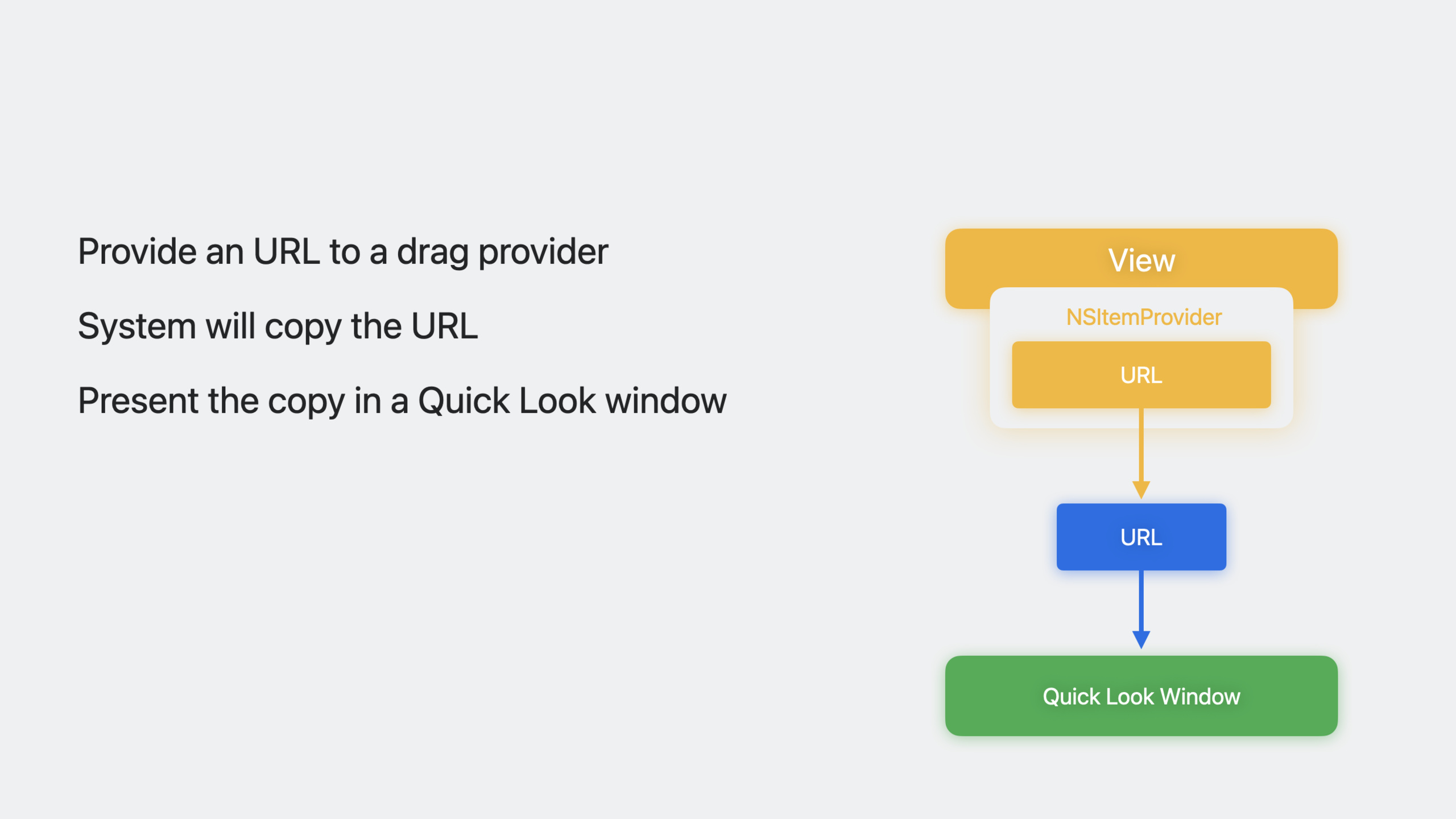
Apps only need to add the onDrag modifier to draggable elements, returning an NSItemProvider containing a file URL. When the user drags a file out of the app and drops it on empty space, the system automatically creates a Quick Look window.
If the URL points to a remote file (such as iCloud), the system downloads it automatically. Note that the preview is a copy of the file; Markup and other edits are not written back to the original URL.
How Websites Support Windowed Quick Look
Websites have supported AR Quick Look since iOS 12 by adding the rel="ar" attribute to links. This support works automatically on visionOS, with Safari opening 3D content in a Quick Look window.
Existing iOS AR Quick Look websites work on visionOS without any changes, including custom options such as disabling content scaling.
In-App Quick Look
Beyond Windowed mode, apps can also present Quick Look previews internally. SwiftUI provides the .quickLookPreview() modifier—pass an array of URLs and the currently selected URL. The preview appears as a sheet over the view content.
For more customization, use QLPreviewController. When migrating existing iOS Quick Look code to visionOS, almost no changes are needed.
Supported File Types
Quick Look on visionOS supports common file types:
- 3D models: USDZ, Reality files
- Images (including spatial images)
- Video (including spatial video)
- PDF (with Markup support)
Spatial images and videos display in Quick Look the same way they do in the Photos app.
Detailed Content
Adding Drag Support to Apps
(05:15)
import Foundation
import SwiftUI
import UniformTypeIdentifiers

struct FileList: View {

    @State var files: [File]
    @State var previewedURL: URL? = nil
    @State var selectedFile: File? {
        didSet {
            self.previewedURL = selectedFile?.url
        }
    }

    var body: some View {
        List(files, selection: $selectedFile) { file in
            Button(file.name) {
                selectedFile = file
            }
            .onDrag {
                return NSItemProvider(contentsOf: file.url) ?? NSItemProvider()
            }
        }
    }
}
Key points:
- The
onDragmodifier turns list items into drag sources NSItemProvider(contentsOf:)creates an item provider from a file URL- When the user drags a file out of the app and drops it on empty space, the system automatically creates a Quick Look window
- Remote URLs (such as iCloud) are downloaded automatically
- Edits such as Markup apply to a copy and do not affect the original file
In-App Quick Look Preview
(08:45)
import Foundation
import SwiftUI

struct FileList: View {

    @State var files: [File]
    @State var previewedURL: URL? = nil
    @State var selectedFile: File? {
        didSet {
            self.previewedURL = selectedFile?.url
        }
    }

    var body: some View {
        List(files, selection: $selectedFile) { file in
            Button(file.name) {
                selectedFile = file
            }
        }
        .quickLookPreview($previewedURL, in: files.map { $0.url })
    }
}
Key points:
.quickLookPreview($previewedURL, in:)adds Quick Look preview to the view- The first parameter is the bound URL controlling which file is previewed
- The second parameter is an array of all previewable file URLs for toolbar navigation
- The preview appears as a sheet; users can switch between files
- Existing iOS apps using
QLPreviewControlleror.quickLookPreviewadapt automatically to visionOS
AR Quick Look Support for Websites
(06:59)
Websites only need to add the rel="ar" attribute to links:
<a href="path/to/model.usdz" rel="ar">
    <img src="thumbnail.jpg" alt="3D Model">
</a>
Key points:
rel="ar"prevents Safari from navigating to a new page- Clicking opens the 3D model in a Quick Look window
- Existing AR Quick Look support on iOS/iPadOS migrates automatically to visionOS
- Custom options such as disabling content scaling are supported (see WWDC19 “Advances in AR Quick Look”)
- E-commerce sites can use this to let users view and place products in space
Core Takeaways
-
What to do: Add drag-to-preview for file management apps so users can drag files into space to view them.
-
Why it’s worth it: Windowed Quick Look lets users view files and use the app at the same time; 3D models support immersive viewing. Implementation cost is very low—just add the
onDragmodifier. -
How to start: Add
.onDrag { NSItemProvider(contentsOf: file.url) }to each file list entry, ensuring files have valid URLs. -
What to do: Add AR Quick Look support for 3D product models on e-commerce websites.
-
Why it’s worth it: visionOS users can view and place products directly in space for a more intuitive shopping experience than images alone. Existing
rel="ar"support on iOS works automatically. -
How to start: Add the
rel="ar"attribute to 3D model links on product pages and prepare USDZ-format model files. -
What to do: Use Quick Look in collaboration apps to display design drafts and documents for team review.
-
Why it’s worth it: PDFs and images support Markup; SharePlay supports synchronized multi-user viewing and annotation. Windowed mode lets team members adjust viewing angles independently.
-
How to start: Use
.quickLookPreview($previewedURL, in: fileURLs)for in-app display, or add drag support so users can drag files into a shared space. -
What to do: Provide Quick Look preview entry points for spatial images and videos.
-
Why it’s worth it: Spatial images and videos display in Quick Look the same way as in the Photos app; users can experience stereoscopic content directly in space.
-
How to start: Pass spatial image and video URLs directly to
.quickLookPreview()orNSItemProvider(contentsOf:)—no extra handling needed.
Related Sessions
- Create 3D models for Quick Look spatial experiences — Best practices for creating 3D models for visionOS Quick Look
- Build spatial SharePlay experiences — Build spatial sharing experiences with the GroupActivities framework
- Meet Reality Composer Pro — Get started with Reality Composer Pro to create 3D scene content
- Meet ARKit for spatial computing — New ARKit APIs on visionOS for 3D content tracking
Comments
GitHub Issues · utterances