
Highlight
Apple introduced Reality Composer Pro, a USD-based 3D scene editor that lets developers compose scenes, add particle effects and spatial audio through a visual interface, and preview directly on visionOS devices—greatly lowering the barrier to 3D content creation for spatial apps.
Core Content
From Reality Composer to Reality Composer Pro
In 2019 Apple launched Reality Composer to help developers quickly get started with AR on iOS. Four years later, visionOS brought Reality Composer Pro, positioned as a professional-grade 3D content development tool.
The core difference: Reality Composer targets lightweight AR scenes; Reality Composer Pro targets immersive spatial computing experiences, supporting more complex scene structures, particle systems, spatial audio, and performance analysis.
Project structure: Swift Package + USD
A Reality Composer Pro project is essentially a Swift Package. When creating an xrOS App template in Xcode, a Reality Composer Pro project is automatically generated and linked.
During build, USD (Universal Scene Description) files in the .rkassets folder are compiled into a framework for direct reference by the Xcode project. USD is Apple’s recommended 3D content format, supporting hierarchical references and incremental updates.
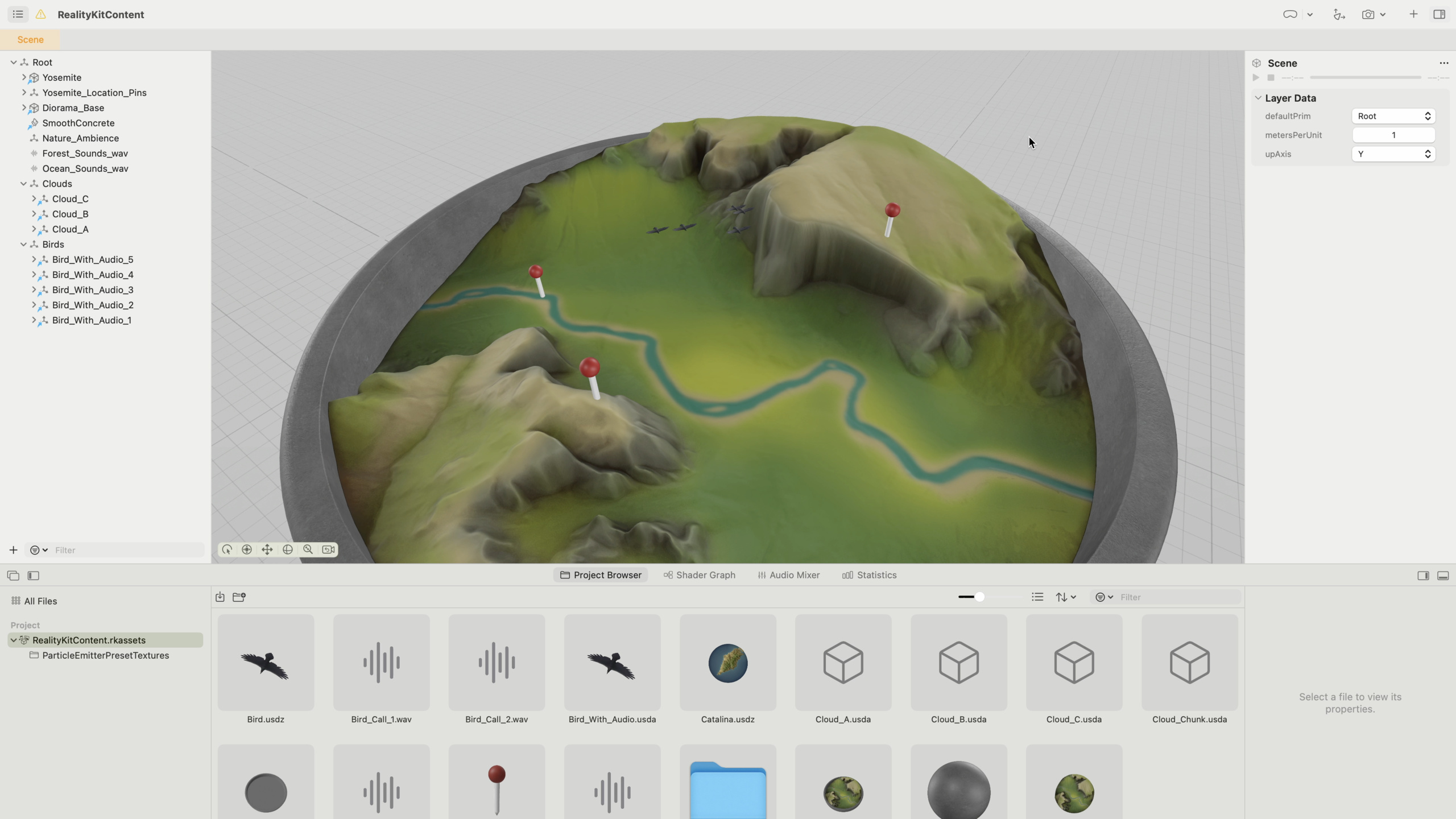
Four UI panels
- Viewport: Central 3D preview area; navigate with WASD keys, arrow keys, and game controllers.
- Hierarchy panel: Left side; search, select, and organize 3D objects in the scene.
- Inspector panel: Right side; edit position, rotation, scale, and other properties of selected objects. Add Component button at the bottom adds RealityKit components.
- Editor panel: Bottom; contains Project Browser, Shader Graph, Audio Mixer, and Statistics tabs.
Three ways to import assets
- Local import: Import existing 3D models, audio, and other resources from your computer.
- Content Library: Built-in curated asset library in Reality Composer Pro, including materials and models.
- Object Capture: Convert photos of real objects into 3D models.
Scene composition and USD references
Reality Composer Pro supports multi-scene design. Scenes can be finished products (used directly in Xcode apps) or reusable components.
The session demonstrates layered design for the Dioramas app: first create a Cloud_Chunk scene as a reusable cloud unit, then create Cloud_A referencing three Cloud_Chunk instances with adjusted positions, and finally reference Cloud_A, Cloud_B, and Cloud_C in the main scene.
USD’s reference mechanism enables “change once, update everywhere.” All location pins reference the same Location_Pin file; replacing that file updates all instances automatically.
Particle system
Particle emitters consist of two parts:
- Particle: Controls individual particle appearance, including color, properties, force fields, and rendering.
- Emitter: Controls particle emission behavior, including timing, shape, and spawning.
The session demonstrates making clouds with the Impact preset: change emitter shape to Sphere, birth location to Volume, adjust XYZ scale to flatten the cloud, enable isLocalSpace so parent transforms affect particles, reduce birth rate from 2000 to 500 for performance balance, and increase life span from 2 to 5 seconds.
Spatial audio
Three audio source types:
- Spatial: 3D audio with position and direction; suited for a radio on a table.
- Ambient: Directional audio without position; suited for wind blowing from a direction.
- Channel: Audio with neither position nor direction; suited for background music.
Audio File Groups can contain multiple audio files; one is randomly selected each playback. The session uses two bird calls in a Bird_Calls group so each bird sounds different.
Performance statistics
The Statistics panel is divided into General, Physics, Animation, Particle Emitters, Audio, Materials, Geometry, and Textures. Click the expand button in the top-right of each category for detailed data.
The session found the diorama base used 256,000 triangles—more than the terrain. After replacing with a simplified model, triangles dropped to 2,500; the entire scene went from 464,000 to 210,000—more than halved—with unchanged visual appearance.
On-device preview
After connecting a visionOS device, select it from the toolbar dropdown and click the on-device preview button; the scene appears in AR before your eyes. Pinch-drag to rotate the scene; pinch to scale.
Detailed Content
Project setup and navigation
(01:14)
Two ways to create a Reality Composer Pro project:
- Open via Xcode > Open Developer Tool, suited for standalone projects.
- Create an xrOS App template in Xcode, which auto-generates a linked Reality Composer Pro project.
The second approach is recommended when using Reality Composer Pro content in Xcode apps. The generated Swift Package is automatically packaged as a framework during build.
USD files in the project live in the .rkassets folder and are available to Xcode after build:
// Load Reality Composer Pro content in Xcode
import RealityKit

// Load a scene from a Swift Package
let scene = try! await Entity(named: "SceneName", in: realityKitContentBundle)
Key points:
realityKitContentBundleis the resource bundle generated after Reality Composer Pro project compilationEntity(named:in:)asynchronously loads a USD scene by name- Scene name corresponds to the scene filename in Reality Composer Pro
Particle emitter configuration
(07:11)
Two ways to add particle emitters:
- Click the plus button at the bottom of the Hierarchy panel
- Click Add Component in the Inspector panel and select Particle Emitter Component
Core parameter adjustments for clouds:
| Parameter | Original | Adjusted | Purpose |
|---|---|---|---|
| Emitter Shape | Cylinder | Sphere | Clouds are spherical, not cylindrical |
| Birth Location | Surface | Volume | Particles spawn within volume |
| X/Z Scale | 1.0 | 2.0 | Flatten the cloud |
| Y Scale | 1.0 | 0.5 | Reduce height |
| isLocalSpace | false | true | Parent transform affects particles |
| Birth Rate | 2000 | 500 | Reduce particle count for performance |
| Life Span | 2s | 5s | Particles live longer |
Key points:
- High particle counts affect performance; adjust for target platform
- With isLocalSpace enabled, moving, rotating, or scaling the parent also affects the particle emitter
- Start from presets (e.g., Impact) and fine-tune parameters
Spatial audio configuration
(13:22)
Two ways to add spatial audio sources:
- Click the plus button at the bottom of the Hierarchy panel
- Click Add Component in the Inspector panel and select Spatial Audio
Audio File Group workflow:
- Click plus in Hierarchy panel and select Audio File Group
- Drag multiple audio files into the group
- Select the audio file group in the Spatial Audio component’s Focus property
- One file from the group is randomly selected each playback
When to use each audio source type:
- Spatial: Bird calls from the bird’s beak; sound gets louder as user approaches
- Ambient: Forest ambience from all directions without fixed position
- Channel: Background music unaffected by user position
Performance optimization in practice
(17:42)
Geometry category in Statistics panel shows:
- Total scene triangles: ~464,000
- Diorama_Base usage: 256,000 (over half)
Optimization steps:
- Simplify Diorama_Base geometry in 3D modeling software
- Import simplified model via Project Browser Import button
- Replace original model
- Recheck Statistics; confirm Diorama_Base dropped to 2,500 triangles
- Total scene triangles dropped to 210,000
Key points:
- Statistics reveals performance bottlenecks during development
- Geometry simplification should happen at modeling stage, not runtime
- Visual complexity and geometric complexity don’t always correlate; analyze case by case
Core Takeaways
-
What to do: Use Reality Composer Pro to build a virtual product showcase app where users view 3D product models in space.
-
Why it matters: No 3D rendering code needed—scene building through a visual editor. USD references auto-sync product model updates across all showcase scenes.
-
How to start: Create an xrOS App template in Xcode, import product USDZ models in the linked Reality Composer Pro project, adjust position and scale, add environment lighting and spatial audio, then load the scene in Xcode with
Entity(named:in:). -
What to do: Create an immersive meditation app using particle systems for dynamic natural environments.
-
Why it matters: Particle systems can create falling snow, fireflies, flowing mist, etc., combined with spatial audio for immersion. Statistics panel helps keep particle counts within performance budget.
-
How to start: Create particle scenes in Reality Composer Pro, start from presets (Impact, Smoke, Fire), keep birth rate under 500, and combine multiple small particle scenes rather than one complex emitter.
-
What to do: Develop an education spatial app displaying historical buildings or biological structures in 3D scenes.
-
Why it matters: Hierarchy panel organizes complex scene structures (building floors, biological organs); Inspector precisely controls each part’s position and rotation; on-device preview ensures correct scale in real space.
-
How to start: Group models logically (e.g., “Building_Floor1”, “Building_Floor2”), organize hierarchy in the Hierarchy panel, duplicate repeated elements with Command-D, connect device and verify spatial scale with pinch-drag.
-
What to do: Build an interactive storybook where each scene has a unique spatial audio environment.
-
Why it matters: Audio File Groups randomly play different ambient sounds to avoid repetition. Spatial Audio makes character voices come from corresponding positions for immersion.
-
How to start: Create Ambient audio sources as background for each scene, add Spatial audio sources for characters and objects, organize similar sounds in audio file groups, and trigger playback from code in Xcode.
Related Sessions
- Explore materials in Reality Composer Pro — Deep dive into the Shader Graph material system in Reality Composer Pro
- Work with Reality Composer Pro content in Xcode — Code practices for loading and controlling Reality Composer Pro content in Xcode
- Meet ARKit for spatial computing — Brand-new ARKit APIs on visionOS; use with Reality Composer Pro content
- Create 3D models for Quick Look spatial experiences — Best practices for creating 3D models for visionOS Quick Look
Comments
GitHub Issues · utterances