
Highlight
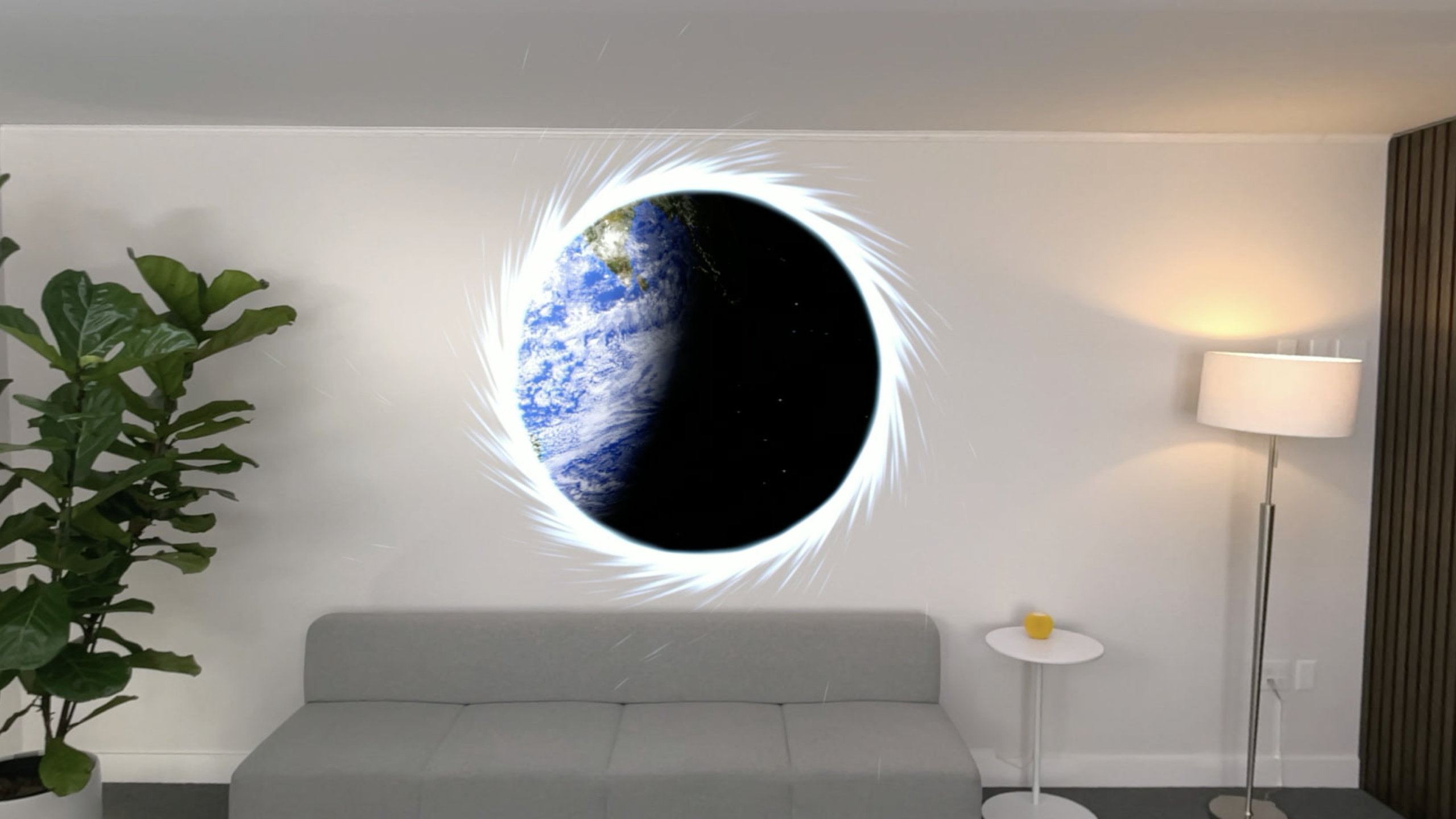
RealityKit on visionOS adds five major features: Attachments, VideoPlayerComponent, Portals, Particle Emitters, and Anchors—letting developers embed SwiftUI views in 3D scenes, play video in space, create portals to other worlds, add particle effects, and anchor content to real-world walls and floors.
Core Content
Attachments: putting SwiftUI views in 3D scenes
Previously, adding text labels beside 3D models required texture maps or complex 3D text. Attachments make this as simple as writing SwiftUI (02:08).
Define SwiftUI views in RealityView’s attachments view builder; in the make closure, get the corresponding entity via entity(for:), then add it to the scene like any other entity. Text labels, info cards, and interactive buttons all work this way.
VideoPlayerComponent: playing video in 3D space
VideoPlayerComponent is a new RealityKit component for embedding video in 3D scenes (06:27).
It automatically generates a rectangular mesh based on video aspect ratio, supports all AVFoundation formats including 2D video and 3D MV-HEVC video. Video defaults to 1 meter tall; scale the entity to adjust size. Also supports passthrough tinting so ambient light matches video tone.
Portals: windows to another world
A Portal opens a “window” in space through which you see another independent world (11:15).
That world has its own lighting, content, and spatial relationships. Portals use PortalMaterial as surface material, combined with PortalComponent linking to the target world. Suited for magic windows, doorways, display spaces, and similar effects.
Particle Emitters: particle effects
ParticleEmitterComponent can create visual effects like sparks, snowflakes, and shockwaves in scenes (15:09).
Design particle effects in Reality Composer Pro, then dynamically adjust properties at runtime through RealityKit. Combined with custom Systems, particle effects can respond to scene changes.
Anchors: fixing content to the real world
AnchorEntity can anchor 3D content to walls, floors, or positions relative to the head/hands (17:14).
Two tracking modes: .continuous continuously follows anchor movement; .once stops moving after initial placement. Listen for anchor state changes via the AnchoredStateChanged event.
Detailed Content
Attachments code example
(02:30)
import SwiftUI
import RealityKit

struct MoonOrbit: View {
    var body: some View {
        RealityView { content, attachments in
            guard let earth = try? await Entity(named: "Earth") else {
                return
            }
            content.add(earth)

            if let earthAttachment = attachments.entity(for: "earth_label") {
                earthAttachment.position = [0, -0.15, 0]
                earth.addChild(earthAttachment)
            }
        } attachments: {
            Attachment(id: "earth_label") {
                Text("Earth")
            }
        }
    }
}
Key points:
- RealityView’s make closure adds an
attachmentsparameter - Define SwiftUI views to embed in the
attachmentsview builder - Each Attachment needs a unique
id(any Hashable value) attachments.entity(for:)gets the entity by id- The retrieved entity can be positioned and added as a child of other entities
- Use
glassBackgroundEffect()to add a frosted glass background to Attachments
VideoPlayerComponent code example
(08:03)
public func makeVideoEntity() -> Entity {
    let entity = Entity()

    let asset = AVURLAsset(url: Bundle.main.url(forResource: "tides_video",
                                                withExtension: "mp4")!)
    let playerItem = AVPlayerItem(asset: asset)

    let player = AVPlayer()
    entity.components[VideoPlayerComponent.self] = .init(avPlayer: player)

    entity.scale *= 0.4

    player.replaceCurrentItem(with: playerItem)
    player.play()

    return entity
}
Key points:
VideoPlayerComponentrequires an associatedAVPlayerinstance- Component automatically generates a rectangular mesh from video aspect ratio
- Default height is 1 meter; here scaled to 0.4 meters (40 cm)
- Supports all AVFoundation formats including MV-HEVC 3D video
- Automatically displays subtitles provided by AVPlayer
Passthrough tinting
(10:05)
var videoPlayerComponent = VideoPlayerComponent(avPlayer: player)
videoPlayerComponent.isPassthroughTintingEnabled = true

entity.components[VideoPlayerComponent.self] = videoPlayerComponent
Key points:
isPassthroughTintingEnabledmakes passthrough content match video tone- Similar to ambient lighting when watching movies in the TV app
- Enhances immersion by harmonizing virtual content with the real environment
Portal code example
(13:12)
struct PortalView : View {
    var body: some View {
        RealityView { content in
            let world = makeWorld()
            let portal = makePortal(world: world)

            content.add(world)
            content.add(portal)
        }
    }
}

public func makeWorld() -> Entity {
    let world = Entity()
    world.components[WorldComponent.self] = .init()

    let environment = try! EnvironmentResource.load(named: "SolarSystem")
    world.components[ImageBasedLightComponent.self] = .init(source: .single(environment),
                                                            intensityExponent: 6)
    world.components[ImageBasedLightReceiverComponent.self] = .init(imageBasedLight: world)

    let earth = try! Entity.load(named: "Earth")
    let moon = try! Entity.load(named: "Moon")
    let sky = try! Entity.load(named: "OuterSpace")
    world.addChild(earth)
    world.addChild(moon)
    world.addChild(sky)

    return world
}

public func makePortal(world: Entity) -> Entity {
    let portal = Entity()

    portal.components[ModelComponent.self] = .init(
        mesh: .generatePlane(width: 1, height: 1, cornerRadius: 0.5),
        materials: [PortalMaterial()]
    )
    portal.components[PortalComponent.self] = .init(target: world)

    return portal
}
Key points:
WorldComponentmarks an entity tree as belonging to another independent world- Content in the world is only visible through the Portal surface
ImageBasedLightComponentsets image-based lighting for the worldPortalMaterial()makes the mesh a Portal surfacePortalComponent(target: world)links the Portal to the target world- Both world and Portal must be added to RealityView’s content
Particle effect System
(15:50)
public class ParticleTransitionSystem: System {
    private static let query = EntityQuery(where: .has(ParticleEmitterComponent.self))

    public func update(context: SceneUpdateContext) {
        let entities = context.scene.performQuery(Self.query)
        for entity in entities {
            updateParticles(entity: entity)
        }
    }
}

public func updateParticles(entity: Entity) {
    guard var particle = entity.components[ParticleEmitterComponent.self] else {
        return
    }

    let scale = max(entity.scale(relativeTo: nil).x, 0.3)

    let vortexStrength: Float = 2.0
    let lifeSpan: Float = 1.0
    particle.mainEmitter.vortexStrength = scale * vortexStrength
    particle.mainEmitter.lifeSpan = Double(scale * lifeSpan)

    entity.components[ParticleEmitterComponent.self] = particle
}
Key points:
- System queries all entities with
ParticleEmitterComponent - Dynamically adjusts particle properties based on entity scale
vortexStrengthcontrols particle rotation intensitylifeSpancontrols particle lifetime- Must reassign the Component to the entity after modification
- Particle resources can be designed in Reality Composer Pro
Anchoring to a wall
(18:19)
import SwiftUI
import RealityKit

struct PortalApp: App {

    @State private var immersionStyle: ImmersionStyle = .mixed

    var body: some SwiftUI.Scene {
        ImmersiveSpace {
            RealityView { content in
                let anchor = AnchorEntity(.plane(.vertical, classification: .wall,
                                                 minimumBounds: [1, 1]))
                content.add(anchor)

                anchor.addChild(makePortal())
            }
        }
        .immersionStyle(selection: $immersionStyle, in: .mixed)
    }
}
Key points:
- Anchors must be used inside
ImmersiveSpace .plane(.vertical, classification: .wall)searches for vertical wallsminimumBounds: [1, 1]requires walls at least 1×1 meters- When a matching anchor is found, RealityKit automatically attaches content to the wall
.mixedimmersion style keeps passthrough while showing virtual content- Anchor transforms are invisible to the app, protecting user privacy
Core Takeaways
-
What to do: Build a magic window app where users see scenery from around the world through a Portal on the wall.
-
Why it matters: Portals let users open windows to any world in a real room; spatial audio creates an immersive feel.
-
How to start: Create
WorldComponentto define world content; anchor the Portal to a wall withAnchorEntity(.plane(.vertical)). -
What to do: Develop an education app that displays knowledge labels beside 3D models using Attachments.
-
Why it matters: Attachments seamlessly combine SwiftUI views with 3D content; text explanations move with models.
-
How to start: Define Text views in RealityView’s
attachments, get them withentity(for:), and add as child entities to models. -
What to do: Build an immersive cinema app that plays 3D movies in space.
-
Why it matters: VideoPlayerComponent supports MV-HEVC 3D video; passthrough tinting matches ambient light to movie tone.
-
How to start: Create a video entity with
VideoPlayerComponent(avPlayer: player)and setisPassthroughTintingEnabled = true. -
What to do: Develop a holiday decoration app that lets users place particle effects (snow, fireworks) in a room.
-
Why it matters: ParticleEmitterComponent combined with anchors fixes effects to real spatial locations.
-
How to start: Design particle effects in Reality Composer Pro, anchor to ceiling or walls with
AnchorEntity, and dynamically adjust particle properties via System.
Related Sessions
- Build spatial experiences with RealityKit — RealityKit fundamentals: Entity, Component, System, and RealityView
- Meet Reality Composer Pro — Getting started with Reality Composer Pro
- Explore materials in Reality Composer Pro — Material editing in Reality Composer Pro
- Go beyond the window with SwiftUI — SwiftUI immersive spaces and scene types
Comments
GitHub Issues · utterances