
Highlight
Xcode 15 adds dependency signature verification, automatically detecting third-party XCFramework signature status and identity consistency—blocking builds when supply chain attacks occur (such as tampered or replaced SDKs) to protect your app’s software supply chain.
Core Content
Supply chain security risks
How many third-party SDKs does your app depend on? Each SDK can be an attack entry point.
(01:18) Third-party SDKs make development more efficient but introduce supply chain security risks. Malicious actors may tamper with SDK distribution packages and plant backdoors in your app. Manually verifying every SDK version’s signature is time-consuming, and developers often skip it.
Xcode 15’s signature verification makes this automatic and simple.
How code signing works
(02:59) Apple’s code signing protects SDK integrity through these steps:
- Generate a Code Directory Hash (CDHash) of the compiled binary
- Sign the CDHash with the developer certificate’s private key
- Distribute the public key with the signature so anyone can verify the signer’s identity
- Add a secure timestamp so the signature proves it was created at a specific time
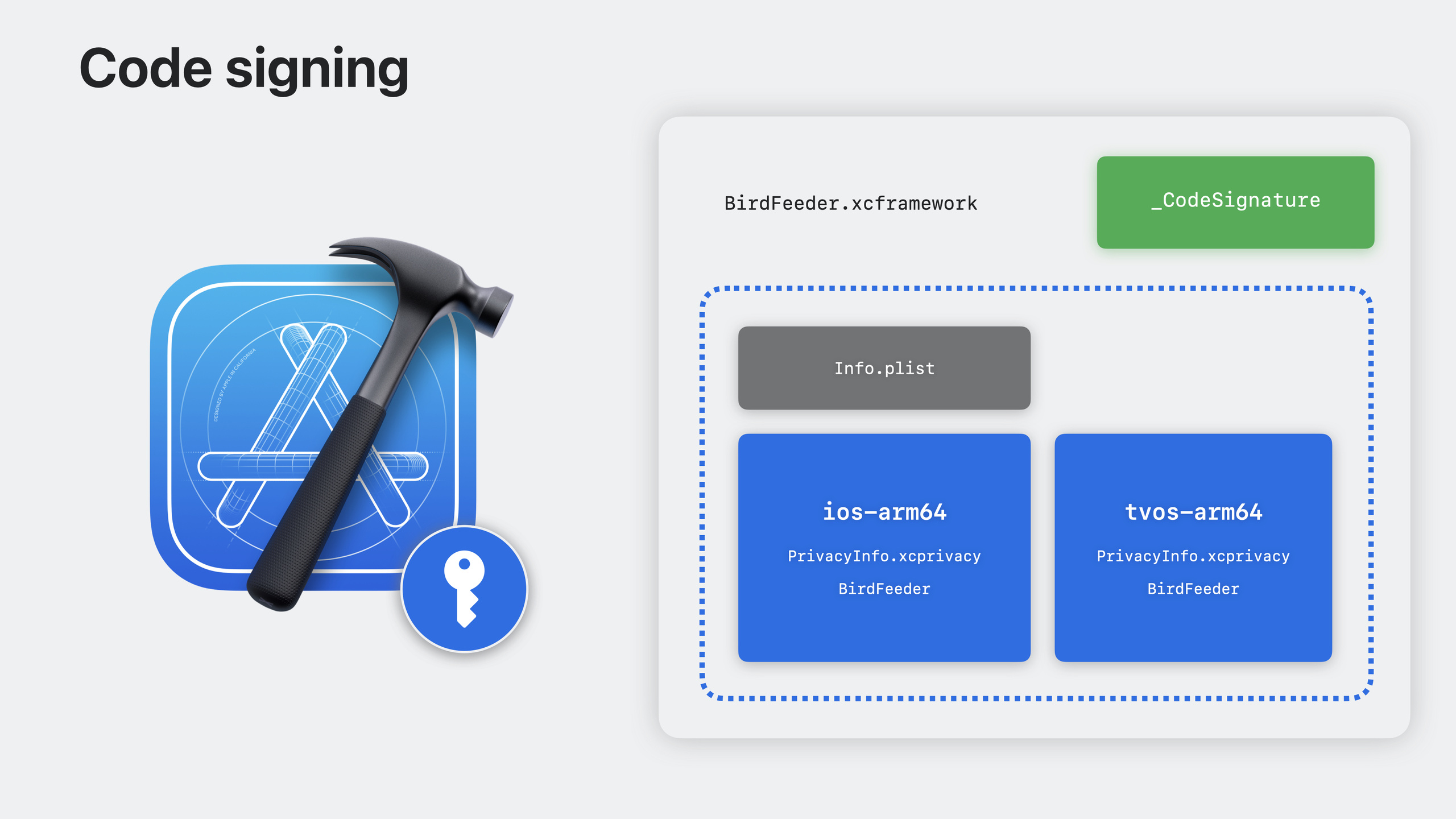
If an SDK is tampered with, the signature becomes invalid. XCFramework signatures live in the _CodeSignature directory, protecting all files in the framework, including privacy manifest files.
Xcode 15 automatic verification
(05:27) Xcode 15 adds a “Signature” view in the Inspector showing each XCFramework’s signature status:
- Signed by Apple Developer Program identity
- Signed by self-signed certificate
- Unsigned
Xcode records the signature identity when an XCFramework is first added and automatically verifies on subsequent builds that the identity hasn’t changed.
For Apple Developer Program identities, Xcode verifies the certificate is valid, not revoked, and not expired—and blocks the build when problems are found. For self-signed certificates, Xcode compares the certificate’s SHA-256 fingerprint and warns when it changes.
Supply chain attack simulation demo
(09:06) The session demonstrates a full attack scenario with the Backyard Birds sample app:
- The developer adds a signed XCFramework named BirdFeeder
- Xcode Inspector shows signature info; build succeeds
- An attacker claims a “more features, better performance” new version
- The developer replaces it with a tampered version
- Build fails; Xcode reports identity mismatch: expected Apple Developer Program certificate, got self-signed
Xcode offers options to remove or accept the change. If unsure, cancel and contact the SDK author to confirm.
How SDK authors sign
(12:17) SDK authors should sign XCFrameworks with an Apple Distribution certificate from the Apple Developer Program. Apple verifies developer identity as a trusted authority; after certificate expiry, Xcode can still verify that a new certificate belongs to the same developer.
Sign with codesign:
codesign --timestamp -v --sign "Apple Distribution: Truck to Table (UA527FUGW7)" BirdFeeder.xcframeworkKey points:
--timestamp: includes an Apple-authenticated secure timestamp--sign: specifies the signing identity (Apple Developer Program certificate)- Signing protects all files in the XCFramework, including privacy manifests
Without Apple Developer Program membership, use a self-signed certificate but publish the certificate fingerprint to SDK consumers for verification.
Detailed Content
Viewing signature status in Xcode
(09:41) Select an XCFramework in Xcode 15’s project navigator; the Inspector shows a Signature section:
- Signed by: signer identity and team info
- Certificate type: Apple Developer Program / Self-signed / Unsigned
- Status: Valid / Invalid / Changed
When a signed XCFramework is first added, Xcode automatically records its identity in the project. Every subsequent build verifies:
- The signature is valid
- Identity matches the recorded one
- Certificate hasn’t expired or been revoked
- Content hasn’t been modified
Handling signature verification warnings
When Xcode detects signature issues, it shows a build error. Common scenarios:
| Scenario | Xcode behavior | Recommended action |
|---|---|---|
| Identity changes from Apple Developer to Self-signed | Build fails, shows identity comparison | Cancel build, contact SDK author to confirm |
| New certificate from same Apple Developer | Auto-verified | No action needed |
| Self-signed certificate fingerprint changes | Build fails | Confirm change legitimacy through reliable channels |
| Certificate revoked by Apple | Build fails | Remove XCFramework, contact author for new version |
(11:08) When warned, Xcode offers two options: move to Trash, or accept the change. Accept only after confirming the change is legitimate through official channels.
Retroactively signing existing SDKs
(15:38) You can sign already-published SDK versions without rebuilding—a quick path to security for SDK authors:
# Retroactively sign a published XCFramework
codesign --timestamp -v --sign "Apple Distribution: Your Team (TEAM_ID)" YourSDK.xcframework

# Verify signature
codesign -vv --verify YourSDK.xcframework
Integrate signing into your build script so every release is signed automatically:
#!/bin/bash
# build_and_sign.sh

FRAMEWORK_NAME="YourSDK.xcframework"
IDENTITY="Apple Distribution: Your Team (TEAM_ID)"

# Build XCFramework
xcodebuild -create-xcframework \
    -framework build/ios/YourSDK.framework \
    -framework build/ios_simulator/YourSDK.framework \
    -output $FRAMEWORK_NAME

# Sign
codesign --timestamp -v --sign "$IDENTITY" $FRAMEWORK_NAME

echo "Signed $FRAMEWORK_NAME successfully"
Key points:
- Sign immediately after build so the signature covers the final artifact
--timestampensures the signature includes a timestamp; validity can be verified even after certificate expiry- Add the script to CI/CD to avoid manual omissions
Core Takeaways
1. Enable signature verification for all third-party dependencies
- What to build: Check signature status of every XCFramework in your project; prefer signed versions
- Why it’s worth doing: Xcode 15 verifies automatically—zero-cost supply chain protection
- How to start: View each XCFramework’s Signature section in Xcode Inspector; contact authors for signed versions if Unsigned
2. Add signing to SDKs you maintain
- What to build: Configure automatic signing for internal or open-source SDKs
- Why it’s worth doing: Consumers get Xcode’s automatic protection and build trust
- How to start: Add
codesignto your build script with an Apple Distribution certificate
3. Establish an SDK onboarding review process
- What to build: Record signature identity when adding new SDKs; establish a change approval process
- Why it’s worth doing: Xcode warns on identity changes, but you need to know if changes are expected
- How to start: Maintain an SDK signature identity list; compare when updating SDKs
4. Integrate signature verification in CI
- What to build: Ensure CI uses the same Xcode version as local; signature verification works in CI too
- Why it’s worth doing: Prevents tampered dependencies in CI environments
- How to start: Run
codesign --verifyon key dependencies before build in CI scripts
5. Encourage SDK authors to sign
- What to build: Contact authors of unsigned SDKs you use and suggest adding signatures
- Why it’s worth doing: The signature ecosystem needs participation up and down the chain; every signed SDK improves overall supply chain security
- How to start: File a signature request on the SDK’s GitHub Issues or support channel, citing this session and Apple documentation
Related Sessions
- Get started with privacy manifests — How privacy manifests help accurately declare data collection
- What’s new in privacy — Latest privacy features in iOS 17 and macOS Sonoma
- What’s new in Xcode 15 — New features in Xcode 15
Comments
GitHub Issues · utterances