
Highlight
iOS 17 and macOS Sonoma bring a redesigned text selection UI, the lightweight
UITextSelectionDisplayInteraction, customizable text item interactions, TextKit 2 list support, and dynamic line height and line-breaking improvements for multilingual text—making rich text and internationalization more complete.
Core Content
Selection UI fully redesigned
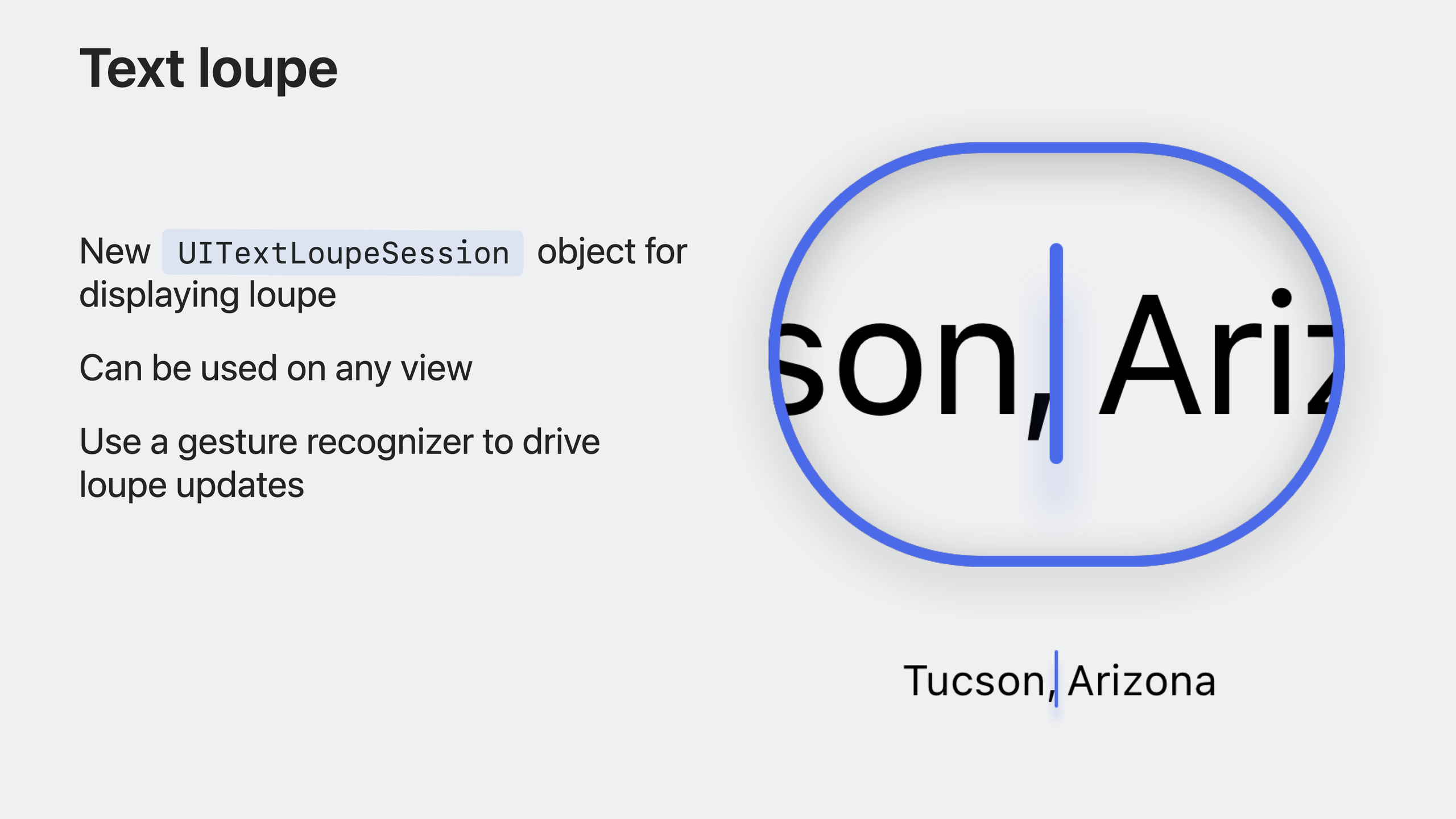
Every platform gets a new text cursor. When switching input languages, an inline interactive switcher appears at the cursor. Range-selection handles are more ergonomic. A brand-new loupe helps place the cursor precisely in long passages.
Apps using UITextView and UITextField get these updates automatically. Custom text views using UITextInteraction get the new selection UI too.
UITextSelectionDisplayInteraction: selection UI without taking over gestures
For apps with highly custom text UI that can’t adopt UITextInteraction (which includes its own gesture handling), iOS 17 offers UITextSelectionDisplayInteraction. It provides only selection UI—cursor, cursor accessories, selection highlight, selection handles—without gestures.
It’s a new UIInteraction subclass you can install on any UIView. Provide an object conforming to UITextInput for selection state. When selection changes, call setNeedsSelectionUpdate() and the interaction updates all views automatically.
Every selection view can be replaced when you need custom behavior.
UITextLoupeSession: a standalone loupe
Beyond UITextSelectionDisplayInteraction, iOS 17 adds a standalone loupe API usable on any view—no UITextSelectionDisplayInteraction or UITextInput required.
A UIPanGestureRecognizer is recommended. On gesture begin, call UITextLoupeSession.begin(at:); while moving, call move(to:); on end, call invalidate().
Enhanced text item interactions
Links, attachments, and custom text ranges in UITextView can now be fully customized. UITextViewDelegate gains methods to customize the primary action or provide a menu.
Text items include:
- NSTextAttachment (attachments)
- NSLinkAttributeName (links)
- UITextItemTagAttributeName (custom ranges)
Use UITextItemTagAttributeName to mark any text range as an interactive item. Implement menuConfigurationFor:defaultMenu: for a custom menu, or primaryAction to change default tap behavior. Return nil to disable default behavior.
TextKit 2 list support
TextKit 2 finally supports lists—unordered and ordered, including Roman numerals, letters, and decimal numbering. The system localizes numbering format based on device language.
Use NSParagraphStyle’s textLists property to define which paragraphs get list styling. The system numbers automatically at line breaks; UITextView propagates paragraph style via typing attributes.
macOS dictation UI
macOS Sonoma introduces a new dictation indicator. While speaking, a trailing glow effect appears; when idle, a microphone icon shows. While scrolling, the indicator snaps to the scroll view edge and offers a button to return to the current input location.
Standard NSTextView gets this automatically. Custom text views should replace hand-drawn carets with NSTextInsertionIndicator—a customizable NSView subclass whose appearance (color, size) you can adjust; it follows the accent color by default.
Set an effectsViewInserter block so the system inserts effect views into your document view hierarchy. The system positions effect views and updates them as the caret moves. When the text view resigns first responder, set displayMode to .hidden to hide the caret.
On text insertion during dictation, frame updates animate the glow automatically. Remove .showEffectsView from automaticModeOptions when you don’t want the glow.
When switching input modes, language selection UI appears below the caret. Override placement in your NSTextInputClient implementation with preferredTextAccessoryPlacement when needed.
When the caret scrolls off screen, a scroll-away indicator shows its relative position and offers a way back to the dictation location. Custom views must conform to NSTextInputClient, implement selectionRect and documentVisibleRect, and call textInputClientWillStartScrollingOrZooming and willEndScrollingOrZooming at scroll start/end.
Internationalization improvements
Dynamic line height
Many languages have ascenders and descenders that exceed Latin line height, causing clipped text. iOS 17 automatically adjusts UILabel and UITextField line height to accommodate these languages.
This triggers only under specific conditions:
- The device is configured with languages that need extra line height
- It affects the entire UI, including fixed-line-height languages like English, for visual consistency
- Only text elements using text styles are affected; custom fonts keep fixed line height
To get this behavior:
- Create fonts with
preferredFont(forTextStyle:) - Avoid setting
clipsToBoundson text elements - Ensure your UI responds to height changes and other controls stay aligned
Line-breaking improvements
Line-breaking rules for Chinese, German, Japanese, and Korean improved significantly, with different rules per text style.
For Korean: words in titles used to break across lines; title text style now prevents intra-word breaks and wraps only at word boundaries. Body text style still allows breaks within words.
For German: long words in narrow layouts used to break character by character; they now break at morpheme boundaries for more balanced layout.
Use text styles to get these improvements.
Detailed Content
Adding selection display interaction
(01:46)
// Create a selection display interaction and provide a UITextInput implementation
let selectionInteraction = UITextSelectionDisplayInteraction(textInput: document)

// Add it to the view that displays the selection UI
textContainerView.addInteraction(selectionInteraction)

// Update when the selection state changes
document.selectionChanged = {
    selectionInteraction.setNeedsSelectionUpdate()
}
Key points:
UITextSelectionDisplayInteractionprovides selection UI only, no gestures- Requires a UITextInput object for selection state
- Call
setNeedsSelectionUpdate()when selection changes - All selection views are replaceable
Managing a loupe session
(03:16)
var loupeSession: UITextLoupeSession?

@objc func handlePanGesture(_ gesture: UIPanGestureRecognizer) {
    let location = gesture.location(in: textView)
    let selectionWidget = cursorView

    switch gesture.state {
    case .began:
        loupeSession = UITextLoupeSession.begin(
            at: location,
            in: selectionWidget,
            from: textView
        )
    case .changed:
        loupeSession?.move(to: location)
    case .ended, .cancelled:
        loupeSession?.invalidate()
        loupeSession = nil
    default:
        break
    }
}
Key points:
UITextLoupeSession.begin(at:in:from:)creates a loupe sessionmove(to:)updates position with the gestureinvalidate()destroys the session on end- Usable on any view, not limited to text views
Configuring menus for text items
(05:56)
func textView(
    _ textView: UITextView,
    menuConfigurationFor textItem: UITextItem,
    defaultMenu: UIMenu
) -> UITextItem.MenuConfiguration? {
    // Return nil to disable the default menu
    // Return a custom menu configuration
    return .init(menu: UIMenu(children: [
        UIAction(title: "Open in App") { _ in
            self.handleLink(textItem.link)
        }
    ]))
}
Key points:
menuConfigurationFor:defaultMenu:customizes the text item menu- Return nil to disable default behavior
- Can include inline preview
Marking custom text ranges as interactive
(05:32)
let attributedString = NSMutableAttributedString(string: "Tap here for more info")
attributedString.addAttribute(
    UITextItemTagAttributeName,
    value: "info-tag",
    range: NSRange(location: 0, length: 8)
)
Key points:
UITextItemTagAttributeNamemarks any text range as interactive- Marked ranges trigger text item delegate callbacks
- Use for interactive non-link text
TextKit 2 lists
(06:46)
let paragraphStyle = NSMutableParagraphStyle()
paragraphStyle.textLists = [NSTextList(markerFormat: .decimal, options: 0)]

let attributedString = NSMutableAttributedString(string: "First item\nSecond item\nThird item")
attributedString.addAttribute(
    .paragraphStyle,
    value: paragraphStyle,
    range: NSRange(location: 0, length: attributedString.length)
)
Key points:
NSParagraphStyle.textListsdefines list stylingNSTextList(markerFormat:options:)creates list format- Supports
.decimal,.lowercaseLetter,.uppercaseLetter,.lowercaseRoman,.uppercaseRoman,.bullet - System localizes based on locale
- UITextView propagates typing attributes automatically
macOS text insertion indicator
(08:28)
let insertionIndicator = NSTextInsertionIndicator()
documentView.addSubview(insertionIndicator)

insertionIndicator.effectsViewInserter = { view, placement in
    documentView.addSubview(view)
}

// Hide the cursor
textViewDidResignFirstResponder {
    insertionIndicator.displayMode = .hidden
}
Key points:
NSTextInsertionIndicatorreplaces custom caret drawingeffectsViewInserterlets the system insert dictation effect viewsdisplayModecontrols show/hide- Follows accent color by default
Core Takeaways
1. Replace custom selection UI with system components
- What to build: Swap custom cursors, selection handles, and loupes in custom text views for system-provided components
- Why it’s worth doing: Automatically follows system style updates, less maintenance, new features like dictation glow
- How to start: Use
UITextSelectionDisplayInteractionon iOS,NSTextInsertionIndicatoron macOS
2. Add interaction menus to keywords in text
- What to build: Custom menus for specific keywords (names, places, product names) in UITextView
- Why it’s worth doing: Long-press for related actions without leaving the current screen
- How to start: Mark ranges with
UITextItemTagAttributeName, implementmenuConfigurationFor:defaultMenu:
3. Add list support to rich text editors
- What to build: Ordered/unordered lists in your text editor
- Why it’s worth doing: Native TextKit 2 support with automatic numbering and localization—no manual list state
- How to start: Set
NSParagraphStyle.textLists, define format withNSTextList
4. Ensure text isn’t clipped in multilingual layouts
- What to build: Verify UILabel and UITextField use text styles and don’t set clipsToBounds
- Why it’s worth doing: Thai, Hindi, and other scripts extend beyond standard line height; clipping hurts readability
- How to start: Replace custom fonts with
preferredFont(forTextStyle:), removeclipsToBounds = true
5. Add dictation support to macOS text editors
- What to build: Let custom macOS text views support system dictation
- Why it’s worth doing: Voice input with glow effects, edge snapping, scroll-away indicator—native experience
- How to start: Replace custom carets with
NSTextInsertionIndicator, seteffectsViewInserter, implement NSTextInputClient properties
Related Sessions
- What’s new in UIKit — UIKit updates overview
- What’s new in AppKit — AppKit updates, including macOS text cursor improvements
- Unleash the UIKit trait system — Trait system upgrades related to text rendering
Comments
GitHub Issues · utterances