
Highlight
iPadOS 17 introduces UIDocumentViewController as the base content view controller for document apps, automatically providing sharing, drag and drop, undo/redo, auto-rename, and more—freeing developers from document management boilerplate so they can focus on what makes their app unique.
Core Content
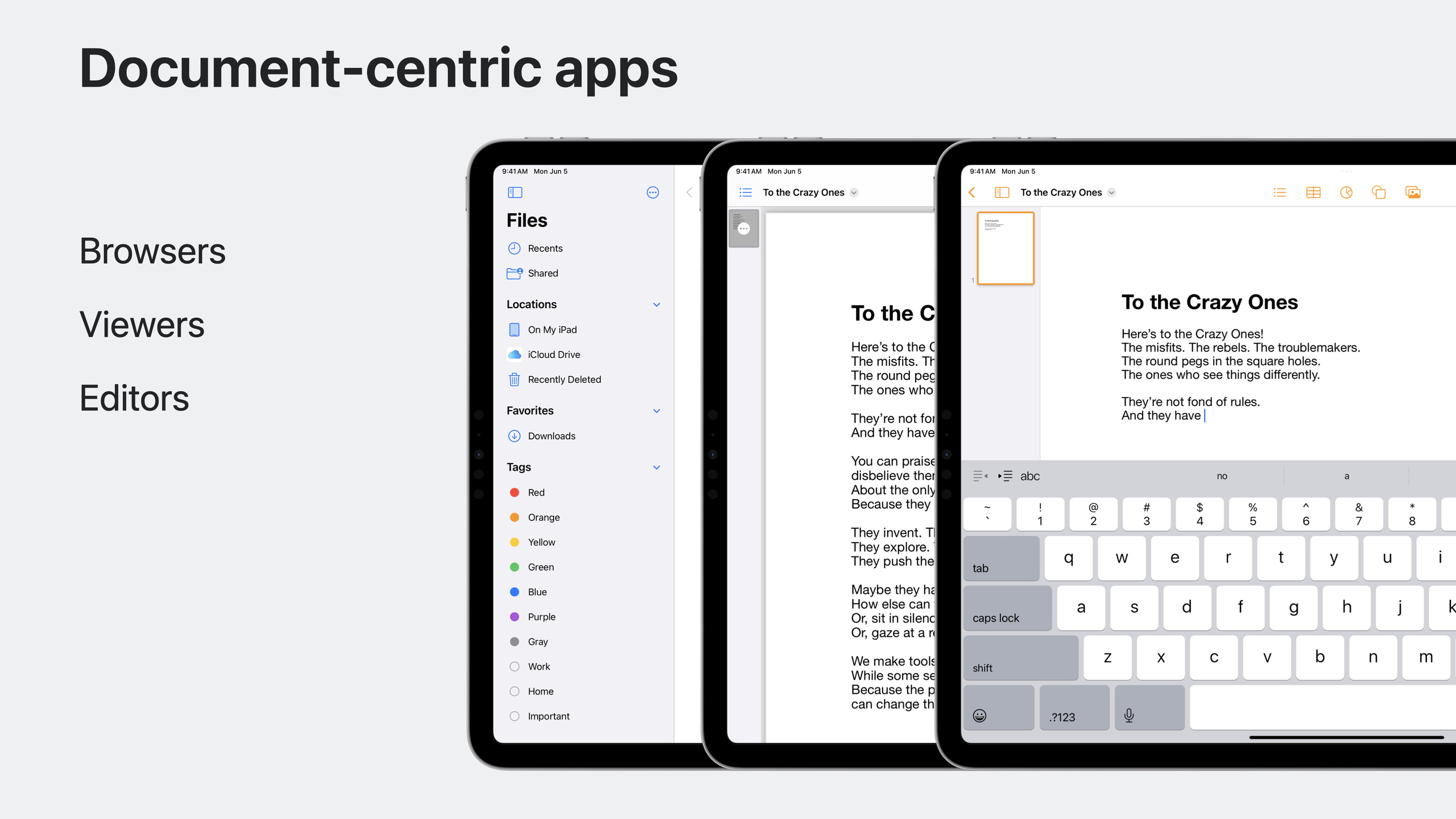
Three tiers of document apps
Document apps fall into three categories: browsers (like Files), viewers (like Quick Look), and editors (like Pages). This update primarily targets viewers and editors, but browsers benefit too.
UIDocument: the core of your document model
UIDocument is the foundation of every document app. It is an abstract base class—you create a subclass for each file type you support. Every UIDocument is URL-based; the URL can point to a file on disk or to data in a database via a custom URL scheme.
Loading and saving are asynchronous. UIDocument handles thread safety and file coordination internally. You only need to worry about two things: how to load and save, and how to expose document content.
For simple file-based documents, overriding two convenience methods is enough: load(fromContents:ofType:) is called when opening, and contents(forType:) is called when saving. For full control (for example, saving to a database), override save(to:for:completionHandler:) and read(from:).
Content access and auto-save
Add properties to your UIDocument subclass to expose document content. Call updateChangeCount(.done) whenever a property changes—UIDocument knows the document needs saving and triggers a save at the right time.
UIDocumentViewController: automated document presentation
This is the new base class in iPadOS 17, designed to work with UIDocument. It automatically handles:
- Navigation bar title and title menu
- Document sharing
- Document drag and drop
- Undo/redo shortcuts
- Auto-rename
It uses a modular design: the system provides sensible defaults, and each behavior can be customized individually.
Key callback methods
documentDidOpen() is called after the document opens, to configure the view for document content. navigationItemDidUpdate() is called after navigation items update, to add custom navigation buttons.
There is no guaranteed order for these callbacks, so view configuration should be called from both documentDidOpen() and viewDidLoad(), checking isViewLoaded and document state.
Undo and redo
Place the system-provided undoRedoItemGroup in the navigation bar. UIDocumentViewController automatically manages its visibility and the enabled/disabled state of its buttons—as long as you assign an undoManager to the document.
Auto-rename
In iPadOS 17, UIDocument conforms to UINavigationItemRenameDelegate and automatically handles file operations during rename. With UIDocumentViewController this is configured automatically; otherwise set navigationItem.renameDelegate = document manually.
Fallback when there is no browser
If UIDocumentViewController is the root view controller and there is no browser layer, it automatically places a document button in the navigation bar that opens the document picker. Declare the UIDocumentClass key in Info.plist, pointing to your UIDocument subclass.
Migration in three steps
- Change your content view controller’s base class to UIDocumentViewController
- Move existing code into the new callbacks (
documentDidOpen(),navigationItemDidUpdate()) - Remove code you no longer need (rename delegate, navigation item configuration, document property updates, etc.)
Detailed Content
Loading a document
(03:54)
override func load(fromContents contents: Any, ofType typeName: String?) throws {
    // Load your document from contents
    guard let data = contents as? Data,
          let text = String(data: data, encoding: .utf8) else {
        throw DocumentError.readError
    }
    self.text = text
}
Key points:
load(fromContents:ofType:)is called when the document openscontentsis Data for plain files, FileWrapper for package files- Throw an error on parse failure; UIDocument handles the error state
Saving a document
(04:08)
override func contents(forType typeName: String) throws -> Any {
    // Encode your document with an instance of NSData or NSFileWrapper
    guard let data = self.text?.data(using: .utf8) else {
        throw DocumentError.writeError
    }
    return data
}
Key points:
contents(forType:)is called when saving- Return Data or FileWrapper
- UIDocument handles async saving and file coordination automatically
Manual save and load
(04:34)
override func save(to url: URL,
                   for saveOperation: UIDocument.SaveOperation,
                   completionHandler: ((Bool) -> Void)? = nil) {
    self.performAsynchronousFileAccess {
        // Set up file coordination and write file to URL
   }
}

override func read(from url: URL) throws {
    // Set up file coordination and read file from URL
}
Key points:
- Use this pair when you need full control over read/write
save(to:for:completionHandler:)is asynchronousread(from:)is synchronous; finish reading before returningperformAsynchronousFileAccessensures thread-safe file access
Marking a document as needing save
(05:08)
class Document: UIDocument {
    var text: String? {
        didSet {
            if oldValue != nil && oldValue != text {
                self.updateChangeCount(.done)
            }
        }
    }
}
Key points:
updateChangeCount(.done)tells UIDocument the content has changed- On first load
oldValueis nil, avoiding a false mark - UIDocument saves automatically at the right time
Configuring the document view
(06:30)
override func documentDidOpen() {
    configureViewForCurrentDocument()
}

override func viewDidLoad() {
    super.viewDidLoad()
    configureViewForCurrentDocument()
}

func configureViewForCurrentDocument() {
    guard let document = markdownDocument,
          !document.documentState.contains(.closed)
            && isViewLoaded else { return }
    // Configure views for document
}
Key points:
- Call the configuration method from both
documentDidOpen()andviewDidLoad() - Check
isViewLoadedand document state to ensure both are ready - Defensive programming—don’t assume callback order
Updating navigation items
(07:17)
override func navigationItemDidUpdate() {
    // Customize navigation item
}
Key points:
- Called after UIDocumentViewController updates navigation items
- Add custom buttons or modify the navigation bar here
- The system tries to preserve your changes
Opening a document manually
(08:01)
documentController.openDocument { success in
    if success {
        self.present(documentController, animated: true)
    }
}
Key points:
- Call manually when you need to open a document from outside
- Automatically triggers callbacks like
documentDidOpen - Present in the completion handler when done
Rename delegate
(09:20)
navigationItem.renameDelegate = documentKey points:
- Set manually when not using UIDocumentViewController
- UIDocument handles file operations during rename automatically
- Configured automatically with UIDocumentViewController
Core Takeaways
1. Migrate existing document apps to UIDocumentViewController
- What to build: Change your content view controller’s base class from UIViewController to UIDocumentViewController
- Why it’s worth doing: Automatically get sharing, drag and drop, undo/redo, rename, and more—removing lots of boilerplate
- How to start: Change base class → move code to new callbacks → remove navigation item configuration and rename delegate you no longer need
2. Add auto-save to your document model
- What to build: Call
updateChangeCount(.done)in document propertydidSet - Why it’s worth doing: UIDocument handles save timing; users don’t need to tap Save manually
- How to start: Find every place document content changes and ensure each calls
updateChangeCount
3. Provide standard undo/redo with undoRedoItemGroup
- What to build: Put
undoRedoItemGroupin the navigation bar and assign an undoManager to the document - Why it’s worth doing: The system manages button visibility and enabled state—standard experience with zero code
- How to start: Create an UndoManager, assign it to
document.undoManager, addundoRedoItemGroupto toolbar items
4. Build a Markdown editor
- What to build: Use UIDocument + UIDocumentViewController for a Markdown editor with desktop-class iPad experience
- Why it’s worth doing: Get auto-save, sharing, rename, drag and drop, empty state, and more—focus on the editor itself
- How to start: Create a MarkdownDocument subclass for text load/save, and a UIDocumentViewController subclass for the editing UI
5. Add a document picker to single-document apps without a browser
- What to build: Let single-document apps open files from the file system
- Why it’s worth doing: UIDocumentViewController as root automatically shows a document button
- How to start: Declare the
UIDocumentClasskey in Info.plist, pointing to your UIDocument subclass
Related Sessions
- What’s new in UIKit — UIKit updates, including an overview of UIDocumentViewController
- Meet desktop-class iPad — Design principles for desktop-class iPad apps
- Build a desktop-class iPad app — Practical guide to building desktop-class iPad apps
Comments
GitHub Issues · utterances