
Highlight
iOS 17 UIKit brings Xcode Preview support, the
viewIsAppearinglifecycle callback, a custom Trait system, symbol animations, empty state configuration APIs, and Collection View performance roughly doubled—bringing UIKit development closer to SwiftUI’s convenience.
Core Content
Xcode Preview finally supports UIKit
UIKit developers have long envied SwiftUI’s live previews. iOS 17 breaks that wall—the #Preview macro directly supports UIViewController and UIView.
Set properties and fill data in previews, even batch-test different configurations. No SwiftUI middle layer, no extra wrapper code.
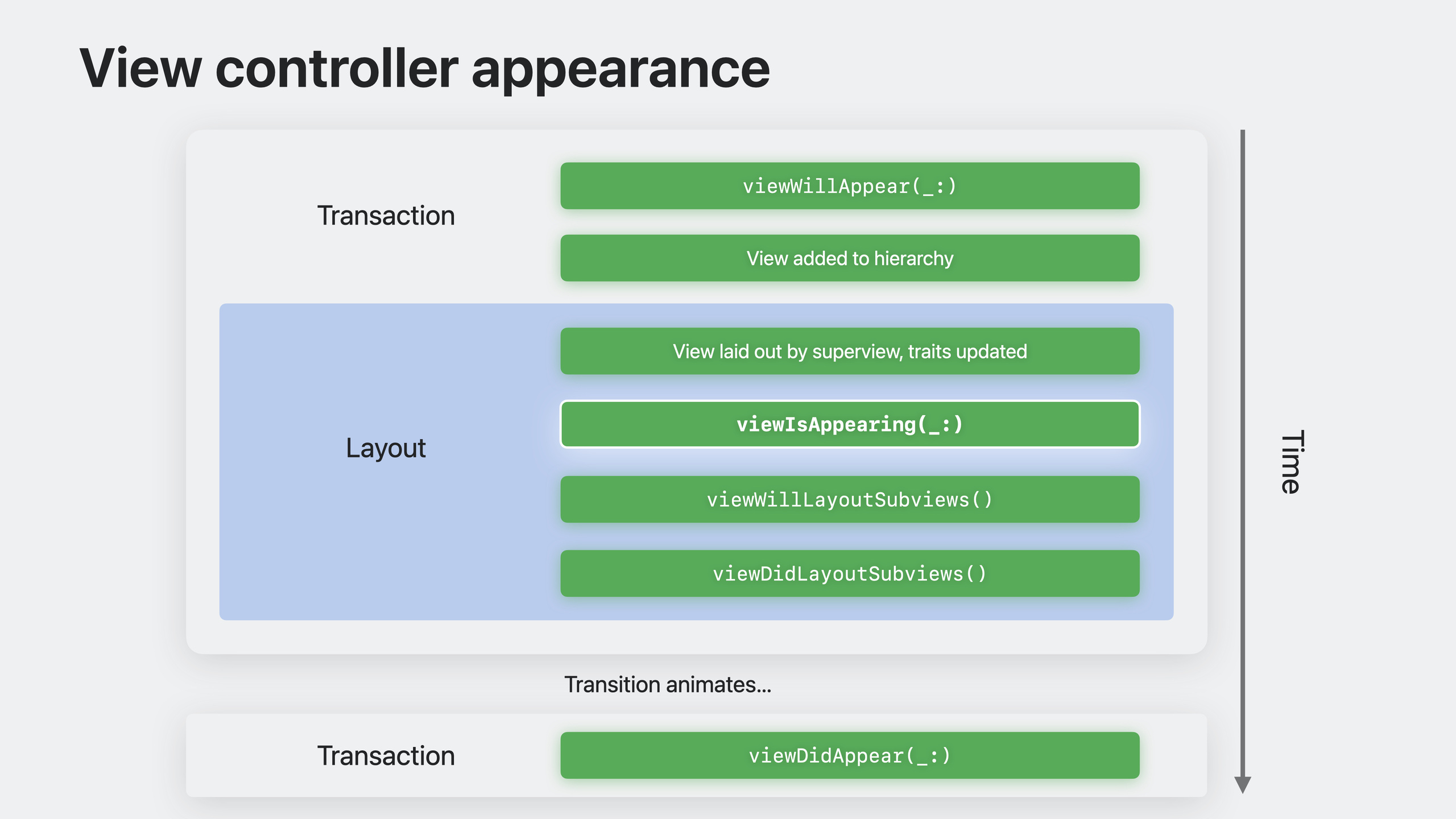
viewIsAppearing: just right
viewWillAppear is too early—the view isn’t in the hierarchy yet, trait collection isn’t updated, and you can’t get view dimensions. viewDidAppear is too late—it runs in a separate CATransaction, so changes aren’t visible until the animation ends.
iOS 17 adds viewIsAppearing, called after viewWillAppear and before viewDidAppear. The view is in the hierarchy, layout is complete, and trait collection is updated. It only fires once—unlike layout callbacks that repeat.
Most practical: it back deploys to iOS 13.
Trait system upgrade
UITraitCollection previously only propagated system-defined traits (dark mode, size class, etc.). iOS 17 lets you define custom traits, inject your own data into the trait system, and propagate it through the view hierarchy automatically.
New trait override APIs and closure-based change listeners eliminate the need to subclass and override traitCollectionDidChange. Custom UIKit traits can bridge to SwiftUI environment keys for smoother data flow between frameworks.
Empty states without hand-rolling UI
Every app has empty states: no data on first launch, network disconnected, search with no results. Previously you built all of this yourself.
UIContentUnavailableConfiguration provides .empty(), .loading(), and .search() presets. Assign to the view controller’s contentUnavailableConfiguration property and it works. You can also wrap a SwiftUI view with UIHostingConfiguration.
With updateContentUnavailableConfiguration(using:), call setNeedsUpdateContentUnavailableConfiguration() when data changes—empty state show/hide is handled automatically.
iPadOS-specific improvements
Window drag areas in Stage Manager expand to the entire UINavigationBar. UIWindowSceneDragInteraction adds drag functionality to any view.
UISplitViewController gets smarter column behavior in Stage Manager: auto-hide sidebar, overlay or displace mode at narrow widths, tile mode when wide.
UIDocumentViewController becomes the base class for document apps, handling title menus, sharing, drag-and-drop, and keyboard shortcuts automatically. UIDocument conforms to UINavigationItemRenameDelegate for a complete rename experience.
Apple Pencil adds four new brushes: monoline pen, fountain pen, watercolor, and crayon. PencilKit’s data model adds a contentVersion property for new/old brush compatibility.
Other enhancements
Collection View performance improved significantly: reversing sort on 10,000 items is nearly twice as fast on iOS 17 vs iOS 16; deleting half the items is nearly three times faster. Unanimated updates see even bigger gains.
Compositional Layout adds uniformAcrossSiblings sizing so self-sizing items in the same group align to the maximum height.
Spring animation parameters simplify to duration and bounce. UIView adds corresponding animation methods—all parameters optional; call animate for system default spring behavior.
Status bar style now auto-switches between dark and light based on content, even supporting different styles in left/right split columns. Much manual status bar code can be removed.
UIPageControl supports fractional progress display. Pair with UIPageControlTimerProgress for auto-advance carousels, or UIPageControlProgress to manually sync video progress.
Palette Menu is available on iOS, arranging menu items horizontally—great for tool selection, color pickers, and similar.
Detailed Content
Xcode Preview for UIViewController
(01:31)
class LibraryViewController: UIViewController {
    // ...
}

#Preview("Library") {
    let controller = LibraryViewController()
    controller.displayCuratedContent = true
    return controller
}
Key points:
#Previewmacro directly supports returning UIViewController- Configure properties and fill data in the closure
- Preview refreshes automatically when code changes
Xcode Preview for UIView
(01:48)
class SlideshowView: UIView {
    // ...
}

#Preview("Memories") {
    let view = SlideshowView()
    view.title = "Memories"
    view.subtitle = "Highlights from the past year"
    view.images = ...
    return view
}
Key points:
- No view controller needed—return UIView directly
- Ideal for developing and debugging standalone view components
Empty state configuration
(08:19)
var config = UIContentUnavailableConfiguration.empty()

config.image = UIImage(systemName: "star.fill")
config.text = "No Favorites"
config.secondaryText =
    "Your favorite translations will appear here."

viewController.contentUnavailableConfiguration = config
Key points:
.empty()creates an empty state configuration- Set image, text, and secondaryText
- Assign to the view controller’s
contentUnavailableConfigurationto display automatically
Custom empty states with SwiftUI
(08:56)
let config = UIHostingConfiguration {
    VStack {
        ProgressView(value: progress)
        Text("Downloading file...")
            .foregroundStyle(.secondary)
    }
}
viewController.contentUnavailableConfiguration = config
Key points:
UIHostingConfigurationwraps a SwiftUI view- For empty states needing complex custom layouts
- Integrates seamlessly with UIKit’s empty state API
Search empty state
(09:21)
override func updateContentUnavailableConfiguration(
    using state: UIContentUnavailableConfigurationState
) {
    var config: UIContentUnavailableConfiguration?
    if searchResults.isEmpty {
        config = .search()
    }
    contentUnavailableConfiguration = config
}

// Update search results for query
searchResults = backingStore.results(for: query)
setNeedsUpdateContentUnavailableConfiguration()
Key points:
.search()provides a preset empty state with a search icon- Override
updateContentUnavailableConfiguration(using:)to respond to data changes - Call
setNeedsUpdateContentUnavailableConfiguration()after data changes to trigger update
Core Takeaways
-
Use viewIsAppearing instead of geometry code in viewWillAppear
- What to build: Move initialization logic that depends on view size and trait collection from
viewWillAppeartoviewIsAppearing - Why it’s worth doing: In
viewWillAppearthe view isn’t laid out yet—dimensions are wrong; inviewIsAppearingeverything is ready, and it back deploys to iOS 13 - How to start: Find all code in
viewWillAppearthat readsview.boundsortraitCollection, migrate toviewIsAppearing
- What to build: Move initialization logic that depends on view size and trait collection from
-
Unify empty state experience across your app
- What to build: Replace all “no data”, “loading”, and “no search results” screens with
UIContentUnavailableConfiguration - Why it’s worth doing: Three lines of code for consistent system empty state styling, automatic show/hide, SwiftUI customization support
- How to start: Override
updateContentUnavailableConfiguration(using:)in view controllers; return.empty(),.loading(), or.search()based on data state
- What to build: Replace all “no data”, “loading”, and “no search results” screens with
-
Add symbol animation feedback for key actions
- What to build: Play symbol animations on favorite, download complete, Bluetooth connected, and similar actions
- Why it’s worth doing:
addSymbolEffect(.bounce)gives clear visual feedback in one line—lighter than alert dialogs - How to start: Find places using
UIAlertControllerfor simple success states; replace with symbol image +addSymbolEffect(.bounce)
-
Speed up UIKit component development with Xcode Preview
- What to build: Add
#Previewto custom UIView and UIViewController - Why it’s worth doing: See UI without compile-and-run; instant feedback when adjusting layout, colors, and fonts
- How to start: Add
#Preview { YourViewController() }at the top of your view file with necessary data configured
- What to build: Add
-
Optimize Collection View large data operations
- What to build: Check Collection View large data updates for iOS 17 performance
- Why it’s worth doing: iOS 17 Collection View sorting is twice as fast, batch deletes three times faster—unanimated updates improve even more
- How to start: Measure existing code with Instruments Time Profiler; compare iOS 16 vs iOS 17
Related Sessions
- Unleash the UIKit trait system — Custom traits and SwiftUI environment key bridging in depth
- Animate symbols in your app — Complete guide to SF Symbols animation effects
- What’s new with text and text interactions — New text rendering and interaction features
- Support HDR images in your app — UIImageView HDR support implementation details
Comments
GitHub Issues · utterances