
Highlight
macOS Sonoma brings column customization menus, inspector panels, symbol animations, menu rewrites, cooperative app activation, and NSView no longer clipping drawn content by default—making Mac app development simpler and more efficient.
Core Content
Control API evolution
Previously, adding a column customization menu to NSTableView required developers to implement the full UI and state persistence logic themselves—a fair amount of code plus localization. macOS Sonoma introduces the tableView(_:userCanChangeVisibilityOf:) delegate method; three lines of code let AppKit handle everything, including menu localization and column state restoration.
NSProgressIndicator finally integrates with Foundation’s Progress type. Previously you manually observed progress changes and updated the UI; now assign directly to the observedProgress property and background thread progress syncs to the progress bar automatically.
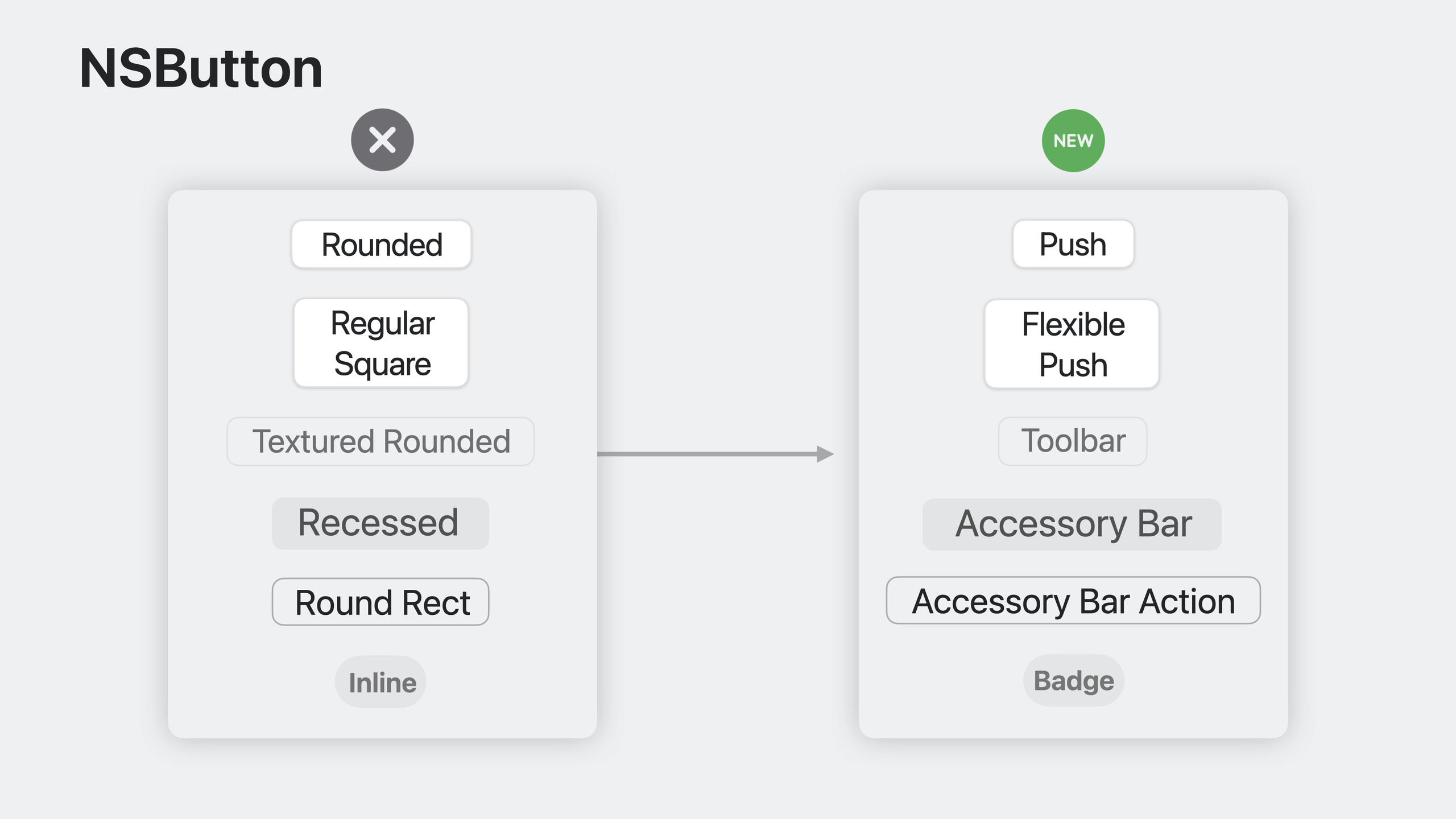
Button bezel styles got a modernization pass. The new .automatic style picks the most appropriate style based on context: push button in windows, toolbar style in toolbars. Old style names shifted from describing appearance to describing semantic purpose—“Recessed” became “Accessory Bar” for clearer intent.
Inspector panels: no more DIY
Right-side panels (inspectors) are a common Mac app pattern, but there was no standard implementation—every developer assembled their own with NSSplitView. Sonoma adds the inspectorWithViewController initializer, plus inspectorTrackingSeparator and .toggleInspector toolbar items—a standard inspector panel in minutes. Back deploys to macOS Big Sur.
Menu rewrite: performance plus new features
AppKit’s menu implementation was rewritten from the ground up, fully Cocoa-based. Memory and CPU usage dropped significantly. Four new features arrived:
- Section headers: create grouped titles with
sectionHeader(title:)in one line - Palette menus: horizontally arranged menu items, great for color pickers and similar
- Selection behaviors:
.selectAnyand.selectOnecontrol multi-select/single-select logic - Badges: menu items support string badges and count badges (new messages, reminders, updates)
Cooperative app activation
Previously, calling activate(ignoringOtherApps:) force-switched apps, interrupting user input. Sonoma uses request-based activation—the system decides whether the context is right for switching. The new yieldActivation API lets the currently active app voluntarily hand activation to the target app for a smoother transition. The old API is deprecated.
NSView no longer clips by default
NSView’s default clipsToBounds = true caused many drawing issues: text shadows clipped, badges cut off, complex glyphs extending past bounds. Sonoma changed the default to no clipping while hit testing still uses geometric bounds. Use the new clipsToBounds property (back deploys to 10.9) to control clipping as needed.
Symbol effects and HDR
SF Symbols now support animated effects: bounce, replace, pulse. addSymbolEffect adds animation to a symbol image in one line. NSImageView also supports HDR content display, automatically presenting high dynamic range on XDR screens.
Swift and SwiftUI integration
- Thread-safe classes like
NSColorandNSShadowconform toSendable NSImage,NSColor, andNSSoundconform toTransferablefor drag-and-drop and sharing in SwiftUI@ViewLoadingand@WindowLoadingproperty wrappers eliminate optionals- Xcode 15’s Preview macro supports AppKit view previews
- SwiftUI’s
toolbar,navigationTitle, and other modifiers now work on NSWindow
Detailed Content
Column customization menu
(01:36)
func tableView(_ tableView: NSTableView,
               userCanChangeVisibilityOf column: NSTableColumn) -> Bool {
    return column.identifier != "Name"
}
Key points:
userCanChangeVisibilityOfis a new NSTableViewDelegate method- Return
trueto let users hide that column - AppKit auto-generates the menu, handles localization, and saves/restores hidden state
Progress and NSProgressIndicator integration
(01:53)
func fetchData() {
    let url = URL(string: "https://developer.apple.com/wwdc23/")!
    let task = URLSession.shared.dataTask(with: .init(url: url))
    progressIndicator.observedProgress = task.progress

    task.resume()
}
Key points:
observedProgressis a new NSProgressIndicator property- After assignment, the progress bar follows the Progress object automatically
- Works from background threads—no manual main-thread dispatch needed
Adding an inspector panel
(03:48)
let inspectorItem = NSSplitViewItem(inspectorWithViewController: inspectorViewController)
splitViewController.addSplitViewItem(inspectorItem)

func toolbarDefaultItemIdentifiers(_ toolbar: NSToolbar) -> [NSToolbarItem.Identifier] {
    [.toggleSidebar, .sidebarTrackingSeparator, .flexibleSpace, .addPlant,
     .inspectorTrackingSeparator, .flexibleSpace, .toggleInspector]
}
Key points:
inspectorWithViewControllercreates a full-height right-side panel- Place
inspectorTrackingSeparatorbeforetoggleInspectorto align the button with the panel - Back deploys to macOS Big Sur
Toolbar popover
(04:38)
func toolbarAction(_ toolbarItem: NSToolbarItem) {
    let popover = NSPopover()
    popover.contentViewController = PopoverViewController()
    popover.show(relativeTo: toolbarItem)
}
Key points:
show(relativeTo:)anchors to a toolbar item- When the toolbar item is in the overflow menu, the popover anchors to the overflow button automatically
Symbol animation effects
(18:30)
wifiImageView.image = NSImage(systemSymbolName: "wifi", accessibilityDescription: "wifi icon")
wifiImageView.addSymbolEffect(.variableColor.iterative, options: .repeating)
Key points:
- Only works on symbol images
.variableColor.iterativeis a layer-by-layer color change effect.repeatingloops the animation
@ViewLoading eliminates optionals
(24:56)
class ViewController: NSViewController {
    @ViewLoading var datePicker: NSDatePicker
    var date = Date() {
        didSet {
            datePicker.dateValue = date
        }
    }

    override func loadView() {
        super.loadView()
        datePicker = NSDatePicker()
        datePicker.dateValue = date
        view.addSubview(datePicker)
    }
}
Key points:
@ViewLoadingensures the property is available afterloadViewIfNeeded- No need to declare the property as Optional
- No unwrapping or guard needed on access
AppKit view previews
(25:26)
#Preview("Tree Species") {
    let treeCellView = TreeCellView()
    treeCellView.species = .spruce
    return treeCellView
}
Key points:
- Xcode 15’s Preview macro supports NSView and NSViewController
- Preview updates automatically when you change code
- Named previews help identify them in the preview panel
Core Takeaways
-
Add column customization to tables
- What to build: Let Mac app tables support user-customizable visible columns
- Why it’s worth doing: Three lines of code for native menu, localization, and state restoration—zero-cost UX improvement
- How to start: Implement
tableView(_:userCanChangeVisibilityOf:)
-
Replace custom right panels with inspector panels
- What to build: Convert existing custom right panels to standard inspectors
- Why it’s worth doing: Full window height, standard toolbar toggle, automatic layout—less code
- How to start: Replace existing split view items with
NSSplitViewItem(inspectorWithViewController:)
-
Add symbol animations for state changes
- What to build: Play symbol animations on WiFi connect, Bluetooth pair, battery charge, and similar state changes
- Why it’s worth doing: Visual feedback instead of alert dialogs—a livelier interface
- How to start: Create a symbol image, call
addSymbolEffect(.bounce)or.variableColor
-
Speed up AppKit UI development with Preview macros
- What to build: Add Xcode Previews to custom NSView/NSViewController
- Why it’s worth doing: See UI without compile-and-run; faster layout iteration
- How to start: Add
#Preview { YourView() }at the top of your view file
-
Reuse AppKit Transferable types in SwiftUI
- What to build: Drag NSImage, NSColor in SwiftUI views
- Why it’s worth doing: AppKit types now conform to Transferable for SwiftUI Drag and Drop
- How to start: Use
.draggable(image)in SwiftUI where image is an NSImage
Related Sessions
- What’s new in SwiftUI — SwiftUI updates related to AppKit integration
- Animate symbols in your app — SF Symbols animation effects in depth
- Build programmatic UI with Xcode Previews — Previewing AppKit views with the Preview macro
- Support HDR images in your apps — NSImageView HDR support in depth
Comments
GitHub Issues · utterances