
Highlight
VisionKit in iOS 17 and macOS Sonoma adds two core capabilities—Subject Lifting and Visual Look Up. DataScannerViewController gains optical flow tracking and currency recognition. Native macOS apps can integrate Live Text, Subject Lifting, and Visual Look Up through ImageAnalysisOverlayView. Most features activate automatically for apps already using the image analysis APIs, with no code changes required.
Core Content
The problem: information in images is hard to use directly
When users see an image in your app, they may want to extract text, identify objects, or pull out a subject to share. The traditional approach requires developers to integrate complex computer vision models and handle edge cases across scenarios.
VisionKit introduced Live Text and DataScanner at WWDC22, giving these problems a system-level solution. WWDC23 extends that foundation with three capabilities:
- Subject Lifting: Long-press to extract a subject from an image, with sticker creation support
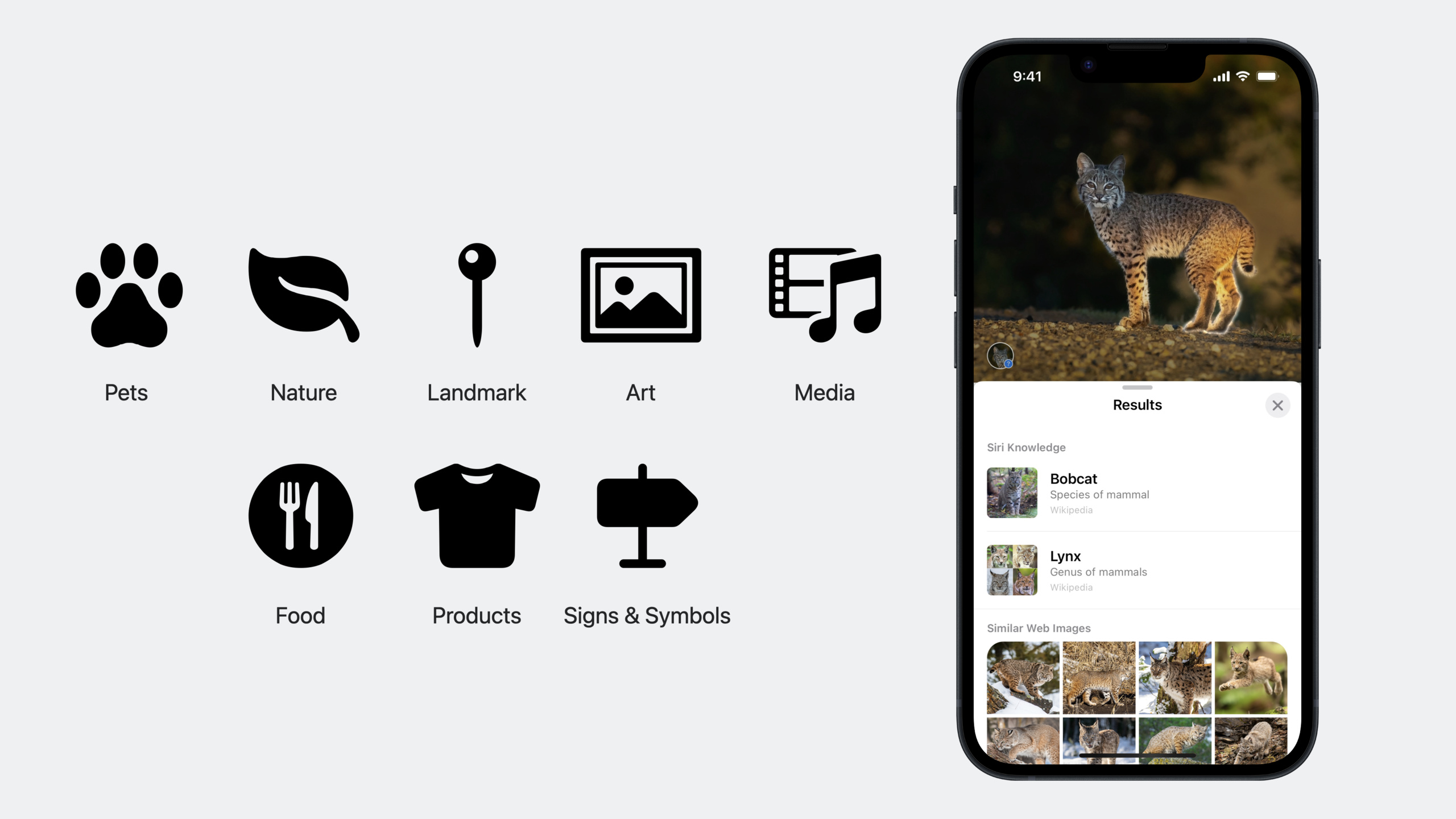
- Visual Look Up: Recognize pets, plants, landmarks, artwork, and more—now including food, products, and signs/symbols
- Native macOS support: Both Catalyst and native macOS apps can use VisionKit
Detailed Content
Subject Lifting works automatically (01:13)
If you already use VisionKit’s image analysis APIs, Subject Lifting is already enabled:
import VisionKit

let analyzer = ImageAnalyzer()
let interaction = ImageAnalysisInteraction()

// Analyze the image
let configuration = ImageAnalyzer.Configuration([
    .text,
    .machineReadableCodes
])

let analysis = try? await analyzer.analyze(image, configuration: configuration)
interaction.analysis = analysis
imageView.addInteraction(interaction)
Key points:
- No code changes needed—Subject Lifting activates automatically
- No special parameters required in the analysis configuration
- Subject Lifting analysis runs after the initial analysis completes, saving power
- On iOS, it triggers a few seconds after the image appears; on macOS, on first menu display
Controlling interaction types (02:38)
// Enable only Subject Lifting, without text selection
interaction.preferredInteractionTypes = .imageSegmentation

// Combine multiple interaction types
interaction.preferredInteractionTypes = [.imageSegmentation, .textSelection]

// Keep the iOS 16 automatic behavior (text + QR codes, without Subject Lifting)
interaction.preferredInteractionTypes = .automaticTextOnly

// Default: include all features
interaction.preferredInteractionTypes = .automatic
Key points:
.automaticincludes text selection, Subject Lifting, data detectors, and all features.imageSegmentationenables subject extraction only.automaticTextOnlypreserves iOS 16 behavior without Subject Lifting- Use an array to combine multiple types
Visual Look Up (03:23)
Visual Look Up recognizes these categories:
- Existing: pets, nature (plants/flowers), landmarks, artwork, media
- New in iOS 17: food, products, signs and symbols
Enable Visual Look Up by adding .visualLookUp to the analysis configuration:
let configuration = ImageAnalyzer.Configuration([
    .text,
    .visualLookUp
])

let analysis = try? await analyzer.analyze(image, configuration: configuration)
interaction.analysis = analysis
Key points:
- Visual Look Up processing happens in two phases
- Phase one is fully on-device: locate result bounding boxes, determine top-level categories (e.g., cat, book, plant), extract features
- Phase two runs only when the user requests it: send category and image embeddings to a server for detailed information
- Privacy: the device sends feature embeddings only, not the original image
Two Visual Look Up interaction modes (04:40)
Mode 1: Integrated with Subject Lifting
If a lifted subject has exactly one associated Visual Look Up result, the menu shows a “Look Up” option. VisionKit handles this interaction automatically.
Mode 2: Modal badge mode
// Set Visual Look Up as the preferred interaction type
interaction.preferredInteractionTypes = .visualLookUp
Key points:
- Badges mark each visual search result on the image
- Badges move to a corner when they scroll out of view
- Users tap a badge to view Look Up results
- This mode overrides other interaction types (text selection is not available simultaneously)
- Usually paired with a button to let users enter/exit this mode
DataScannerViewController enhancements (06:03)
Optical flow tracking: Makes text highlights in the live camera feed more stable.
let scanner = DataScannerViewController(
    recognizedDataTypes: [.text()],
    qualityLevel: .balanced,
    recognizesMultipleItems: true,
    isHighFrameRateTrackingEnabled: true  // Enabled by default
)
Key points:
- Optical flow tracking is enabled automatically—no extra code needed
- Available for text recognition only, not QR codes
- Requires not specifying a concrete text content type
highFrameRateTrackingis on by default
Currency recognition:
let scanner = DataScannerViewController(
    recognizedDataTypes: [
        .text(textContentType: .currency)
    ]
)

// Process recognition results
for await item in scanner.recognizedItems {
    if case .text(let text) = item {
        let transcript = text.transcript  // For example "$12.99"
        // transcript contains the currency symbol and amount
    }
}
Key points:
textContentType: .currencyenables currency recognition- Results include currency symbols and amount text
- Can be combined with the current locale to parse specific currency values
Live Text enhancements (08:27)
New language support: Thai and Vietnamese.
Table detection: Live Text now detects and extracts table structure from images.
// Copy after the user selects a table region
// When pasted into Numbers or Notes, the table structure is preserved automatically
// Including complex structures such as merged cells
Context-aware data detectors:
When users add a contact from an image, the system automatically extracts nearby related data detector information (phone numbers, addresses, etc.) and fills the contact card.
New text selection API (10:04)
// Get the selected plain text
let selectedText = interaction.selectedText

// Get the attributed text
let selectedAttributedText = interaction.selectedAttributedText

// Get the selected range
let selectedRange = interaction.selectedRange

// Listen for selection changes
func imageAnalysisInteraction(
    _ interaction: ImageAnalysisInteraction,
    didUpdateSelectionWithText selectedText: String?
) {
    // Update the UI, such as enabling or disabling custom menu items
}
Key points:
selectedTextreturns a plain text stringselectedAttributedTextreturns a formattedNSAttributedStringselectedRangereturns the range within the analyzed text- The new delegate method fires when the selection changes
Custom menus (10:31)
override func buildMenu(with builder: UIMenuBuilder) {
    super.buildMenu(with: builder)

    // Get the currently selected text
    guard let selectedText = interaction.selectedText,
          !selectedText.isEmpty else { return }

    // Create a custom command
    let createReminderAction = UIAction(title: "Create Reminder") { _ in
        // Create a reminder from the selected text
        self.createReminder(with: selectedText)
    }

    // Create the menu
    let reminderMenu = UIMenu(title: "", children: [createReminderAction])

    // Insert after the system menu
    builder.insertSibling(reminderMenu, afterMenu: .share)
}
Key points:
- Use the
UIMenuBuilderAPI to insert custom menu items - Create menus dynamically based on the current selected text
- Custom menus appear alongside system menus (Copy, Share, etc.)
macOS Catalyst support (11:08)
Catalyst apps get VisionKit support by simply recompiling:
- Supports Live Text, Subject Lifting, and Visual Look Up
- Does not support QR code scanning (
.machineReadableCodesis a no-op on Catalyst) - Keeping
.machineReadableCodesin the configuration is safe and won’t cause errors
Native macOS API: ImageAnalysisOverlayView (12:14)
Native macOS apps use ImageAnalysisOverlayView:
import VisionKit

// Analyze the image (same as iOS)
let analyzer = ImageAnalyzer()
let configuration = ImageAnalyzer.Configuration([.text, .visualLookUp])
let analysis = try? await analyzer.analyze(image, configuration: configuration)

// Create the overlay view
let overlayView = ImageAnalysisOverlayView()
overlayView.analysis = analysis

// Add it to the view hierarchy
imageView.addSubview(overlayView)

// If using NSImageView, set trackingImageView to compute contentsRect automatically
overlayView.trackingImageView = imageView

// If not using NSImageView, provide contentsRect manually
extension ViewController: ImageAnalysisOverlayViewDelegate {
    func contentsRect(for overlayView: ImageAnalysisOverlayView) -> CGRect {
        // Return the image content location in the overlayView coordinate space
        return imageContentRect
    }
}
Key points:
ImageAnalysisOverlayViewis anNSViewsubclass- Add it above the image content in the view hierarchy
- The
trackingImageViewproperty automatically computescontentsRect contentsRectuses a unit coordinate system (origin at top-left)
macOS context menu integration (15:13)
extension ViewController: ImageAnalysisOverlayViewDelegate {
    func overlayView(
        _ overlayView: ImageAnalysisOverlayView,
        updatedMenu menu: NSMenu,
        for event: NSEvent,
        at point: CGPoint
    ) -> NSMenu {

        // Get VisionKit menu items
        let copySubjectItem = menu.item(withTag: ImageAnalysisOverlayView.MenuItemTag.copySubject.rawValue)

        // Add them to your own menu
        let myMenu = NSMenu()
        myMenu.addItem(copySubjectItem!)

        // Or modify menu item titles
        copySubjectItem?.title = "Copy Photo"

        // Or insert custom items into the VisionKit menu
        let myItem = NSMenuItem(title: "My Custom Action", action: #selector(customAction), keyEquivalent: "")
        if let recommendedIndex = menu.indexOfItem(withTag: ImageAnalysisOverlayView.MenuItemTag.recommendedAppItems.rawValue) {
            menu.insertItem(myItem, at: recommendedIndex)
        }

        return menu
    }
}
Key points:
updatedMenu:forEvent:atPoint:lets you modify or replace the context menu- VisionKit menu items are identified by
MenuItemTag recommendedAppItemstag marks the recommended position for inserting custom items- Menu items are recreated each time, so it’s safe to modify their properties
- VisionKit automatically handles subject-lifting animation when the menu highlights
Core Takeaways
-
Add one-tap subject extraction and sharing to a photo app: If your app displays images, set
ImageAnalysisInteraction’spreferredInteractionTypesto.automaticso users can long-press to extract and share subjects. Why it’s worth doing: subject extraction is a signature iOS 17 feature; users already know this interaction. Supporting it makes your app feel consistent with the system Photos app. How to start: confirm you already have image analysis code, then changepreferredInteractionTypesfrom.automaticTextOnlyto.automatic. -
Integrate Visual Look Up into a shopping app: Enable Visual Look Up on product images so users can identify products and get more information. Why it’s worth doing: Visual Look Up supports product recognition, letting users learn product details directly from images and reducing search steps. How to start: add
.visualLookUptoImageAnalyzer.Configurationand setpreferredInteractionTypes = .visualLookUpwith a button to enter badge mode. -
Add receipt scanning to an expense app: Use DataScannerViewController’s currency recognition to automatically extract amounts from receipts and total them. Why it’s worth doing: manually entering receipt amounts is tedious and error-prone. DataScanner recognizes currency values in real time, and optical flow tracking keeps highlights stable. How to start: create a
DataScannerViewController, setrecognizedDataTypesto.text(textContentType: .currency), and accumulate amounts from therecognizedItemsstream. -
Add Live Text to a macOS image editor: Use
ImageAnalysisOverlayViewto let macOS apps select and copy text from images. Why it’s worth doing: macOS users expect right-click menu workflows; Live Text lets text in images be edited directly without OCR preprocessing. How to start: createImageAnalysisOverlayView, add it as a subview ofimageView, set thetrackingImageViewproperty, and implementoverlayView:updatedMenu:forEvent:atPoint:to customize the menu.
Related Sessions
- Lift subjects from images in your app — Underlying Vision framework implementation and advanced usage for Subject Lifting
- Discover machine learning enhancements in Create ML — Train custom image understanding models, complementary to VisionKit
- Detect animal poses in Vision — Vision animal pose detection, suitable for combining with VisionKit
Comments
GitHub Issues · utterances