
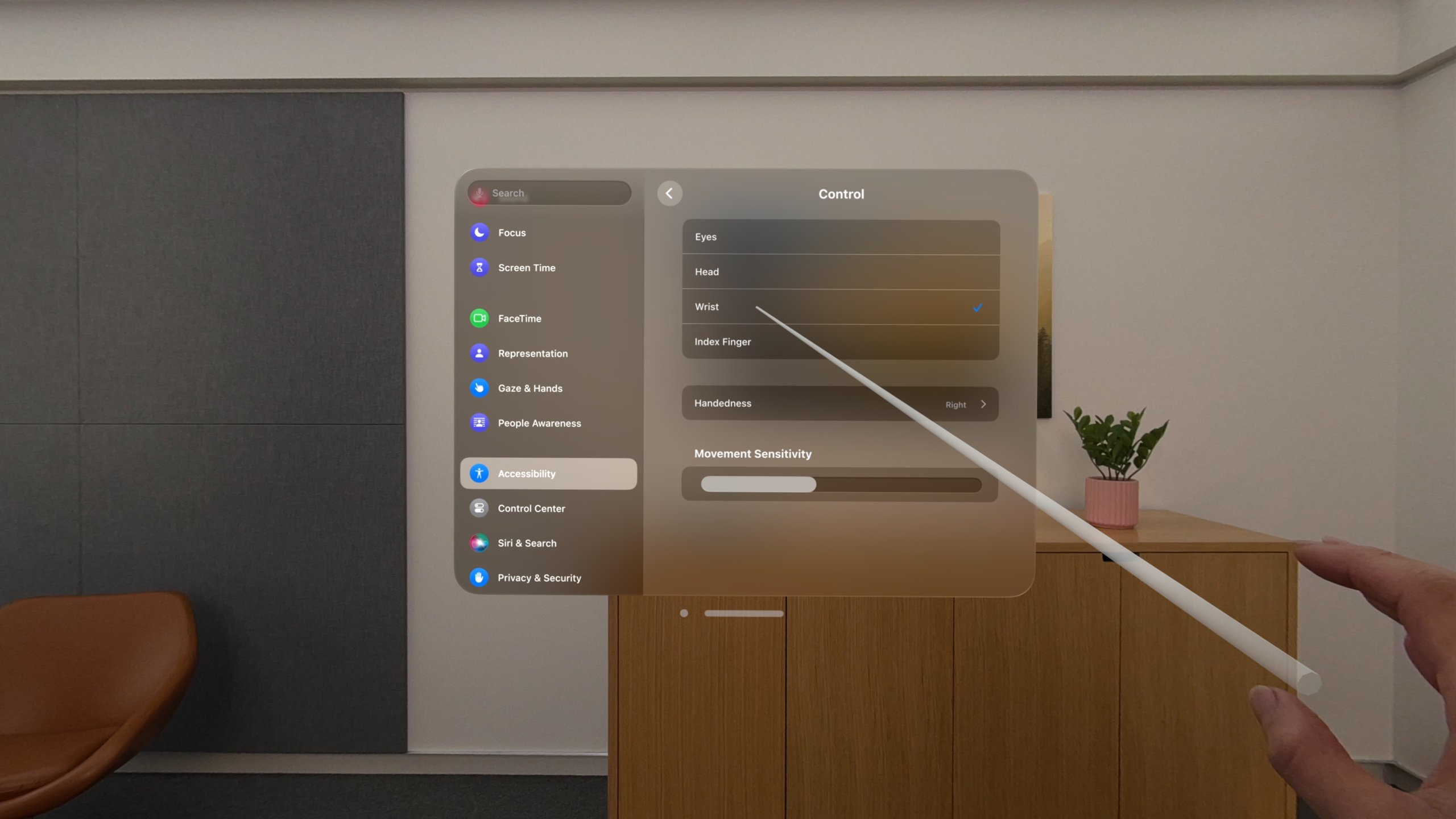
Highlight
visionOS brings a complete accessibility system to spatial computing: VoiceOver navigates 3D space through pinch gesture combinations, RealityKit’s AccessibilityComponent makes 3D entities recognizable to screen readers, Dwell Control lets users trigger interactions through gaze alone, and head anchor alternatives plus Reduce Motion support keep motion-sensitive users comfortable.
Core Content
The problem: accessibility in 3D space is uncharted territory
On traditional screens, VoiceOver traverses UI elements in one-dimensional order—top to bottom, left to right. Developers add accessibilityLabel to buttons and accessibilityDescription to images, and that is usually enough.
Spatial computing overturns all of this. On visionOS, UI elements are distributed in three-dimensional space. A button might be 2 meters ahead; another might be 45 degrees to your left, 3 meters away. VoiceOver cannot simply traverse “top to bottom”—it needs to understand spatial relationships.
Worse, objects in 3D scenes are not UIButton or UILabel—they are RealityKit entities made of 3D models, materials, and animations. These entities are completely invisible to VoiceOver. Without extra work, clouds, trees, and characters in a 3D scene are void for blind users.
Interaction has changed too. visionOS has no touch screen; interaction relies on eye gaze and finger pinch. This is a new challenge for users with motor disabilities: some cannot perform pinch gestures; others cannot steadily gaze at a point.
Apple’s approach: bring the accessibility system into 3D
visionOS redesigns the entire accessibility system at the platform level. VoiceOver is no longer screen-coordinate traversal but spatial-aware navigation—it uses spatial audio to indicate object direction so users can “hear” where objects are in space.
For 3D content, Apple introduces AccessibilityComponent—a RealityKit component that lets any entity be recognized by the accessibility system. You can set labels, values, traits, and even custom actions on entities. This follows the same design philosophy as UIKit/SwiftUI accessibility APIs, adapted for 3D scenes.
For motor accessibility, visionOS provides Dwell Control and Switch Control. The former lets users trigger actions by gazing at a target and holding for a duration—no finger pinch needed. The latter supports controlling the entire system through Bluetooth switch devices.
Detailed Content
Making RealityKit entities recognizable to VoiceOver
On visionOS, a RealityKit entity is invisible to the accessibility system by default. You must explicitly create AccessibilityComponent and attach it to the entity (05:28):
var accessibilityComponent = AccessibilityComponent()
accessibilityComponent.isAccessibilityElement = true
accessibilityComponent.traits = [.button, .playsSound]
accessibilityComponent.label = "Cloud"
accessibilityComponent.value = "Grumpy"
cloud.components[AccessibilityComponent.self] = accessibilityComponent

// ...

var isHappy: Bool {
    didSet {
        cloudEntities[id].accessibilityValue = isHappy ? "Happy" : "Grumpy"
    }
}
Key points:
AccessibilityComponent()creates an accessibility component instance describing a RealityKit entity’s accessibility propertiesisAccessibilityElement = truelets VoiceOver discover this entitytraitsset to.buttonand.playsSoundtells VoiceOver this entity is a button that plays sound; users hearing “button” know they can activate itlabelis what VoiceOver speaks;valueis the entity’s current statecloud.components[AccessibilityComponent.self] = accessibilityComponentattaches the component to the RealityKit entity- On state change, update
accessibilityValueindidSet; VoiceOver automatically announces state changes
Adding activation actions for RealityKit entities
Letting VoiceOver read entities is not enough—users need to interact with them. systemActions lets VoiceOver users activate 3D objects through gestures (08:04):
var accessibilityComponent = AccessibilityComponent()
accessibilityComponent.isAccessibilityElement = true
accessibilityComponent.traits = [.button, .playsSound]
accessibilityComponent.label = "Cloud"
accessibilityComponent.value = "Grumpy"
accessibilityComponent.systemActions = [.activate]
cloud.components[AccessibilityComponent.self] = accessibilityComponent

// ...

content.subscribe(to: AccessibilityEvents.Activate.self, componentType: nil) { activation in
    handleCloudCollision(for: activation.entity, gameModel: gameModel)
}
Key points:
systemActions = [.activate]registers the activate action; VoiceOver users can trigger it with a pinch gesturecontent.subscribe(to: AccessibilityEvents.Activate.self, ...)listens for accessibility activation events- The callback receives
activation; get the activated entity fromactivation.entity handleCloudCollisionis a custom handler—for example making the cloud play a sound or change expressioncomponentType: nillistens for activation events on all entity types without filtering
Announcing important events in context
In spatial apps, scene changes may happen outside the user’s field of view. An object might appear from behind, or something important might happen in the distance. You need to proactively notify VoiceOver users (09:23):
AccessibilityNotification.Announcement("8 clouds in front of you").post()Key points:
AccessibilityNotification.Announcementcreates an accessibility announcement notification.post()sends the notification to the system; VoiceOver speaks the text in parentheses- Use this API when important changes happen that the user might not see—game scores, new enemies, countdown timers
- Announcements should be concise and information-dense, directly describing “what” and “where”
Providing alternatives for head-anchored content
In spatial apps, UI elements can be head-anchored—always following the user’s gaze. This can cause discomfort for some users, such as those prone to motion sickness or with vestibular disorders. visionOS provides APIs to detect user preferences (13:15):
// SwiftUI
@Environment(\.accessibilityPrefersHeadAnchorAlternative)
private var accessibilityPrefersHeadAnchorAlternative

// UIKit
AXPrefersHeadAnchorAlternative()
NSNotification.Name.AXPrefersHeadAnchorAlternativeDidChange
Key points:
- In SwiftUI, read
accessibilityPrefersHeadAnchorAlternativevia@Environment; the boolean indicates whether the user needs a head-anchor alternative - In UIKit, call
AXPrefersHeadAnchorAlternative()to get the current preference AXPrefersHeadAnchorAlternativeDidChangelets UIKit developers listen for preference changes- When
true, change head-anchored UI to world-anchored (fixed in space) or place it in a window - This preference is managed system-wide in Accessibility settings; the app does not need its own toggle
Adapting to Reduce Motion settings
visionOS also supports Reduce Motion. For apps with heavy animation, particle effects, or spatial movement, checking this setting avoids discomfort for sensitive users (15:04):
// SwiftUI
@Environment(\.accessibilityReduceMotion)
private var accessibilityReduceMotion

// UIKit
UIAccessibility.isReduceMotionEnabled
UIAccessibility.reduceMotionStatusDidChangeNotification
Key points:
accessibilityReduceMotionreflects the system Reduce Motion setting- When enabled, reduce or disable: large object animations, particle systems, parallax scrolling, dramatic camera movement
isReduceMotionEnabledis a read-only UIKit property; check at launch and when settings changereduceMotionStatusDidChangeNotificationlets apps respond to setting changes in real time- Common adaptation: replace spring animations with simple fades; remove 3D rotation effects
Checking caption preferences
Hearing accessibility matters in spatial computing too. visionOS supports system-level Closed Captioning settings; apps should check this preference to decide whether to show captions (23:35):
UIAccessibility.isClosedCaptioningEnabled
UIAccessibility.closedCaptioningStatusDidChangeNotification
Key points:
isClosedCaptioningEnabledreturns whether the user enabled closed captions in system settings- For apps with audio content (dialogue, narration, sound cues), show text captions based on this value
closedCaptioningStatusDidChangeNotificationlets apps update in real time when the user toggles settings- Captions help deaf users and also users in noisy environments or silent mode
Core Takeaways
-
Add full VoiceOver support to RealityKit games: If your visionOS app has 3D interactive objects, attach
AccessibilityComponentto each interactive entity with.label,.value,.traits, and.systemActions. Why it’s worth doing: visionOS has no touch screen—VoiceOver is the only interaction method for blind users. Without accessibility support, these users cannot use your app at all. How to start: find all interactive RealityKit entities in your app, configure each using theAccessibilityComponentsnippet above, then test with VoiceOver in the simulator. -
Implement spatial-aware event announcements: Use
AccessibilityNotification.Announcementto proactively notify users at key scene changes—e.g. “3 enemies behind you” or “Door opened on your right.” Why it’s worth doing: many events in spatial apps happen outside the user’s field of view. Blind users need extra auditory cues to perceive these changes. How to start: list all events that “happen but the user might not see,” add.post()at trigger points, and ensure announcement text includes directional information. -
Detect and adapt to Head Anchor preferences: Read
accessibilityPrefersHeadAnchorAlternativeat launch; whentrue, change head-following HUD, menus, and prompts to world-anchored or in-window display. Why it’s worth doing: head-anchored content continuously occupies the edge of vision, which can cause discomfort for vestibular-sensitive users. Alternatives significantly lower the barrier to use. How to start: audit all head-anchored UI in your app, prepare a non-head-anchored fallback layout for each, and switch via the@Environmentvalue. -
Build Reduce Motion adaptations for motion effects: Read
accessibilityReduceMotion; whentrue, replace all large animations with simple transitions. Why it’s worth doing: visionOS spatial animation is more intense than flat screens—objects move, rotate, and scale in 3D. For motion-sensitive users, these effects can make the app unusable. How to start: create two versions of major animations—full and simplified—select via environment variable, and dynamically switch whenreduceMotionStatusDidChangeNotificationfires. -
Add caption support for all audio content: Check
isClosedCaptioningEnabledand show text descriptions when captions are enabled. Why it’s worth doing: visionOS spatial audio is immersive, but deaf users cannot access the information. Captions are key to equal information access. How to start: prepare text descriptions for dialogue, narration, and key sound effects; check caption preference when playing audio.
Related Sessions
- Perform accessibility audits for your app — use XCTest to automatically check accessibility compliance; pair with this article’s APIs to verify implementation
- Build accessible apps with SwiftUI and UIKit — new SwiftUI and UIKit accessibility features sharing the same design philosophy as visionOS APIs
- Meet Assistive Access — Assistive Access mode for cognitive disability users; visionOS supports it too
- Design for spatial input — designing interactions for eyes and hands; understanding spatial input helps with accessibility adaptation
- Build spatial experiences with RealityKit — RealityKit primer; AccessibilityComponent in this article builds on the RealityKit entity system
Comments
GitHub Issues · utterances