
Highlight
watchOS 10 brings WidgetKit to the Smart Stack on Apple Watch. Developers can replace the old IntentConfiguration with AppIntentConfiguration, use relevance scores in TimelineEntry and RelevantIntentManager so the system shows widgets at the right moment, and support two watchOS-specific sizes: rectangular and inline accessory.
Core Content
The problem: watchOS apps did not surface information quickly enough
Before watchOS 10, options for real-time information on Apple Watch were limited. Complications can show data, but they are small and interaction is constrained. Users had to open apps for details—awkward in the few seconds after raising their wrist.
Widgets on iOS proved that “a glance is enough”—but watchOS had no equivalent.
Apple’s approach: Smart Stack + WidgetKit
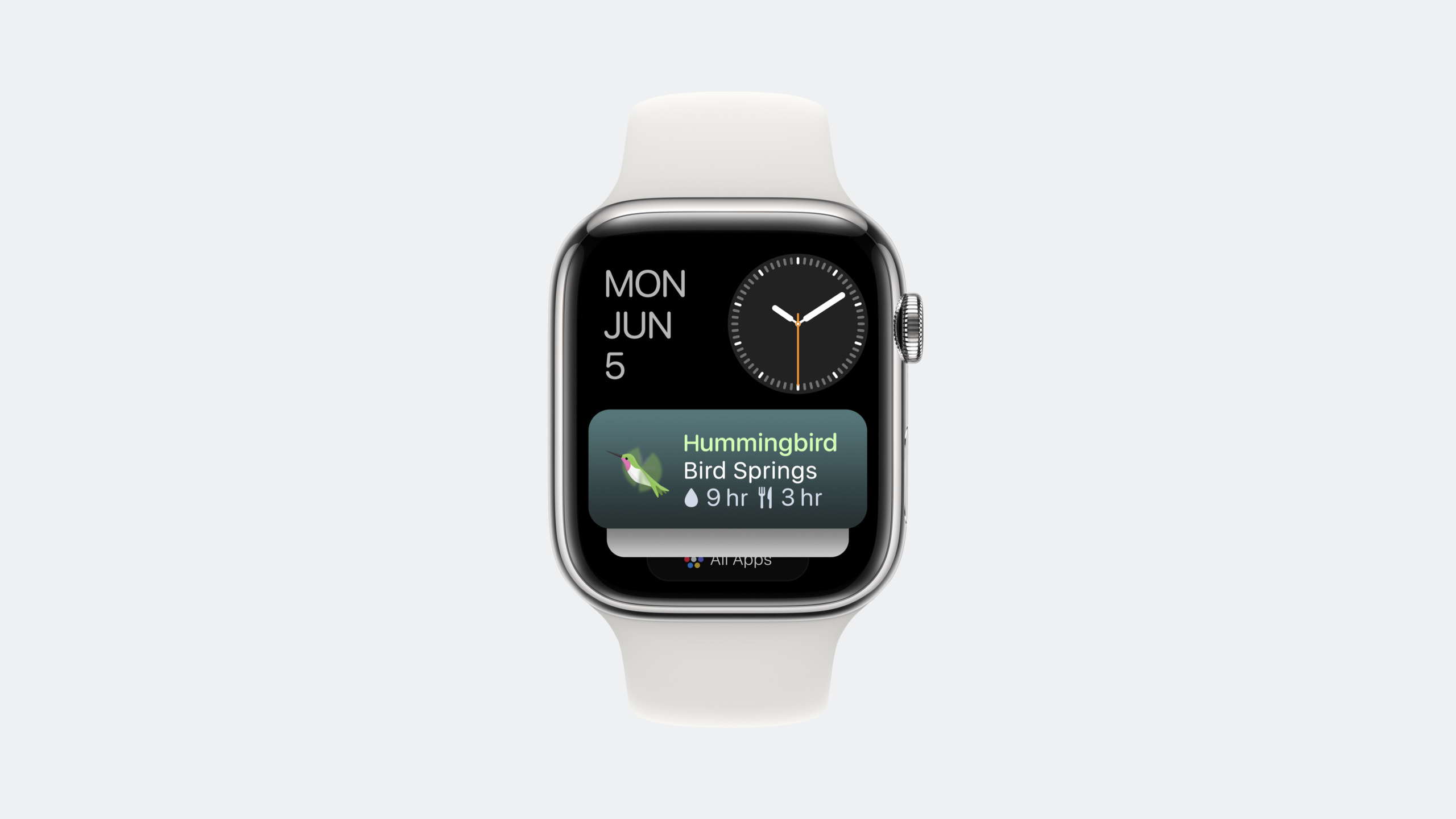
watchOS 10 introduced the Smart Stack. Turn the Digital Crown or swipe up from the watch face and the Smart Stack appears. It arranges widgets automatically by timeline and relevance—users do not pick manually.
The key change: WidgetKit now supports watchOS. You build widgets with nearly the same APIs as on iOS, plus two watch-specific sizes—accessoryRectangular and accessoryInline.
More importantly, the system chooses which widget to show based on “relevance.” Developers supply: TimelineEntry relevance scores, future events registered with RelevantIntentManager, and preconfigured options from recommendations().
The full widget build flow
The session uses the Backyard Birds app to build a Smart Stack widget from scratch. It shows backyard bird visits and remaining water and food time.
The flow has five steps:
- Define ConfigurationIntent (using AppIntentConfiguration)
- Create TimelineEntry (with relevance property)
- Implement TimelineProvider (placeholder / snapshot / timeline / recommendations)
- Build SwiftUI views (layout per widgetFamily)
- Set up relevance management (RelevantIntentManager + WidgetCenter)
Detailed Content
Configuration type: from IntentConfiguration to AppIntentConfiguration
watchOS 10 widgets use the new AppIntentConfiguration instead of the old IntentConfiguration. The configuration intent follows WidgetConfigurationIntent, defining parameters in code without a separate Intent Definition File (04:15).
TimelineEntry: more than time and data
TimelineEntry is the core of the widget data model. Besides display data, it tells the system how important each entry is (04:15):
struct SimpleEntry: TimelineEntry {
    var date: Date
    var configuration: ConfigurationAppIntent
    var backyard: Backyard

    var bird: Bird? {
        return backyard.visitorEventForDate(date: date)?.bird
    }

    var waterDuration: Duration {
        return Duration.seconds(abs(self.date.distance(to: self.backyard.waterRefillDate)))
    }

    var foodDuration: Duration {
        return Duration.seconds(abs(self.date.distance(to: self.backyard.foodRefillDate)))
    }

    var relevance: TimelineEntryRelevance? {
        if let visitor = backyard.visitorEventForDate(date: date) {
            return TimelineEntryRelevance(score: 10, duration: visitor.endDate.timeIntervalSince(date))
        }
        return TimelineEntryRelevance(score: 0)
    }
}
Key points:
TimelineEntrymust include adateproperty—the basis for when the system shows the entrybirdis a computed property that looks up whether a bird visited at the current datewaterDurationandfoodDurationcompute time until the next refillrelevanceis critical—score 10 with duration covering the visit when a bird is present; score 0 when none
TimelineProvider: four required methods
The widget data flow is controlled by TimelineProvider, which implements four methods: placeholder, snapshot, timeline, and recommendations.
placeholder — loading state (07:50):
func placeholder(in context: Context) -> SimpleEntry {
    return SimpleEntry(date: Date(), configuration: ConfigurationAppIntent(), backyard: Backyard.anyBackyard(modelContext: modelContext))
}
Key points:
- placeholder shows when the widget first loads and data is not ready
- Must return synchronously—no network or heavy work
- Uses
anyBackyardfor sample data
snapshot — preview (08:15):
func snapshot(for configuration: ConfigurationAppIntent, in context: Context) async -> SimpleEntry {
    if let backyard = Backyard.backyardForID(modelContext: modelContext, backyardID: configuration.backyardID) {
        if let event = backyard.visitorEvents.first {
            return SimpleEntry(date: event.startDate, configuration: configuration, backyard: backyard)
        } else {
            return SimpleEntry(date: Date(), configuration: configuration, backyard: backyard)
        }
    }

    let yard = Backyard.anyBackyard(modelContext: modelContext)
    return SimpleEntry(date: Date(), configuration: ConfigurationAppIntent(), backyard: yard)
}
Key points:
- snapshot is for Widget Gallery preview and can return asynchronously
- Prefers the user’s selected backyard
- If there is a visit event, uses the first event’s start date as the entry date
- Falls back to any backyard if none is selected
timeline — timeline generation (16:30):
func timeline(for configuration: ConfigurationAppIntent, in context: Context) async -> Timeline<SimpleEntry> {
    var entries: [SimpleEntry] = []

    if let backyard = Backyard.backyardForID(modelContext: modelContext, backyardID: configuration.backyardID) {
        for event in backyard.visitorEvents {
            let entry = SimpleEntry(date: event.startDate, configuration: configuration, backyard: backyard)
            entries.append(entry)
            let afterEntry = SimpleEntry(date: event.endDate, configuration: configuration, backyard: backyard)
            entries.append(afterEntry)
        }
    }
    return Timeline(entries: entries, policy: .atEnd)
}
Key points:
- timeline is the core method, producing a time-ordered set of entries
- Each visit creates two entries: one at
startDate(bird present) and one atendDate(bird left) - Different relevance scores let the system decide whether to show the widget
policy: .atEndmeans after the timeline ends, the system calls this method again at the last entry’s time
recommendations — suggested configurations (18:35):
func recommendations() -> [AppIntentRecommendation<ConfigurationAppIntent>] {
    var recs = [AppIntentRecommendation<ConfigurationAppIntent>]()

    for backyard in Backyard.allBackyards(modelContext: modelContext) {
        let configIntent = ConfigurationAppIntent()
        configIntent.backyardID = backyard.id.uuidString
        let gardenRecommendation = AppIntentRecommendation(intent: configIntent, description: backyard.name)
        recs.append(gardenRecommendation)
    }

    return recs
}
Key points:
- recommendations let users pick preconfigured options when adding a widget
- Each backyard gets one recommendation so users do not set parameters manually
- description appears in the widget picker
SwiftUI views: layout per widgetFamily
The widget view switches layout based on the widgetFamily environment variable (10:26):
struct BackyardBirdsWidgetEntryView: View {
    @Environment(\.widgetFamily) private var family
    var entry: SimpleEntry

    var body: some View {
        switch family {
        case .accessoryRectangular:
            RectangularBackyardView(entry: entry)
        default:
            Text(entry.date, style: .time)
        }
    }
}
Key points:
widgetFamilyis an environment value; on watchOS it can beaccessoryRectangular,accessoryInline,accessoryCircular, oraccessoryCorner- Switch to different subviews per family
accessoryRectangularis most common on watch—it has enough space for multiple lines
Full rectangular view implementation (11:23):
struct RectangularBackyardView: View {
    var entry: SimpleEntry

    var body: some View {
        HStack {
            if let bird = entry.bird {
                ComposedBird(bird: bird)
                    .scaledToFit()
                    .widgetAccentable()
                    .frame(width: 50, height: 50)
                VStack(alignment: .leading) {
                    Text(bird.speciesName)
                        .font(.headline)
                        .foregroundStyle(bird.colors.wing.color)
                        .widgetAccentable()
                        .minimumScaleFactor(0.75)
                    Text(entry.backyard.name)
                        .minimumScaleFactor(0.75)
                    HStack {
                        Image(systemName: "drop.fill")
                        Text(entry.waterDuration, format: remainingHoursFormatter)
                        Image(systemName: "fork.knife")
                        Text(entry.foodDuration, format: remainingHoursFormatter)
                    }
                    .imageScale(.small)
                    .minimumScaleFactor(0.75)
                    .foregroundStyle(.secondary)
                }
                .frame(maxWidth: .infinity, alignment: .leading)
            } else {
                Image(.fountainFill)
                    .foregroundStyle(entry.backyard.backgroundColor)
                    .imageScale(.large)
                    .scaledToFit()
                    .widgetAccentable()
                    .frame(width: 50, height: 50)
                VStack(alignment: .leading) {
                    Text(entry.backyard.name)
                        .font(.headline)
                        .foregroundStyle(entry.backyard.backgroundColor)
                        .widgetAccentable()
                        .minimumScaleFactor(0.75)
                    HStack {
                        Image(systemName: "drop.fill")
                        Text(entry.waterDuration, format: remainingHoursFormatter)
                        Image(systemName: "fork.knife")
                        Text(entry.foodDuration, format: remainingHoursFormatter)
                    }
                    .imageScale(.small)
                    .minimumScaleFactor(0.75)
                    Text("\(entry.backyard.historicalEvents.count) visitors")
                        .minimumScaleFactor(0.75)
                        .foregroundStyle(.secondary)
                }
                .frame(maxWidth: .infinity, alignment: .leading)
            }
        }
        .containerBackground(entry.backyard.backgroundColor.gradient, for: .widget)
    }
}
Key points:
- Two states: bird visit shows image and species name; no bird shows fountain icon
.widgetAccentable()marks elements the system can tint with the theme color.minimumScaleFactor(0.75)shrinks text in tight space without truncation.containerBackground(for: .widget)sets the widget background; the system adapts light/dark mode- Water (drop.fill) and food (fork.knife) SF Symbols show remaining time
Relevance management: show widgets at the right time
The Smart Stack’s core ability is picking the most relevant widget. Developers help the system in two ways.
Step one: provide relevance in TimelineEntry (shown above). Score 10 when there is an event, 0 otherwise. The system compares scores across widgets and prioritizes higher ones.
Step two: register future events with RelevantIntentManager (20:47):
func updateBackyardRelevantIntents() async {
    let modelContext = ModelContext(DataGeneration.container)
    var relevantIntents = [RelevantIntent]()

    for backyard in Backyard.allBackyards(modelContext: modelContext) {

        let configIntent = ConfigurationAppIntent()
        configIntent.backyardID = backyard.id.uuidString
        let relevantFoodDateContext = RelevantContext.date(from: backyard.lowSuppliesDate(for: .food), to: backyard.expectedEmptyDate(for: .food))
        let relevantFoodIntent = RelevantIntent(configIntent, widgetKind: "BackyardVisitorsWidget", relevance: relevantFoodDateContext)
        relevantIntents.append(relevantFoodIntent)

        let relevantWaterDateContext = RelevantContext.date(from: backyard.lowSuppliesDate(for: .water), to: backyard.expectedEmptyDate(for: .water))
        let relevantWaterIntent = RelevantIntent(configIntent, widgetKind: "BackyardVisitorsWidget", relevance: relevantWaterDateContext)
        relevantIntents.append(relevantWaterIntent)
    }

    do {
        try await RelevantIntentManager.shared.updateRelevantIntents(relevantIntents)
    } catch { }
}
Key points:
RelevantIntenthas three parts: configuration intent, widget kind, and relevance contextRelevantContext.date(from:to:)defines a time window when the widget is more relevant- Separate intents for food and water because users need reminders when supplies run low
widgetKindmust match the kind string in the widget definition
Step three: reload timelines after data changes (23:00):
Task {
    await updateBackyardRelevantIntents()
    WidgetCenter.shared.reloadTimelines(ofKind: "BackyardVisitorsWidget")
}
Key points:
- Call this when app data changes (e.g., user adds supplies)
- Update relevant intent registration first, then refresh the timeline
reloadTimelines(ofKind:)triggers the timeline provider to regenerate entries
Core Takeaways
Ideas you can build right away:
-
Commute countdown widget: Show the next bus or train arrival. Store each arrival in
TimelineEntry, set highrelevancescore near departure so the system surfaces it when you leave. Entry API: generate schedule entries inTimelineProvider.timeline(for:in:). -
Medication reminder widget: Raise widget relevance during medication windows from the user’s schedule. Register the next 24 hours with
RelevantIntentManager. When the user raises their wrist, Smart Stack shows the next dose. Entry API:RelevantIntentManager.shared.updateRelevantIntents(_:). -
Delivery tracking widget: Use
accessoryRectangularfor status, ETA, and rider distance. In the last 10 minutes,TimelineEntryRelevance(score: 10)pushes the widget to the top of Smart Stack. Entry API:TimelineEntryRelevancewith.atEndrefresh policy. -
Activity progress widget: Show today’s Activity Rings completion percentage; update the timeline every 25%. Use
.containerBackground(for: .widget)so the background shifts from red to green with progress. Entry API: HealthKit data source + periodicTimelineProviderrefresh. -
Meeting room status widget: Integrate calendar API to show whether a room is free and when the next meeting starts.
accessoryRectangularfor title and time;accessoryCircularfor a countdown ring. Entry API:WidgetCenter.shared.reloadTimelines(ofKind:)when calendar events change.
Related Sessions
- Bring widgets to new places — the widget ecosystem is expanding: discover how you can use the latest widgetkit apis to make your widget look great everywhere. we’ll show you how to identify your widget’s background, adjust layout dynamically, and prepare colors for vibrant rendering so that your widget can sit seamlessly in any environment.
- Bring widgets to life — learn how to make animated and interactive widgets for your apps and games. we’ll show you how to tweak animations for entry transitions and add interactivity using swiftui button and toggle so that you can create powerful moments right from the home screen and lock screen.
- Update your app for watchOS 10 — join us as we update an apple watch app to take advantage of the latest features in watchos 10. in this code-along, we’ll show you how to use the latest swiftui apis to maximize glanceability and reorient app navigation around the digital crown.
- Explore SwiftUI animation — explore swiftui’s powerful animation capabilities and find out how these features work together to produce impressive visual effects. learn how swiftui refreshes the rendering of a view, determines what to animate, interpolates values over time, and propagates context for the current transaction.
Comments
GitHub Issues · utterances