
Highlight
At WWDC23, Apple introduced the Push Notifications Console—a web-based tool for debugging push notifications. Developers can send test pushes to devices directly in the browser, inspect the full delivery chain for each notification, and generate and validate APNs authentication tokens, without standing up a backend or repeatedly changing server code just to test a single push.
Core Content
The pain of push testing
Debugging push notifications has always been tedious. The typical flow goes like this: change the payload, commit server code, deploy, trigger a send, wait a few seconds, pick up your phone to see if anything arrived. If nothing shows up, dig through logs, tweak the payload, deploy again. A simple payload format change can easily eat up ten or fifteen minutes.
Another approach is to call the APNs HTTP/2 API directly with a command-line tool like curl. That means sorting out authentication first—either generating a JWT token (and computing the signature yourself) or preparing a certificate (exporting a .p12 from Keychain and converting it to .pem). Every time the token expires, you generate a new one.
The core problem with both approaches is this: push testing is coupled to server code, and the feedback loop is too long.
What Push Notifications Console is
Push Notifications Console is a web tool Apple introduced in 2023, under the Push Notifications section at icloud.developer.apple.com. It splits push testing into three independent capabilities:
- Send test notifications—fill in a device token and payload in the web UI, then send
- Delivery Log—see every event triggered as a notification moves through APNs
- Token tools—generate and validate authentication tokens, and check device token validity
Each capability stands on its own, but together they cover the full push debugging workflow.
Detailed Content
Send test notifications (00:30)
The Console provides a web form for sending push notifications. You fill in these fields:
- Device Token: the target device’s push token, as a hexadecimal string
- Payload: notification content in JSON, including the
apsdictionary and custom data - Environment: Development or Production
- Push Type: alert, background, voip, complication, fileprovider, mdm, and others
- Expiration: how long APNs should keep the notification
- Priority: 10 (send immediately) or 5 (power-efficient delivery)
A typical test payload looks like this:
{
  "aps": {
    "alert": {
      "title": "New Message",
      "body": "You have a new message from Zhang San"
    },
    "badge": 1,
    "sound": "default"
  },
  "custom_key": "custom_value"
}
After sending, the sidebar keeps a send history. You can click any past entry, change parameters, and resend. That is especially useful when you need to iterate on payload shape.
Key points:
- Get the device token from the Xcode console or from the
didRegisterForRemoteNotificationsWithDeviceTokencallback in your app - The environment (Development/Production) must match your app’s signing configuration, or the notification will not arrive
- Send history is stored locally in the browser and does not sync across devices
Delivery Log (02:00)
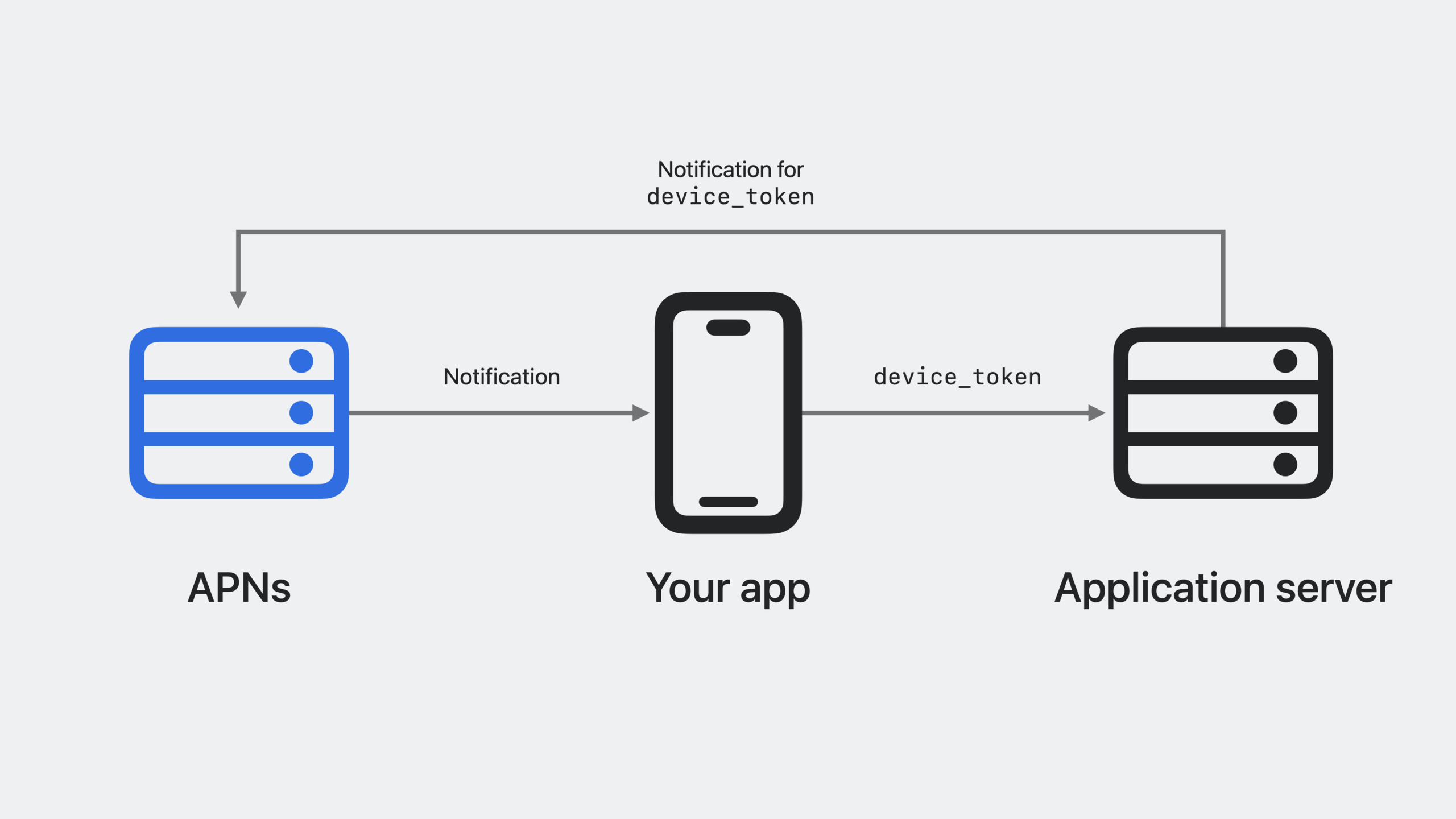
This is the Console’s most practical feature. After each send through APNs, APNs returns an apns-unique-id response header. Paste that ID into the Delivery Log search box and you can see the full event chain for that notification through APNs.
The chain usually includes these nodes:
- Received: APNs received the notification request
- Stored: the notification was queued (device offline or in Low Power Mode)
- Sent: the notification was sent to the device
- Delivered: the notification was delivered to the device
- Discarded: the notification was dropped (expired or replaced by a newer one)
- Error: delivery failed, with a reason attached
Each event includes an explanation of why it happened. For example, when the device is in Low Power Mode, the notification is marked Stored with a reason. When the device comes back, the notification moves to Sent.
This works for notifications sent through the Console and for anything sent via the APNs API—as long as your server code recorded the apns-unique-id.
Key points:
apns-unique-idis the unique identifier APNs returns; your server should log it- Delivery log retention is limited, so check results promptly
- The event chain helps separate “the notification never reached APNs” from “APNs sent it but the device did not receive it”
Token tools (04:30)
The Console provides three token-related tools.
Authentication token generator: enter your APNs private key (.p8 file contents), Key ID, and Team ID, and it generates a JWT authentication token. The private key is processed only in the browser and is not uploaded to Apple servers.
Generating a JWT involves:
- Build the header:
{"alg": "ES256", "kid": "yourKeyID"} - Build the payload:
{"iss": "TeamID", "iat": currentTimestamp} - Sign header + payload with ES256
- Output format:
base64(header).base64(payload).base64(signature)
The Console wraps this in a form—fill in three fields, click Generate, and the token appears.
Authentication token validator: paste an existing JWT and check whether it is valid. If not, you get a specific reason, such as “issued too long ago” or “signature mismatch”.
Device Token validator: check whether a device token is valid and whether it belongs to the Development or Production environment.
Key points:
- JWT tokens for token-based authentication are valid for up to one hour; your server needs a rotation strategy
- The private key (.p8) can only be downloaded once from your Apple Developer account—store it securely
- Device tokens can change after system updates or app reinstalls; your server should handle
410(Unregistered) responses
Core Takeaways
1. Add push end-to-end tests to CI
What to do: add an end-to-end push notification test step to your CI/CD pipeline.
Why it’s worth doing: with apns-unique-id, you can send a notification in automated tests, record the ID, and verify delivery in the Delivery Log. That is far more reliable than checking HTTP status codes alone.
How to start: send a test notification from your test script via the APNs API, save the returned apns-unique-id, and at the end of the test case look up that ID in the Delivery Log to confirm the status is Delivered.
2. Build a push payload template manager
What to do: maintain an internal library of push payload templates for your team, and use the Console to switch and test templates quickly.
Why it’s worth doing: the Console saves and copies send history, but you can do better at the team level—organize alert, background, voip, and other scenario templates so new teammates can copy a template and go.
How to start: from the notification types your app actually uses, assemble 5–10 standard payload templates. Label each with the push type, priority, and expiration time it is meant for.
3. Build a monitoring dashboard for operational pushes
What to do: build a real-time dashboard that tracks delivery success rates for operational pushes.
Why it’s worth doing: apns-unique-id makes every push traceable. You can connect server logs to the Delivery Log and monitor arrival rate, latency, and failure reasons.
How to start: record apns-unique-id and the corresponding message ID in your push sending service. Periodically (for example hourly), run a script to batch-check delivery status and compute success rates.
4. Prototype push A/B tests with the Console
What to do: before building a full A/B testing system, use the Console to quickly validate different payload variants.
Why it’s worth doing: send history makes resending variants easy. You can manually send several payload versions to the same device, observe how they render, and settle on the best format before writing code.
How to start: design 3–4 alert copy variants (length, tone, action text), send each from the Console to the same device, and screenshot the results for comparison.
Related Sessions
- What’s new in managing Apple devices — learn about the latest management capabilities for iOS, iPadOS, and macOS, including automated device enrollment and return-to-service.
- Explore testing in-app purchases — learn how you can test in-app purchases throughout development with StoreKit testing in Xcode.
- What’s new in Xcode 15 — discover the latest productivity and debugging improvements in Xcode 15.
- What’s new in App Store Connect — discover the latest updates to App Store Connect.
Comments
GitHub Issues · utterances