
Highlight
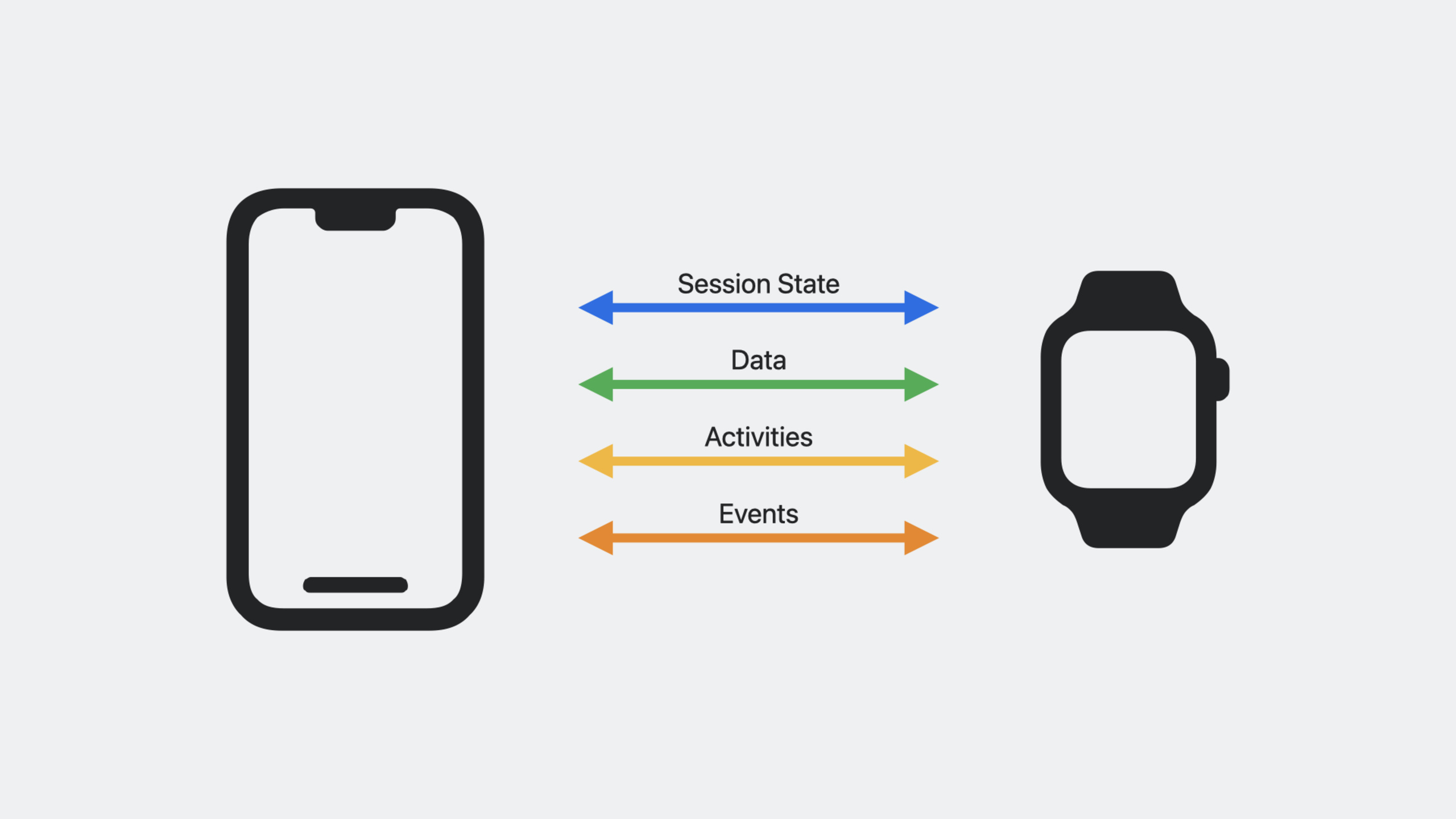
In iOS 17, watchOS 10, and iPadOS 17, HealthKit adds three core capabilities: real-time mirrored workout sessions between Apple Watch and iPhone, cycling-specific data types (cadence, power, speed, FTP), and HealthKit on iPad—so developers can build workout apps that span all three devices with one set of APIs.
Core Content
The problem: workout apps lived only on the watch
If you have built an Apple Watch workout app, you have probably seen this: a user rides outdoors with the watch on their wrist and has to raise their arm to check cycling data—unsafe and awkward while riding. A larger screen—an iPhone mounted on the handlebars or an iPad in front of an indoor trainer—sits unused because HealthKit live data was only available on the watch.
Worse, cycling produces far more than heart rate and calories. Cadence (pedal revolutions per minute), power (watts), speed—before watchOS 9, HealthKit did not support these directly. Developers either dropped those metrics or integrated Bluetooth sensors themselves, parsed the data manually, and figured out how to store it back in HealthKit.
Bluetooth sensor compatibility is another pitfall. Every brand uses different data formats and pairing flows. Users buy, pair, and calibrate hardware separately. For developers, that means maintaining Bluetooth code unrelated to fitness.
Apple’s approach: three-device sync + native cycling support
At WWDC 2023, Apple addressed these issues with three key capabilities:
- Mirrored workout sessions: live workout data on the watch mirrors to iPhone with automatic state sync; iPhone can show richer data panels.
- Cycling-specific data types: HealthKit natively supports cadence, power, speed, and FTP (functional threshold power); the watch can collect from Bluetooth sensors and write to HealthKit automatically.
- HealthKit on iPad: HealthKit and the Health app come to iPad; health data syncs via iCloud so iPad can serve as a large-screen workout dashboard.
These capabilities work together: the watch collects data, iPhone mirrors it live, iPad supports post-workout review and analysis. Data from one ride is available on every device.
Detailed Content
Mirrored workout sessions: collect on the watch, display on the phone
This is the most important new API in the update. A HKWorkoutSession runs on the watch as the primary session; after calling startMirroringToCompanionDevice(), the paired iPhone automatically launches the companion app and receives a mirrored session (04:15).
The mirrored session syncs all state changes from the primary session—start, pause, resume, end—without manual two-side state management.
Start mirroring on the watch:
// Apple Watch: start the workout and enable mirroring
let configuration = HKWorkoutConfiguration()
configuration.activityType = .cycling
configuration.locationType = .outdoor

let session = HKWorkoutSession(
    healthStore: healthStore,
    configuration: configuration
)

let builder = session.associatedWorkoutBuilder()
builder.dataSource = HKLiveWorkoutDataSource(
    healthStore: healthStore,
    workoutConfiguration: configuration
)

// Start the workout
session.startActivity(with: Date())
builder.beginCollection(withStart: Date()) { success, error in
    // Data collection has started
}

// Enable mirroring to iPhone
try await healthStore.startMirroringToCompanionDevice(session)
Key points:
HKWorkoutConfigurationdefines activity type and location (outdoor/indoor), which affects how the system collects GPS and elevation.HKLiveWorkoutDataSourceis the watch-side entry point for live data; it automatically collects from watch sensors and paired Bluetooth devices.startMirroringToCompanionDevice()can only be called on the watch; it requires the companion iPhone app installed and the same iCloud account.- The watch app must stay in the foreground for mirroring to remain active.
On iPhone, receive live data with an anchored query:
// iPhone: receive mirrored data
class MirroringManager: ObservableObject {
    let healthStore = HKHealthStore()
    @Published var heartRate: Double = 0

    func observeMirroredData() {
        let heartRateType = HKObjectType.quantityType(forIdentifier: .heartRate)!

        let query = HKAnchoredObjectQuery(
            type: heartRateType,
            predicate: nil,
            anchor: nil,
            limit: HKObjectQueryNoLimit
        ) { _, samples, _, _, _ in
            guard let quantitySamples = samples as? [HKQuantitySample] else { return }
            for sample in quantitySamples {
                let bpm = sample.quantity.doubleValue(for: HKUnit(from: "count/min"))
                DispatchQueue.main.async {
                    self.heartRate = bpm
                }
            }
        }

        healthStore.execute(query)
    }
}
Key points:
HKAnchoredObjectQuerycallbacks when new data arrives—no polling.- After the mirrored session starts, the iPhone app can be woken in the background with about 10 seconds to set up the session.
- All HealthKit query results return on a background thread; switch to the main thread before updating UI.
The watch and iPhone can also send custom data to each other with sendData (06:30):
// Watch sends a custom event to iPhone
let lapData = "lapCompleted".data(using: .utf8)!
try await healthStore.sendData(lapData, toRemoteWorkoutSession: session)

// Receive on iPhone through HKWorkoutSessionDelegate
func workoutSession(_ workoutSession: HKWorkoutSession,
                    didReceiveDataFromRemoteWorkoutSession data: [Data]) {
    for item in data {
        if let message = String(data: item, encoding: .utf8) {
            print("Received watch message: \(message)")
        }
    }
}
Key points:
sendDatasupports arbitrary binary data between devices—good for custom events (lap markers, interval changes, user prompts).- The receiver gets data through
HKWorkoutSessionDelegate’sdidReceiveDataFromRemoteWorkoutSessioncallback. - This is not a high-frequency data channel; it suits occasional event-level messages, not continuous sensor streams.
Cycling data types: no more rolling your own sensor integration
In watchOS 10, HealthKit adds four cycling-specific data types (08:20):
| Data type | HealthKit Identifier | Unit |
|---|---|---|
| Cadence | cyclingCadence | rev/min (count/min) |
| Power | cyclingPower | watts (W) |
| Speed | cyclingSpeed | m/s |
| FTP | cyclingFunctionalThresholdPower | watts (W) |
Apple Watch can connect directly to Bluetooth cycling sensors (power meters, cadence sensors), collect data automatically, and write to HealthKit. Developers do not write Bluetooth code.
When configuring the data source, enable the types you need:
let dataSource = HKLiveWorkoutDataSource(
    healthStore: healthStore,
    workoutConfiguration: configuration
)

// Enable cadence collection
dataSource.enableCollection(
    for: HKQuantityType(.cyclingCadence),
    predicate: nil
)

// Enable power collection
dataSource.enableCollection(
    for: HKQuantityType(.cyclingPower),
    predicate: nil
)

// Enable speed collection
dataSource.enableCollection(
    for: HKQuantityType(.cyclingSpeed),
    predicate: nil
)
Key points:
enableCollectiontellsHKLiveWorkoutDataSourceto start collecting a given type. Without it, data is not recorded even if a sensor is connected.- The watch handles Bluetooth pairing and reads; pairing happens in Settings, not in your app.
- Add these types to your
typesToReadset when requesting authorization.
Process live cycling data with HKWorkoutBuilder’s addSamplesHandler (10:45):
builder.addSamplesHandler = { [weak self] samples in
    for sample in samples {
        switch sample.sampleType {
        case HKQuantityType(.cyclingCadence):
            if let quantity = (sample as? HKQuantitySample)?.quantity {
                let rpm = quantity.doubleValue(for: HKUnit(from: "count/min"))
                self?.cadence = Int(rpm)
            }
        case HKQuantityType(.cyclingPower):
            if let quantity = (sample as? HKQuantitySample)?.quantity {
                let watts = quantity.doubleValue(for: .watt())
                self?.power = Int(watts)
            }
        case HKQuantityType(.cyclingSpeed):
            if let quantity = (sample as? HKQuantitySample)?.quantity {
                let mps = quantity.doubleValue(for: HKUnit.meter().unitDivided(by: .second()))
                self?.speed = mps
            }
        default:
            break
        }
    }
}
Key points:
addSamplesHandlerfires whenever new samples arrive—good for live UI updates.- Each
HKQuantitySampleincludes a value and timestamp; convert withdoubleValue(for:). - FTP is estimated automatically by HealthKit from multiple rides—users do not need a manual 20-minute all-out test.
- Use
[weak self]to avoid retain cycles—the builder holds the handler, and the handler should not strongly reference the object that owns the builder.
HealthKit on iPad: a large-screen health dashboard
iPadOS 17 introduces HealthKit support and the Health app for the first time. iPad has no heart rate sensor or GPS, but it can sync health data from other devices via iCloud (14:10).
Requesting HealthKit authorization on iPad differs from iPhone—you need the HealthKitUI framework:
import HealthKitUI
import SwiftUI

struct WorkoutView: View {
    let healthStore = HKHealthStore()
    let typesToShare: Set<HKSampleType> = [.workoutType()]
    let typesToRead: Set<HKObjectType> = [
        HKObjectType.quantityType(forIdentifier: .cyclingCadence)!,
        HKObjectType.quantityType(forIdentifier: .cyclingPower)!,
        HKObjectType.quantityType(forIdentifier: .cyclingSpeed)!,
    ]

    var body: some View {
        VStack {
            // Workout data display UI
        }
        .healthDataAccessRequest(
            store: healthStore,
            shareTypes: typesToShare,
            readTypes: typesToRead,
            trigger: true,
            completion: { result in
                switch result {
                case .success:
                    print("Authorization succeeded")
                case .failure(let error):
                    print("Authorization failed: \(error)")
                }
            }
        )
    }
}
Key points:
- HealthKit data on iPad comes from iCloud sync, not live collection—best for post-workout review and analysis.
- Authorization UI must use
HealthKitUI’shealthDataAccessRequest(SwiftUI) orHKHealthStore’sauthorizationViewControllerPresenter(UIKit). - On iPad, handle multi-window scenarios—users may trigger authorization from different windows.
HKHealthStore.isHealthDataAvailable()returnsfalseon iPad before iPadOS 17; add a version check.
Query historical cycling data on iPad:
let predicate = HKQuery.predicateForWorkouts(with: .cycling)
let sortDescriptor = NSSortDescriptor(
    key: HKSampleSortIdentifierStartDate,
    ascending: false
)

let query = HKSampleQuery(
    sampleType: .workoutType(),
    predicate: predicate,
    limit: 1,
    sortDescriptors: [sortDescriptor]
) { _, samples, error in
    guard let workout = samples?.first as? HKWorkout else { return }

    let distance = workout.totalDistance?.doubleValue(
        for: HKUnit.meterUnit(with: .kilo)
    )
    let energy = workout.totalEnergyBurned?.doubleValue(
        for: .kilocalorie()
    )

    DispatchQueue.main.async {
        self.distance = distance
        self.calories = energy
    }
}

healthStore.execute(query)
Key points:
predicateForWorkouts(with:)filters by activity type and returns all workouts of that type.HKWorkoutincludestotalDistanceandtotalEnergyBurned—no extra query needed for those.- For cadence, power, and other detailed metrics, use
HKStatisticsQueryfiltered by the workout UUID.
Core Takeaways
1. Build a handlebar phone dashboard
What to do: use the iPhone app as a live cycling dashboard. Mirror cadence, power, speed, and heart rate from the watch and display them in large type and full-screen mode on an iPhone mounted on the handlebars.
Why it’s worth doing: startMirroringToCompanionDevice() gives iPhone near-zero-latency access to watch sensor data. With enableCollection on HKLiveWorkoutDataSource, all cycling metrics are in place without custom sensor code.
How to start: on the watch, create an .cycling HKWorkoutSession and call startMirroringToCompanionDevice(). On iPhone, listen with HKAnchoredObjectQuery and use large SwiftUI Text and Gauge views for each metric.
2. Build an indoor cycling iPad training panel
What to do: an iPad app showing recent cycling trends—FTP curve, power zone distribution, cadence stability—with training guidance based on data collected live on Apple Watch.
Why it’s worth doing: iPad’s large screen suits complex data. After HealthKit on iPadOS 17, all watch-collected cycling data syncs to iPad via iCloud. FTP is estimated by the system; users do not enter it manually.
How to start: on iPad, use HKSampleQuery for historical .cycling workouts and extract cyclingPower, cyclingCadence, and cyclingFunctionalThresholdPower. Use Swift Charts for power curves and FTP trends.
3. Use HealthKit cycling data as the data layer for a social cycling app
What to do: use HealthKit cycling data as the source for a social app—automatically record route, power, and speed for each ride without manual entry or third-party sensor apps.
Why it’s worth doing: cycling apps used to integrate sensors themselves or depend on Strava and similar services. HealthKit now provides cadence, power, and speed directly so you can focus on social features and leave collection to the system.
How to start: request read access for .cyclingCadence, .cyclingPower, and .cyclingSpeed; aggregate with HKStatisticsCollectionQuery by day or week. Associate routes with HKWorkoutRouteBuilder for GPS. Respect privacy—read data only after explicit user authorization.
4. Build an automatic FTP tracking tool
What to do: track long-term changes in HealthKit’s automatically estimated FTP and notify users when FTP improves.
Why it’s worth doing: FTP is the core measure of cycling fitness, but traditional testing requires a painful, inaccurate 20-minute all-out ride. HealthKit estimates FTP from everyday rides—more realistic and continuous.
How to start: use HKAnchoredObjectQuery to watch cyclingFunctionalThresholdPower changes and record each update’s time and value. Plot long-term trends with Swift Charts. Send a local notification when FTP hits a new high.
Related Sessions
- Meet watchOS 10 — overall watchOS 10 updates, including the new design language and Smart Stack; context for the watch-side APIs in this session
- Update your app for watchOS 10 — practical guide to migrating existing watchOS apps to watchOS 10, covering new SwiftUI components and layout patterns
- Platforms State of the Union — WWDC 2023 platform overview; where HealthKit updates sit in the broader ecosystem
Comments
GitHub Issues · utterances