
Highlight
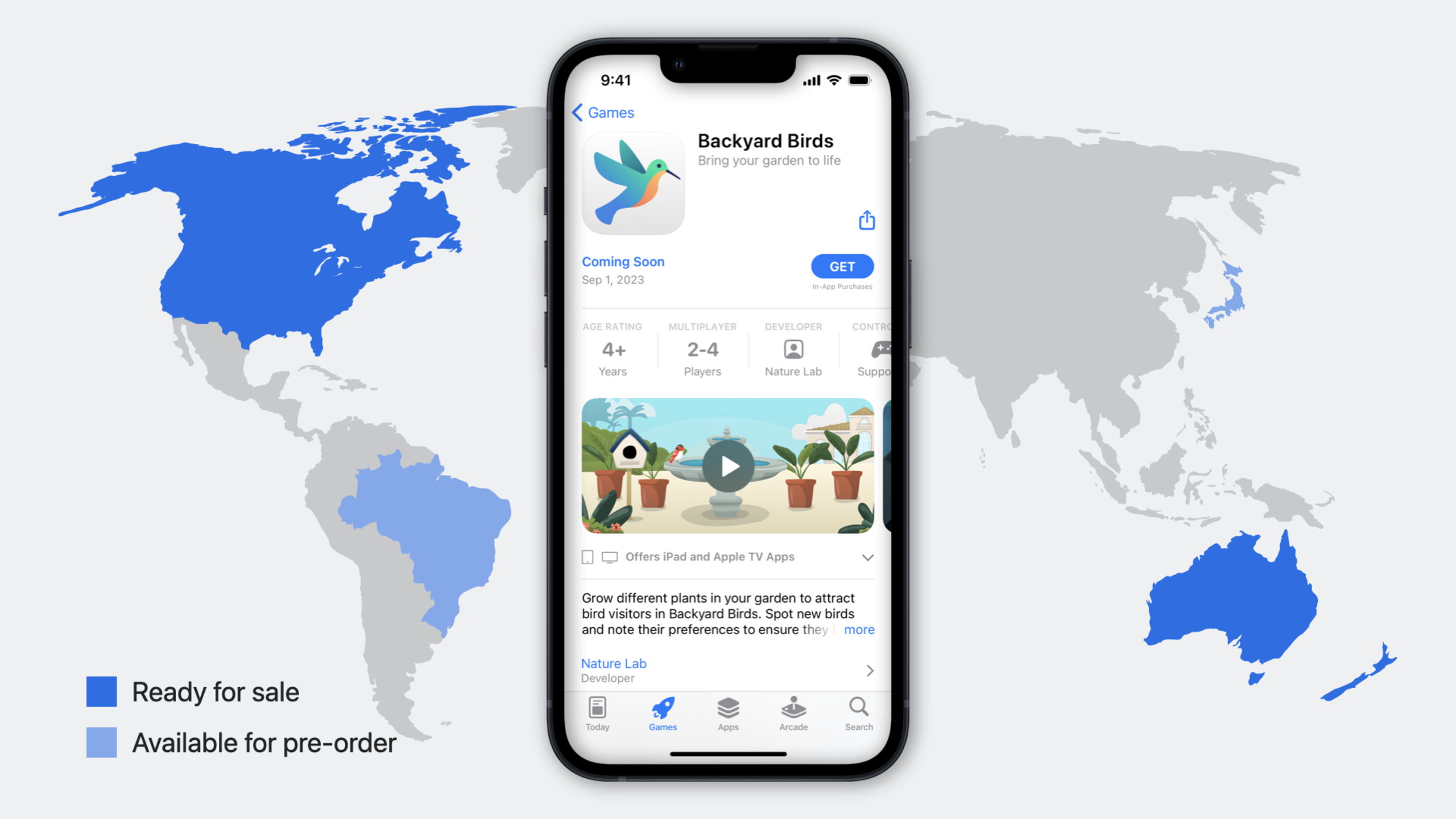
WWDC23 introduced regional pre-order publishing for the App Store: developers can open pre-orders only in selected countries or regions, already-live apps can use pre-orders when expanding to new regions, and release dates can be set up to 365 days in advance.
Core Content
Previously, App Store pre-orders were a global switch. Turn it on and every region entered pre-order status at once; turn it off and no region showed the pre-order button. For developers who wanted to test the waters in one market before rolling out gradually, this design was inflexible.
WWDC23 addressed this. App Store Connect’s pre-order feature received three key updates.
First, manage pre-orders by region. Brand-new unreleased apps can open pre-orders in only selected countries or regions. On the “Pricing and Availability” page in App Store Connect, check your target regions and the app shows the pre-order button only in those areas. Users in other regions won’t see the app.
Second, already-released apps can use pre-orders when expanding to new regions. This is key support for a “soft launch” strategy. You first release in a small market and validate retention and conversion data. Once the product is stable, open pre-orders in larger markets you’re preparing to enter—users can see the product page, tap the pre-order button, and the app automatically becomes downloadable on your set date. During this period, you can run marketing campaigns to build an early user base.
Third, pre-order date editing is more flexible. For brand-new apps, the pre-order release date can be set up to 180 days out. When an already-released app expands to new regions, it can be set up to 365 days out. You can modify the release date, release early, or cancel pre-orders. But after canceling pre-orders, you cannot reopen pre-orders in the same region, and users who pre-ordered receive a notification—this affects user experience, so frequent cancellation is not recommended.
The Availability page now shows release status by region. Each country or region is labeled “Ready for Sale,” “Pre-Order,” or “Unavailable” for at-a-glance status.
Pre-order apps now also support Custom Product Pages and Product Page Optimization. You can create different screenshot and copy combinations for different regions and use A/B testing to find the highest-converting version. This test data can be tracked by pre-order source in App Analytics.
Detailed Content
Complete workflow for setting up regional pre-orders
(00:30) Setting up regional pre-orders in App Store Connect involves no code at all—everything is done in the web interface.
Step 1: Create an app record and select “Pre-Order”
When creating a new app in App Store Connect, in the “Pricing and Availability” step, set “Release Method” to “Pre-Order.”
Step 2: Select target regions
On the same page below, you’ll see a region list. Uncheck “All Regions,” then manually check the countries or regions where you want to open pre-orders.
Pricing and Availability configuration example:

Release Method: Pre-Order
Pre-Order Start Date: 2023-06-15
Expected Release Date: 2023-09-15

Available Regions:
  ✅ United States
  ✅ United Kingdom
  ✅ Australia
  ❌ Canada
  ❌ Germany
  ✅ Japan
Key points:
- Pre-order start date is when you want users to see the pre-order button
- Expected release date is when the app officially becomes downloadable
- For brand-new apps, the release date can be at most 180 days after the pre-order start date
- When an already-released app expands to new regions, it can be delayed up to 365 days
Step 3: Create custom product pages for different regions
(02:15) Pre-order apps can use Custom Product Pages. Go to the “Custom Product Pages” tab, click “Create,” name the page, and select target regions.
You can create a set of Japanese screenshots and descriptions for the Japan market, and another set of English assets for the US market. Each custom page has its own URL for separate distribution on social media and in ads.
Step 4: Launch product page optimization tests
(03:45) In product page optimization tests, you can create multiple alternative product pages for the same region, each with different screenshots, icons, or descriptions. The App Store randomly shows different versions to users at your set ratio and reports each version’s conversion rate in App Analytics.
Product page optimization test configuration example:

Test Name: Pre-Order Page A/B Test
Test Region: United States
Traffic Allocation:
  Original Page: 50%
  Variant A (New Screenshots): 25%
  Variant B (New Description): 25%
Key points:
- You can run A/B tests during the pre-order phase without waiting for official release
- Test results appear in App Analytics under “Acquisition Sources” by pre-order channel
- After the test ends, choose the highest-converting version as the official product page
Pre-orders when expanding an already-released app to new regions
(05:00) For apps already live in some regions, go to the “Pricing and Availability” page and click “Add Region” below the region list. In the new region, you can choose “Release Immediately” or “Pre-Order.”
After selecting “Pre-Order,” set the release date (up to 365 days out) and users in that region will see the pre-order button. The app’s existing version automatically opens for download in that region on the set date.
This workflow does not require submitting a new app version—all settings are done in App Store Connect’s backend and take effect immediately.
Viewing and managing pre-order status
(06:30) The Availability page shows status by region. Each region displays one of three possible states:
- Ready for Sale: The app is officially live; users can download directly
- Pre-Order: The app is in pre-order status, showing the expected release date
- Unavailable: The region is not available
You can modify the pre-order release date at any time (earlier or later), or immediately convert pre-orders to official release. After modification, users who pre-ordered automatically receive the app on release day.
Core Takeaways
1. Soft launch for indie developer utility apps
First officially release in a small English market like New Zealand or Australia, and use 2–4 weeks to validate retention and crash rates. Once metrics meet targets, open pre-orders in larger markets like the US and UK, paired with channels like Product Hunt. Users accumulated during pre-orders automatically convert on release day, creating a first-day download spike that helps chart rankings.
Getting started: App Store Connect > New App > Release Method: Pre-Order > Check only target small markets.
2. Create localized pre-order pages for different regions
Use Custom Product Pages to create localized screenshots and descriptions for key markets like Japan, Korea, and Europe. Each page generates a unique URL for social media ads in the corresponding region. Track conversion rates by pre-order source for each region in App Analytics.
Getting started: App Store Connect > Custom Product Pages > Create > Select target region > Upload localized assets.
3. Run product page optimization tests during pre-order
Don’t wait until official release to run A/B tests. Create 2–3 product page variants during pre-order to test how different screenshot order and headline copy affect pre-order conversion. Pre-order data isn’t the same as final download data, but it effectively reflects product page appeal.
Getting started: App Store Connect > Product Page Optimization > Create Test > Select target region for pre-order page > Set traffic allocation.
4. Use pre-order data to guide pricing strategy
After setting different prices by region, observe pre-order volume differences. Combine with pre-order conversion funnel data in App Analytics to adjust pricing before official release. Pre-order data is more reliable than survey research because it reflects real purchase intent.
Getting started: App Store Connect > Pricing and Availability > Set prices by region > App Analytics > Acquisition Sources > Pre-Order channel.
5. Warm-up marketing for subscription apps
Subscription apps are especially well suited to pre-orders. Open pre-orders 1–2 months ahead, with ongoing exposure through social media and email lists. Users don’t pay when pre-ordering—subscriptions start at download—so the pre-order barrier is low with minimal conversion friction. On release day, users receive a notification, download, and start a free trial, giving you a batch of trial users on day one.
Getting started: Set release date (recommend opening pre-orders 30–60 days before release) > Configure pre-order page > Publish pre-order link on social media.
Related Sessions
- Meet StoreKit for SwiftUI — StoreKit for SwiftUI provides three new view components to add in-app purchase pages to your app with just a few lines of code
- Explore testing in-app purchases — Learn the differences and new features of StoreKit Testing in Xcode, Sandbox, and TestFlight
- What’s new in App Store Connect — App Store Connect received multiple updates at WWDC23, including more flexible product page management and analytics tools
- Explore App Store Connect for SwiftUI — The App Store Connect API added a Swift client for managing app metadata directly in Swift projects
- Meet the App Store Server Library — The App Store Server Library helps developers handle server-side receipt validation and subscription status notifications
Comments
GitHub Issues · utterances